Sync fuel purchases
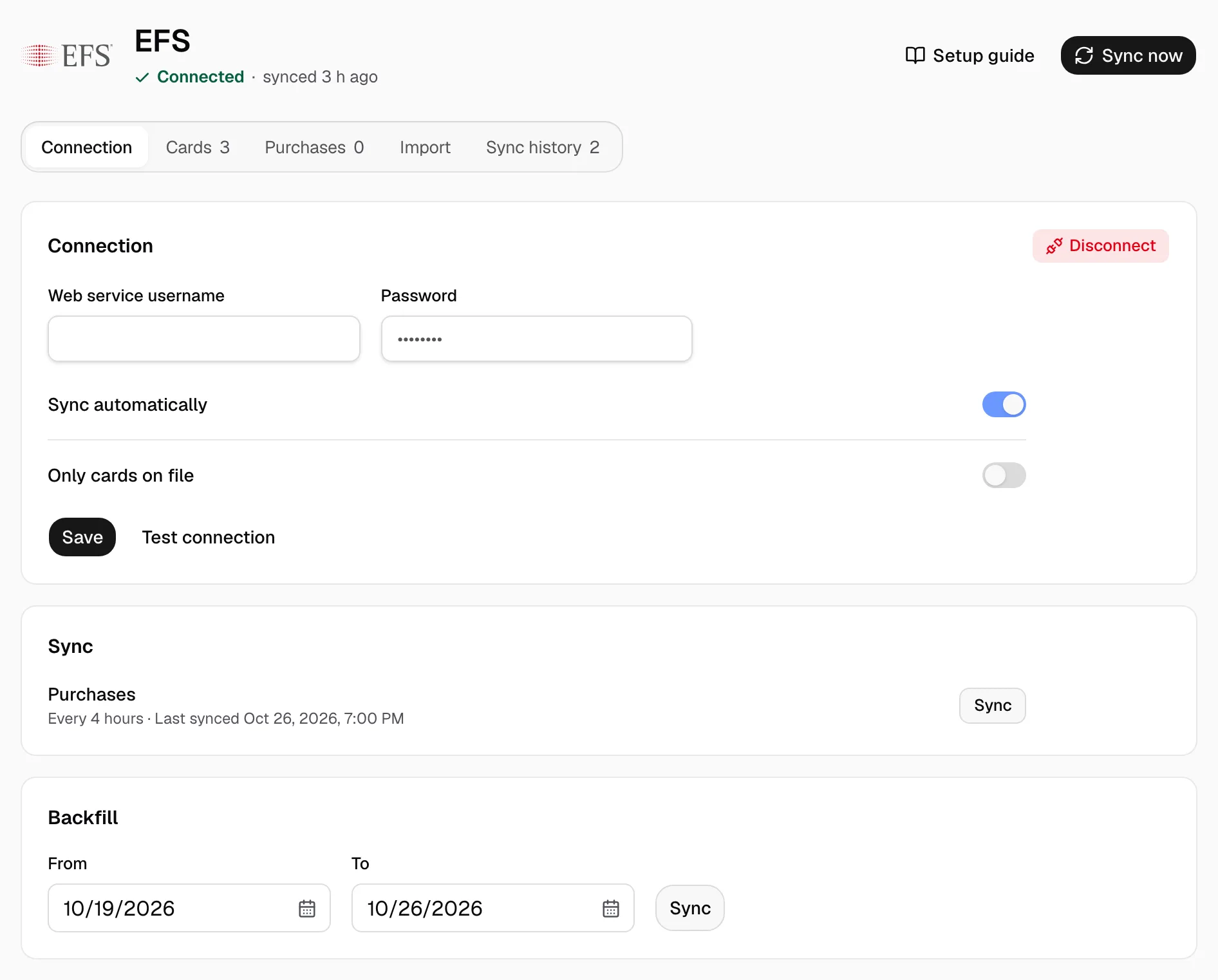
A connected fuel account syncs on its own while Sync automatically is on, at fixed times in your company's time zone, starting at midnight. A card company's web service is read every 4 hours. A report file folder is read twice a day, at midnight and noon. The Connection tab shows the schedule under Sync.
Step 1: Sync new purchases
- Open Integrations, then your fuel card company.
- Click Sync now at the top right.
Step 2: Sync older dates
- On the Connection tab, find Backfill.
- Pick From and To, then click Sync.
Step 3: Check the result
- Open Sync history. Each sync shows New, Already here and Needs review.
- A purchase to review needs a driver. See Match purchases that have no driver.

If the page reads Map your first file, click Map file, match the columns, then click Save mapping. Every later file in the folder imports on its own. If it reads Needs attention, the line under Connection says what to fix.
Still missing a purchase? See Find a missing fuel purchase.