Compass setup guide1 min read
Connect Compass to Yolda
Automatic reading of Compass purchases is not switched on yet: Test connection says so and saves nothing. Today, bring your purchases in with Import, as Import Compass purchases shows. The steps below connect your account once it is on.
Step 1: Ask Compass to activate Yolda
- Send Compass this email to ask for the integration to be activated.
Email to send
- To
- stefan@compasspaymentservices.com
- Cc
- cps@compasspaymentservices.com
- Subject
- Activate the Yolda integration for our Compass account
Hello,

We use Yolda as our TMS. Please activate the Compass integration for Yolda on our account, and tell us which Customer ID and password to enter in Yolda.

Company: [Your company name]
MC number: [Your MC number]

Thank you,
[Your name]
[Your email]
[Your company phone]
Replace the marked blanks before you send or paste.
Step 2: Open Compass in Yolda
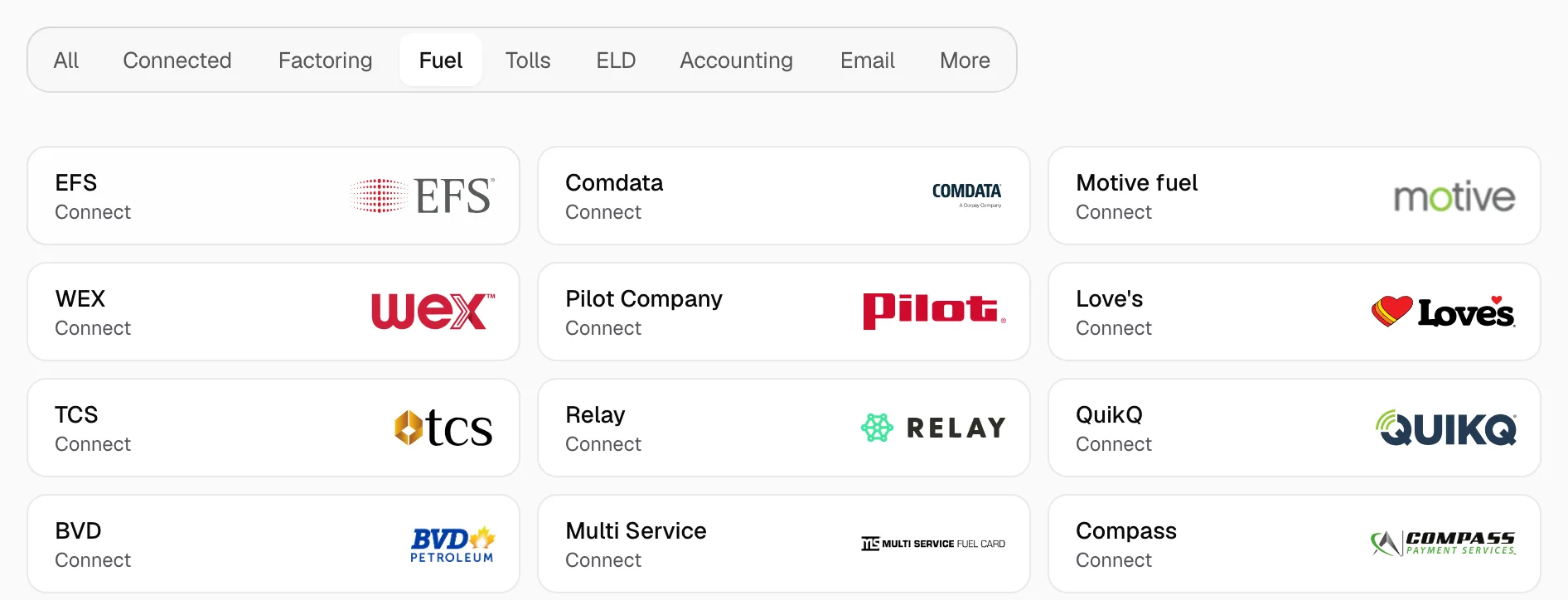
- Open Integrations, click Fuel, then click Compass.
Step 3: Enter your Customer ID and password
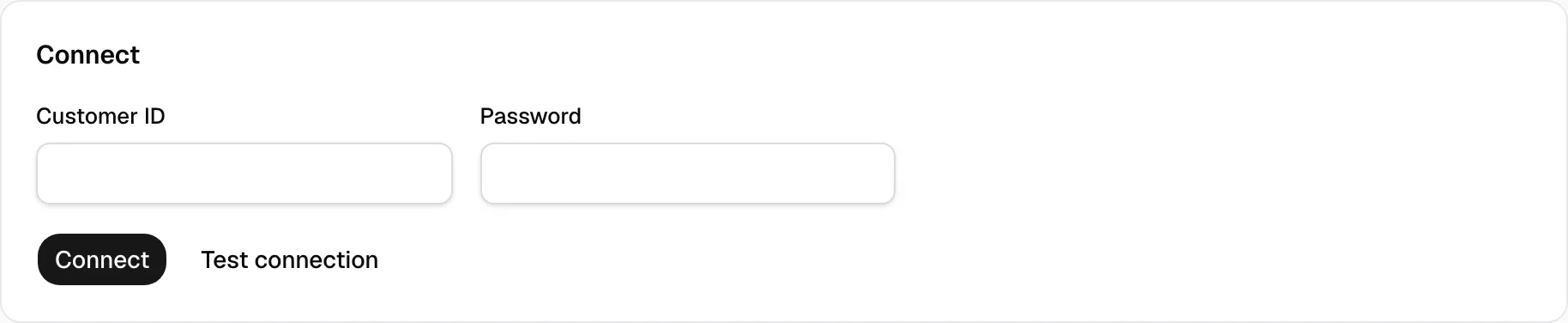
- Enter your Compass Customer ID and Password.
- Click Test connection first. When it passes, click Connect.
Step 4: Check that it works
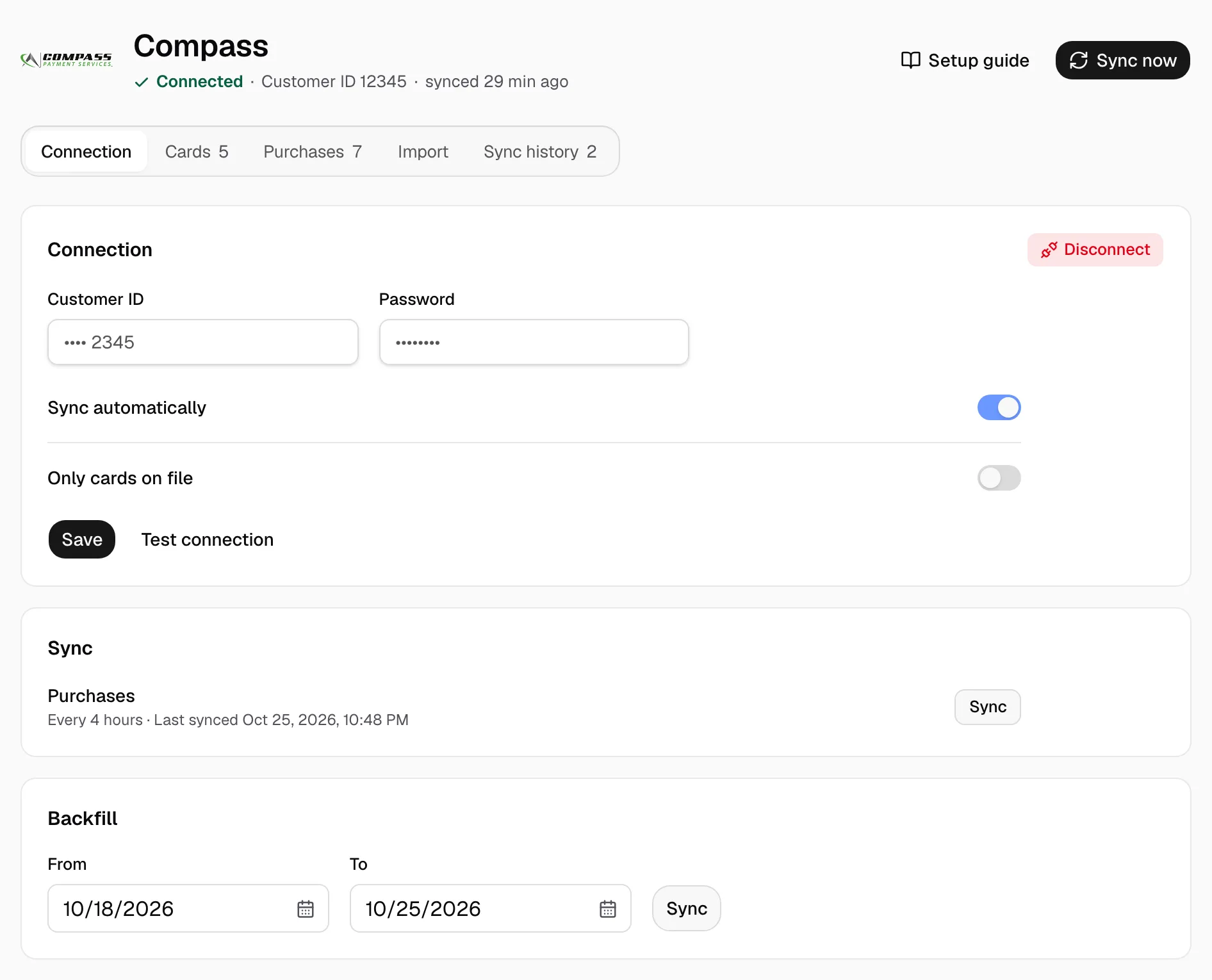
- The page reads Connected with your Customer ID, and Sync automatically is on. Sync shows Every 4 hours, starting at midnight in your company's time zone. Click Sync now to read new purchases at once.
- Keep Only cards on file off; turn it on and click Save to keep out cards not listed under Cards.
- Backfill reads older days: pick From and To, then click Sync.
- Purchases appear on the Purchases tab. On Cards, give each card its Driver and Truck; the driver's pay agreement decides who pays.