 BVD setup guide1 min read
Connect BVD fuel cards to Yolda
Yolda reads your BVD fuel card purchases every 4 hours, from 12 AM your company's time.
Step 1: Get an API token from BVD
- Email your BVD rep for an API token for a TMS integration. No rep? Call
1-888-203-8484.
Email to send
- To
- [Your BVD rep's email]
- Cc
- support@bvdpetroleum.com
- Subject
- API token for a TMS integration
Hello,

We use Yolda as our TMS. Please issue an API token for a TMS integration so Yolda can read our BVD fuel card transactions. It only needs to view transactions. Please also tell us our BVD Company ID.

Company: [Your company name]
MC number: [Your MC number]
DOT number: [Your DOT number]

Thank you,
[Your name]
[Your email]
[Your company phone]
Replace the marked blanks before you send or paste.
- No token? A BVD Petroleum Portal user (Company Accountant, View Transactions) works too, unless BVD asks it for a verification code.
Step 2: Open BVD in Yolda
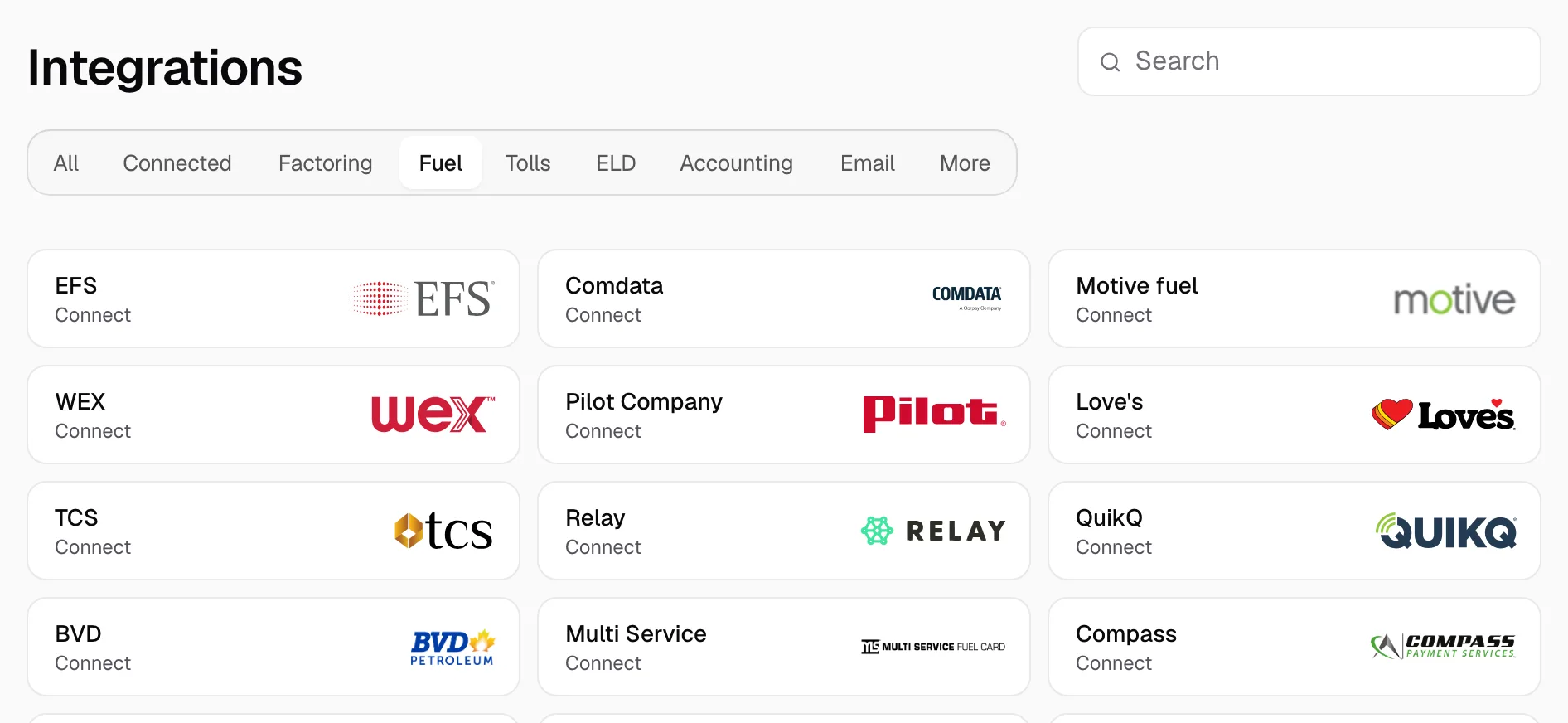
- Open Integrations, click Fuel, then BVD.
Step 3: Enter your token
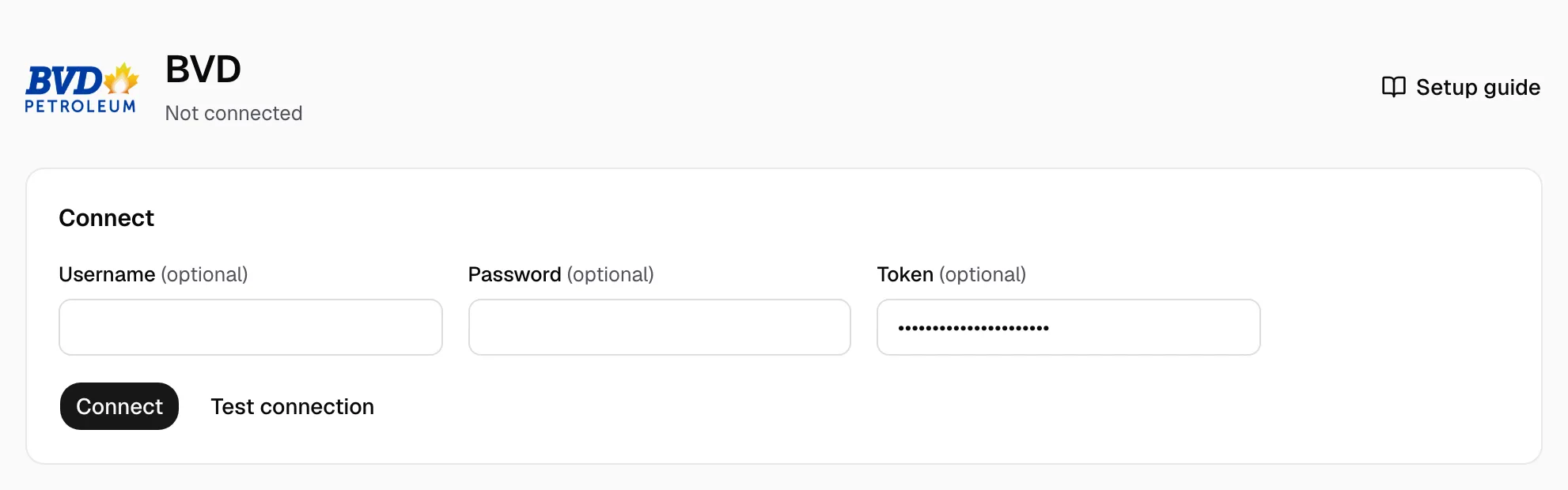
- Leave Username and Password empty and paste the token in Token. A portal user goes in those two boxes instead.
- Click Test connection. Yolda names the BVD account.
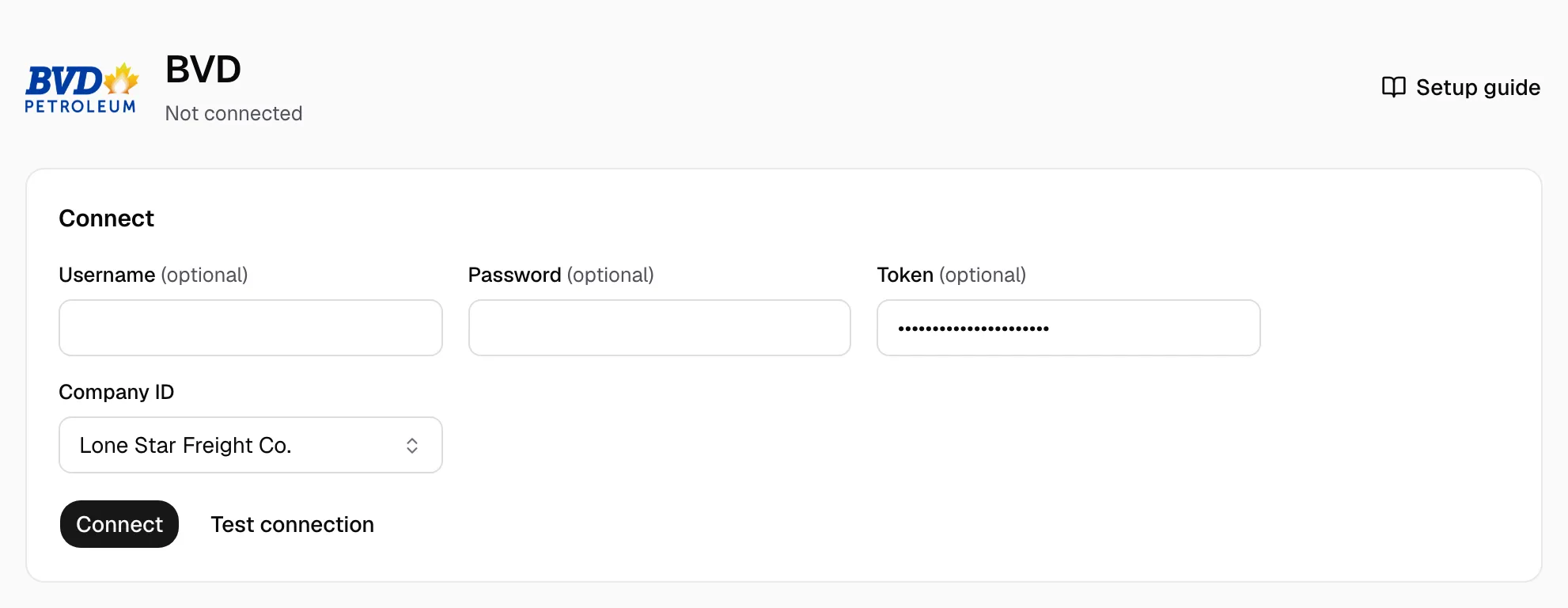
- Several accounts? Pick yours in Company ID, or type the Company ID BVD gave you when asked.
- Click Connect.
Step 4: Check that it works
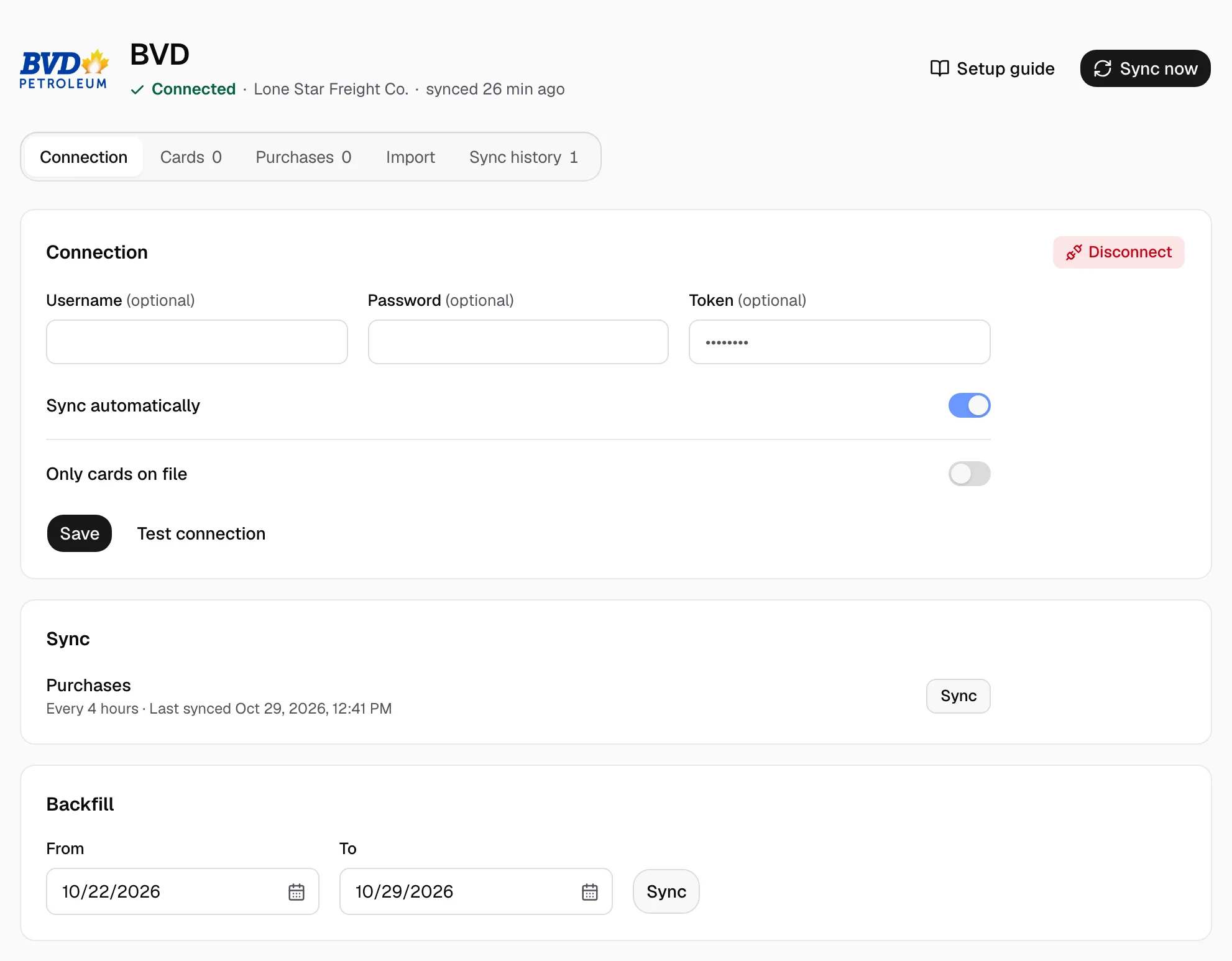
- The page reads Connected. Keep Sync automatically on and Only cards on file off. Sync now syncs at once; Backfill reads older days (From, To, Sync). Disconnect stops syncing; purchases stay.
- Purchases show on Purchases. A Canadian or DEF purchase waits under Provider changes as Held: click its number, enter the U.S. amounts from your BVD invoice in Receipt total, before discount and Discount, click Save changes, then Review and Release.
- A portal password BVD refused is never sent again: type it in Password and click Save.