Comdata setup guide1 min read
Connect Comdata to Yolda
Yolda reads Comdata's own fuel cards; drop Comdata Mastercard reports under Import.
Step 1: Ask Comdata for your logins
- Send this email, or ask your Comdata representative.
- Comdata sends an Excel file and a separate FTP login.
- Your account code (AB123 or A-123) is in iConnectData, Payment Center, My Invoices.
Email to send
- To
- fleetsupport@comdata.com
- Cc
- regionalfleettrr@comdata.com
- Subject
- Web Services and SFTP access for our Comdata account
Hello,

We are setting up Yolda as our TMS. Please send us:

1. A Web Services username and password for our Comdata account, with Proprietary Intraday enabled in iConnectData, under the Registration Module for Web Services.
2. Our 5-character account code.
3. The SFTP host, port, username and password of the Connect mailbox for our standard fuel file (FM00001), and its folder if it has one.

Our company is [Your company name], MC number [Your MC number].

Thank you,
[Your name]
[Your company name]
[Your email]
Replace the marked blanks before you send or paste.
Step 2: Open Comdata in Yolda
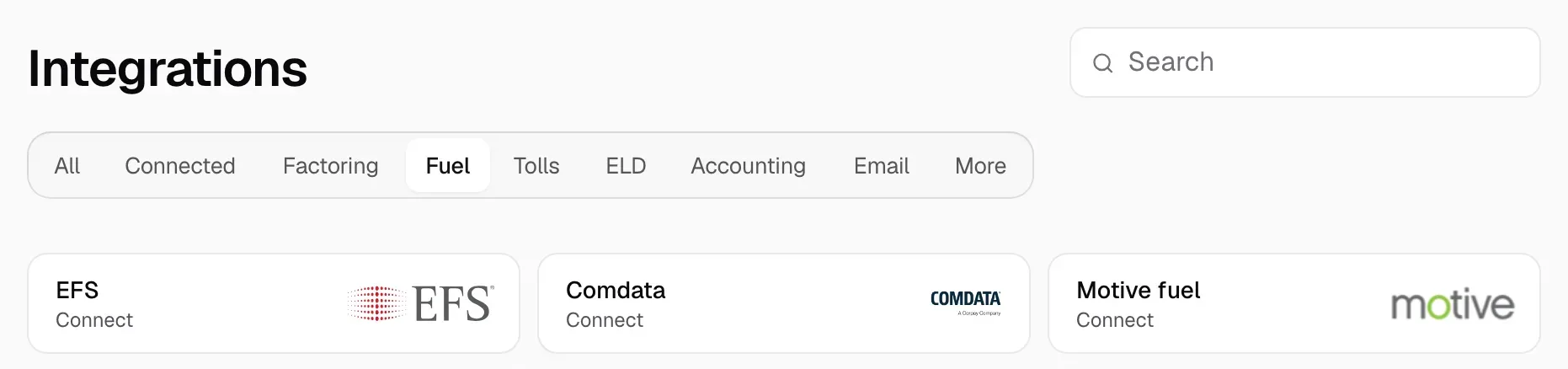
- Open Integrations, then Fuel, and click Comdata.
Step 3: Enter your login
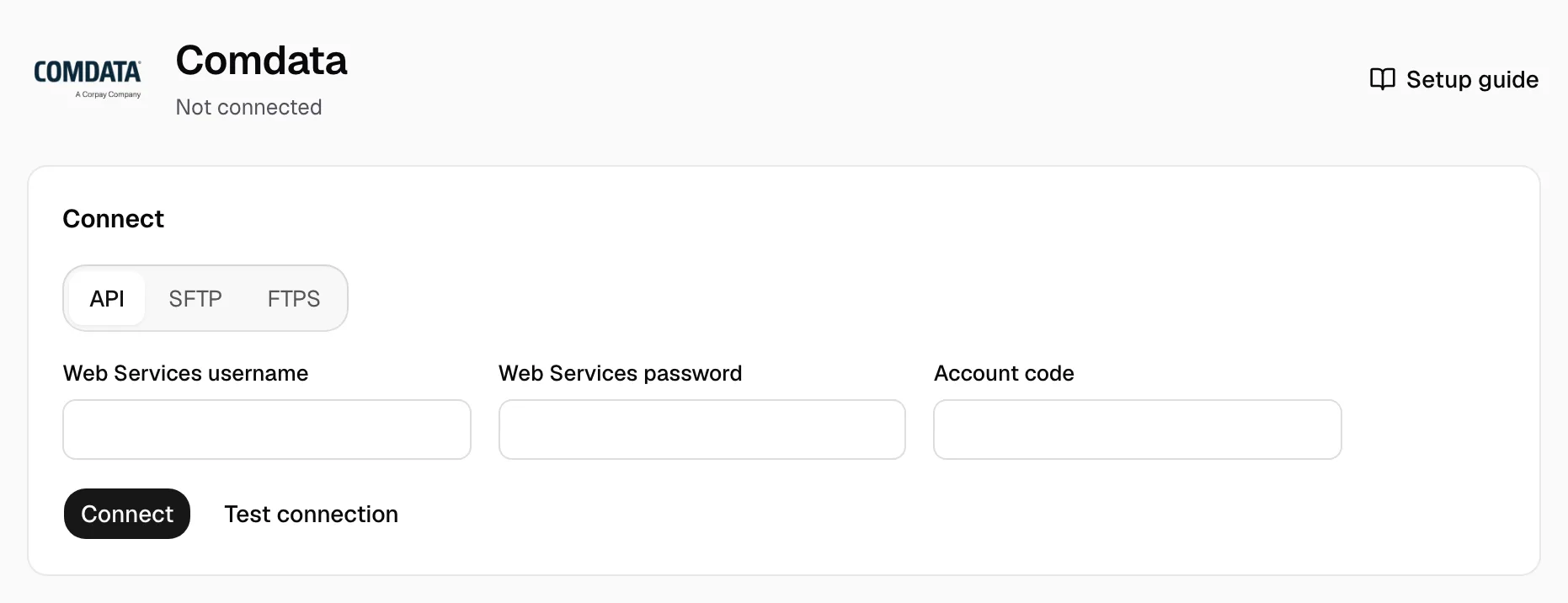
- On the API tab, enter the file's WSS SignOn Name and Password in Web Services username and Web Services password, then Account code.
- Click Test connection, then Connect.
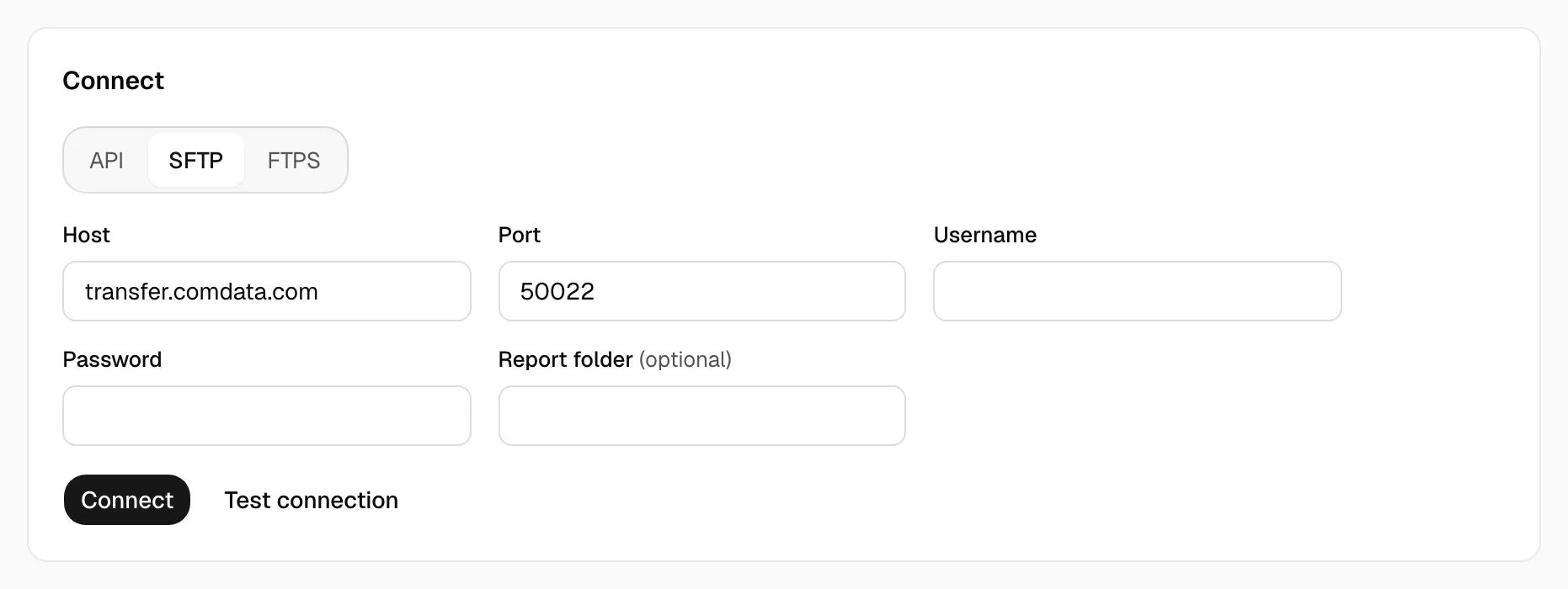
To read the fuel file instead, use the SFTP tab (FTPS for an FTPS login): keep Host and Port unless Comdata sent others, put the FTP User Name and Password in Username and Password, fill Report folder only if Comdata named one, then click Test connection and Connect.
Step 4: Check that it works
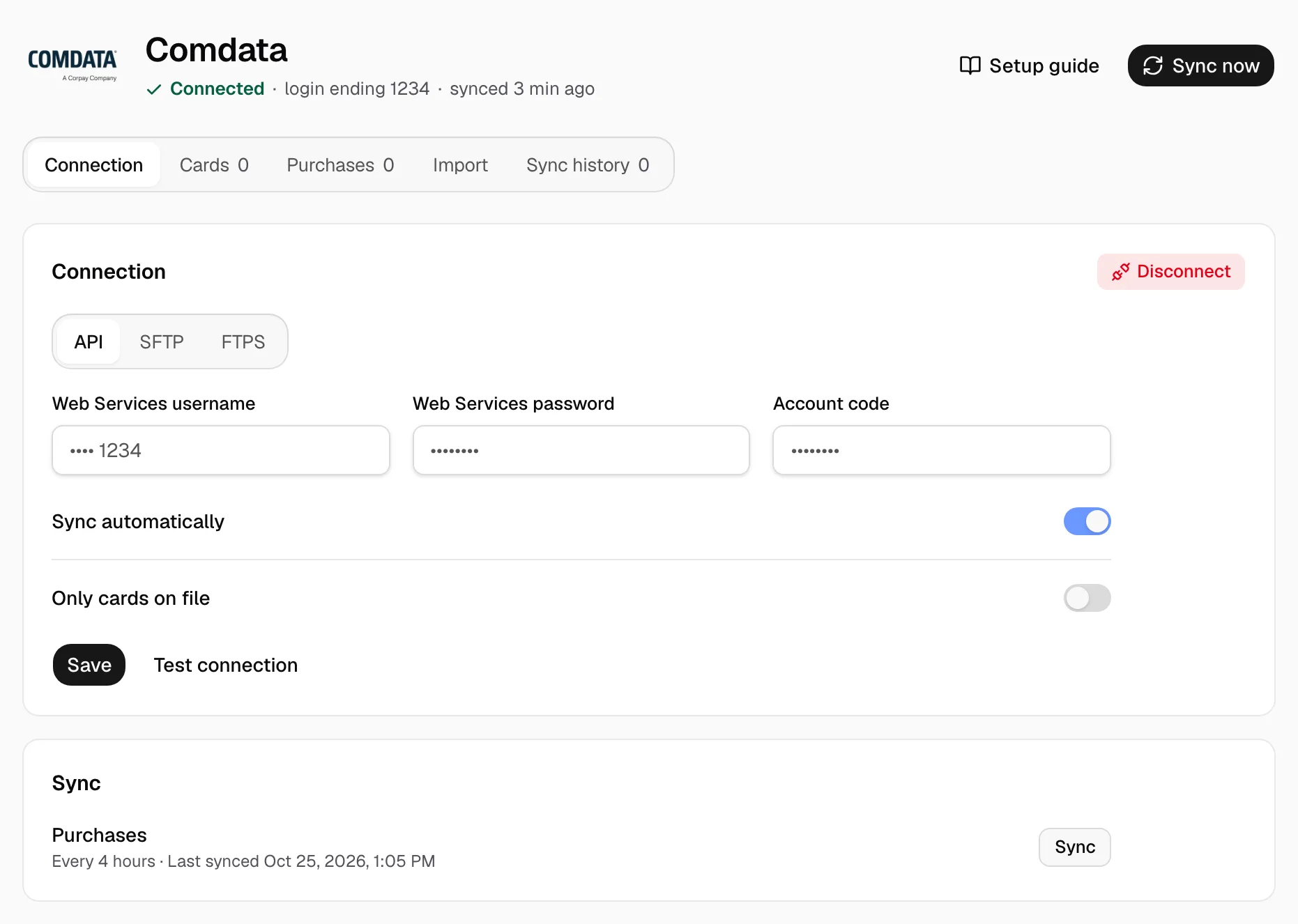
- The page shows Connected. Keep Sync automatically on, Only cards on file off. Yolda syncs every 4 hours from midnight, your time (the file twice a day). Sync now syncs at once.
- Purchases show under Purchases. Give each card its driver and truck under Cards.
- Comdata keeps 7 days. For older days, drop iConnectData's TMR Individual Transaction Price Summary (Reporting, reportQ, Excel Download), saved as .xlsx or CSV, under Import.