Match purchases that have no driver
Yolda gives each purchase to whoever held its card that day, or to the driver of the unit typed at the pump. A purchase it cannot place waits for you.
Step 1: Find the purchases
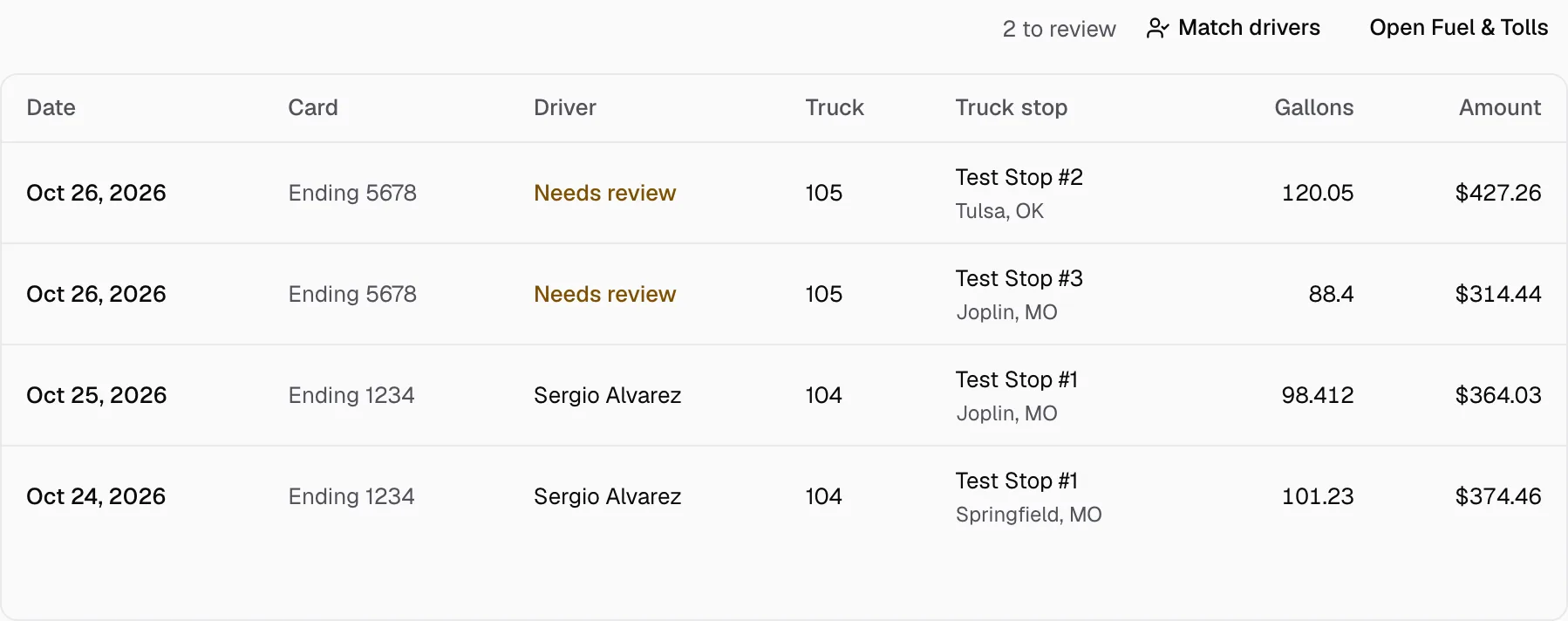
- Open Integrations, then your fuel card company, then Purchases.
- A purchase with no driver reads Needs review.
Step 2: Match drivers
- Click Match drivers.
- Yolda places each waiting purchase by its card, the unit and driver ID typed at the pump, and who drove that truck on the purchase date. It says how many it matched.
Step 3: Put a driver on the card
For a purchase still marked Needs review:
- Open the Cards tab and click its card. It reads Nobody yet.
- Pick the Driver and Truck, set Holding the card since, then click Save.
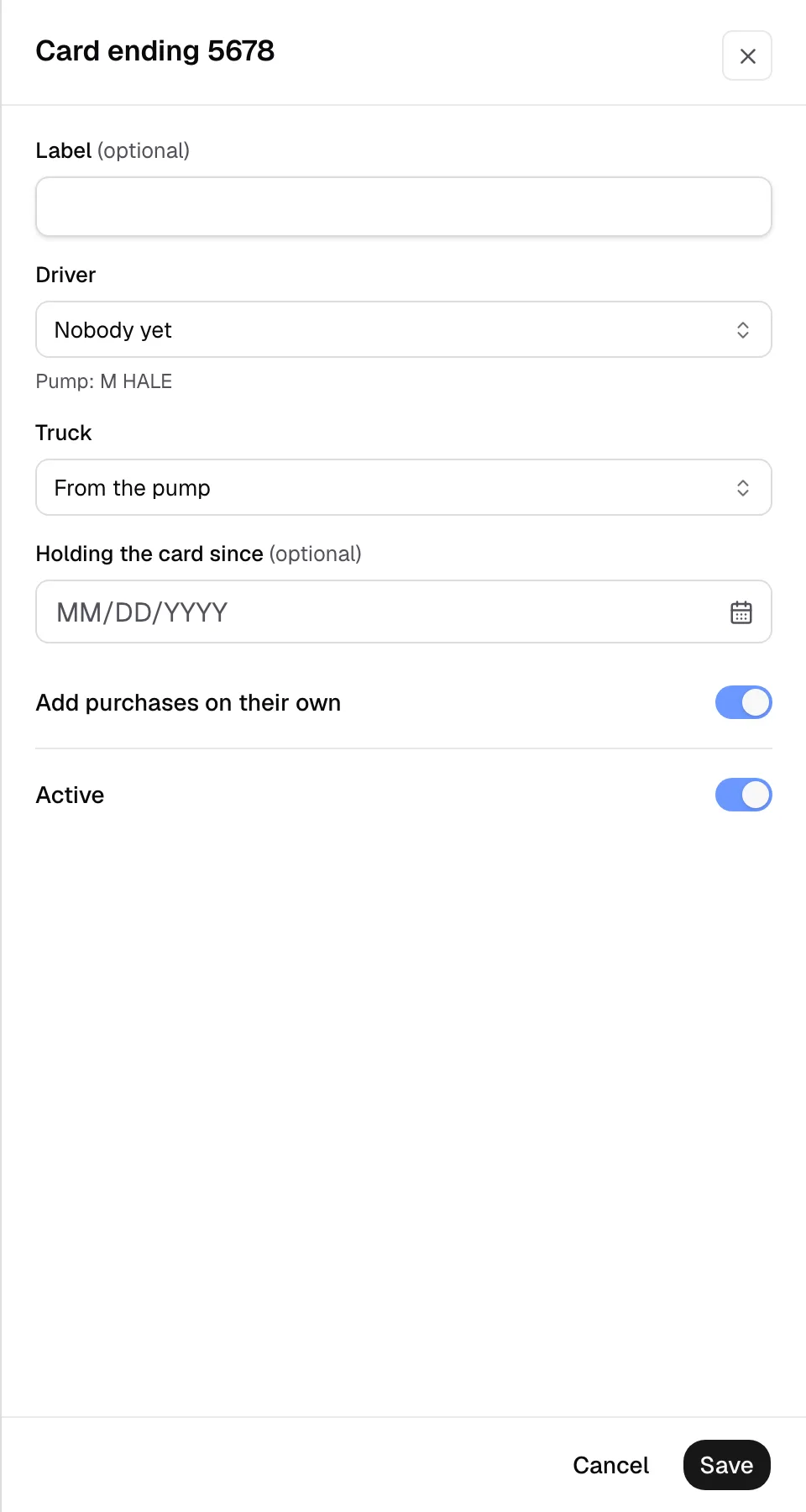
Yolda gives the card's purchases from that day on to the driver. Fix any purchase still marked Needs review in Fuel & Tolls.