 EFS setup guide1 min read
Connect EFS to Yolda
Yolda reads your EFS and Fleet One card purchases every 4 hours, starting at your company's midnight.
Step 1: Ask EFS for a web service login
- In EFS or Fleet One eManager, note your Carrier ID. Your Contract ID is under Select Program, Credit Management, Available Credit.
- Send EFS this email. If EFS agrees, it emails a username starting with
ws(Fleet One:FLT_ws) and a password, not your eManager login. - If EFS says no, use Import instead.
Email to send
- To
- EFSWEX-customersoftwaresupport@wexinc.com
- Subject
- Card Management web service login for Yolda
Hello,

We use Yolda as our TMS. Please create a Card Management web service login for our carrier, to read our card transactions, and allow Yolda's server address 52.73.111.217.

Customer name: [Your company name]
Carrier ID: [Your Carrier ID]
Contract ID: [Your Contract ID]
Master Contract ID: [Your Master Contract ID, if you have one]

Thank you,
[Your name]
[Your email]
[Your company phone]
Replace the marked blanks before you send or paste.
Step 2: Open EFS in Yolda
- Open Integrations, click Fuel, then click EFS.

Step 3: Enter the login EFS sent
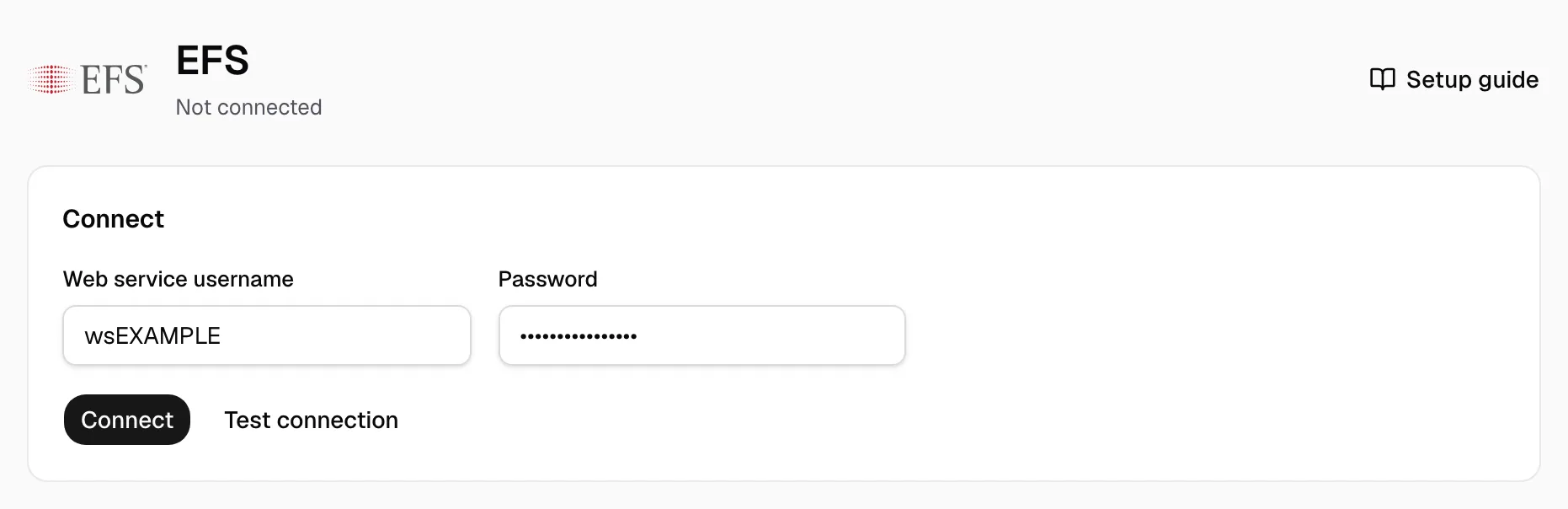
- Enter the Web service username and Password from EFS's email.
- Click Connect. Yolda checks the login first.
- Test connection checks it without saving and names the carrier.

Step 4: Check that it works
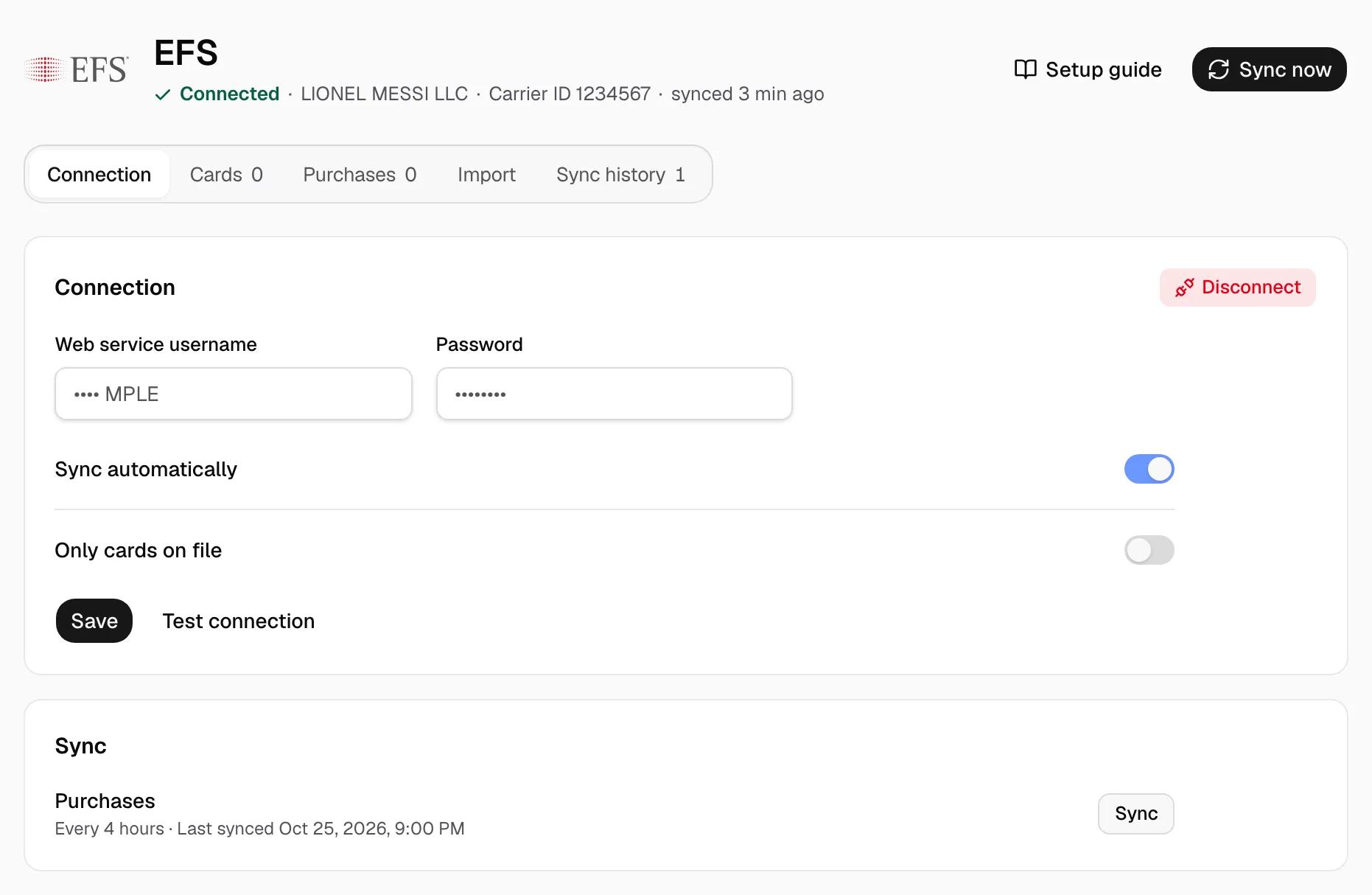
- The page reads Connected with your carrier. Sync shows Every 4 hours and the last sync. Click Sync now to read new purchases at once.
- Purchases appear on the Purchases tab. On Cards, give each card its driver and truck; the driver's pay agreement decides who pays.
A Canadian purchase, or one whose totals do not add up, waits under Provider changes until you click Release. Cash loads and ATM withdrawals wait under Other card activity. For past months, drop eManager's Transaction Report (Reports/Exports, Excel) on Import.