Connect BFD to Yolda
A BFD card runs on EFS or on QuikQ; ask BFD if you are not sure which. This page reads BFD cards on EFS every 4 hours, starting at midnight in your company's time zone. For a BFD card on QuikQ, connect QuikQ instead.
Step 1: Ask EFS for a web service login
- Find your EFS Carrier ID in eManager, or ask BFD for it.
- Send EFS this email, with BFD copied. If EFS agrees, it emails back a username starting with
wsand a password. - If EFS says no, drop eManager's Transaction Report on Import instead.
Email to send
- To
- EFSWEX-customersoftwaresupport@wexinc.com
- Cc
- admin@bfdinfo.com
- Subject
- Card Management web service login for Yolda
Hello,

We have a BFD fuel card on EFS and use Yolda as our TMS. Please create a Card Management web service login for our carrier, to read our card transactions, and allow Yolda's server address 52.73.111.217.

Customer name: [Your company name]
Carrier ID: [Your Carrier ID]
Contract ID: [Your Contract ID, if you have it]

Thank you,
[Your name]
[Your email]
[Your company phone]
Replace the marked blanks before you send or paste.
Step 2: Open BFD in Yolda
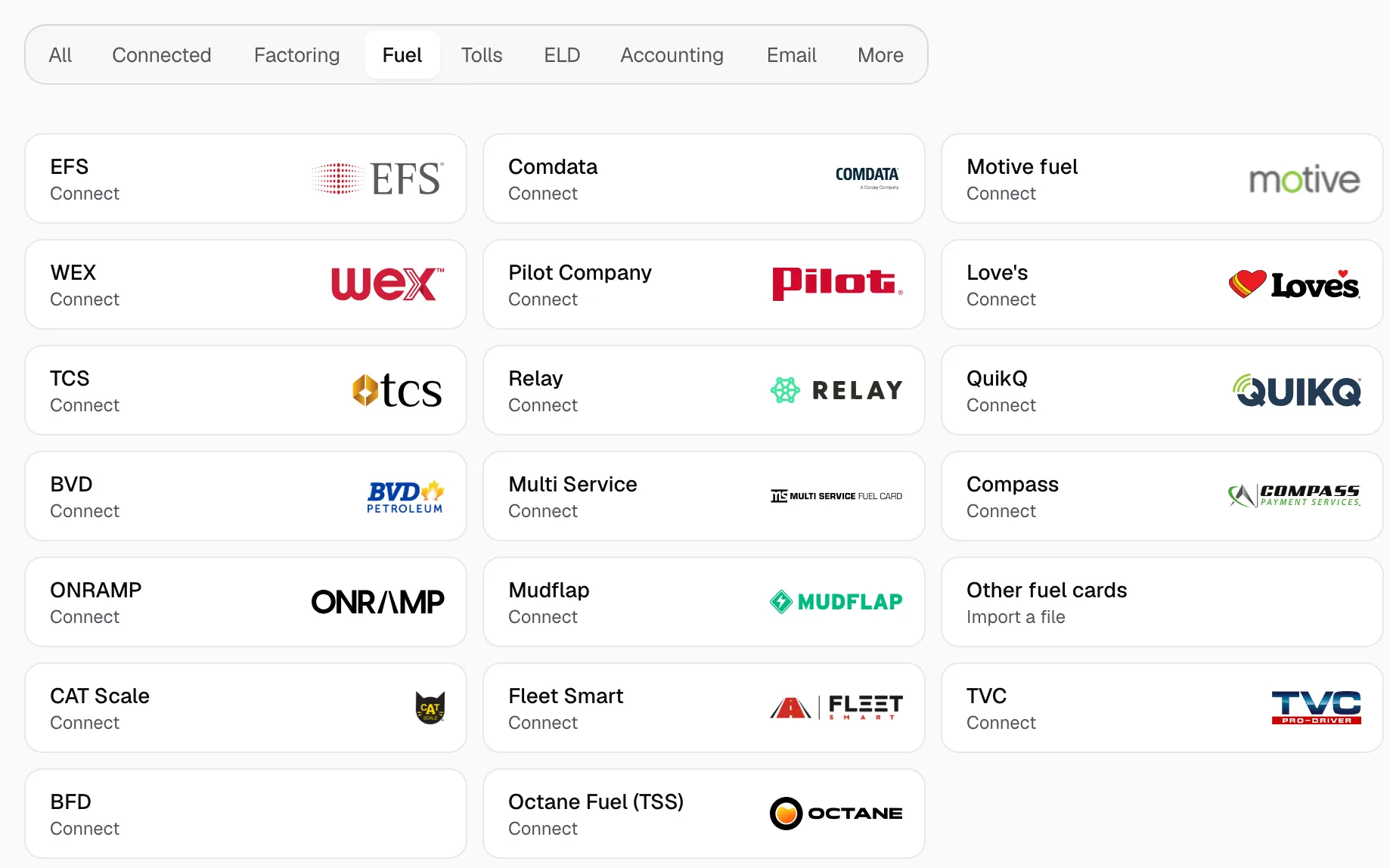
- Open Integrations, click Fuel, then click BFD.
Step 3: Enter the login EFS sent
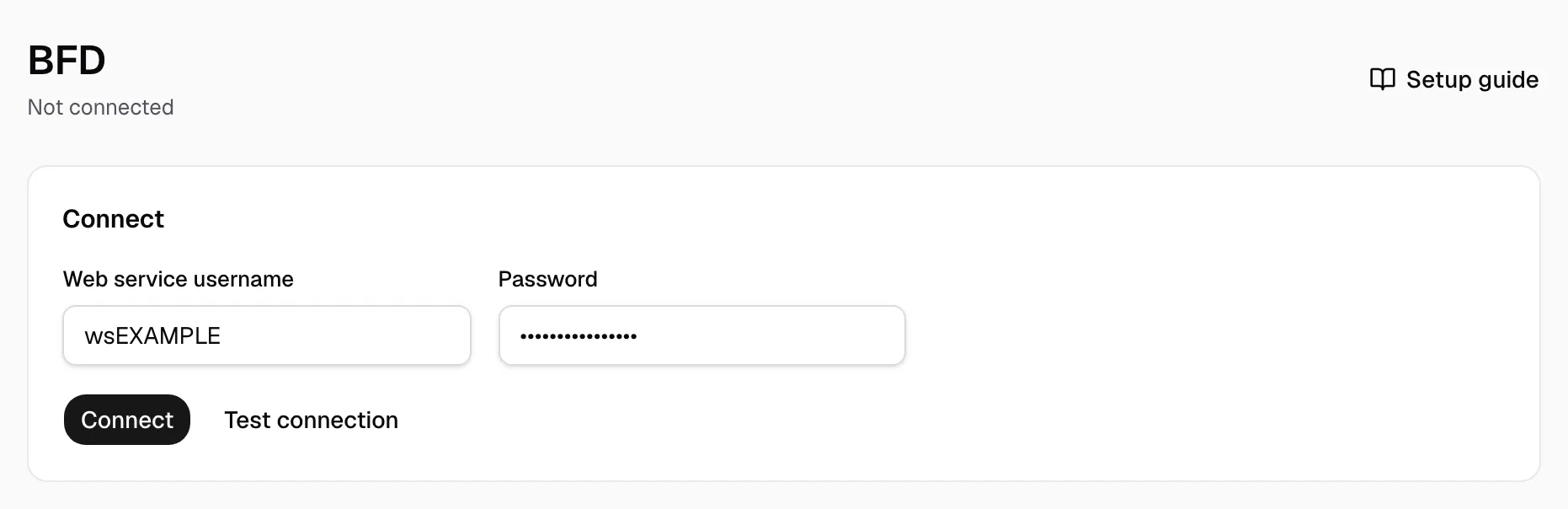
- Enter the Web service username and Password from EFS's email.
- Click Connect. Yolda checks the login first.
- Test connection checks it without saving and names the carrier.

Step 4: Check that it works
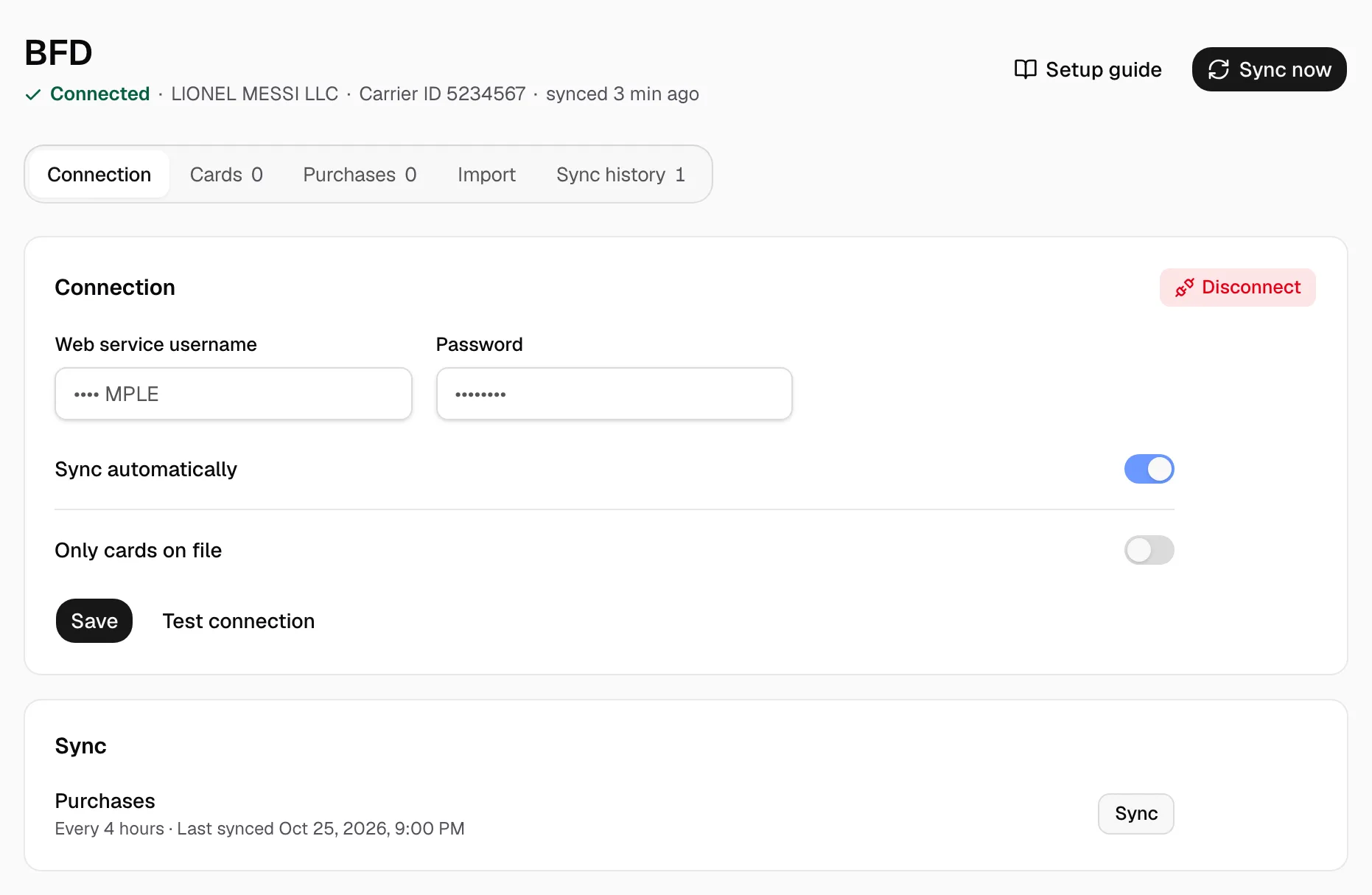
- The page reads Connected with your carrier. Sync shows Every 4 hours and the last sync. Click Sync now to read new purchases at once.
- Purchases appear on the Purchases tab. On Cards, give each card its driver and truck; the driver's pay agreement decides who pays.
BFD's own program fees are not in EFS data; add them as an expense.