 PrePass setup guide1 min read
Connect PrePass by SFTP to Yolda
Yolda reads your daily PrePass toll report over SFTP every 12 hours.
Step 1: Ask PrePass for SFTP access
- Send PrePass this email, or ask your account manager or 1-800-PREPASS (773-7277).
Email to send
- To
- Prepassupdates@prepass.com
- Subject
- SFTP access for Yolda
Hello,

We use Yolda as our TMS. Please send us SFTP access to our daily toll report so Yolda can read it. If our SFTP login is limited by IP address, please allow Yolda's server address 52.73.111.217.

Our MC number is [Your MC number].

Thank you,
[Your name]
[Your company name]
[Your email]
Replace the marked blanks before you send or paste.
- PrePass sends a third-party form. Fill it in with these values.
Values for the provider form
- Authorized Third-Party Name
- Yolda
- Authorized Third-Party Business Name
- Yolda
- Authorized Third-Party Email Address
- partner@sfdify.com
- Requested Frequency
- Daily
- Once PrePass approves it, they email you an SFTP username and password, not your prepass.com login.
Step 2: Open PrePass in Yolda
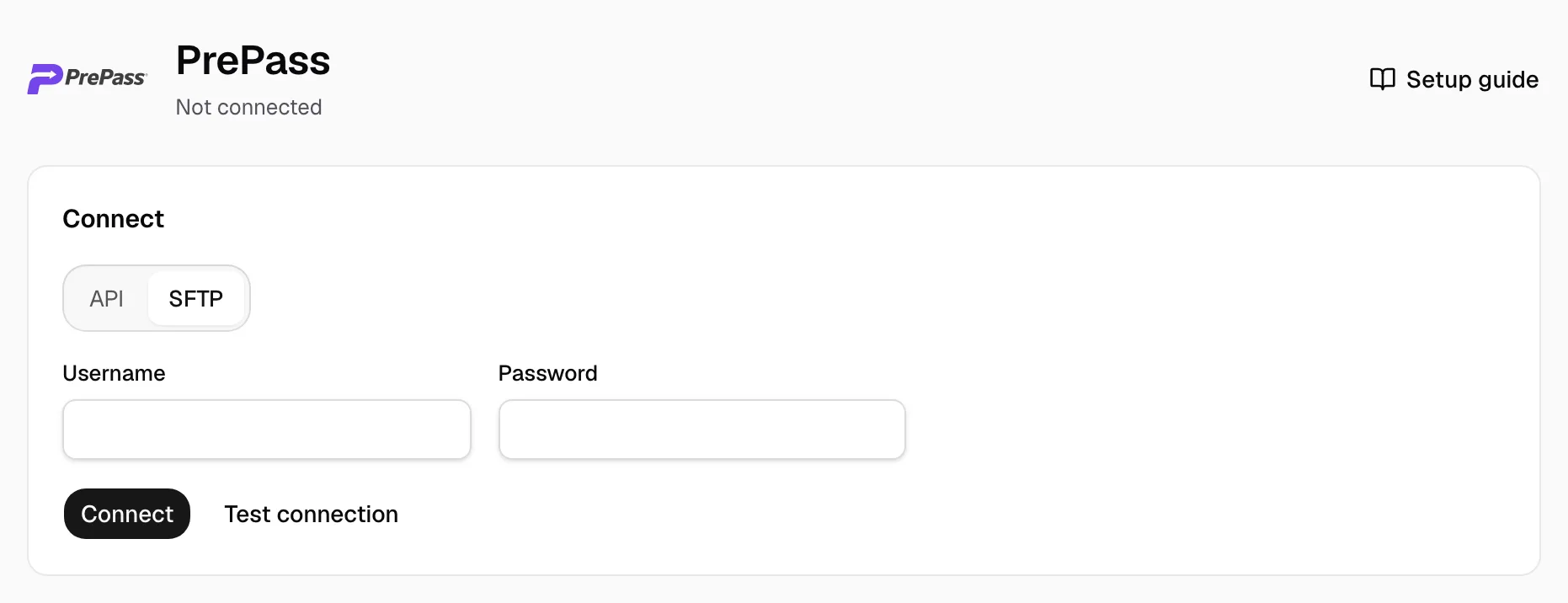
- Open Integrations, then PrePass.
- Under Connect, click SFTP.
Step 3: Enter your SFTP sign-in
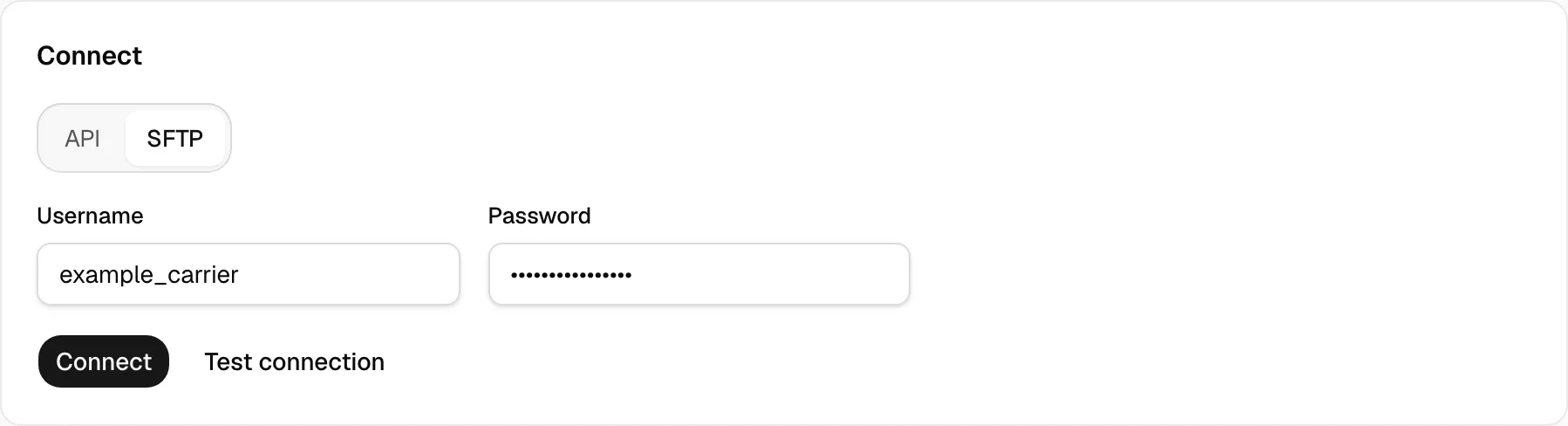
- Enter the Username and Password PrePass sent. Yolda knows PrePass's report server. Skip any token PrePass sends.
- Click Test connection, then Connect.
Step 4: Check that it worked
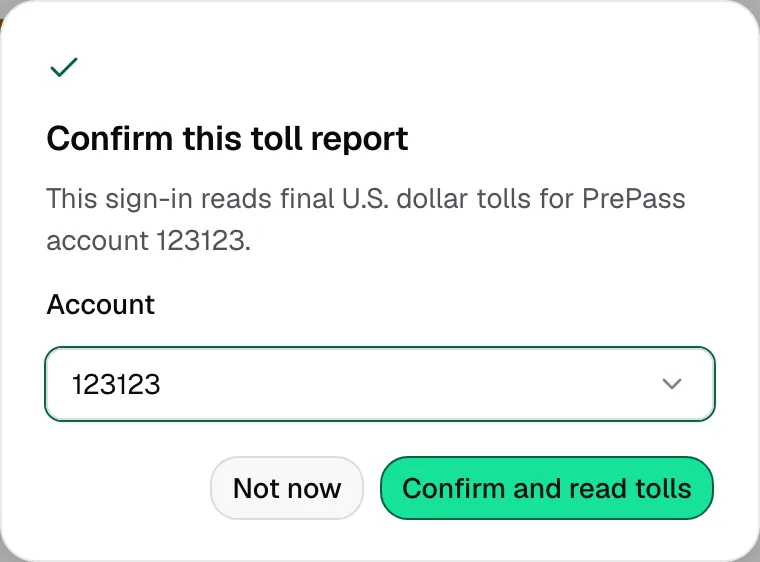
- If the folder holds reports for several accounts, the page shows Confirm this toll report. Click Confirm.
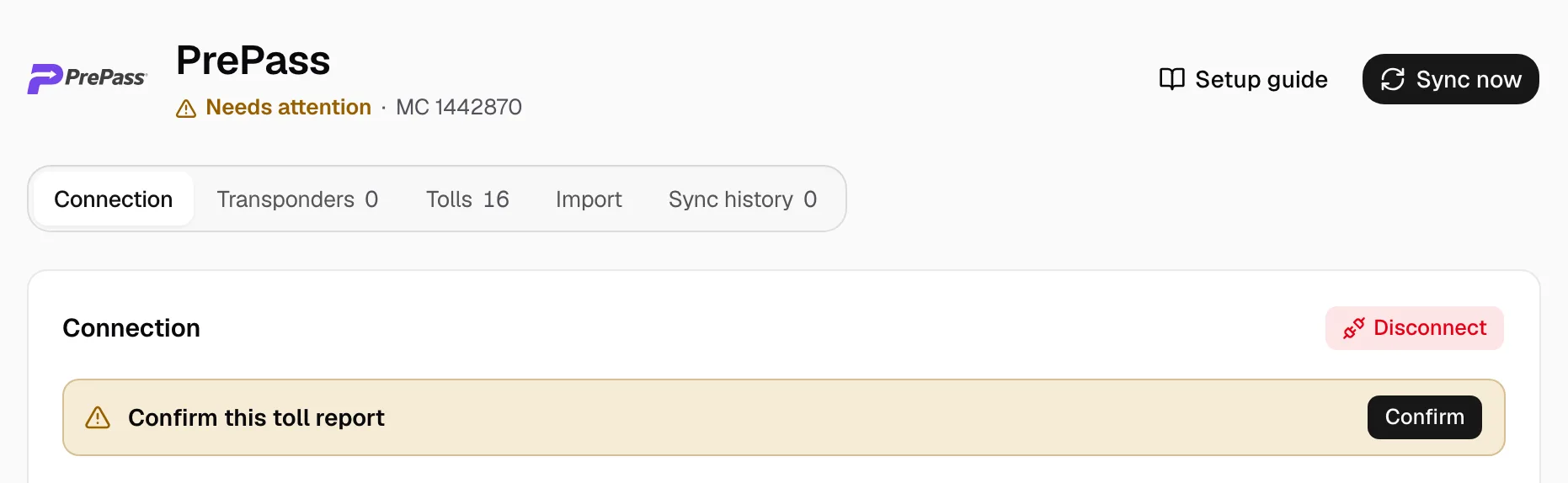
- Choose the Account, then click Confirm and read tolls. Not now closes it; Yolda reads nothing until you confirm.
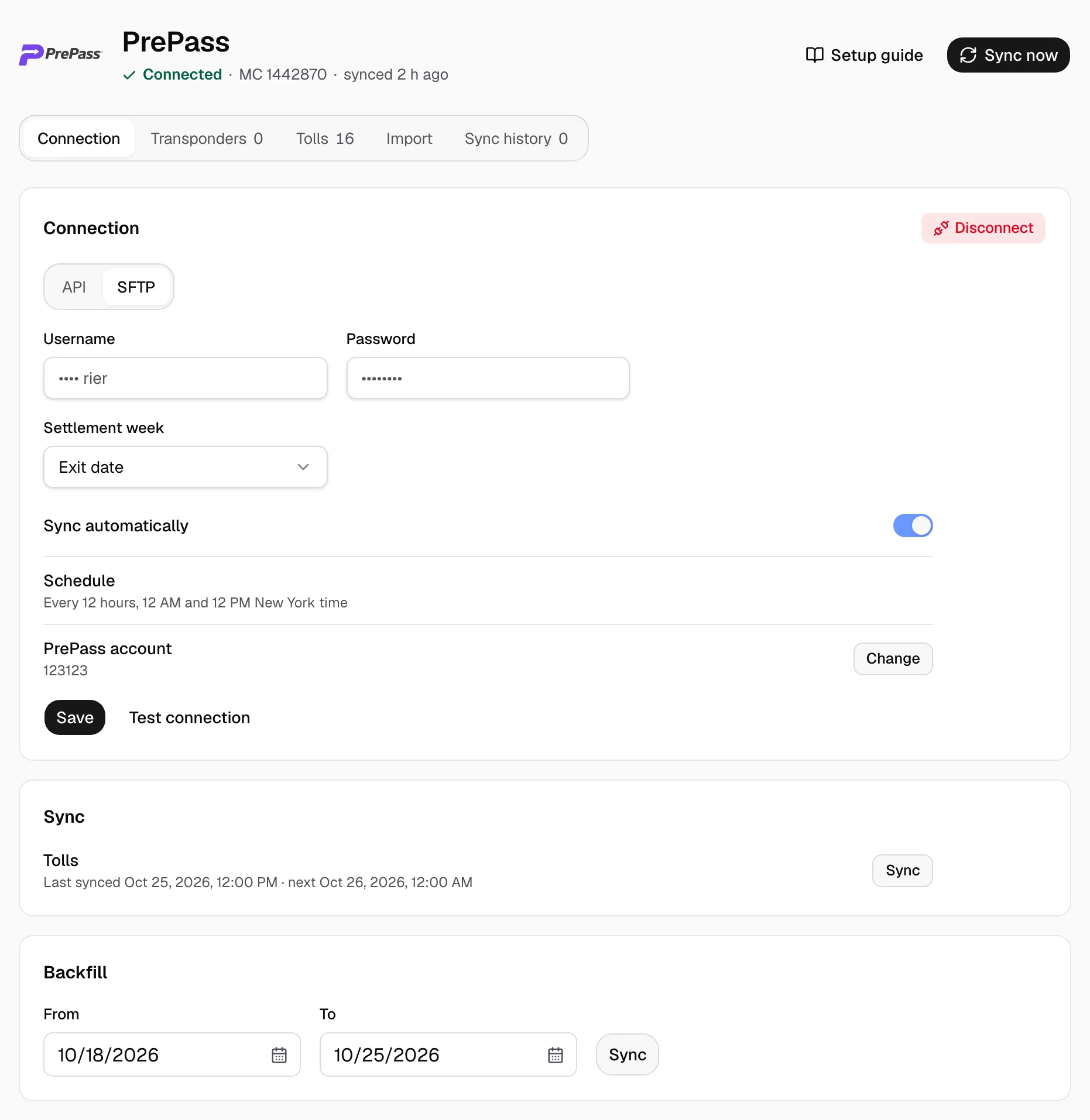
- The page says Connected.
- Settlement week counts a toll in the week it was crossed (Exit date) or posted (Post date). Sync automatically turns the 12-hour reads on or off; Schedule shows when. PrePass account shows the account Yolda reads; Change picks another. Click Save after a change.
- Your tolls show on the Tolls tab. Sync now, or Sync beside Tolls, reads again. Backfill reads older dates (Sync tolls). Disconnect stops reading and keeps your tolls.