Assign a transponder to a driver or truck
Give each transponder its driver or truck, so its tolls land on the right statement.
Step 1: Open the transponder
- Open Integrations, then your toll account, then Transponders. The tab shows once the account is connected or has tolls.
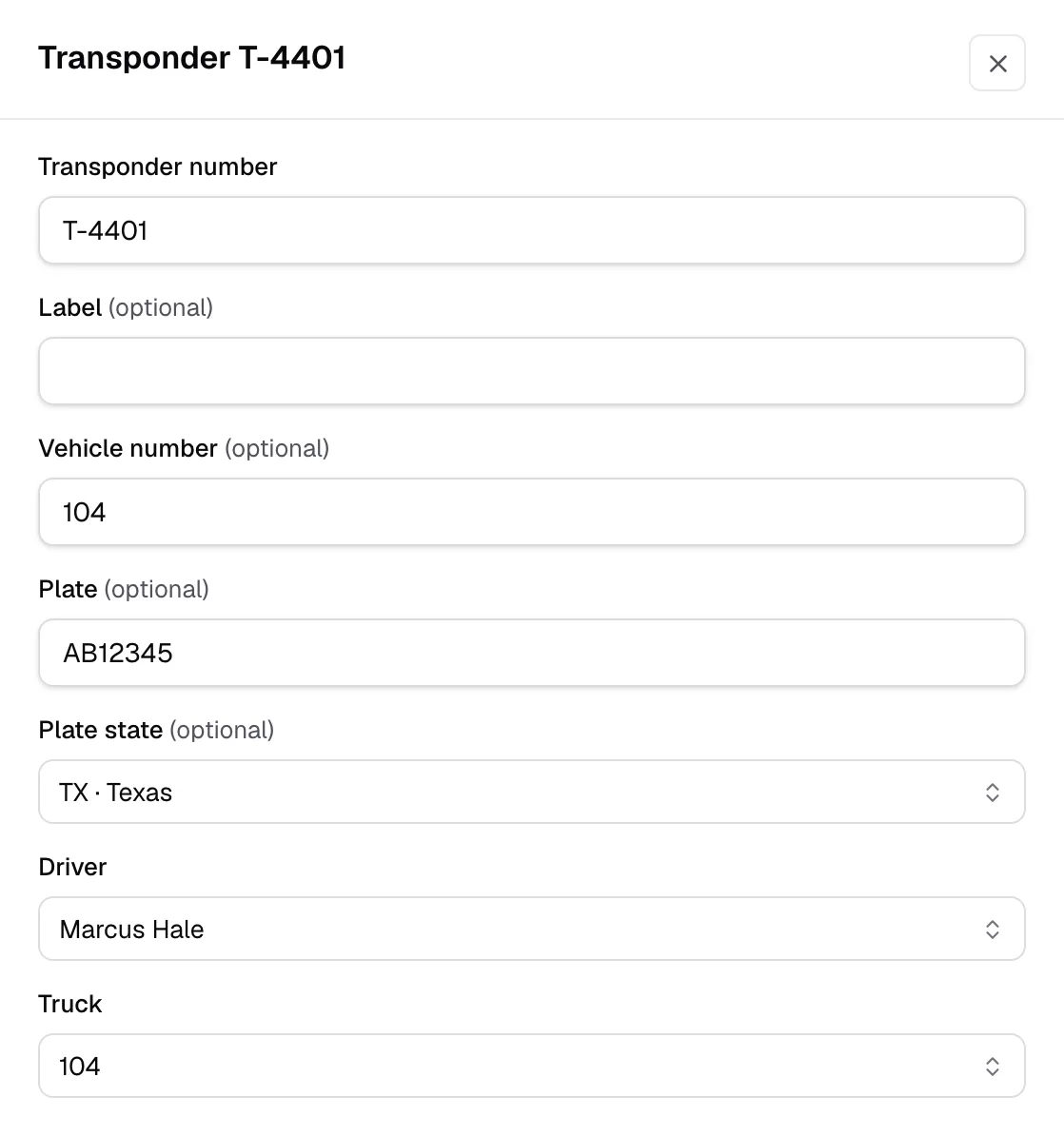
- Click a transponder. For a new one, click Add transponder and type its Transponder number.

Step 2: Choose the driver or truck
- Label, Vehicle number, Plate and Plate state are optional. A toll without a known transponder number finds this one by its Vehicle number, or by its Plate and Plate state.
- Pick the Driver, the Truck, or both.
Step 3: Set who pays
- Turn on Billable to bill these tolls.
- In Cost carried by, pick Company, Driver or Vendor.
- For a driver, turn on Deduct automatically so the tolls go on the driver's statement without waiting for a review.
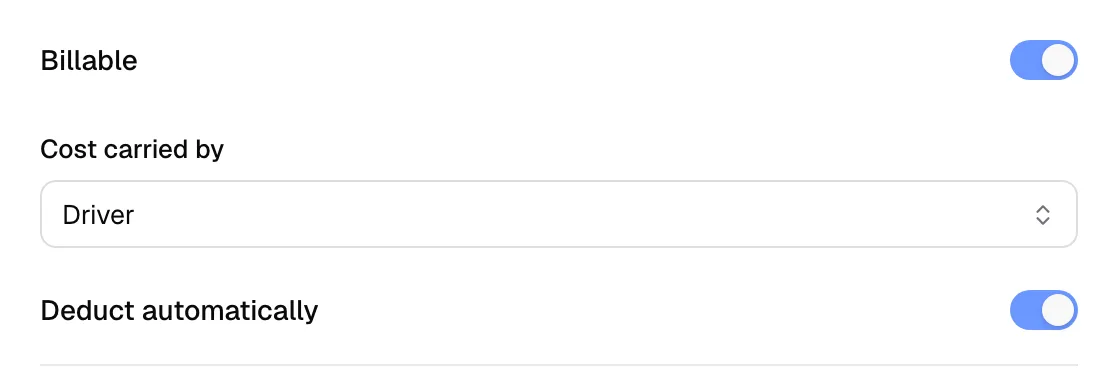
The driver's pay agreement still decides who pays. Where it disagrees with the transponder, the agreement wins.
Step 4: Save
- Keep Active on and click Save.
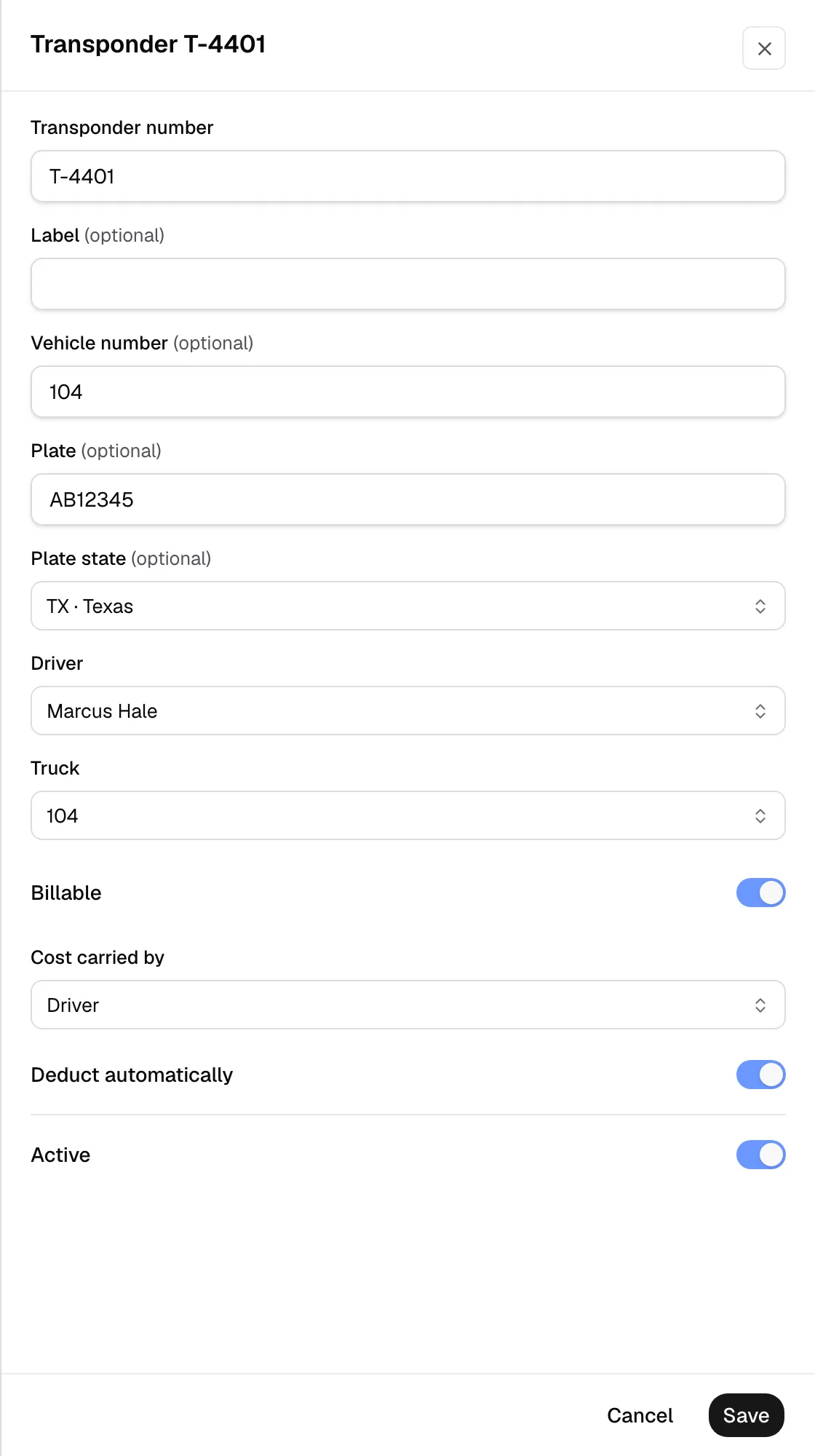
- The list shows each transponder's Driver, Truck and Billed to.