Add tolls from a file
Import a CSV or Excel file of tolls from any toll account, such as I-PASS or Pikepass.
Step 1: Upload your file
- Download your tolls as CSV or Excel from your toll account's website.
- Open Integrations, then your toll account (or Other tolls), then Import. The tolls go on that toll account, under your company's MC number.
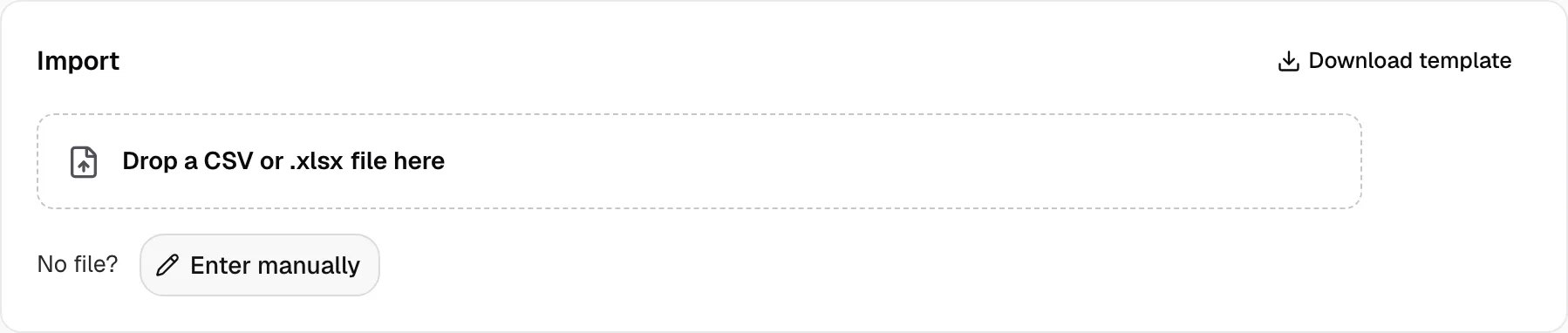
- Drop the file on Drop a CSV or .xlsx file here, or click it.
Step 2: Match columns
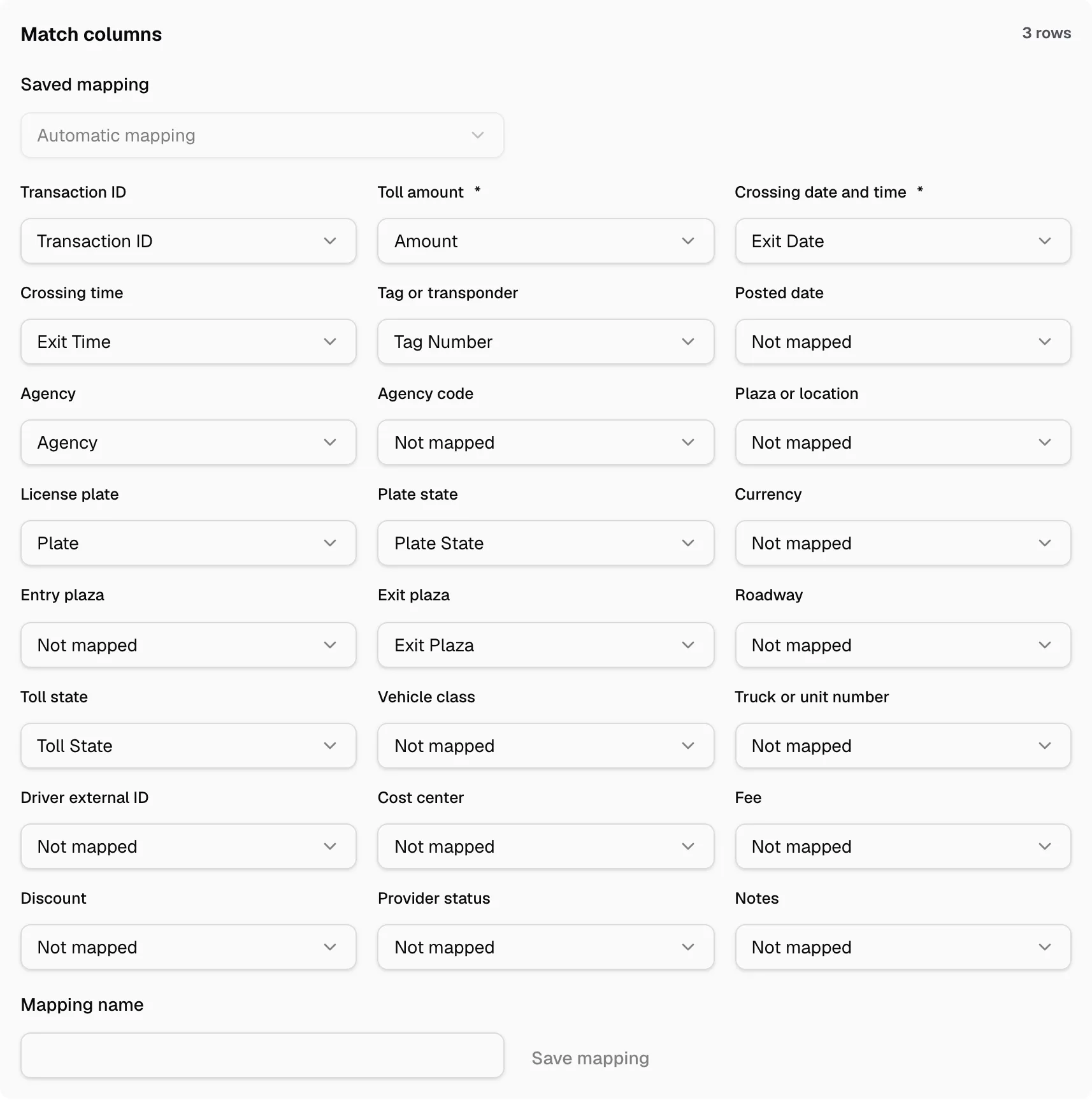
- Under Match columns, pick your file's column for each field. Toll amount and Crossing date and time are required.
- A time in its own column goes in Crossing time.
- Also match Transaction ID and Tag or transponder if your file has them.
- To keep this matching, type a Mapping name and click Save mapping. Next time, pick it in Saved mapping.
A PrePass daily report needs no matching.
Step 3: Preview and import
- Fix any row marked Error in its box, or click the trash button on its row.
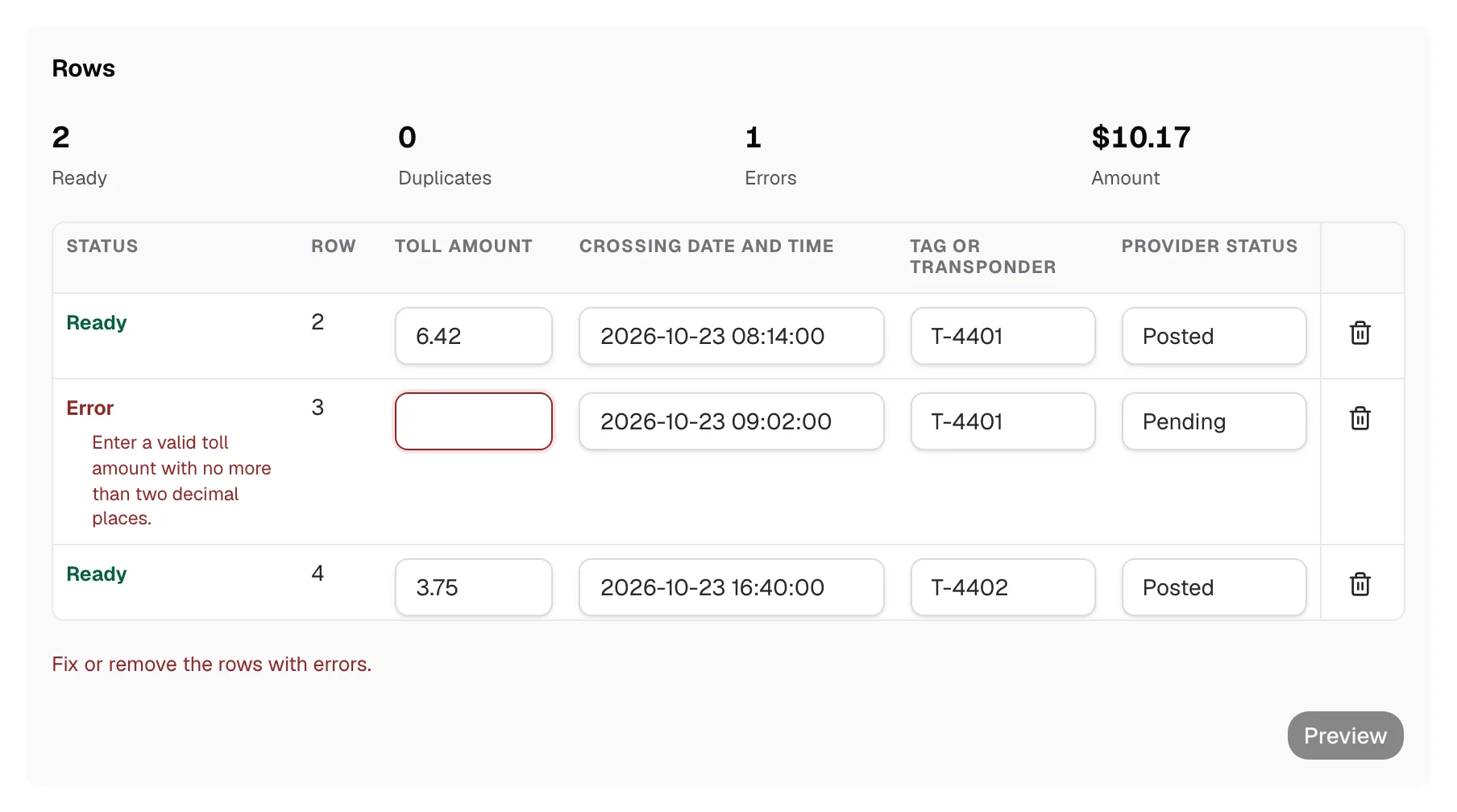
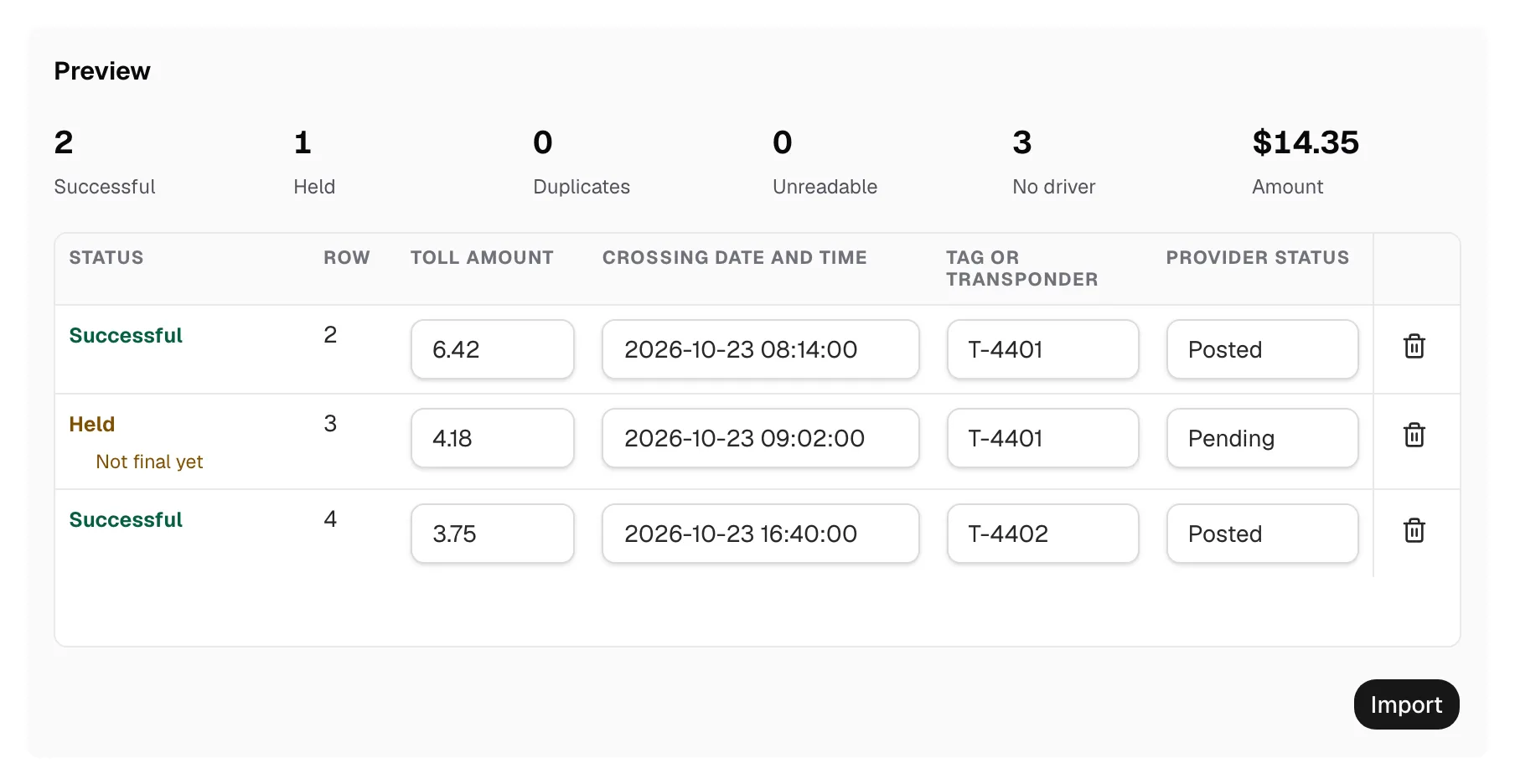
- Click Preview. Rows Yolda already has are Duplicates and are skipped. A Held row, like a pending one, is charged to nobody until you release it under Tolls.
- Click Import, then Open tolls.
No file, or only PDF statements? Click Enter manually to add one toll.
Billed through PrePass or Bestpass? Connect that account instead.