 E-ZPass setup guide1 min read
Connect E-ZPass to Yolda
Yolda reads your daily E-ZPass toll report from PrePass every 12 hours, at 12 AM and 12 PM in your company's time zone.
Step 1: Get your SFTP username and password from PrePass
- Send PrePass this email.
Email to send
- To
- Prepassupdates@prepass.com
- Subject
- E-ZPass SFTP access for Yolda
Hello,

We use Yolda as our TMS. Please send us SFTP access to our daily toll report, which carries our E-ZPass tolls, so Yolda can read it. If our SFTP login is limited by IP address, please allow Yolda's server address 52.73.111.217.

Our MC number is [Your MC number].

Thank you,
[Your name]
[Your company name]
[Your email]
Replace the marked blanks before you send or paste.
- PrePass sends you a third-party form. Fill it in:
Values for the provider form
- Authorized Third-Party Name
- Yolda
- Authorized Third-Party Business Name
- Yolda
- Authorized Third-Party Email Address
- partner@sfdify.com
- Requested Frequency
- Daily
- Once PrePass approves it, they email you a username and password. If they also send a token, Yolda does not need it.
Step 2: Open E-ZPass in Yolda
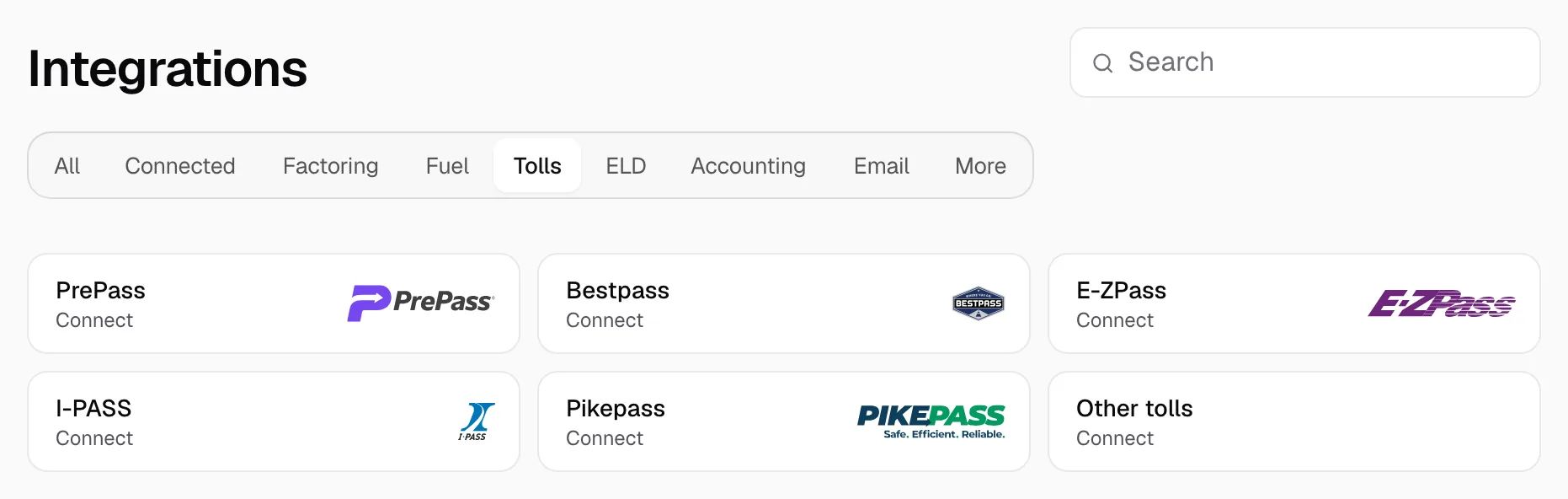
- Open Integrations, click Tolls, then click E-ZPass.
Step 3: Enter your PrePass sign-in
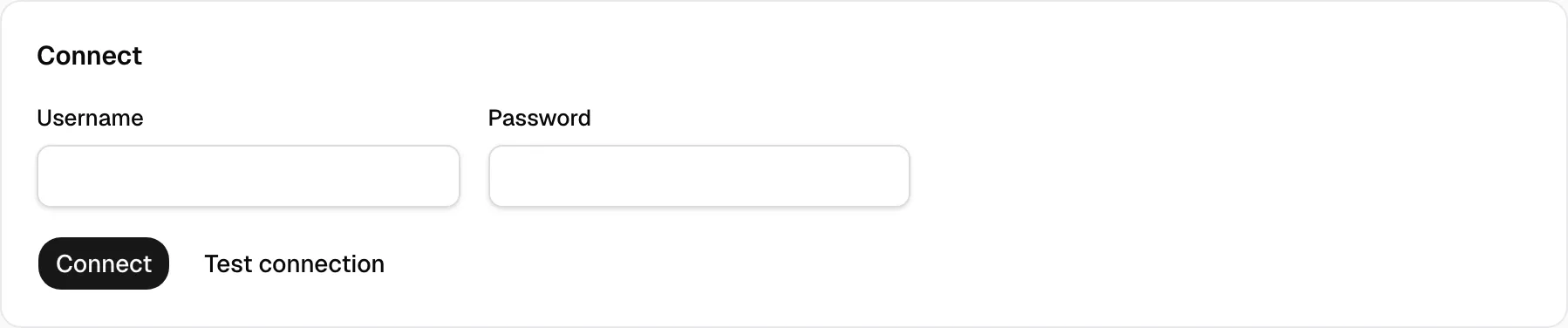
- Under Connect, enter the Username and Password from PrePass.
- Click Test connection, then Connect.
Step 4: Check that it works
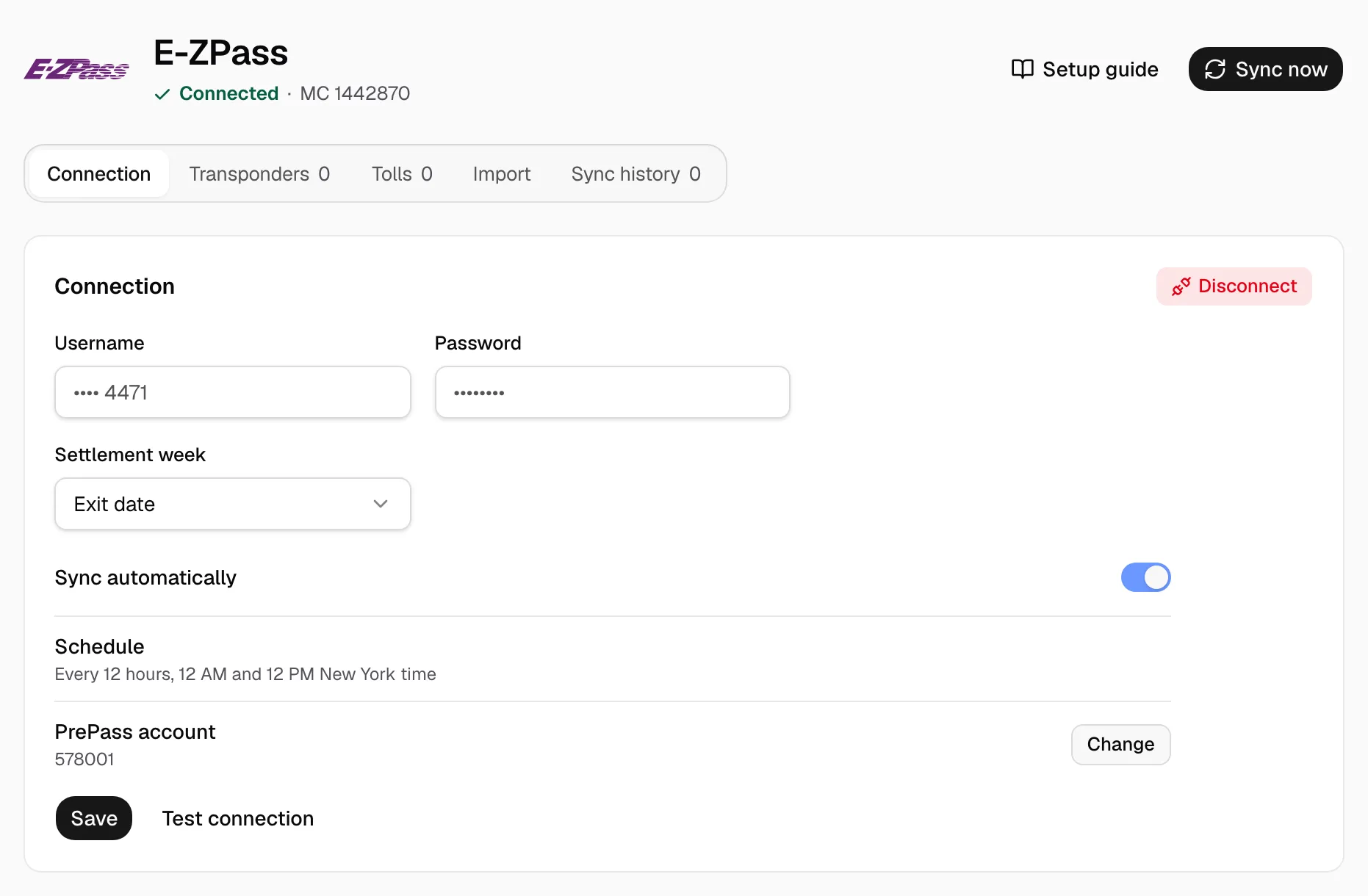
- The page reads Connected. Sync now reads your tolls at once; they show under Tolls.
- Under Transponders, give each transponder its driver and truck. A toll Yolda cannot place waits under Tolls.
- Settlement week charges a toll to the week of its Exit date (the crossing) or its Post date (when PrePass posted it). Keep Sync automatically on.
- If the report holds more than one PrePass account, the page reads Needs attention with Confirm this toll report. Click Confirm.
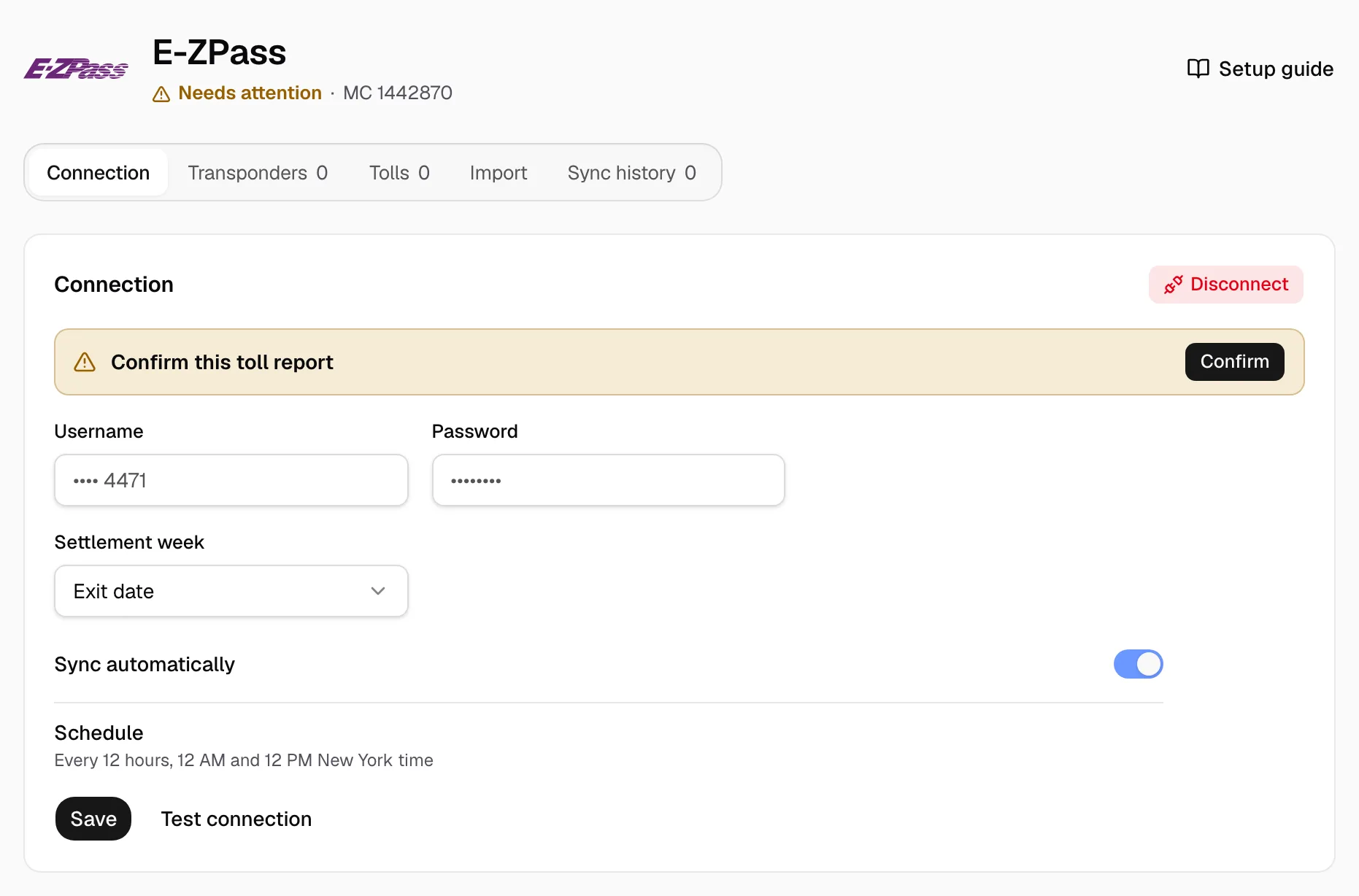
- Choose the Account, then click Confirm and read tolls.
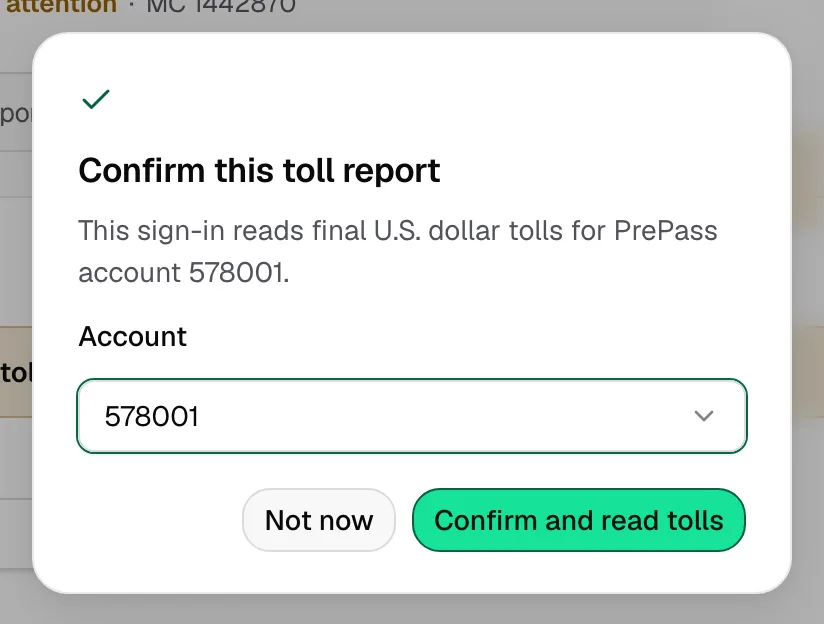
- To switch accounts later, click Change beside PrePass account.
Tags bought from an E-ZPass agency have no feed: download the agency's CSV, then use Import.