 Bestpass setup guide1 min read
Connect Bestpass to Yolda
Bestpass sends your tolls and transponders twice a day.
Step 1: Get an API key
- In go.bestpass.com, an admin copies the Account # under the person icon, then adds a user in Account Settings, Users, + with a shared email and Contact Type Technical Contact.
- That user signs up at go.bestpass.com/signup with the Account #, then at developer.bestpass.com clicks Sign in using Bestpass Portal account.
- In Products, subscribe to Bestpass/Payviam Fleet APIs with your company name as Subscription Name.
- Within a day, copy the Primary key from Profile.
Still Submitted? Email Bestpass.
Email to send
- To
- support@bestpass.com
- Subject
- API key approval for our TMS
Hello,

We requested a key for the Bestpass/Payviam Fleet APIs on developer.bestpass.com so our TMS, Yolda, can read our tolls and transponders. Please approve it.

Our Bestpass account number is [Your Bestpass account number].
Our MC number is [Your MC number].

Thank you,
[Your name]
[Your company name]
[Your email]
Replace the marked blanks before you send or paste.
Step 2: Open Bestpass
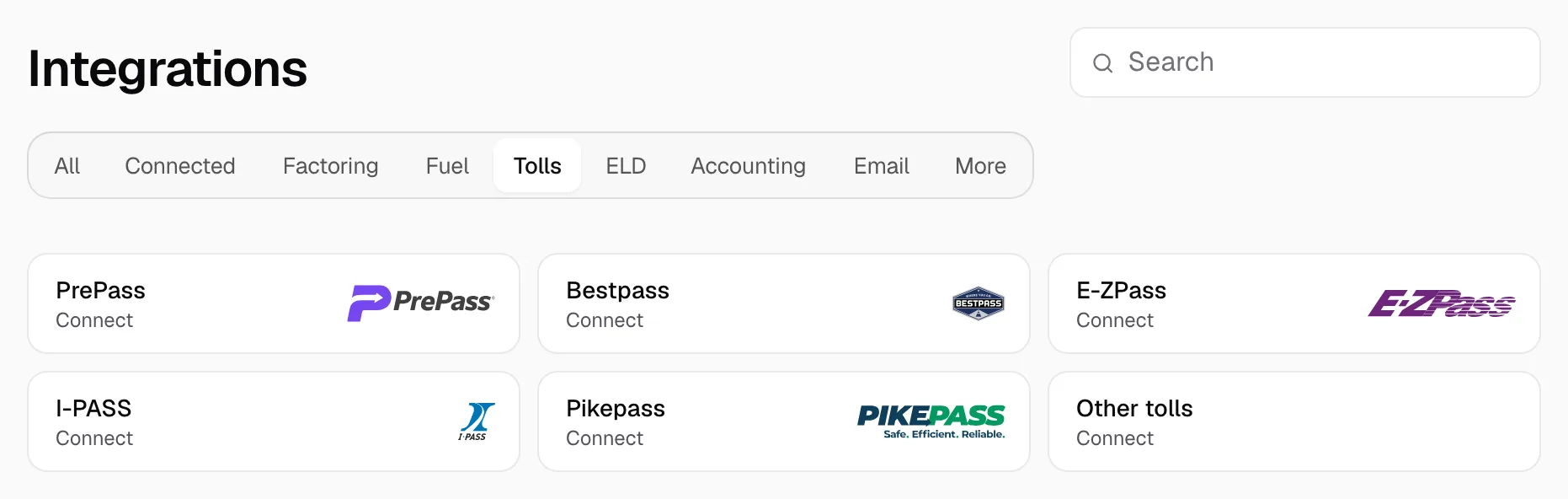
- Open Integrations, click Tolls, then Bestpass.
Step 3: Connect
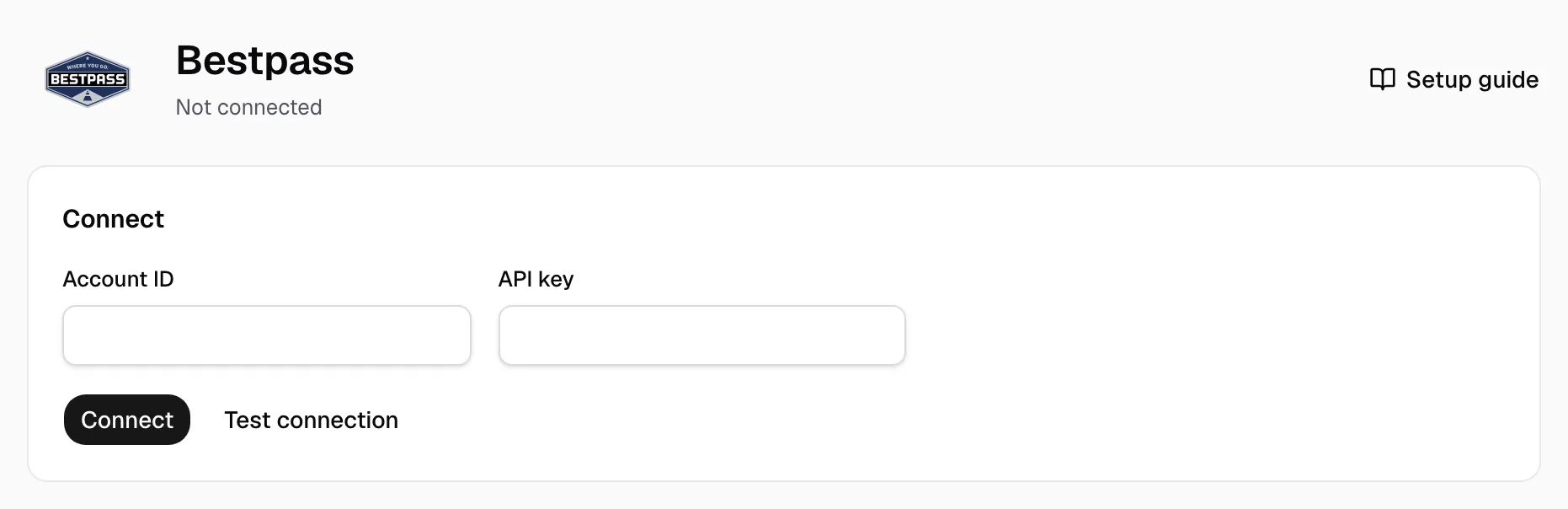
- Paste the Account # in Account ID, the Primary key in API key.
- Click Test connection, then Connect.
Step 4: Check it works
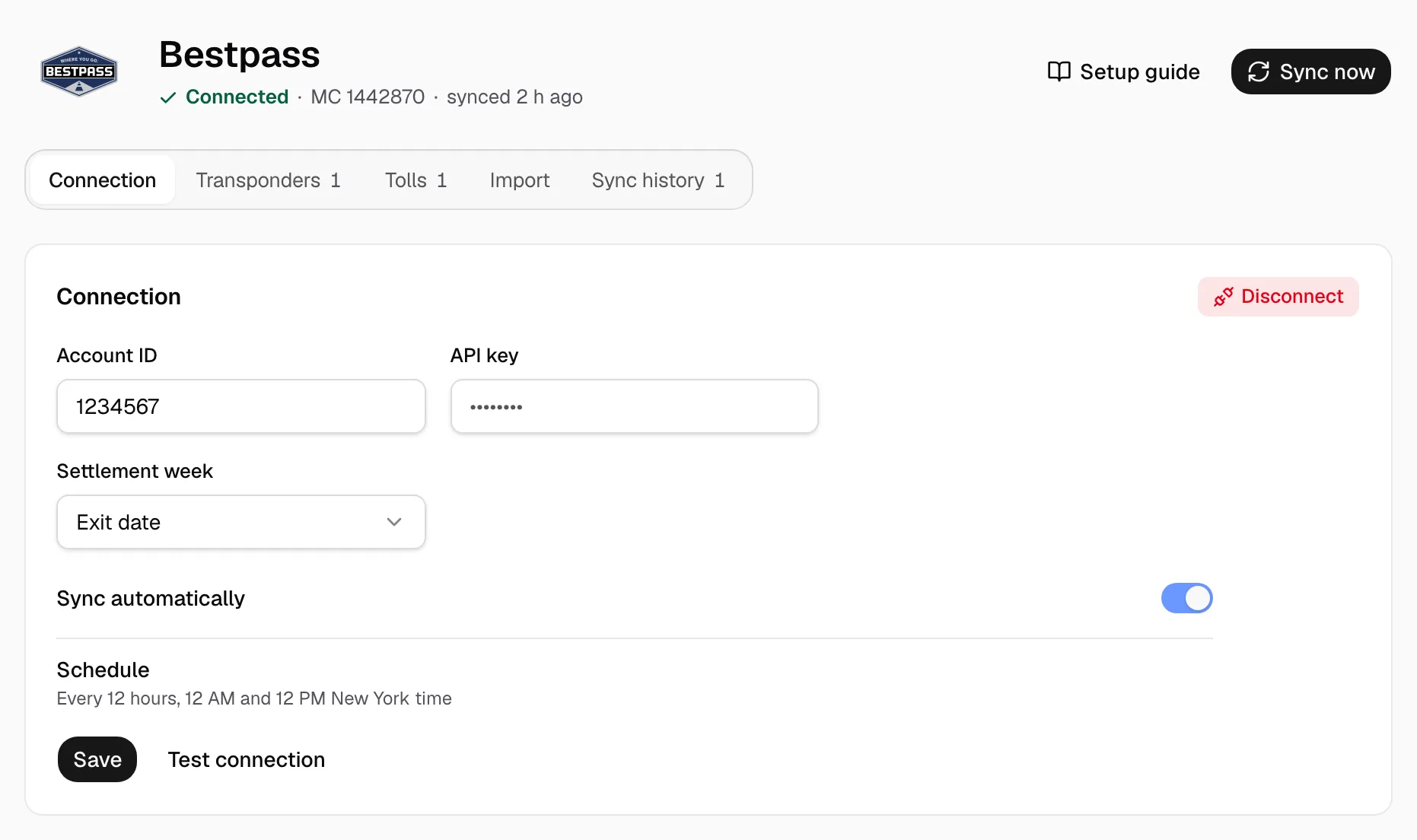
- The page reads Connected.
- Settlement week dates a toll by Exit date or Post date, a day or two later. Sync automatically follows the Schedule. Click Save after a change.
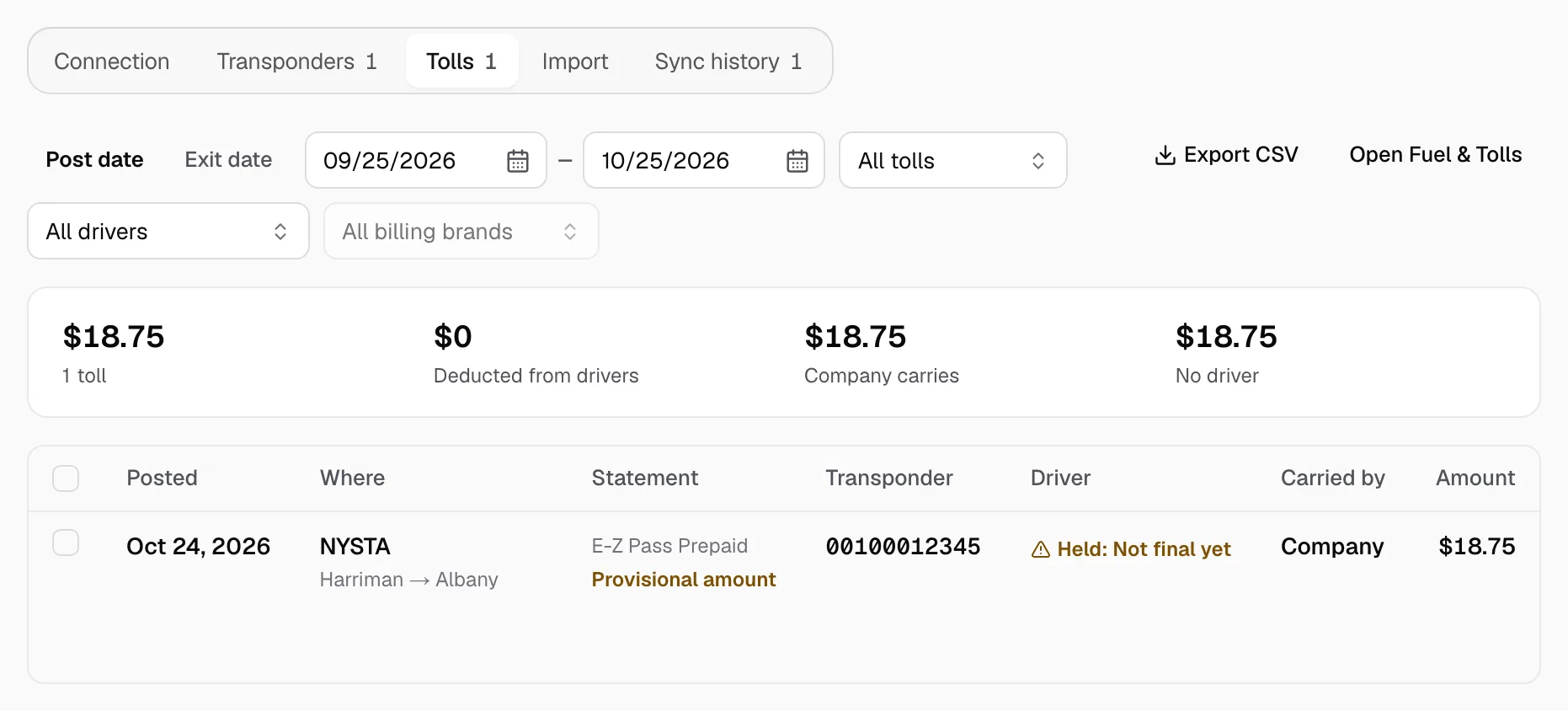
- The last 30 days reach Tolls within minutes (Sync now reads again); one not yet on a statement reads Held: Not final yet.
- Click Transponders, then Sync.
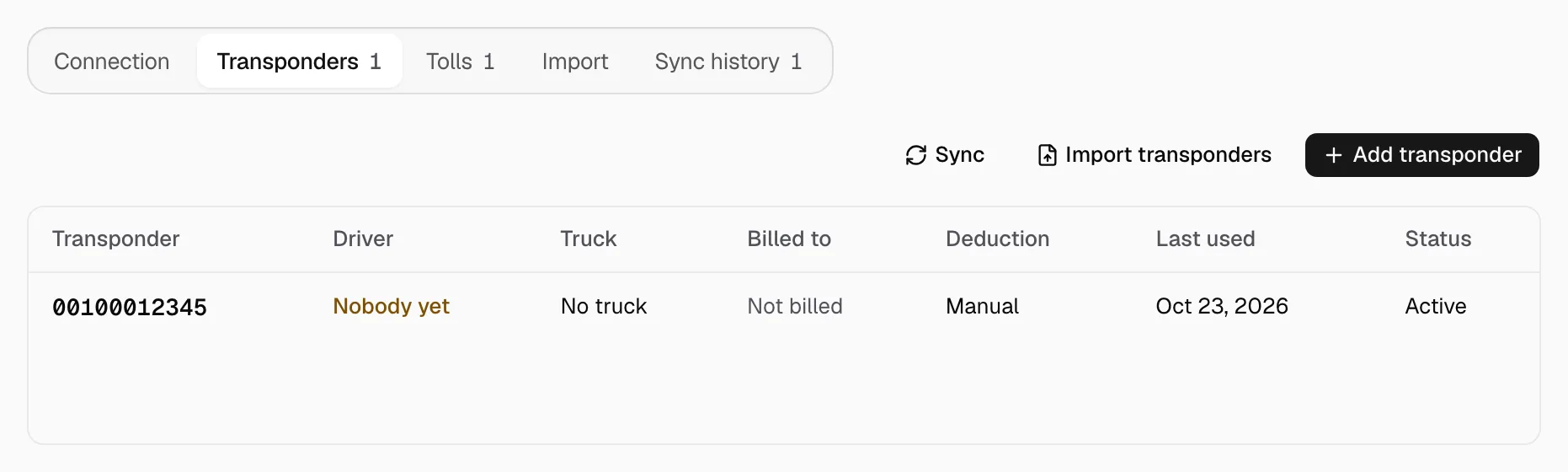
- Click a transponder, pick Driver and Truck, turn on Billable, set Cost carried by, turn on Deduct automatically for a driver, then Save.
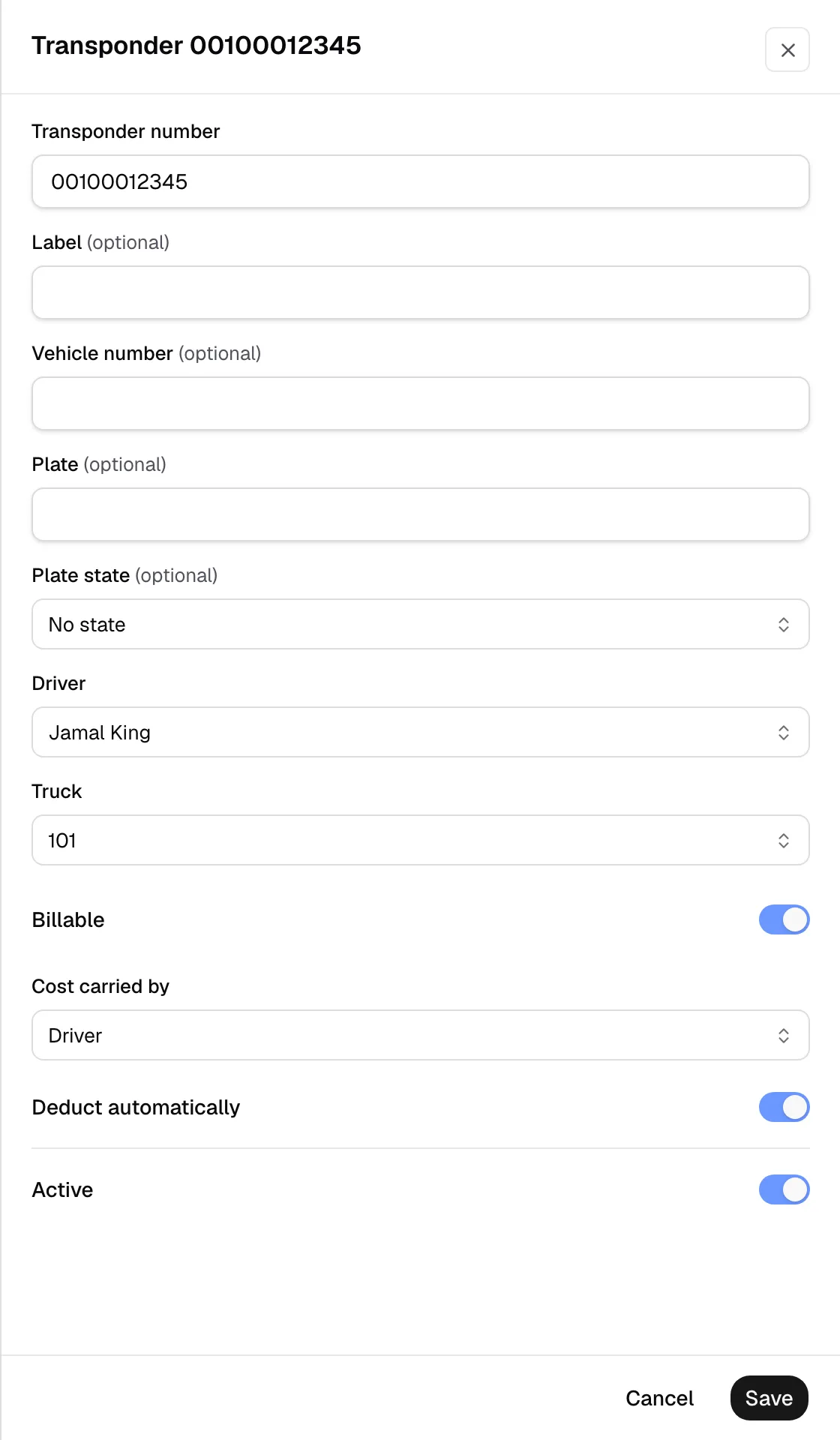
- Without Deduct automatically, tolls wait under Tolls as Needs review; the pay agreement decides who pays.