Connect QuickBooks Online to Yolda
Yolda sends to QuickBooks Online as you save: invoices as invoices, payments on them as payments, and load expenses, fuel, tolls and bills as journal entries.
Step 1: Connect QuickBooks
- Open Integrations, then QuickBooks Online.
- Click Connect.
- Sign in to QuickBooks, pick your company and approve access.

Step 2: Confirm the company
- Back in Yolda, check that QuickBooks company and Yolda company are the same business.
- Click Confirm and start syncing.

A QuickBooks company can be connected to one Yolda company only.
Step 3: Finish the setup
- To start sending lists what is left. Click a name to open it.
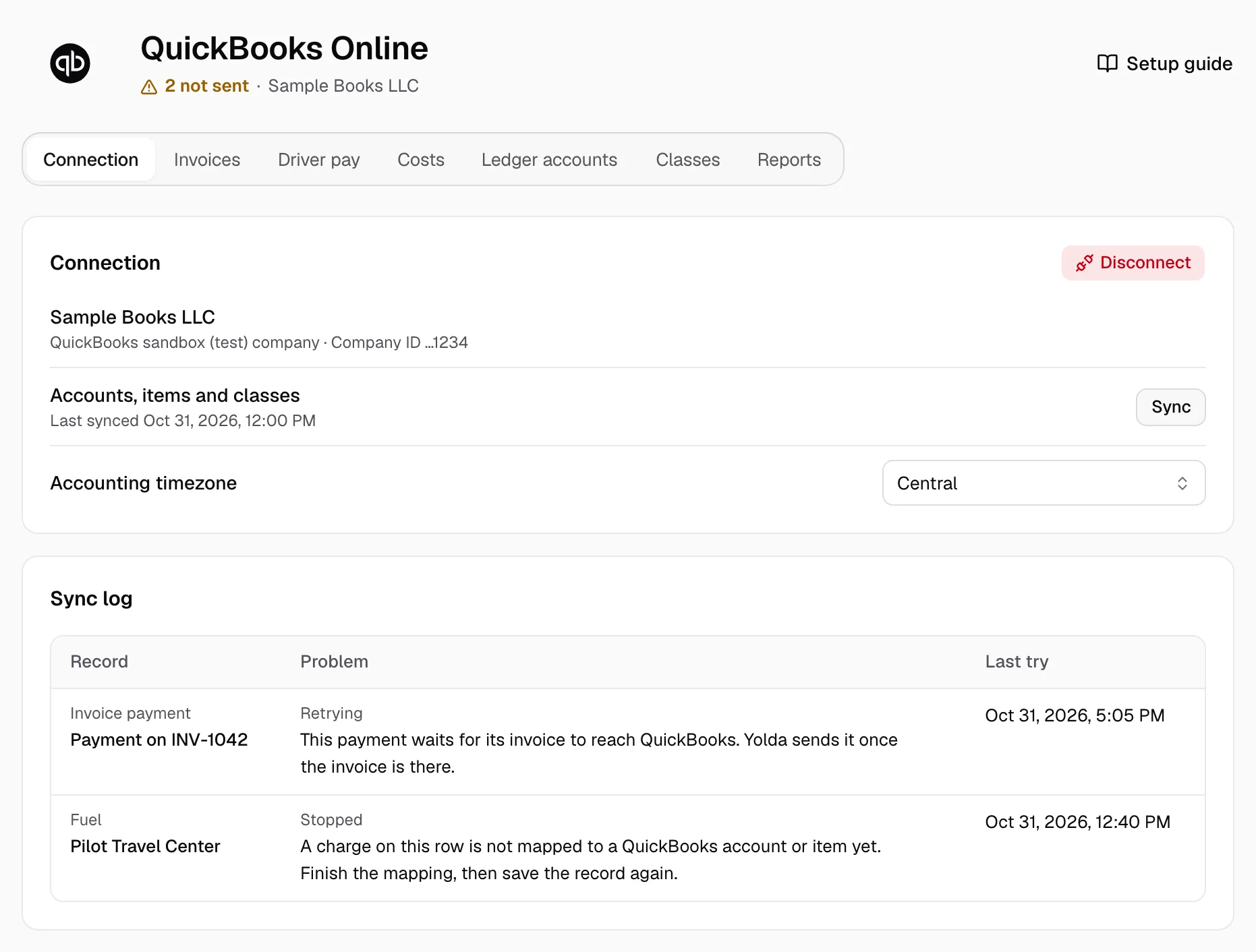
- On Connection, pick your Accounting timezone.
- Pick a QuickBooks account or item for each Required row and click Save mapping.

Step 4: Check it works
- The page reads Connected with your QuickBooks company. Records reach QuickBooks about a minute after you save them.
- Sync log on Connection lists each record QuickBooks did not take, and why. Click one to open it, fix it and save it. An invoice goes again from Finances with Send to QuickBooks.
- Added an account in QuickBooks? Click Sync on Connection.
- Needs attention means QuickBooks signed Yolda out. Click Connect to sign in again.