Map fuel costs and download the QuickBooks fuel report
Once QuickBooks is connected, each fuel purchase goes there as a journal entry when you save it. The spreadsheet is for days QuickBooks has not received.
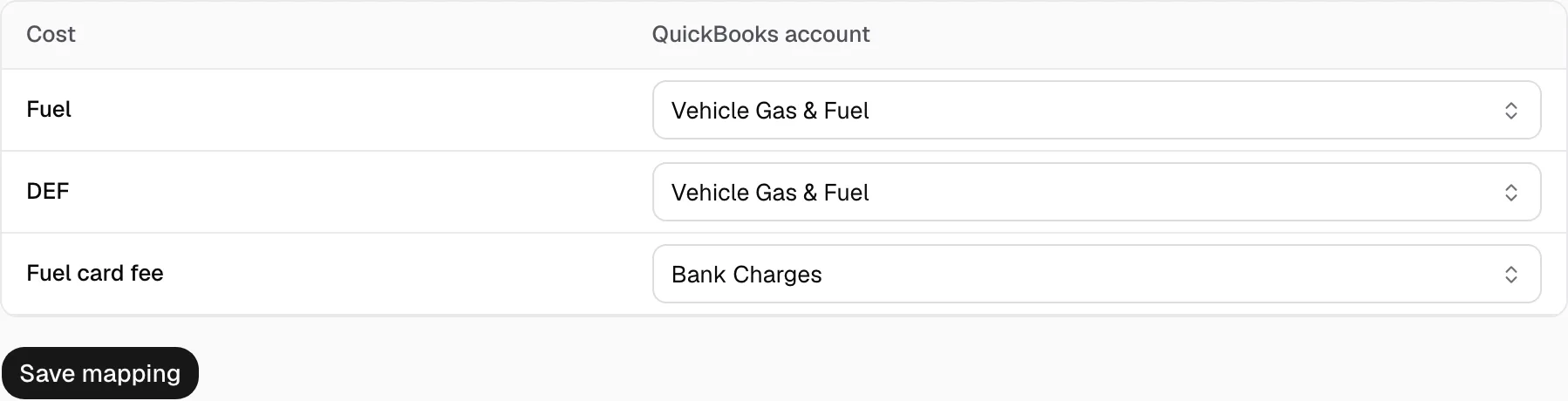
Step 1: Map the fuel accounts
- Open Integrations, then QuickBooks Online, then Costs.
- Pick a QuickBooks account for Fuel, DEF and Fuel card fee.
- Click Save mapping.
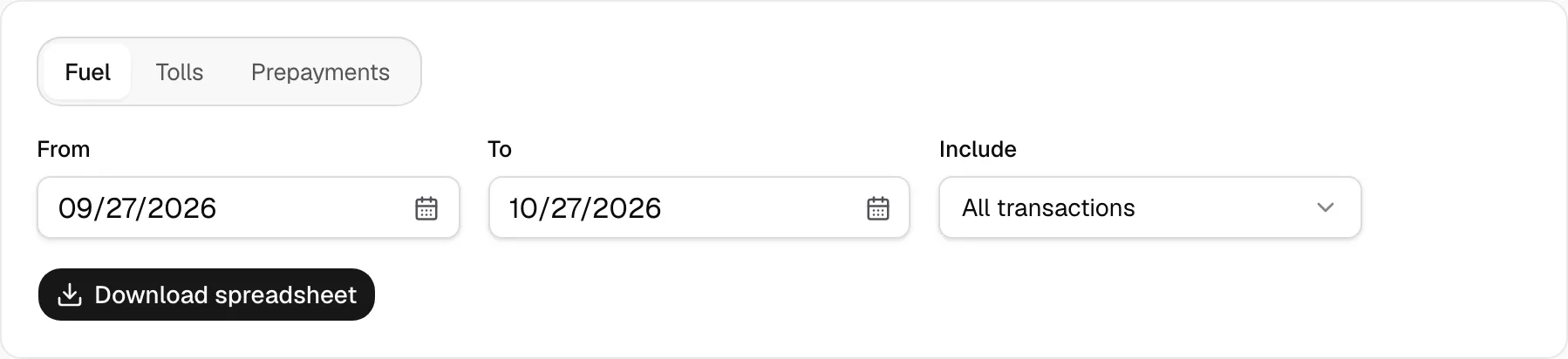
Step 2: Download the fuel report
- Open Reports and pick Fuel. It works without a QuickBooks connection.
- Set From and To. Under Include, pick All transactions, Deducted from driver or Paid by company.
- Click Download spreadsheet.
Step 3: Import it in QuickBooks
- Import only days QuickBooks has not received: before you connected, or if you do not connect. Importing a connected range books every purchase twice.
- In QuickBooks, click the gear, then Import data, and choose Expenses.
- Upload the file and match its columns: Date, Merchant, Total and QuickBooks account. DEF account and Fee account name where those parts go.
- QuickBooks takes fewer than 1,000 rows at a time. Pick a shorter range for more.