Map invoice charges to QuickBooks items
Each charge on a Yolda invoice reaches QuickBooks as the product or service you map it to.
Before you start
Connect QuickBooks and create the products and services you bill in QuickBooks. Then click Sync on Connection.
Step 1: Map the charges
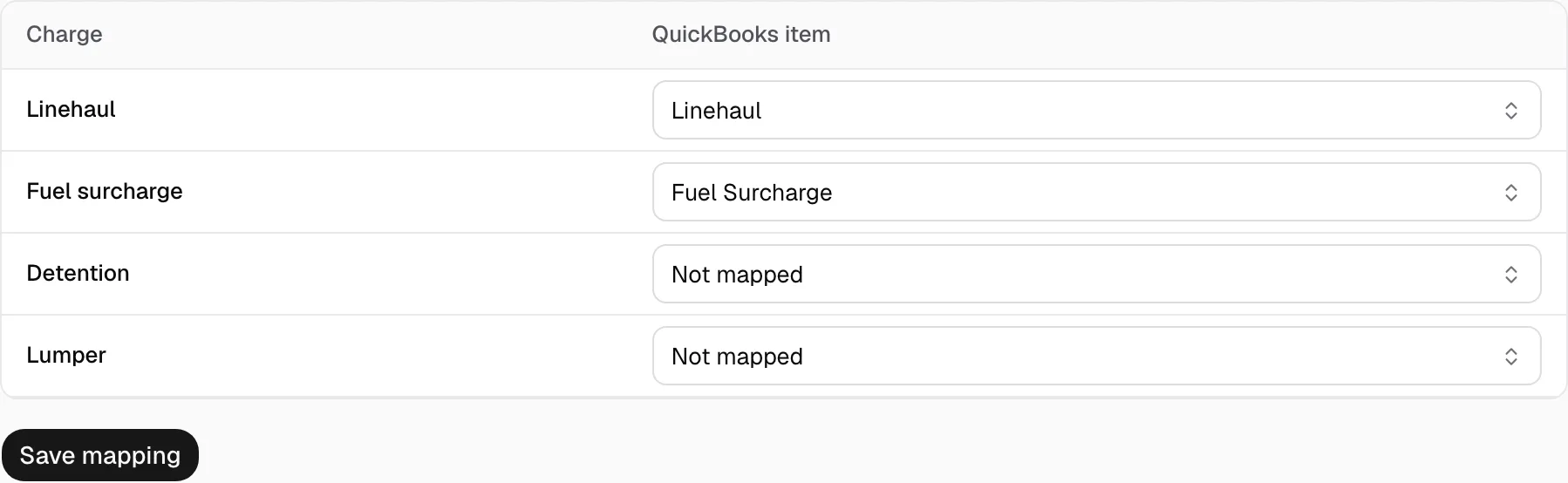
- Open Integrations, then QuickBooks Online, then Invoices.
- Pick a QuickBooks item for Linehaul, Fuel surcharge and each other charge you bill.
- Map every Required row, then click Save mapping.
Step 2: Choose the sync
Under Invoice sync, pick one:
- One-way · Yolda to QuickBooks sends invoices to QuickBooks.
- Two-way · invoice payments back to Yolda also marks a Yolda invoice paid when it is paid in QuickBooks, checked every 20 minutes. Factoring invoices and unclear payments wait for your review. Driver pay is never read back.

Step 3: Send invoices
- Invoices go to QuickBooks as you save them.
- To send some yourself, tick them in Finances and click Send to QuickBooks.

- The QuickBooks column shows each invoice's result.
