Map driver pay and send statements to QuickBooks
Map each kind of driver pay to a QuickBooks account, then send each finalized statement to QuickBooks.
Step 1: Map driver pay
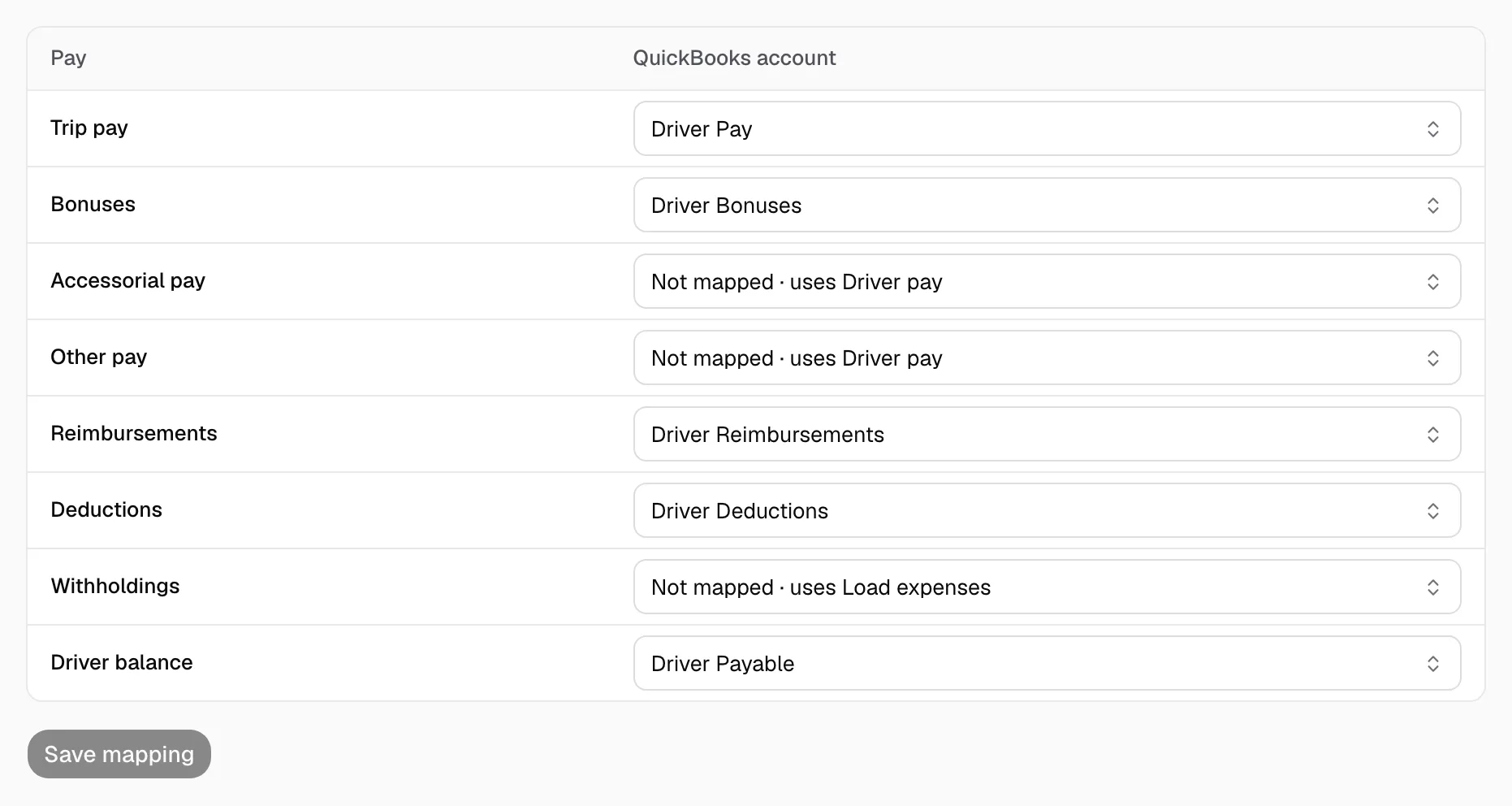
- Open Integrations, then QuickBooks Online, then Driver pay.
- Pick a QuickBooks account for Trip pay, Bonuses, Deductions, Driver balance and each other row.
- Map every Required row, then click Save mapping.
- Map the Required rows on Ledger accounts too.
Step 2: Send a statement
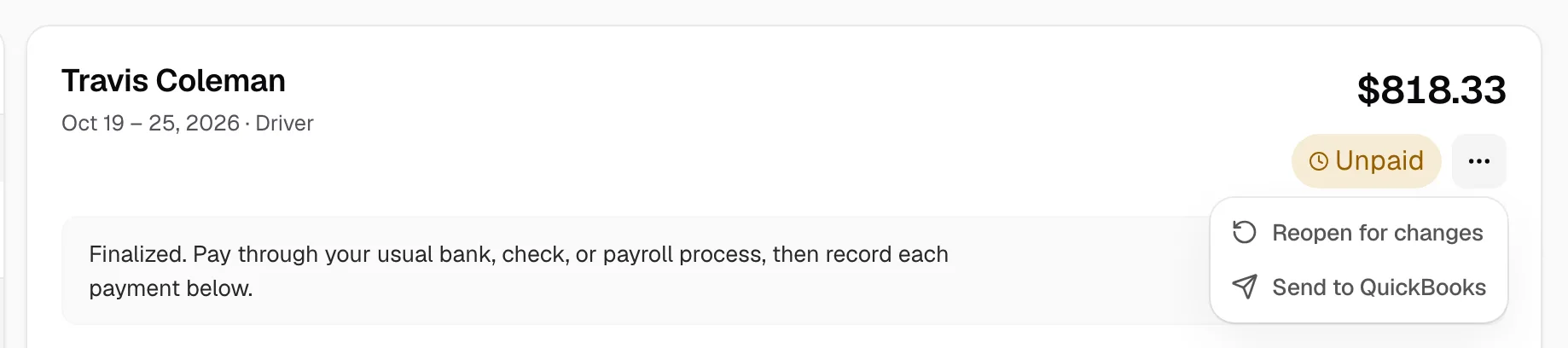
- Open Statements, then Review Statements, and pick a statement you finalized.
- Click the More actions menu (three dots) beside its status, then Send to QuickBooks.
- Each driver or investor on it becomes one journal entry. Sending it again books nothing twice.
Step 3: Check it worked
- The statement reads how many settlement parties went to QuickBooks.
- One that did not shows QuickBooks' reason. Fix it, then send again.
Not connected to QuickBooks? Weekly journal on the QuickBooks page downloads a week as a CSV to import by hand. It is not offered once you connect, so nothing is booked twice.
You still pay drivers through your usual process.