Review fuel purchases
Every fuel purchase, from every card company, is in Fuel & Tolls.
Step 1: Open your fuel purchases
- Open Fuel & Tolls.
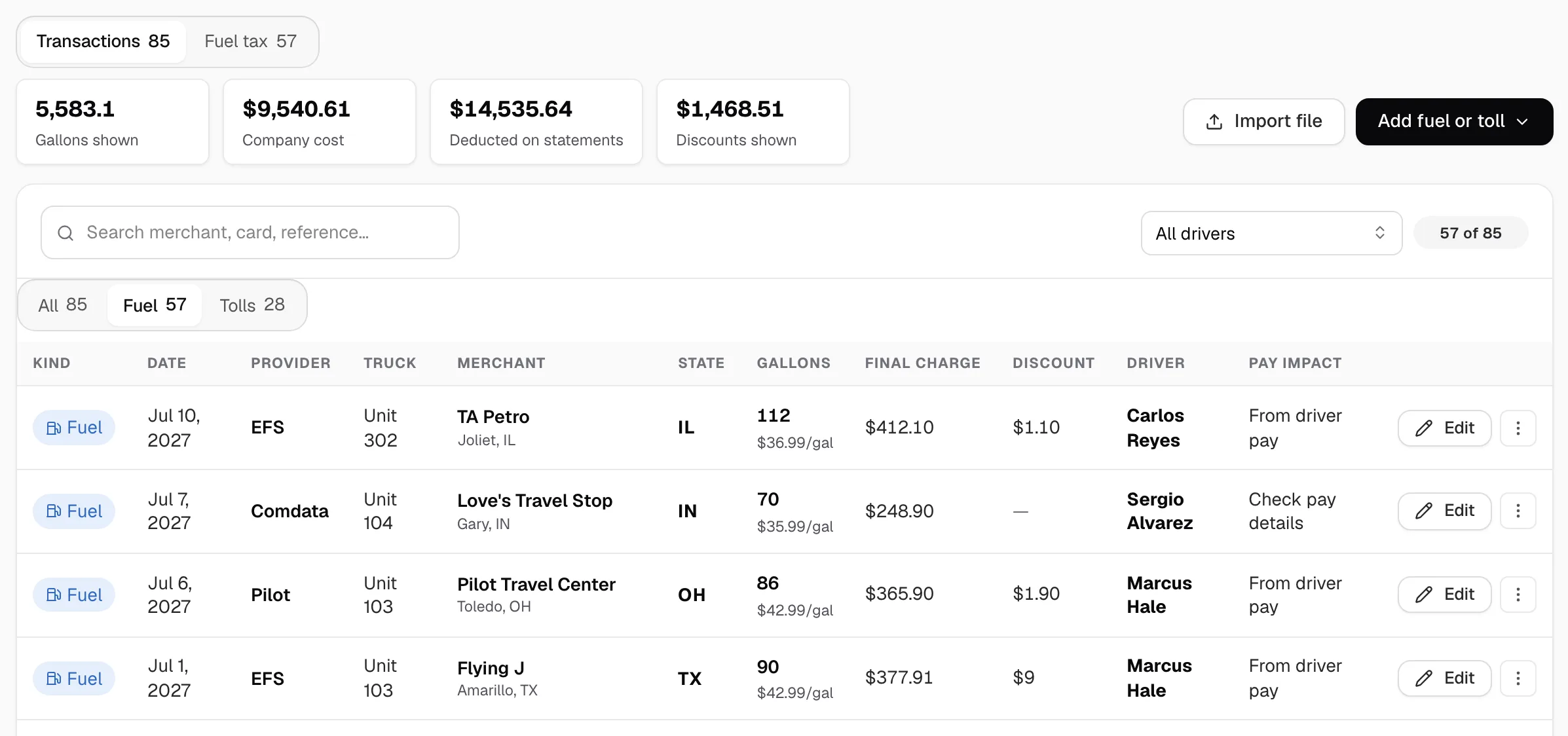
- On Transactions, click Fuel. Each row shows its Date, Provider, Truck, Merchant, State, Gallons, Final charge, Discount and Driver.
Step 2: Narrow the list
- Type a truck stop, card or reference in the search box.
- Pick a driver in All drivers.
- For one card company only, open Integrations, then that company, then Purchases.
- Card lines that are not fuel, such as a Cash advance or a Scale ticket, are under Other card activity there. Record each with Open prepayments or Open bills, then click Mark recorded, or click Dismiss.
Step 3: Read the totals
- Gallons shown, Company cost, Deducted on statements and Discounts shown add up the rows on screen.
- Needs review adds up the purchases still waiting for a fix.
Step 4: Run a fuel report for dates
- Open Reports, then Build report.
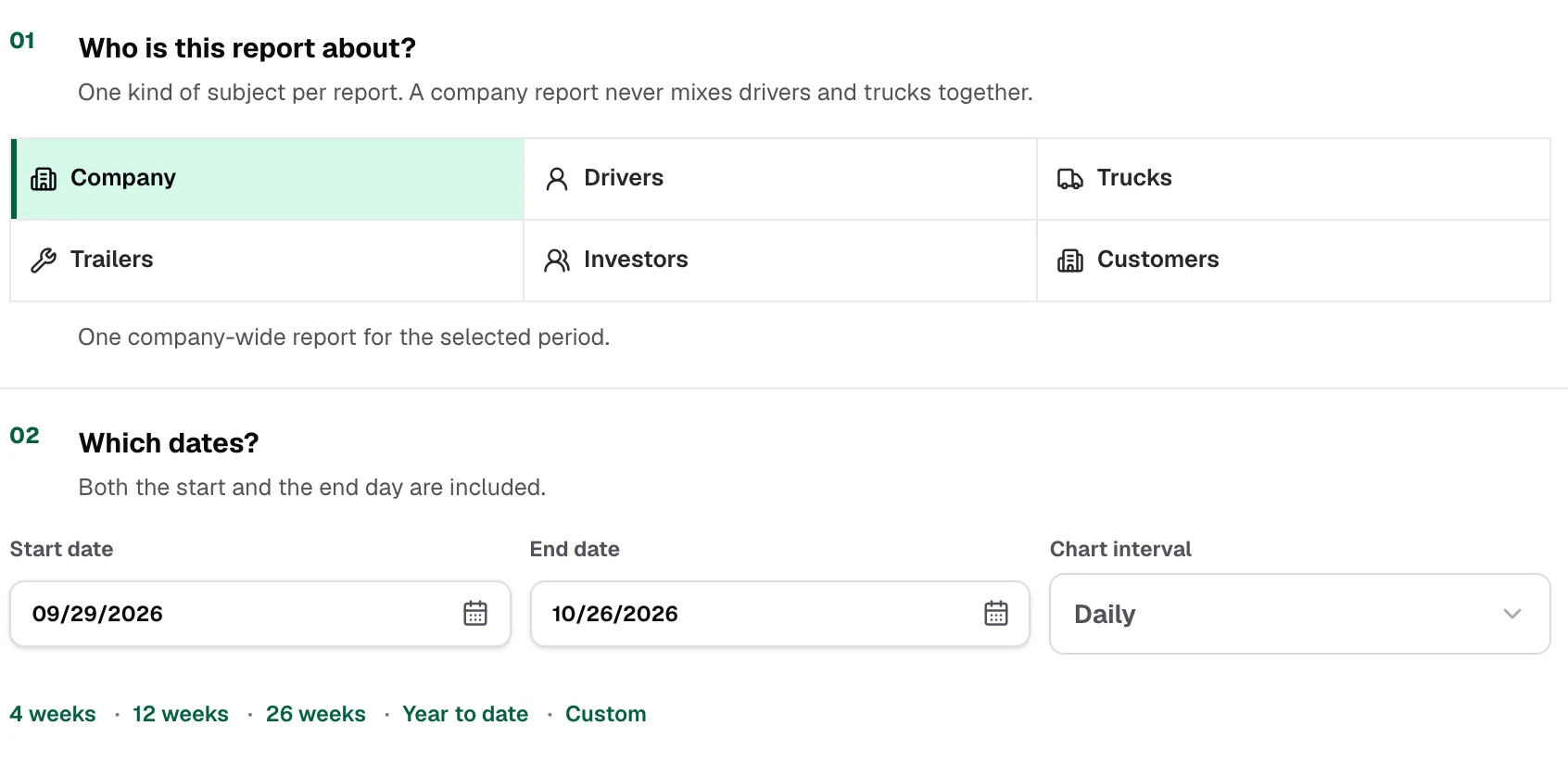
- Under Who is this report about?, pick Company, Drivers or Trucks.
- Under Which dates?, set Start date and End date. Pick Daily in Chart interval for a bar for each day.
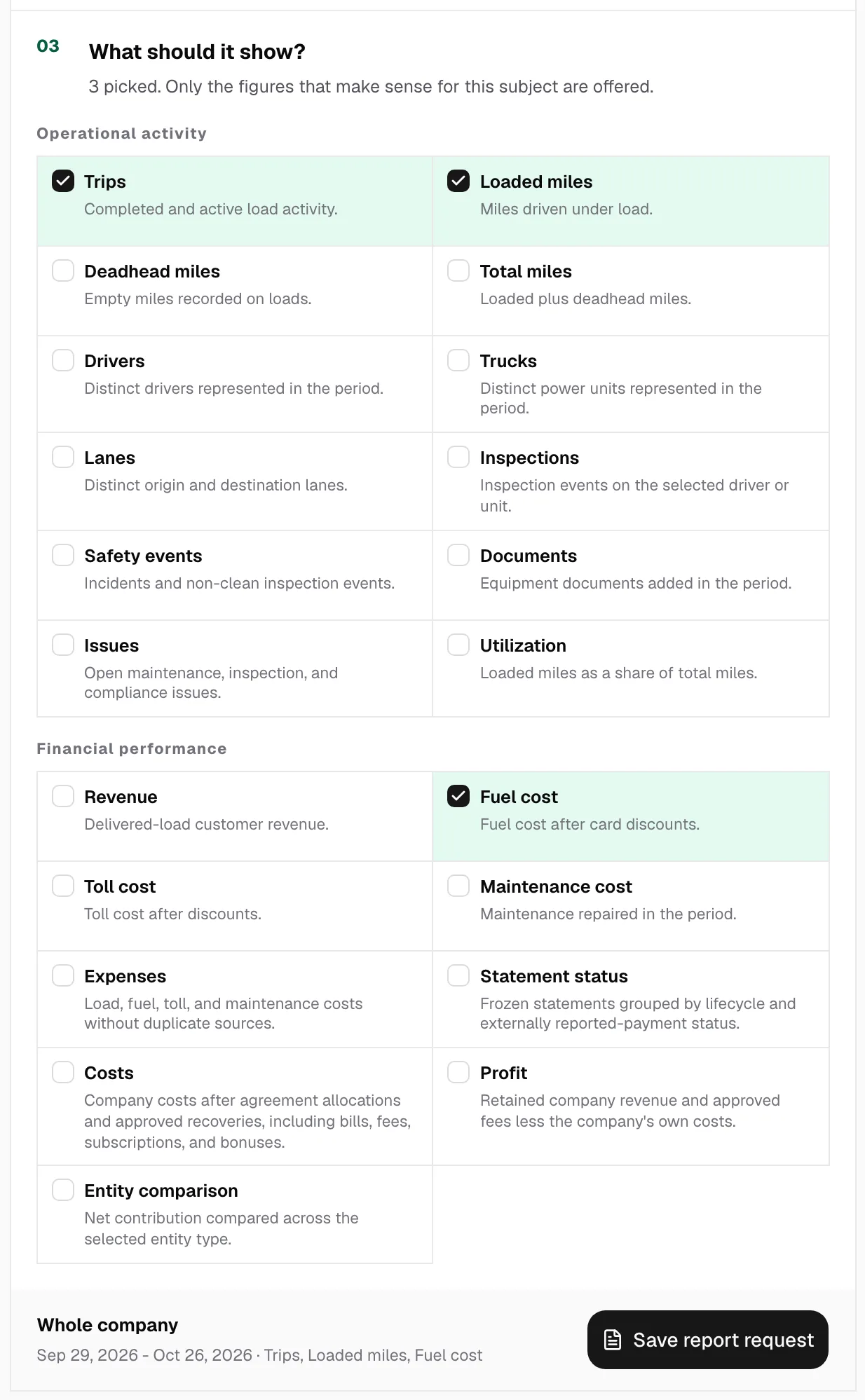
- Under What should it show?, tick Fuel cost, then click Save report request.