ONRAMP setup guide1 min read
Connect ONRAMP to Yolda
Yolda reads your ONRAMP fuel purchases every 4 hours, from midnight in your company's time zone.
Step 1: Ask ONRAMP for API access
- Send this email from your ONRAMP fleet account's address, or to your account representative.
- ONRAMP replies with a Username, a Password and your Carrier ID (UUID).
Email to send
- To
- support@onrampfleet.com
- Subject
- API access for Yolda
Hello,

We use Yolda as our TMS. Please set up API access for our ONRAMP fleet account so Yolda can read our transaction reports, and send us:

- Username
- Password
- Carrier ID (UUID)

Our company is [Your company name], MC [Your MC number].

Thank you,
[Your name]
[Your email]
[Your company phone]
Replace the marked blanks before you send or paste.
Step 2: Open ONRAMP in Yolda
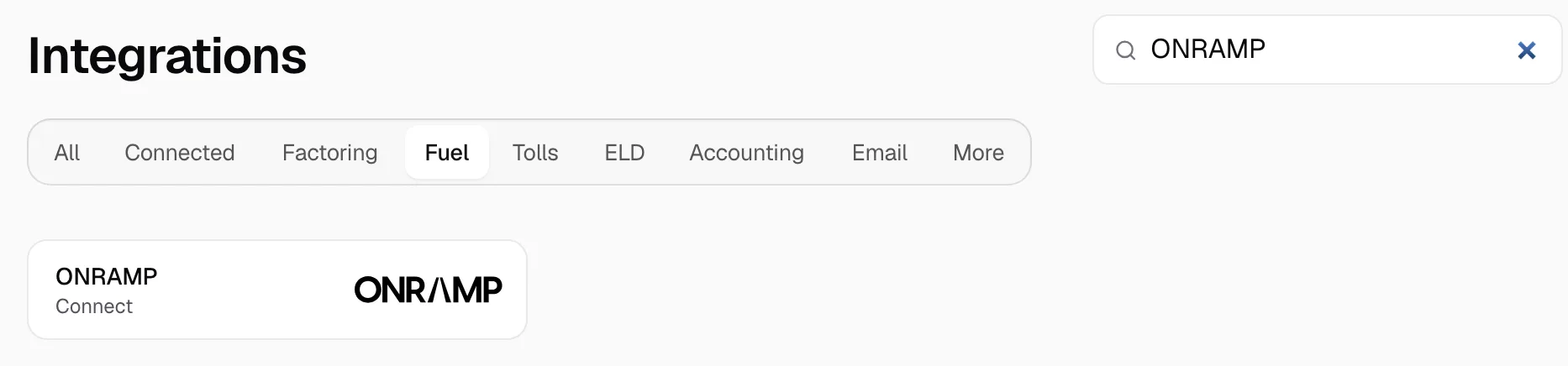
- Open Integrations, click Fuel and type ONRAMP in Search. Click ONRAMP.
Step 3: Enter your ONRAMP login
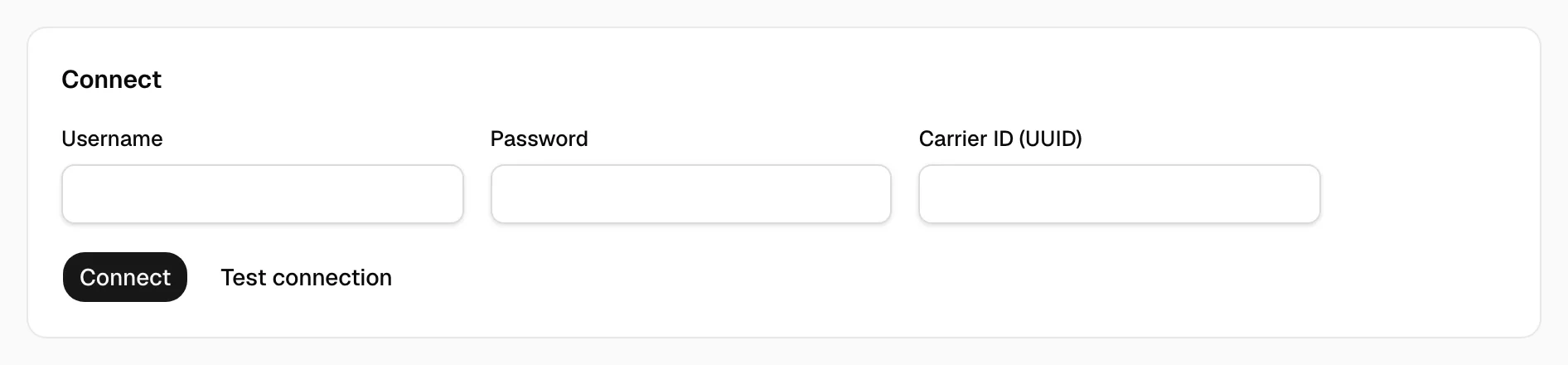
- Enter the Username, Password and Carrier ID (UUID) from ONRAMP's email.
- Click Test connection. When Yolda says ONRAMP accepted these credentials, click Connect.
Step 4: Check that it works
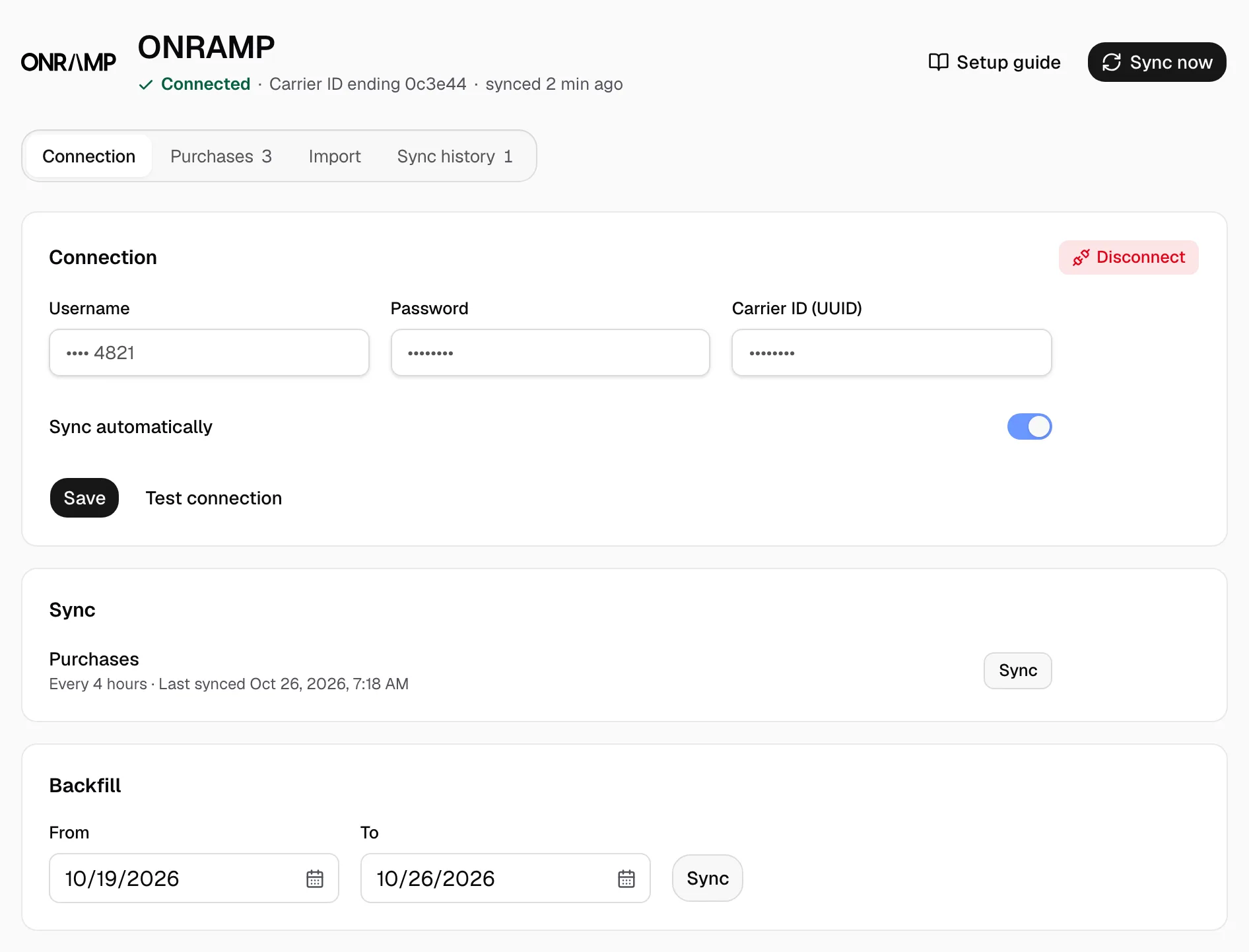
- The page reads Connected with the end of your Carrier ID. Sync now reads new purchases at once.
- Keep Sync automatically on. The first sync reads the last 7 days. For older purchases, use Backfill: pick From and To, 31 days at most, and click Sync.
- If ONRAMP refuses the sign-in, Yolda stops trying. Enter the Password again and click Save.
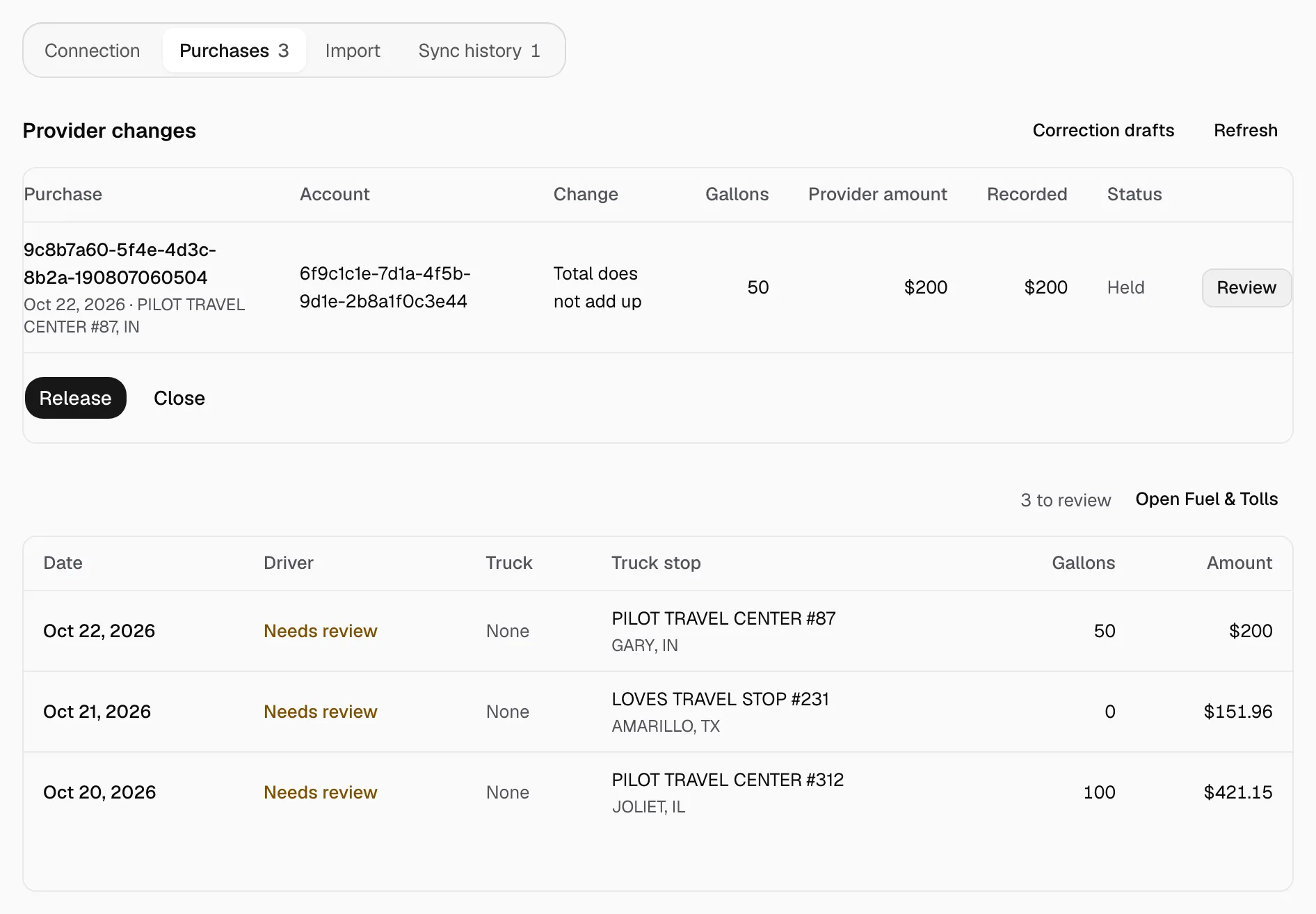
- ONRAMP has no cards. Each purchase goes on the truck whose unit number matches the ONRAMP tractor, and on that truck's driver that day. The driver's pay agreement decides who pays.
- A purchase Yolda cannot place shows Needs review on Purchases. One whose total does not add up is Held under Provider changes: click Review, then Release.