Import a fuel transaction file
Import a file when your card company has no connection in Yolda, or to load older weeks.
Step 1: Upload the file
- Export your transactions from your card company's website as CSV or Excel (.xlsx).
- Open Integrations, then your fuel card company, then Import.
- Drop the file on Drop a CSV or .xlsx file here.
- No export? Click Download template, put one purchase on each row, and drop that file. For one purchase, click Enter manually.
Step 2: Match the columns
- A workbook with several sheets: pick the one with your purchases in Sheet.
- Under Columns, check the column Yolda matched for each field.
- Match Date, Product, Amount and Transaction number. Check waits for all four.
- Match Card number too, so each card finds its driver, and Status if your file has one.
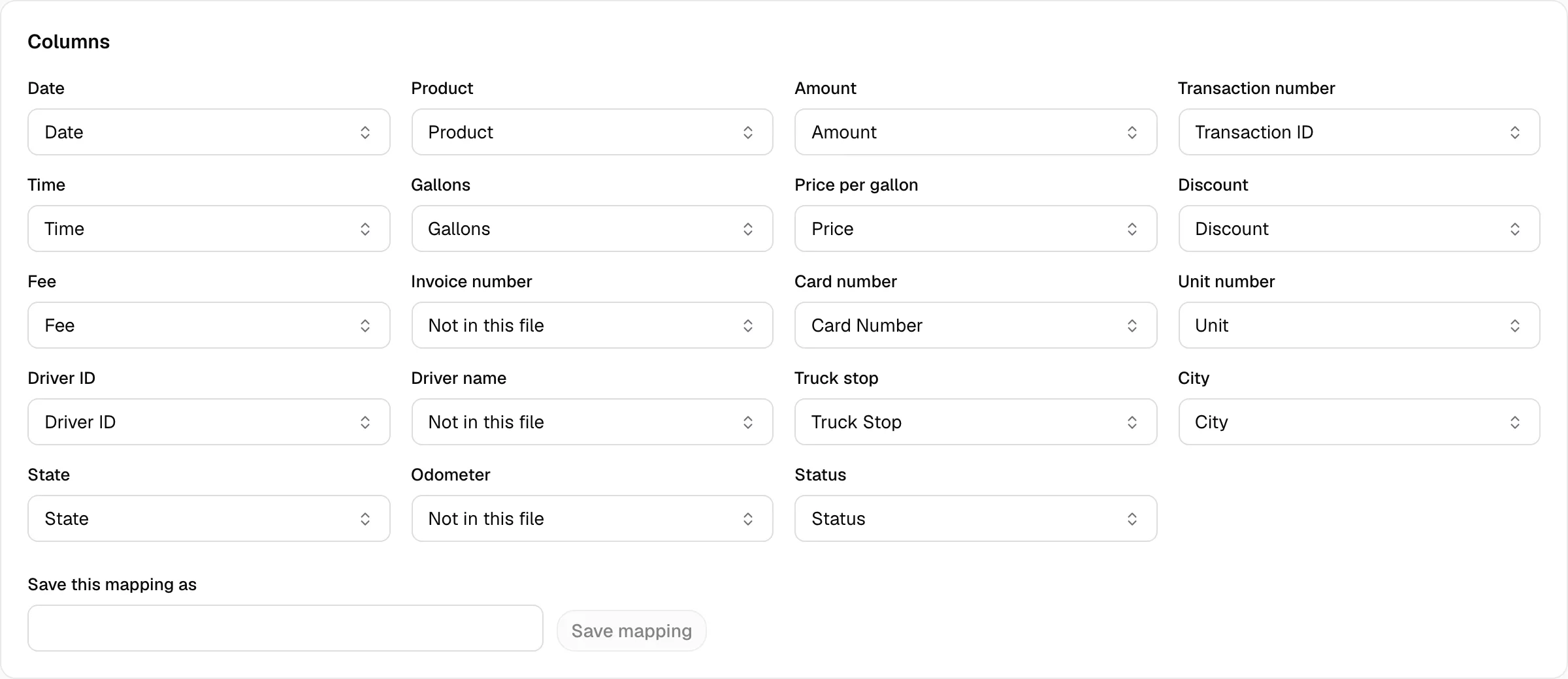
Step 3: Check and import
- Click Check. Each row reads Ready, Already here, Skipped or Fix or remove. A declined or voided line is Skipped.
- Fix the cell of a row marked Fix or remove, or click its trash button, then click Check again.
- Click Import.
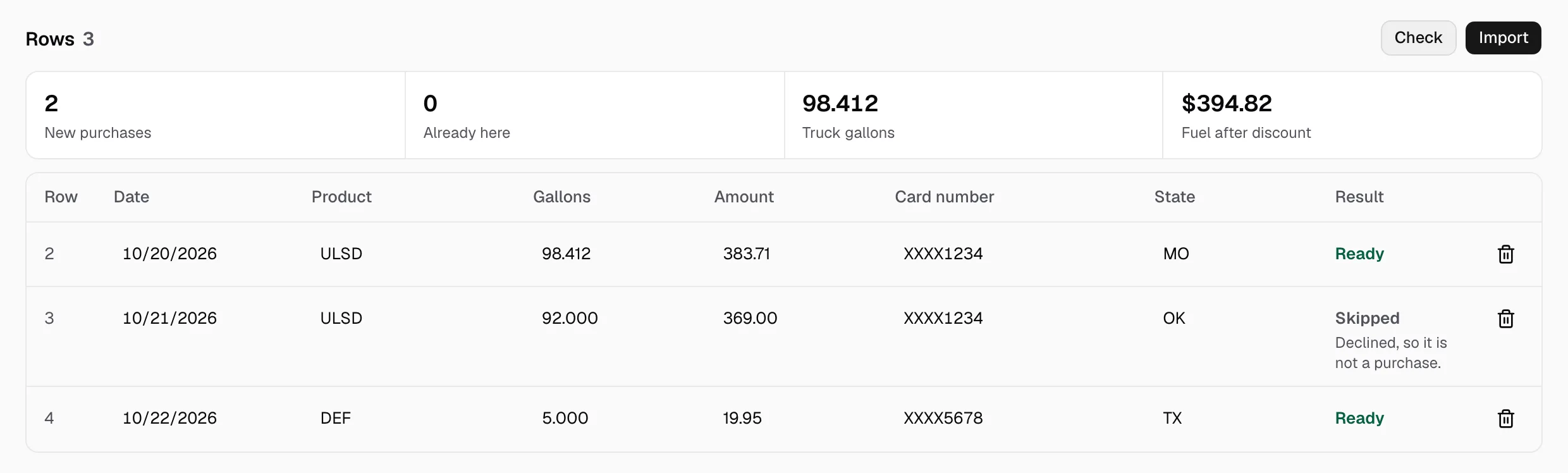
The purchases show under Purchases and in Fuel & Tolls at once. A row that reads Already here is not imported again. A row whose Transaction number cell is empty is imported as Needs review, for you to check.