 Mudflap setup guide1 min read
Connect Mudflap to Yolda
Yolda reads your Mudflap fleet purchases every 4 hours, from midnight in your company's time zone.
Step 1: Ask Mudflap for an API token
- Mudflap issues the token on request. The Fleet Dashboard has no page for it.
- Send this email to Mudflap, or to your Mudflap representative if you have one.
- Mudflap replies with your API token.
Email to send
- To
- support@mudflapinc.com
- Subject
- API token request for [Your company name]
Hello,

We use Yolda as our TMS. Please issue an API token for our Mudflap fleet so Yolda can read our fuel transactions:

- API token

Our MC number is [Your MC number].

Thank you,
[Your name]
[Your company name]
[Your company phone]
[Your email]
Replace the marked blanks before you send or paste.
Step 2: Open Mudflap in Yolda
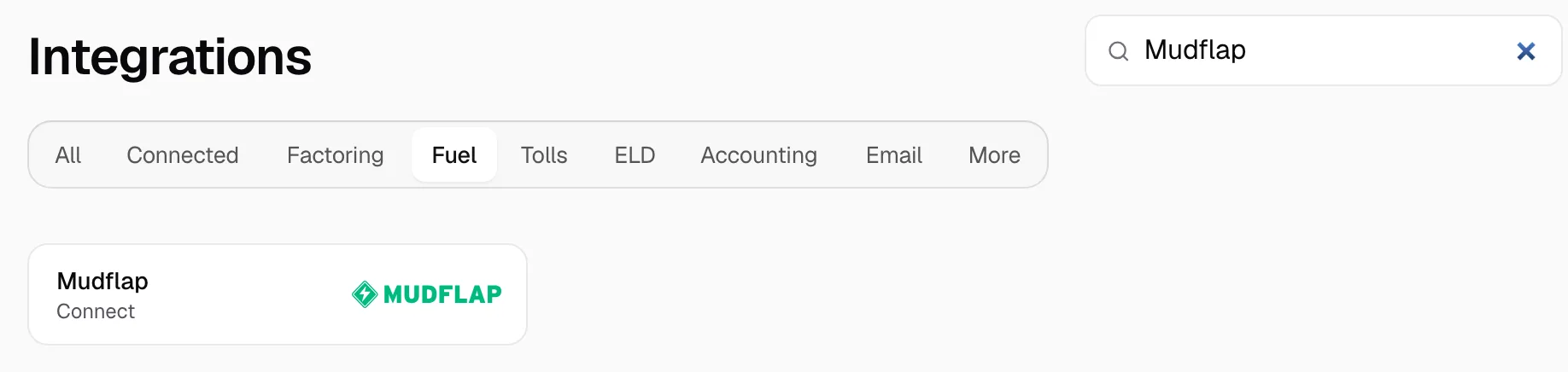
- Open Integrations, click Fuel and type Mudflap in Search. Click Mudflap.
Step 3: Enter your API token
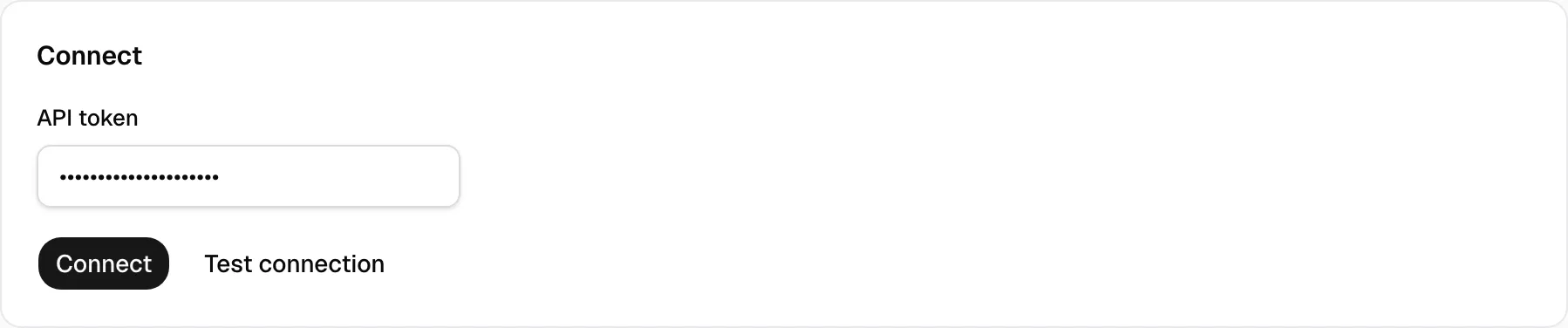
- Paste the token in API token.
- Click Connect. Yolda saves the token only once Mudflap names your fleet.
- Test connection makes the same check without saving.
Step 4: Check that it works
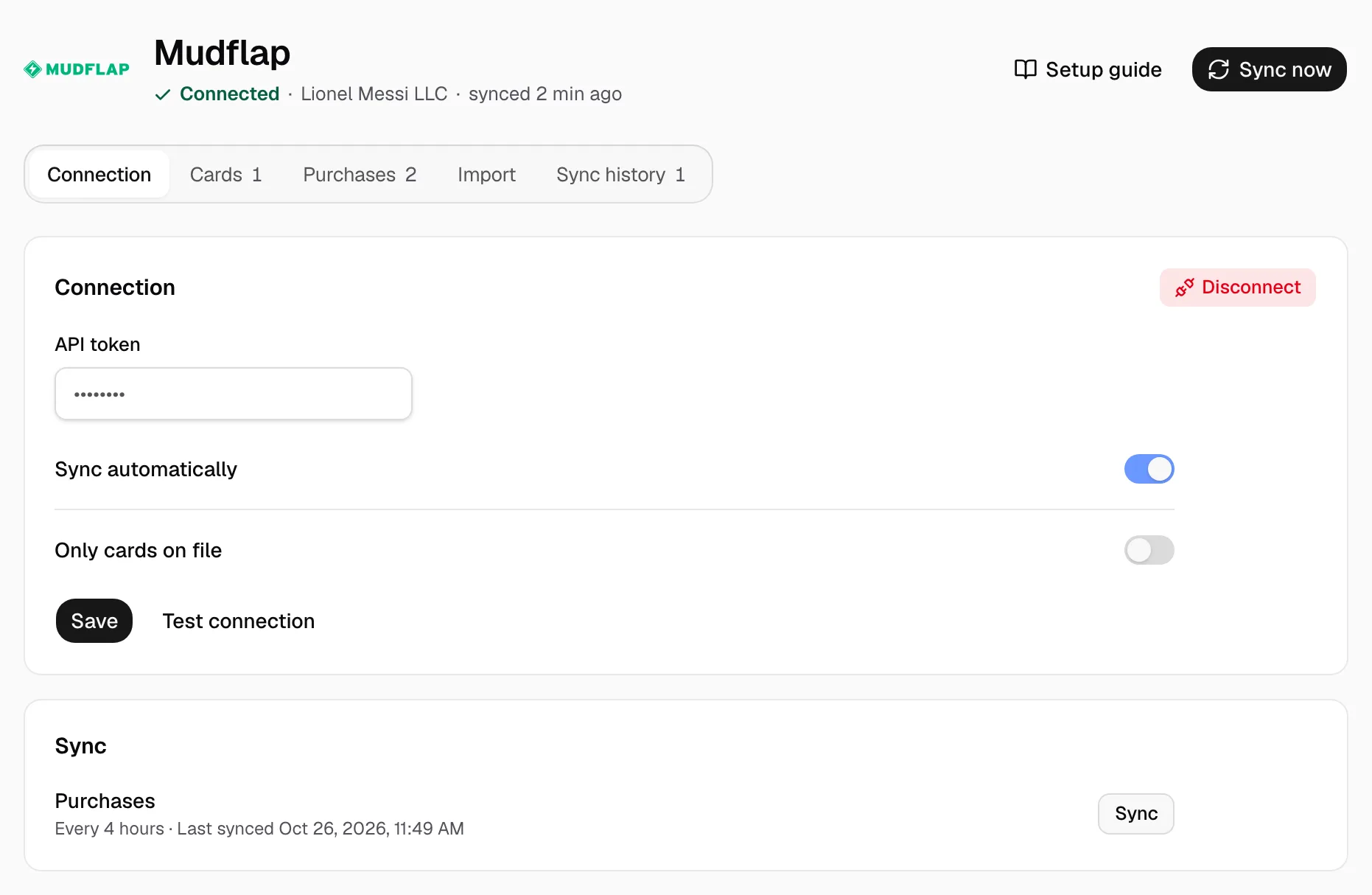
- The page reads Connected with your Mudflap fleet's name. Sync now reads new purchases at once.
- Keep Sync automatically on. Turn on Only cards on file and click Save to skip cards not listed under Cards. For older days, see Sync fuel purchases.
- Each Mudflap card shows under Cards by its last four digits. Give it its driver: see Assign a fuel card. The driver's pay agreement decides who pays.
- Purchases show under Purchases. A pending one waits until Mudflap finishes it.
No token yet? In the Mudflap Fleet Dashboard, open Reports, then All Transactions, and export CSV. Drop the file under Import.