 Pikepass setup guide1 min read
Import your PIKEPASS history
Pay PIKEPASS yourself, not through PrePass? Import its history.
Step 1: Get your history
- Sign in at
https://pikepass.com/ppo. If Toll Transactions offers a CSV or Excel file, save it. - If not, send this email or call
1-800-745-3727. Never include your Account Access Code or card number.
Email to send
- To
- pikepass@pikepass.com
- Subject
- Toll transactions file for our PIKEPASS account
Hello,

Please email us our PIKEPASS account's toll transactions from [Add start date] to [Add end date] as a CSV or Excel file, with the transponder, travel date and time, posted date, agency, location, class, transaction type (toll, replenishment, payment, fee or adjustment), description and amount of each one.

Our PIKEPASS account number is [Your PIKEPASS account number].

Thank you,
[Your name]
[Your company name]
[Your company phone]
[Your email]
Replace the marked blanks before you send or paste.
Step 2: Open Pikepass
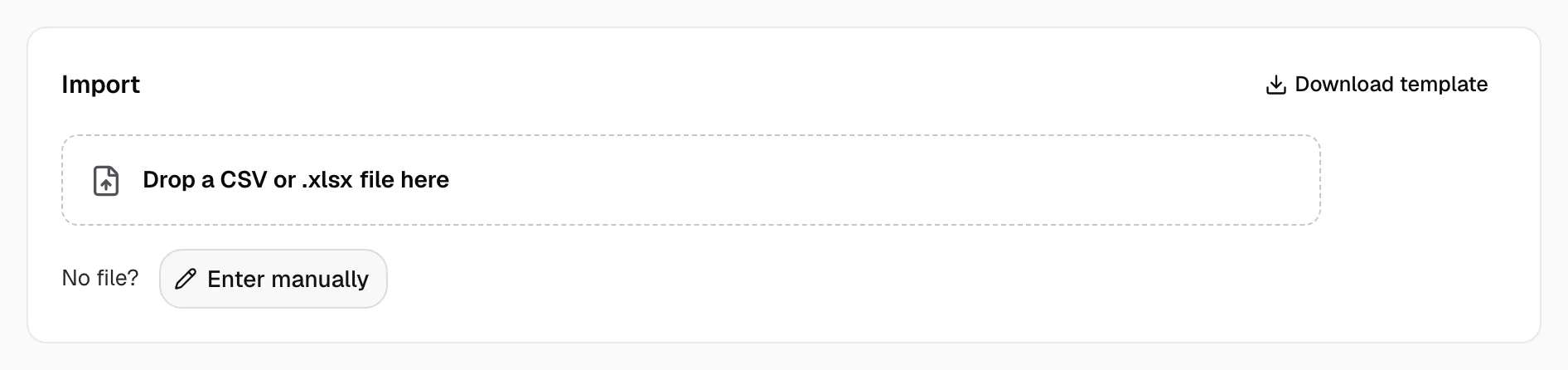
- Open Integrations, then Pikepass. The file goes under Import.
- Drop it on Drop a CSV or .xlsx file here. PDF only? Use Enter manually per toll.
Step 3: Match columns and import
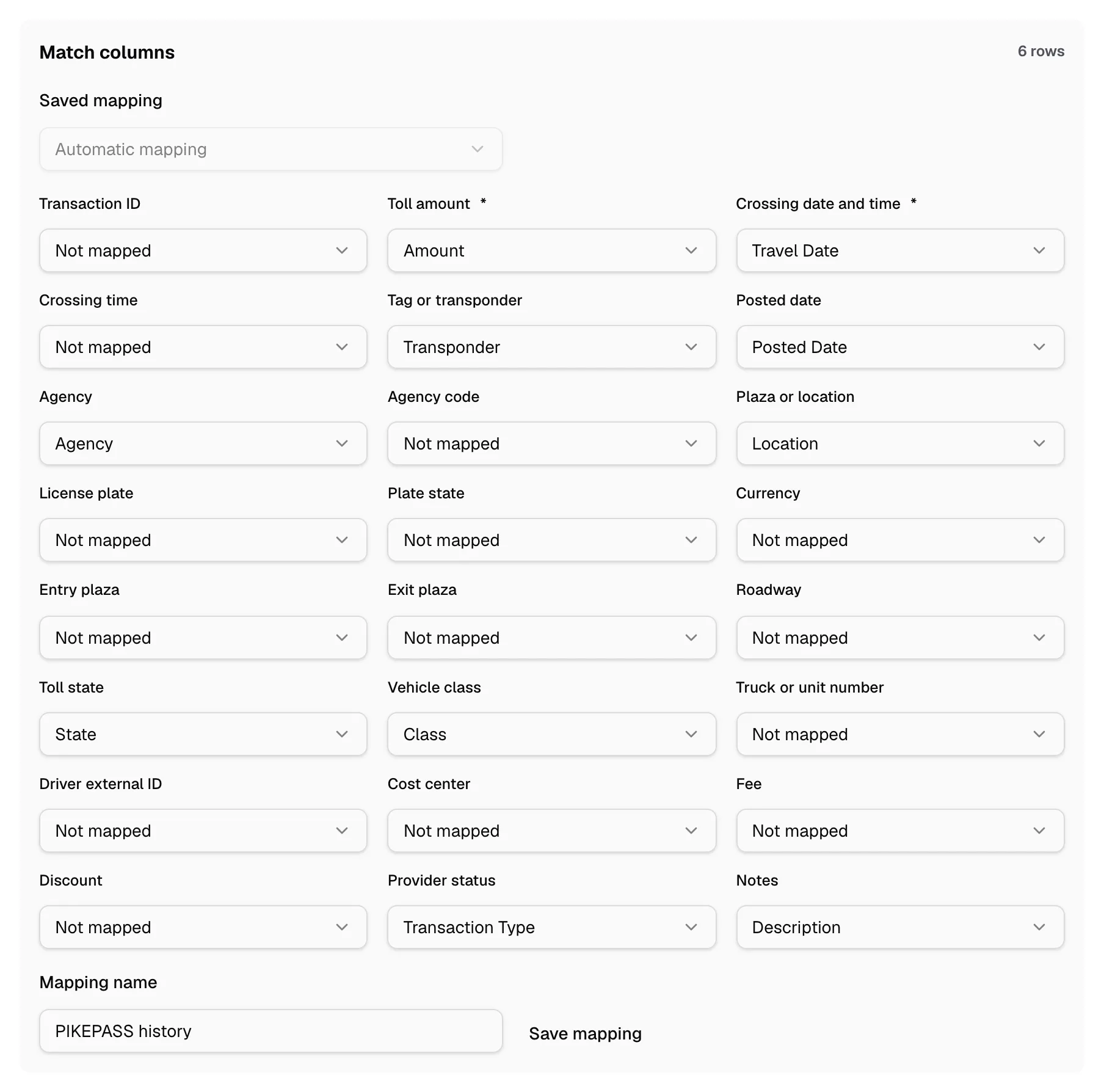
- Under Match columns, Toll amount and Crossing date and time are required.
- Map Tag or transponder; Agency or Toll state sets the time zone.
- Map Truck or unit number if present: it finds the driver for older crossings.
- Row type goes on Provider status, Description on Notes.
- Type a Mapping name and click Save mapping.
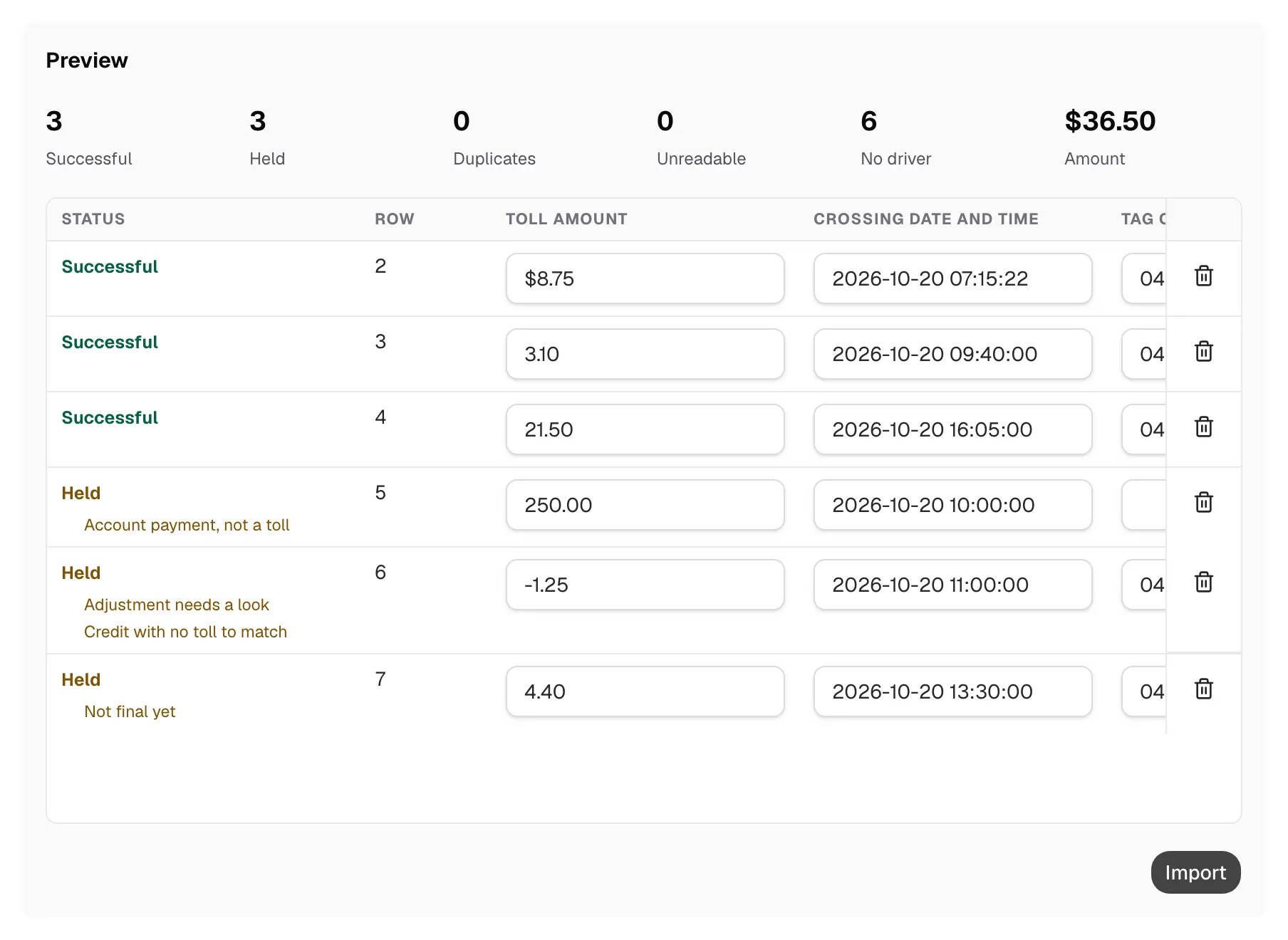
- Click Preview. A replenishment, payment or fee shows Held: Account payment, not a toll. Then click Import.
Step 4: Check your tolls
- Click Open tolls. Pay agreements decide who pays.
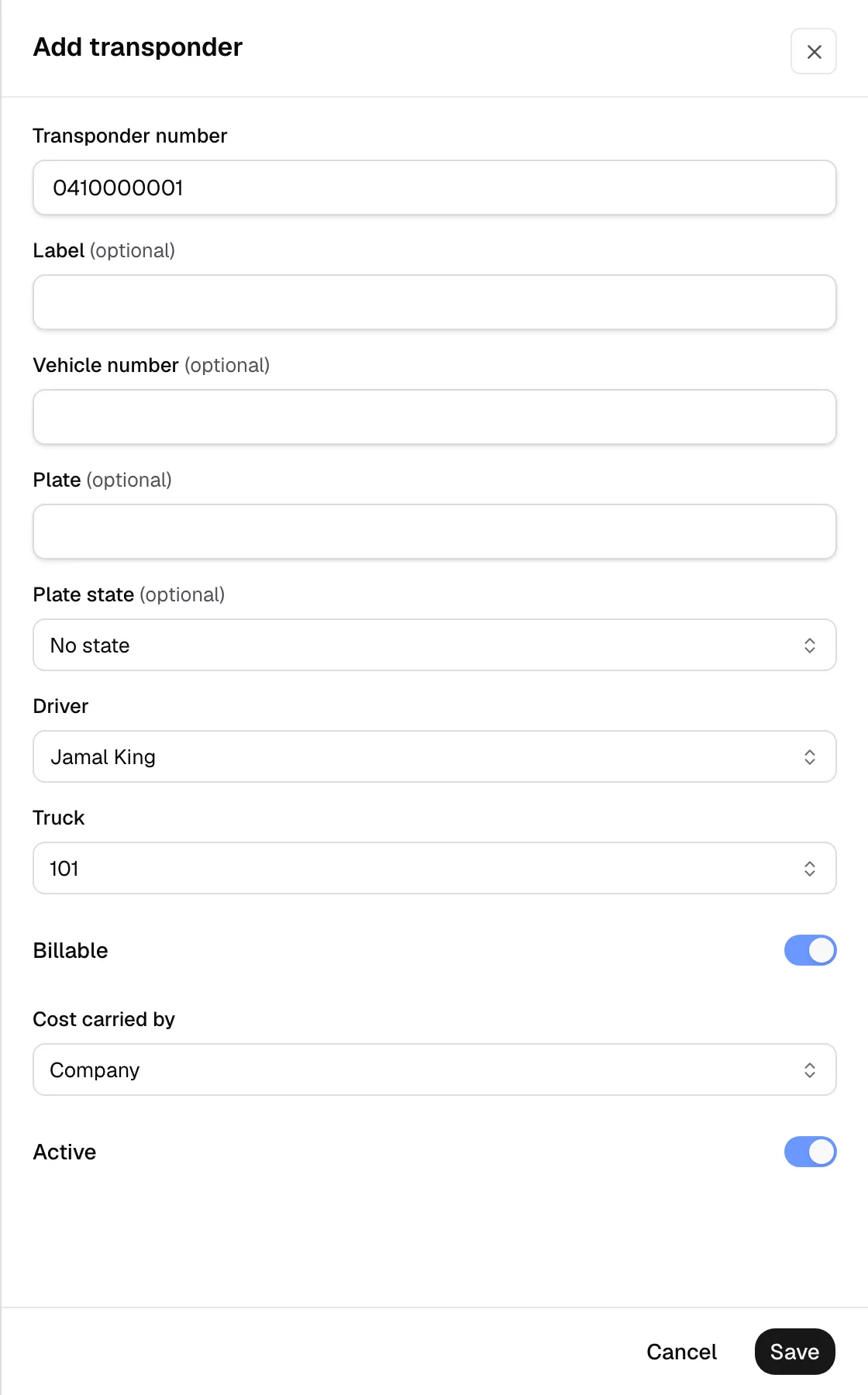
- Not matched: under Transponders, click Add transponder, enter Transponder number, Driver and Truck, then Save. It reaches later crossings only; the company carries those already imported.
- Select held rows. Account payments: Not a toll. Adjustments: click Release hold or Not a toll.
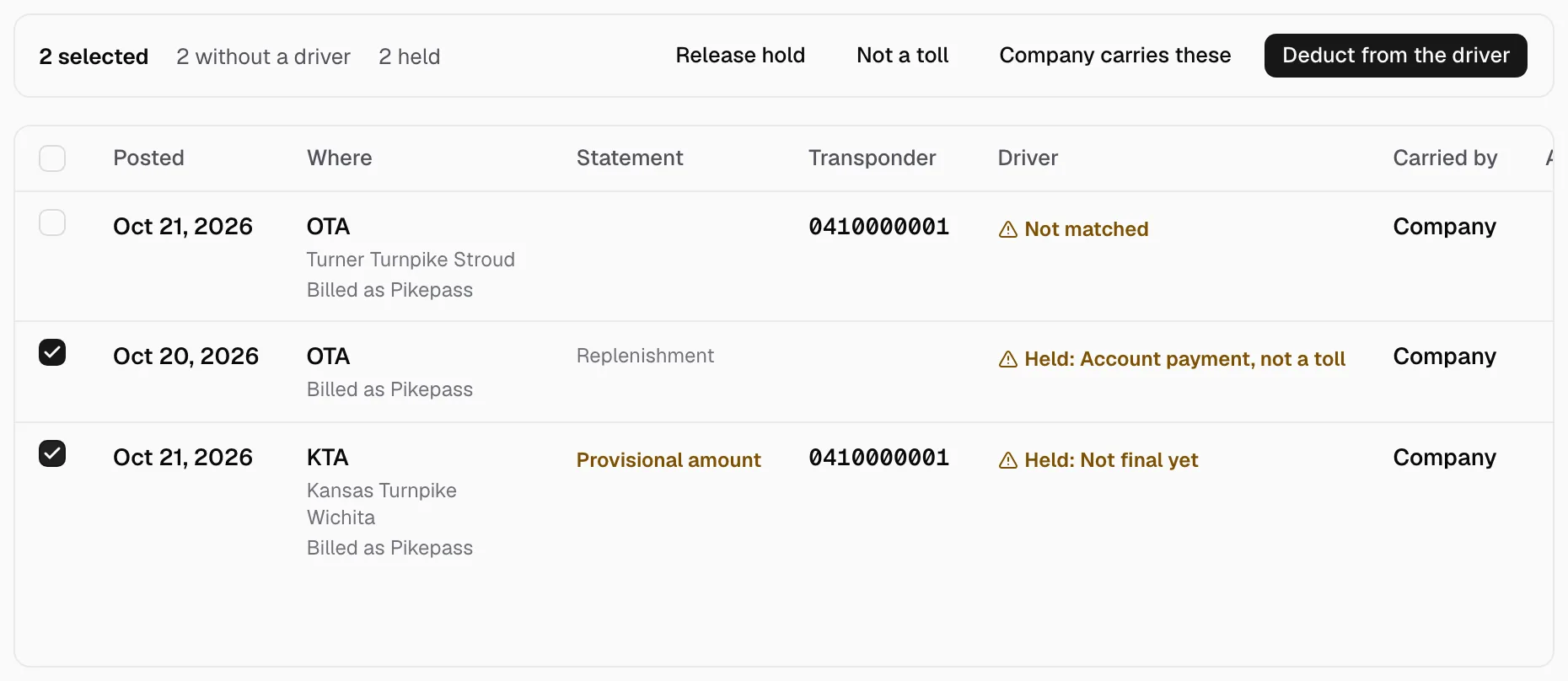
- Pending tolls are charged once posted.
- Next time, use Saved mapping.