 TCS setup guide1 min read
Connect TCS fuel transactions by FTP to Yolda
Yolda reads new TCS files at 12 AM and 12 PM, your company's time.
Step 1: Ask TCS for FTP access
- Send this email to your TCS representative, or to
info@tcsfuel.com.
Email to send
- To
- [Your TCS representative's email]
- Subject
- FTP access for our TMS, Yolda
Hello,

We use Yolda as our TMS. Please give us FTP access to our TCS fuel transaction files so Yolda can read them.

Our MC number is [Your MC number].

Please let us know if you need anything else.

Thank you,
[Your name]
[Your company name]
[Your email]
[Your company phone]
Replace the marked blanks before you send or paste.
Step 2: Return the Service Provider form
- TCS replies with a data release form. Fill in its Service Provider part, sign it, and send it back.
Values for the provider form
- Service Provider
- Yolda
- Primary Contact
- Yolda
- Phone
- 847-773-7073
- partner@sfdify.com
- Street Address
- 2135 CityGate Ln, Ste 300
- City
- Naperville
- State/Province
- IL
- Zip/Postal Code
- 60563
- TCS then emails your FTP username and password.
Step 3: Open TCS in Yolda
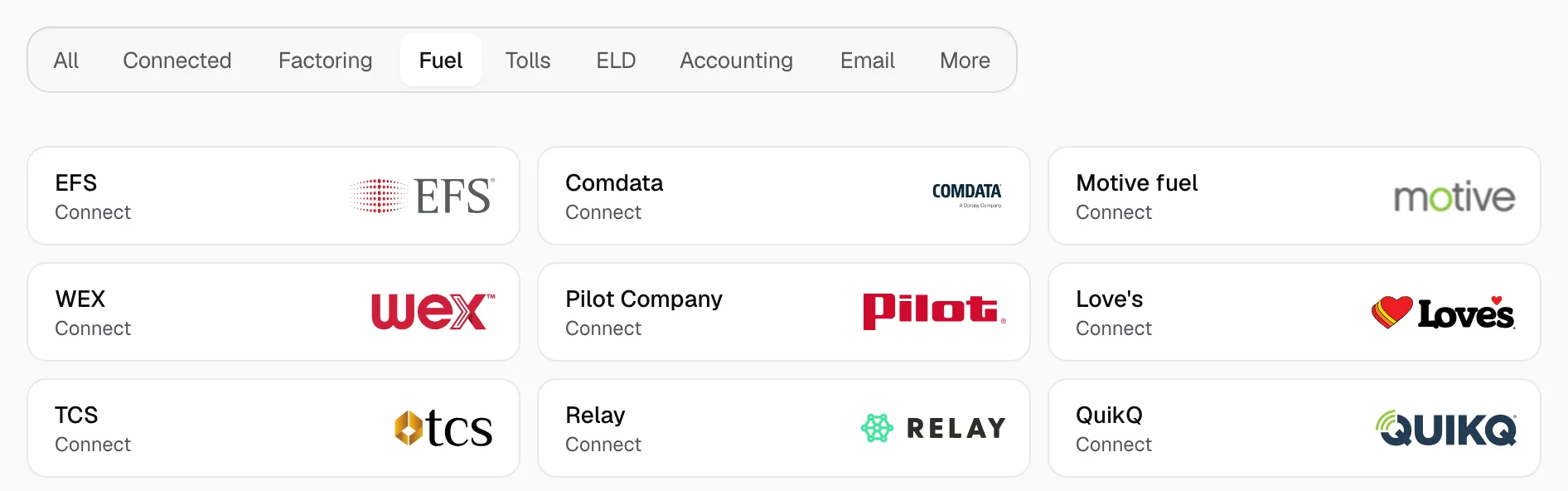
- Open Integrations, click Fuel, then TCS.
Step 4: Enter your FTP login
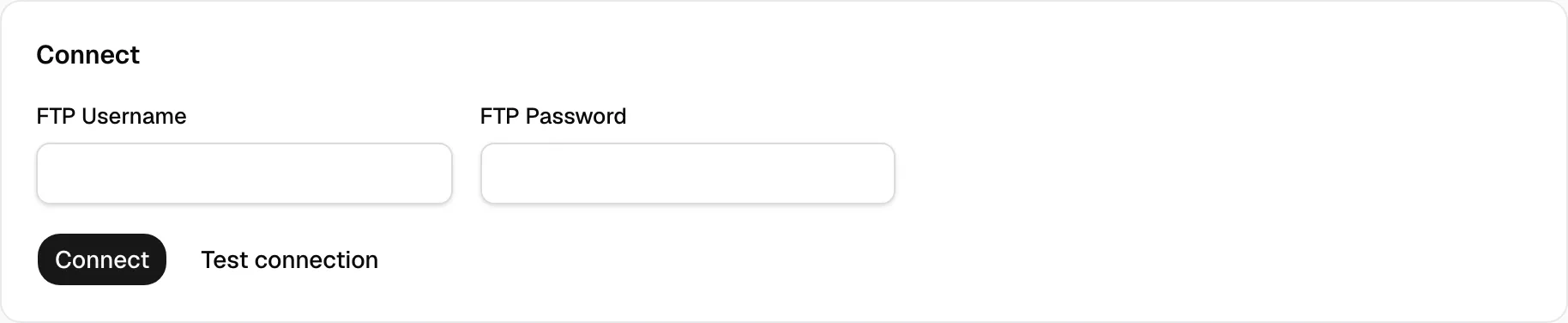
- Enter the FTP Username and FTP Password from TCS's email.
- Click Test connection. When TCS accepts the login, click Connect.
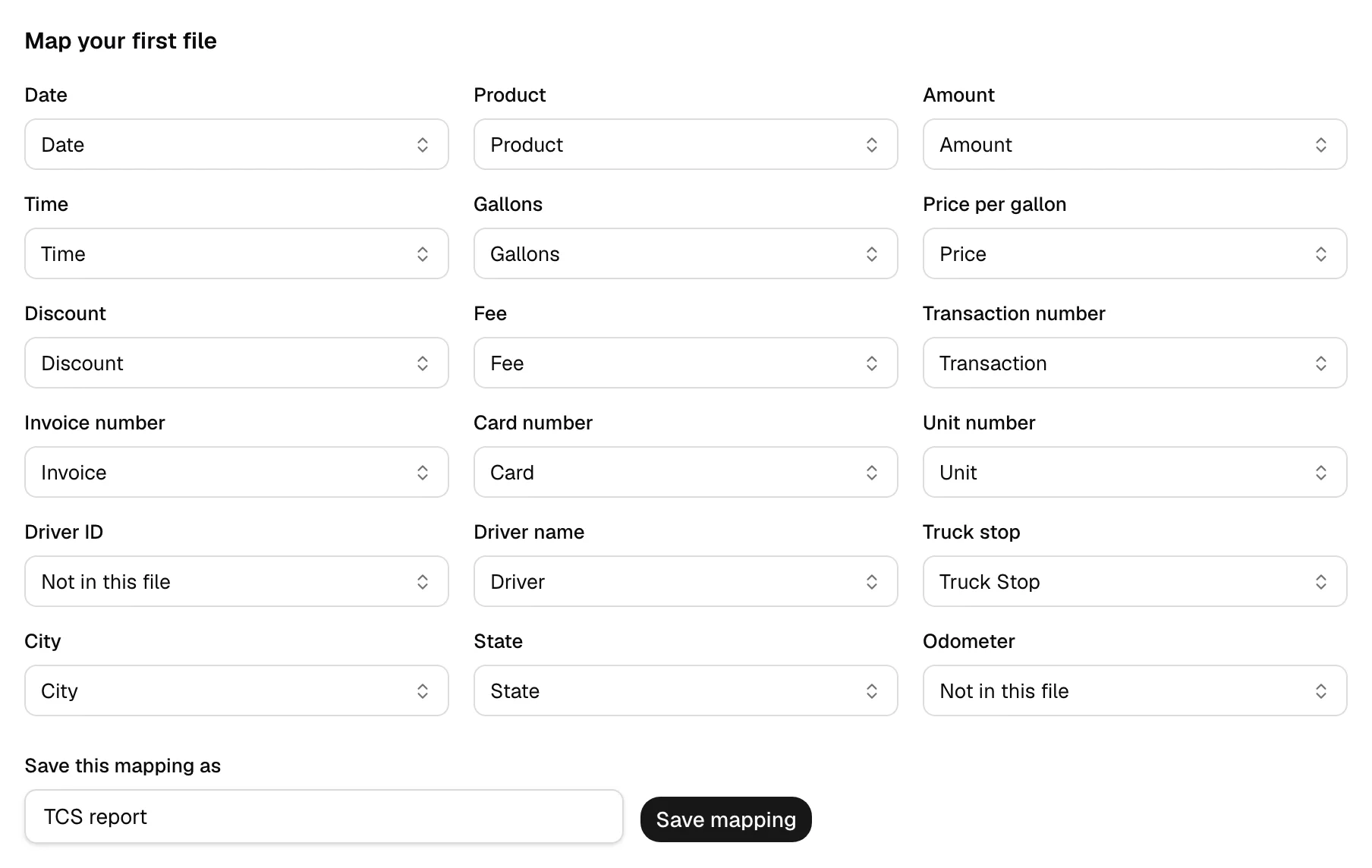
Step 5: Map your first file
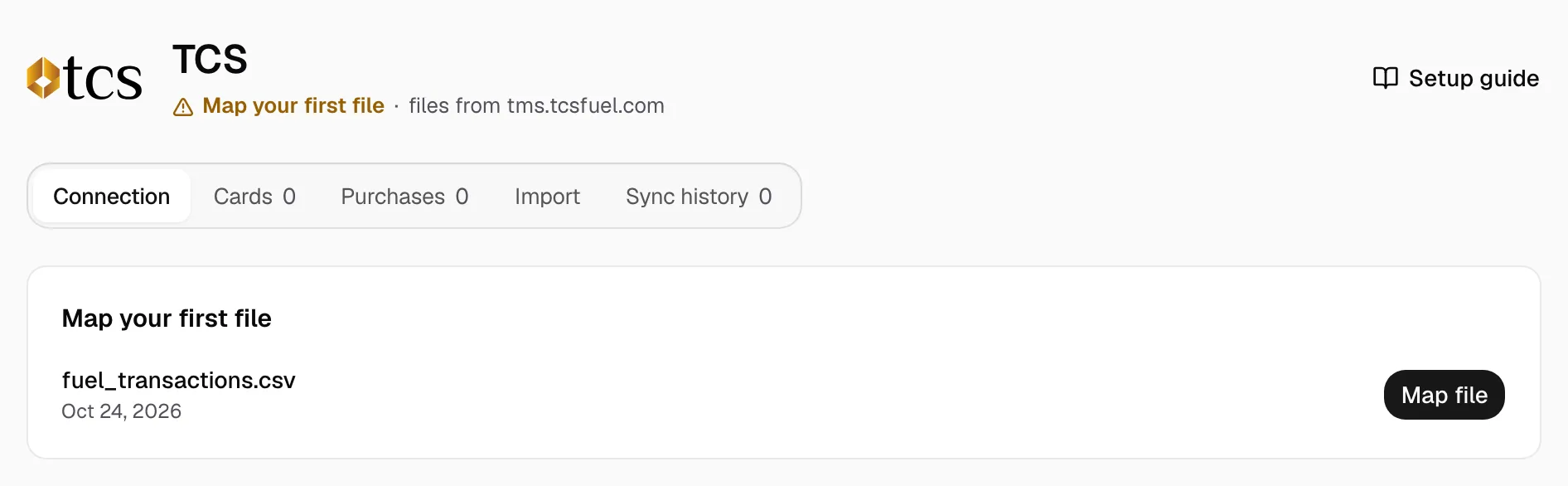
- When TCS's first file arrives, the page reads Map your first file. Click Map file.
- Check each column. Date, Product and Amount are required. For Amount, pick the amount before TCS's discount, not the total. Your column names may differ.
- Click Save mapping. Yolda reads it at once.
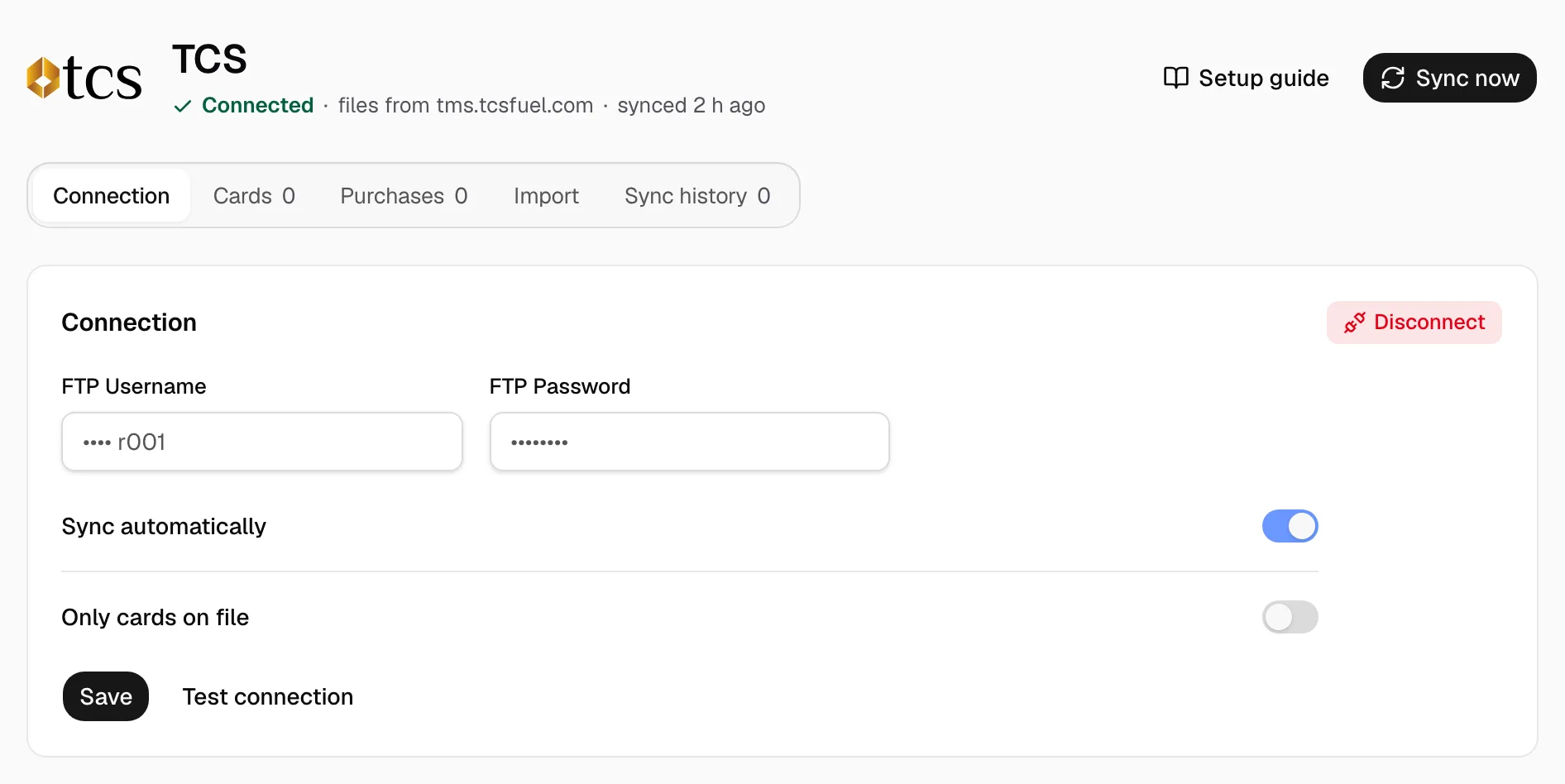
The page then reads Connected; later files import with that mapping while Sync automatically is on. Turn on Only cards on file and click Save to keep out cards not listed under Cards. Sync now checks TCS at once. A purchase whose amounts do not add up is Held under Purchases until you click Release. Import older months from MyTCSFuel under Import.