 Relay setup guide1 min read
Connect Relay fuel to Yolda
Yolda reads Relay purchases every 4 hours, or as Relay sends them.
Step 1: Get an API key from Relay
- In the Relay portal, open Settings, Integrations, Available Integrations.
- If Yolda is listed, open it and create the key. Relay shows Pending until your first purchase reaches Yolda.
- If not, send Relay this email.
Email to send
- To
- integrations@relaypayments.com
- Cc
- help@relaypayments.com
- Subject
- TMS Fuel API key for Yolda
Hello,

We use Yolda as our TMS. Please issue a TMS Fuel API key for our Relay account so Yolda can read our fuel transactions. Please also turn on the 16-digit Relay Driver ID (integration ID) for each of our drivers.

Company: [Your company name]
MC number: [Your MC number]
DOT number: [Your DOT number]
Main contact: [Your name]
Email: [Your email]
Phone: [Your company phone]

Thank you,
[Your name]
Replace the marked blanks before you send or paste.
Step 2: Open Relay in Yolda
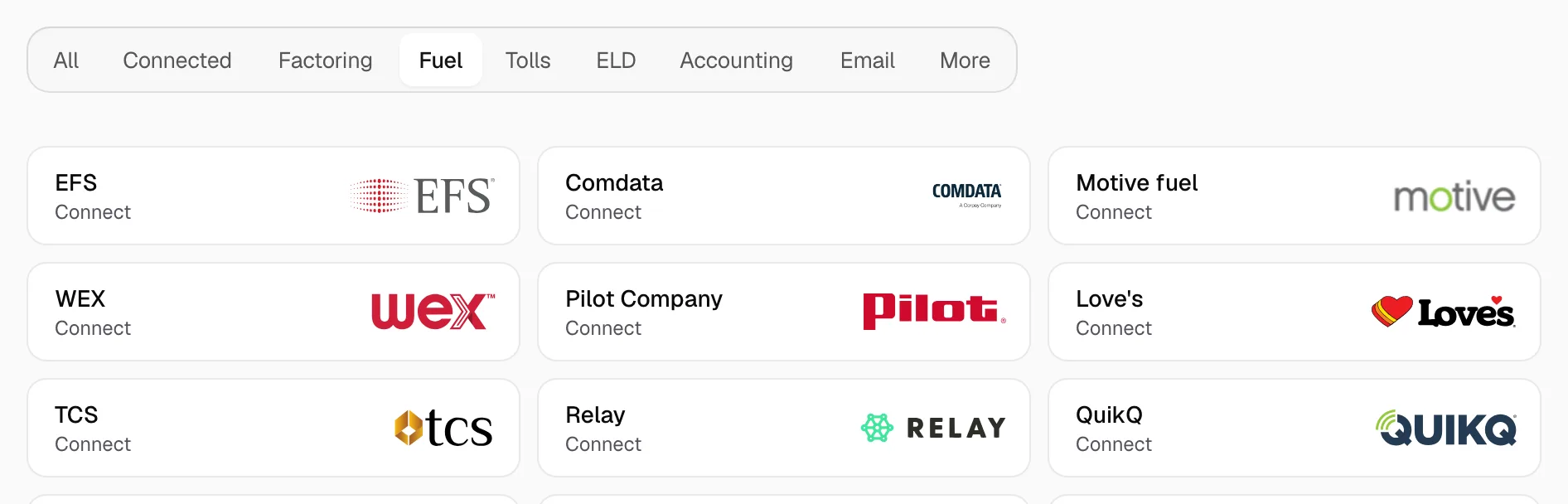
- Open Integrations, click Fuel, then Relay.
Step 3: Enter the API key
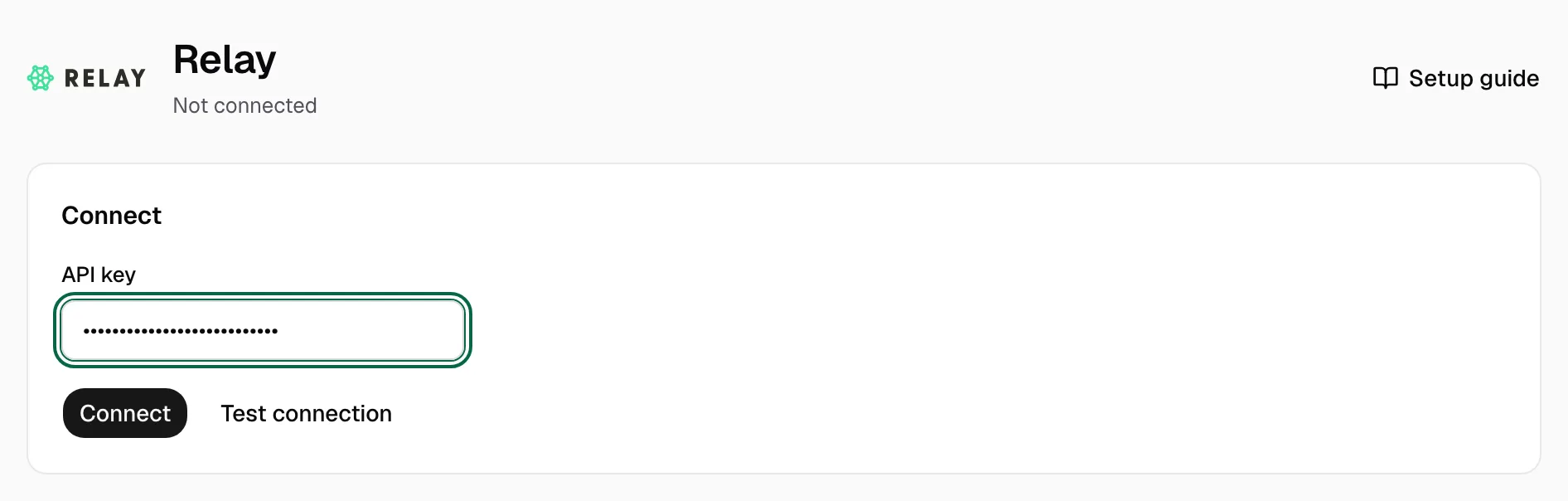
- Paste the key in API key.
- Click Test connection, then Connect.
Step 4: Check that it worked
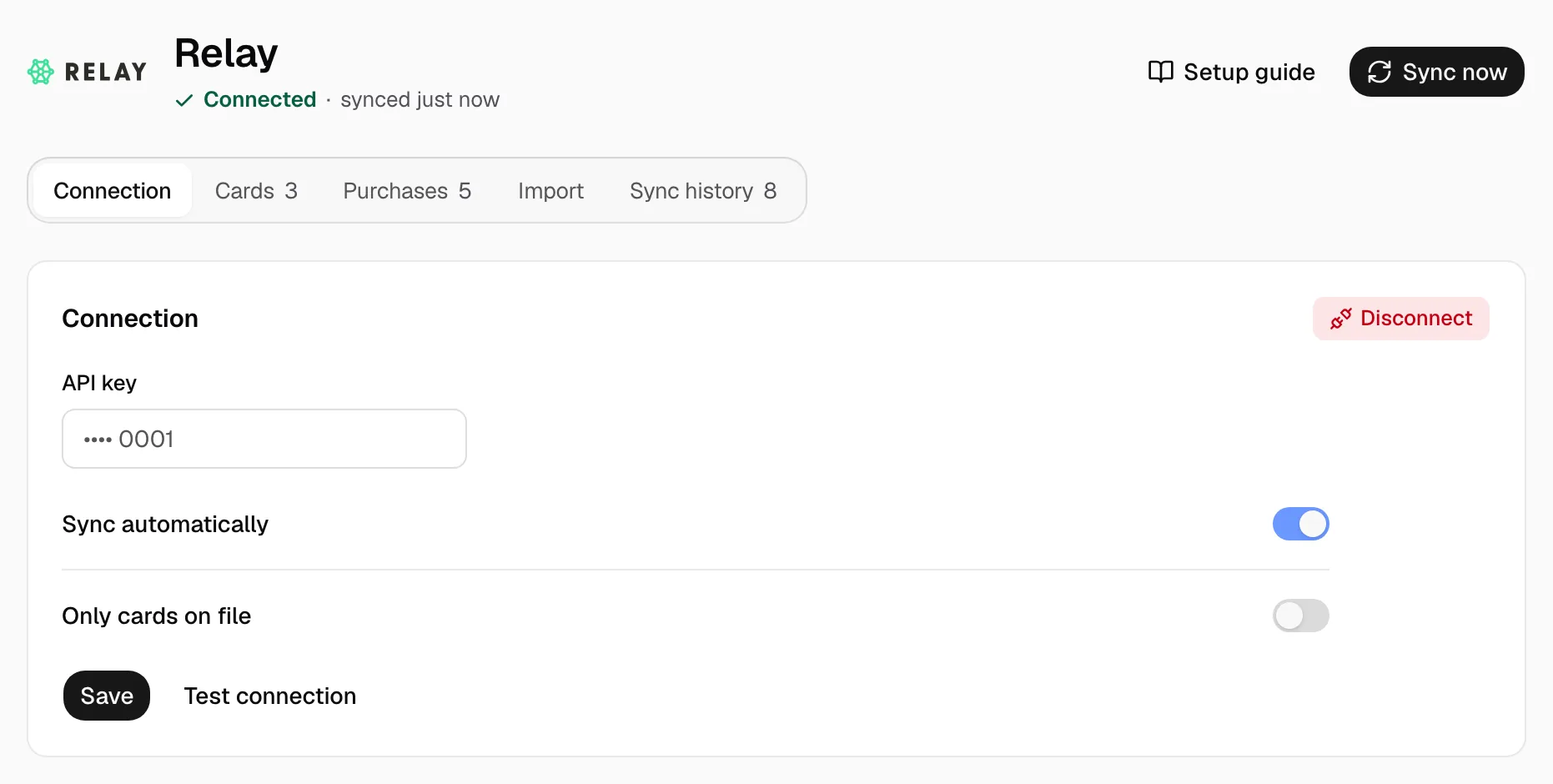
- The page reads Connected with Sync automatically on.
- Sync now reads right away.
- Leave Only cards on file off.
- For instant purchases, click Send email under From Relay and send the email it writes to integrations@relaypayments.com. No email app? Open Show email and copy it.

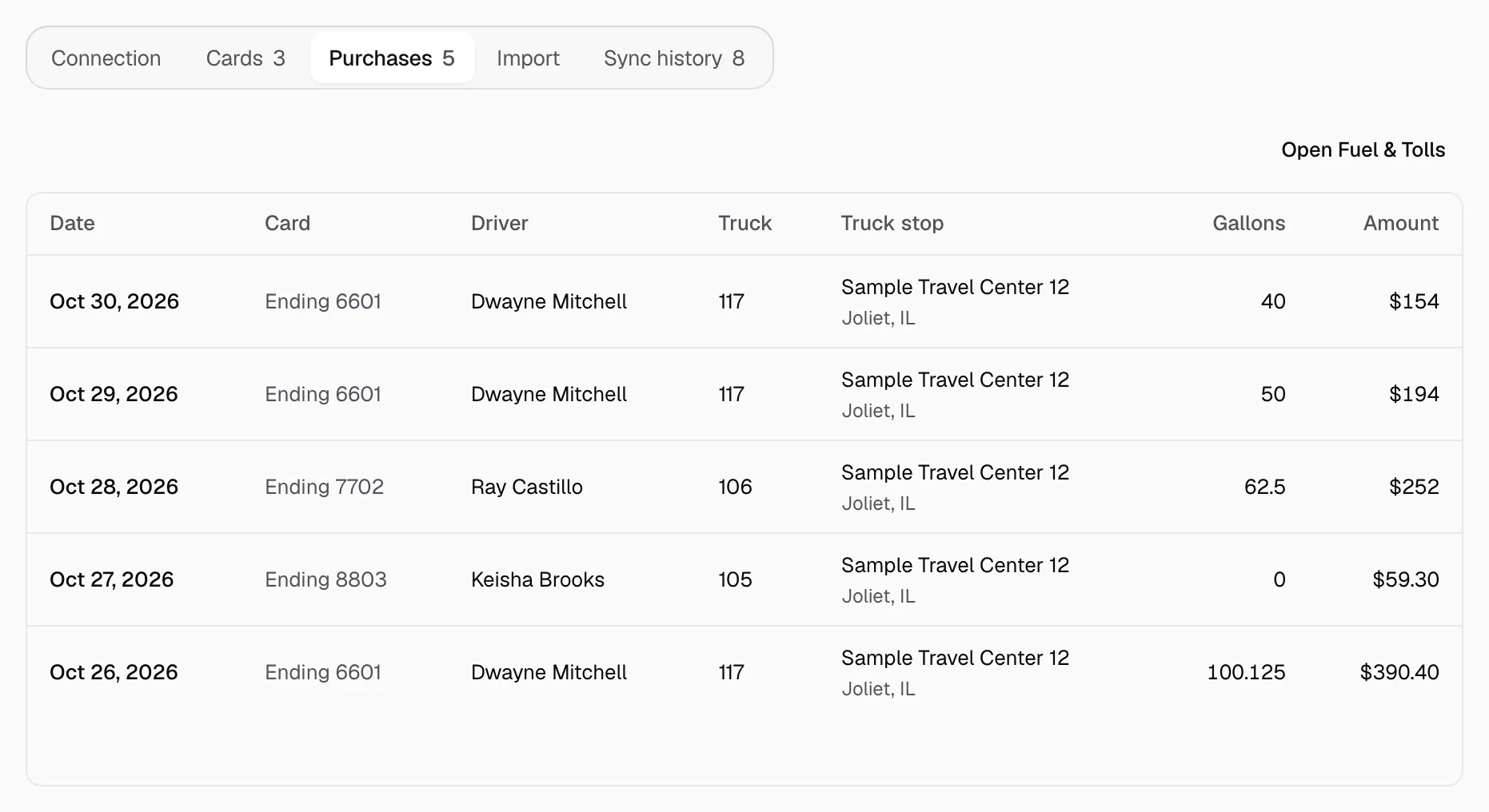
- Purchases show under Purchases.
Step 5: Give each Relay ID its driver
- In Relay, make each fuel policy (Drivers, Policies) ask Truck #.
- Click Cards. Each 16-digit Relay Driver ID reads Nobody yet with its Relay name.
- Click the Nobody yet row ending in the ID's last four digits, or Add card to enter the ID in Card number.
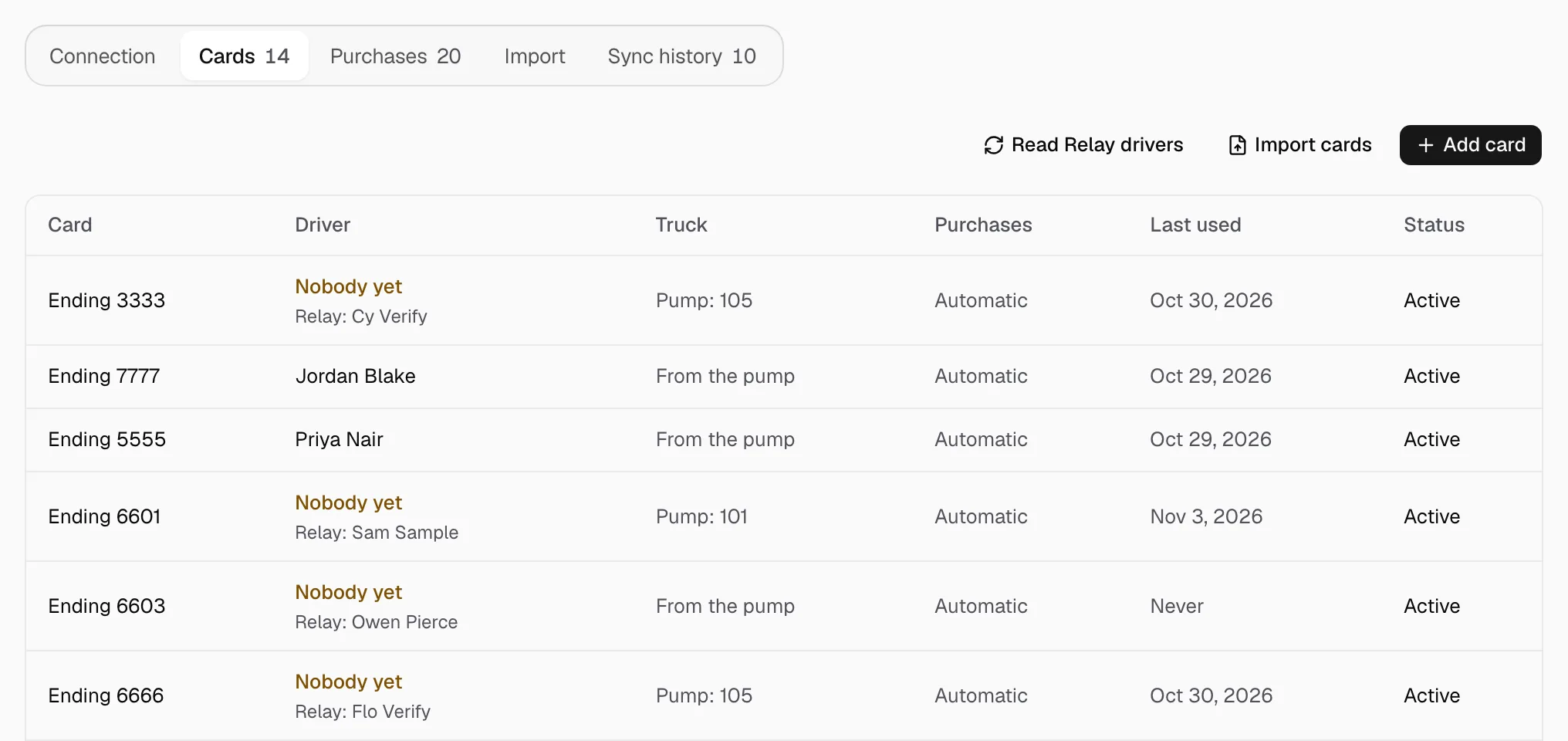
- Pick the Driver (or check the Suggested one); leave Truck on From the pump.
- Keep Add purchases on their own and Active on; click Save.
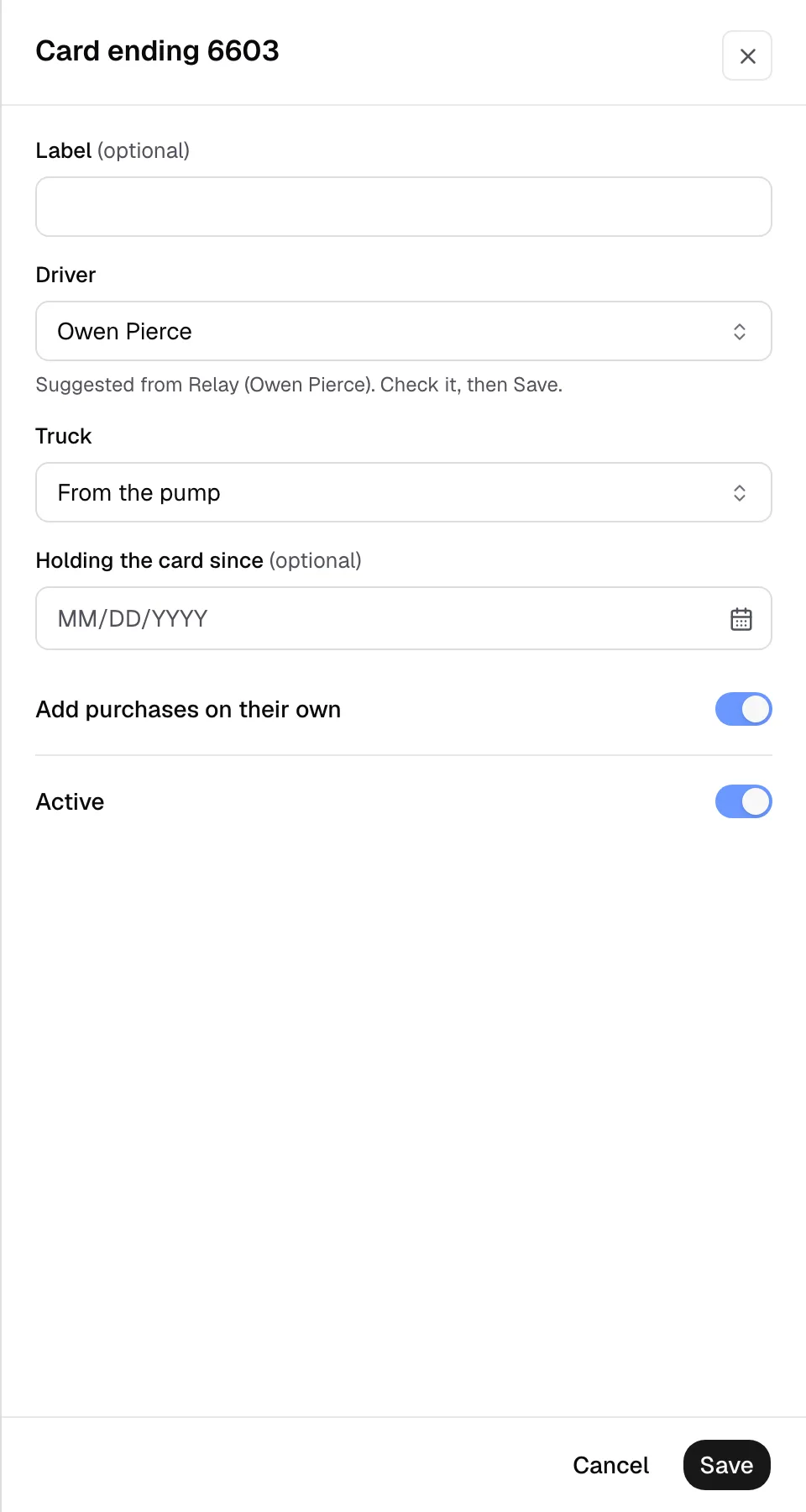
The driver gets the ID's earlier purchases, from Holding the card since if you set a day.