 Pilot Company setup guide1 min read
Connect Pilot fuel transactions by SFTP to Yolda
Yolda reads each new Pilot file from Pilot's SFTP server.
Step 1: Get your SFTP login from Pilot
- Send your Pilot representative this email. Don't know your representative? Call Pilot at
865-474-4737.
Email to send
- To
- [Your Pilot representative's email]
- Subject
- SFTP transaction file account for our TMS, Yolda
Hello,

We use Yolda as our TMS. Please set up an SFTP transaction file account for our Pilot fuel card so Yolda can read our transactions from sftpx.pilotcorp.com.

Our MC number is [Your MC number] and our USDOT number is [Your DOT number].

Please send the SFTP username and password.

Thank you,
[Your name]
[Your company name]
[Your email]
Replace the marked blanks before you send or paste.
- Pilot replies with a username and password.
Step 2: Open Pilot in Yolda
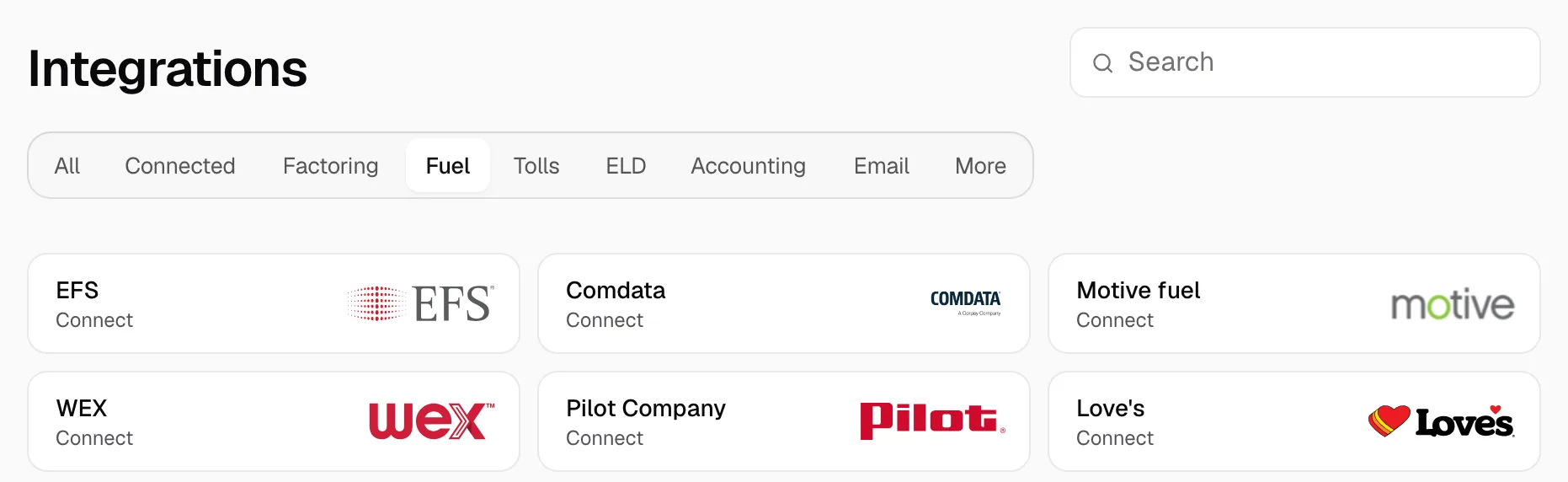
- Open Integrations, click the Fuel tab, then Pilot Company.
Step 3: Enter the SFTP login
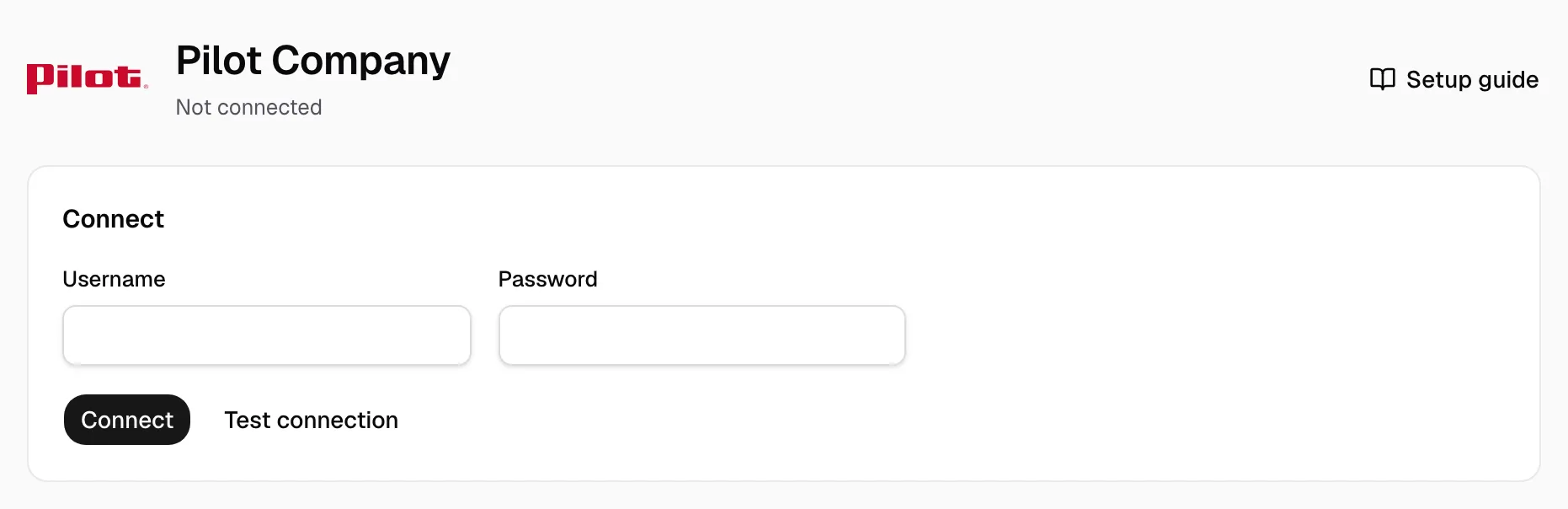
- Enter the Username and Password Pilot sent.
- Click Test connection, then Connect.
Step 4: Check it worked, then map the first file
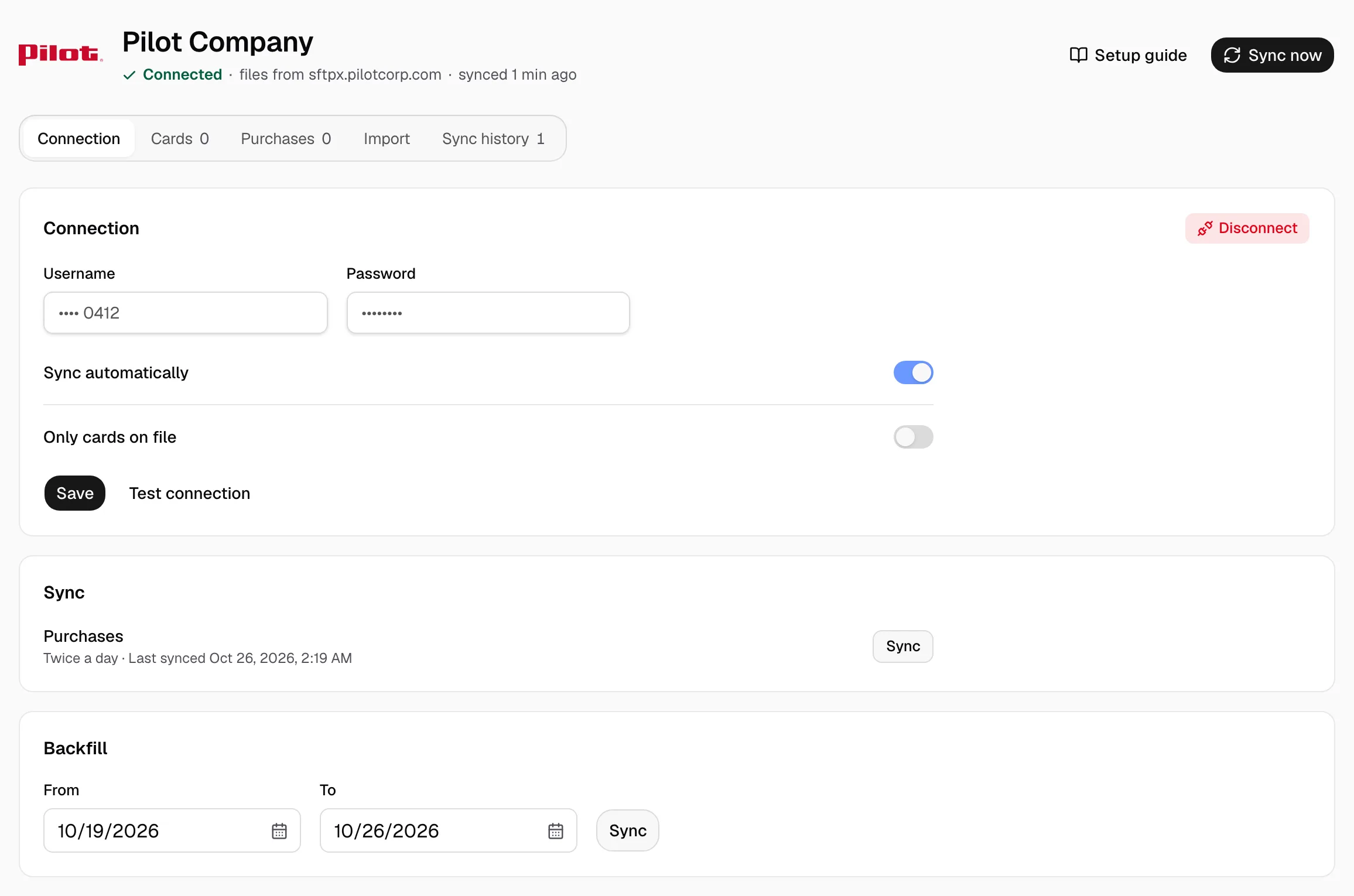
- The page reads Connected, with Sync automatically on. Only cards on file keeps out cards not listed under Cards.
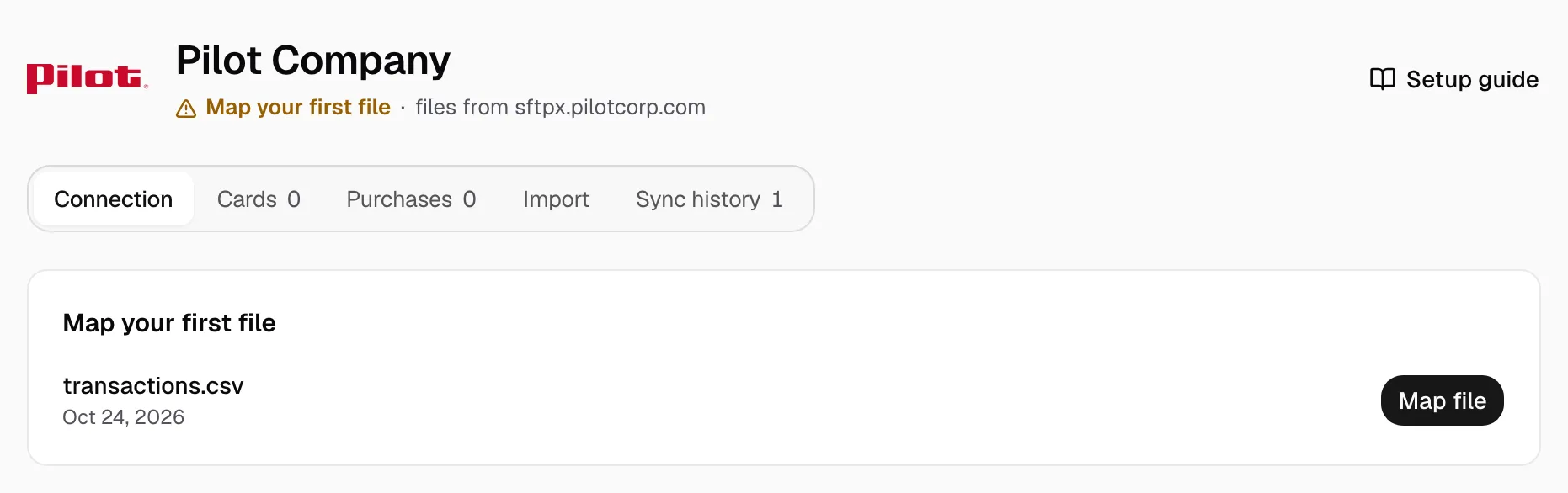
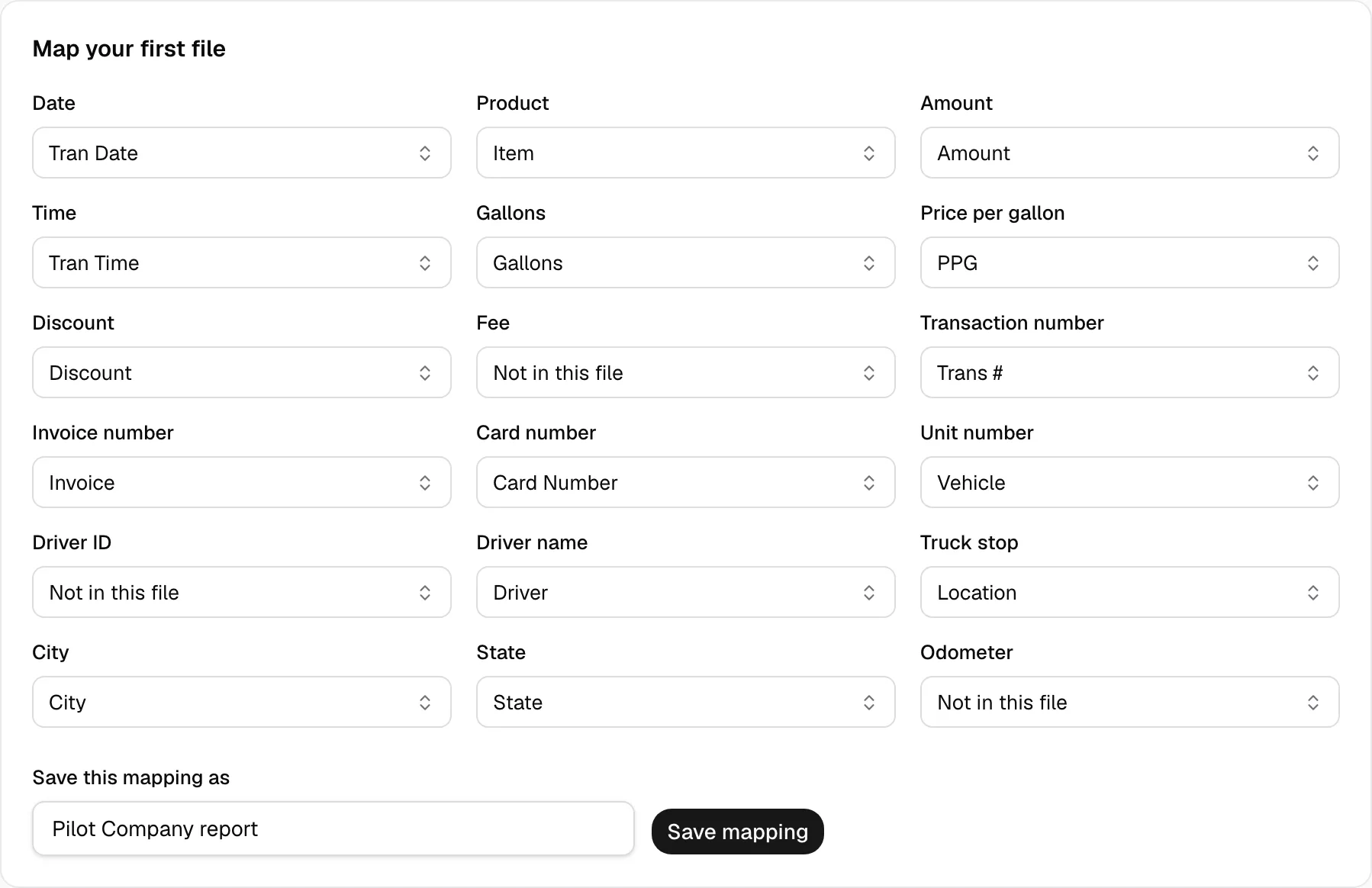
- When Pilot's first file arrives, the page reads Map your first file. Click Map file.
- Date, Product and Amount are required. Also set Transaction number and State: they stop duplicates and find Canadian purchases.
- Click Save mapping.
Later files import at 12 AM and 12 PM your company's time, or on Sync now, and show under Purchases. The first sync reads 45 days of files; for older ones, pick From and To under Backfill, then click Sync. Canadian purchases can be in Canadian dollars or litres, so they wait under Provider changes as Held until you click Review, then Release. For months Pilot no longer keeps, drop the Excel export from Pilot's portal (Fuel Card, Reporting/Statements, Transactions) under Import.