Multi Service setup guide1 min read
Connect Multi Service fuel transactions to Yolda
Yolda reads your Multi Service OTR card purchases.
Step 1: Ask your account rep for API access
- Multi Service creates a Fuel Card API user for Yolda, not your MSFleet portal login. Email your account rep, or call
877-673-5338.
Email to send
- To
- [Your Multi Service account rep's email]
- Cc
- customer-service@msfuelcard.com
- Subject
- Fuel Card API access for our TMS, Yolda
Hello,

We use Yolda as our TMS. Please set up a Fuel Card API user for Yolda and send us its Username and Password, so Yolda can read our processed transactions and card list.

Our MC number is [Your MC number].

Thank you,
[Your name]
[Your company name]
[Your email]
[Your company phone]
Replace the marked blanks before you send or paste.
Step 2: Open Multi Service in Yolda
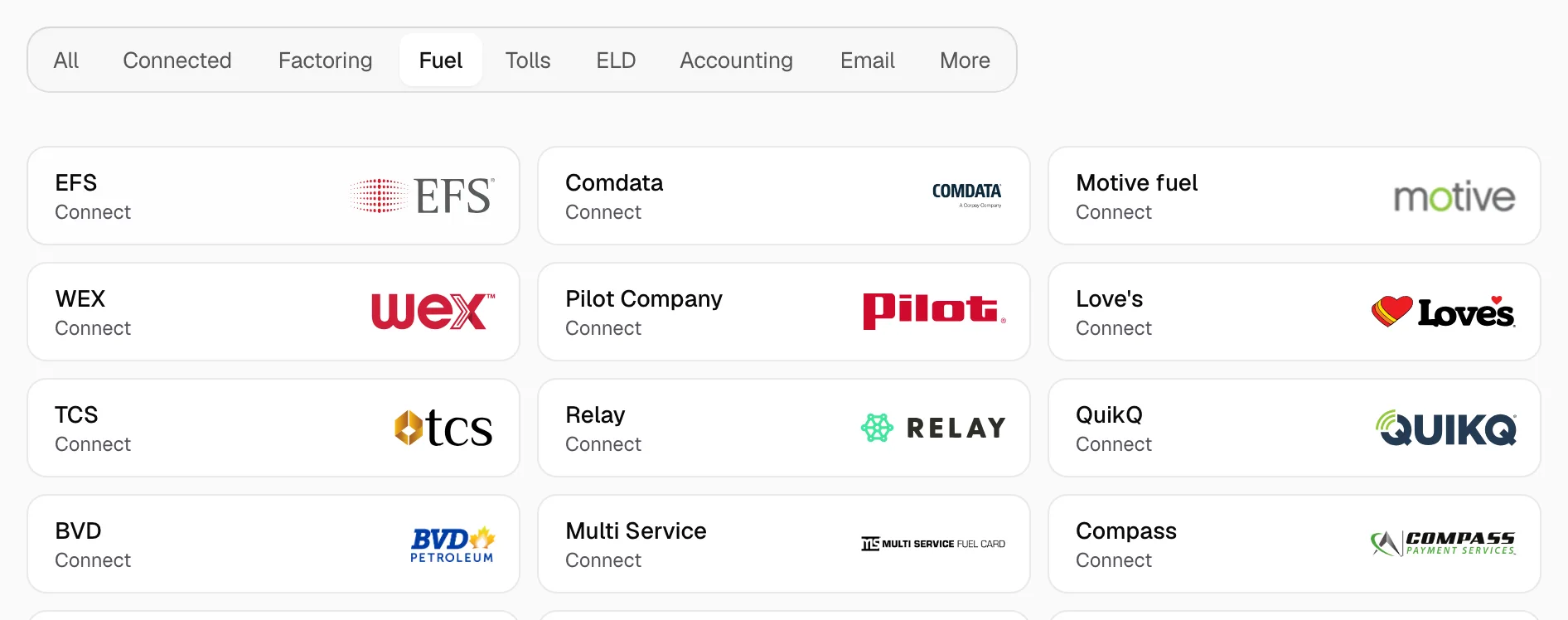
- Open Integrations, click Fuel, then Multi Service.
Step 3: Enter the Multi Service API login
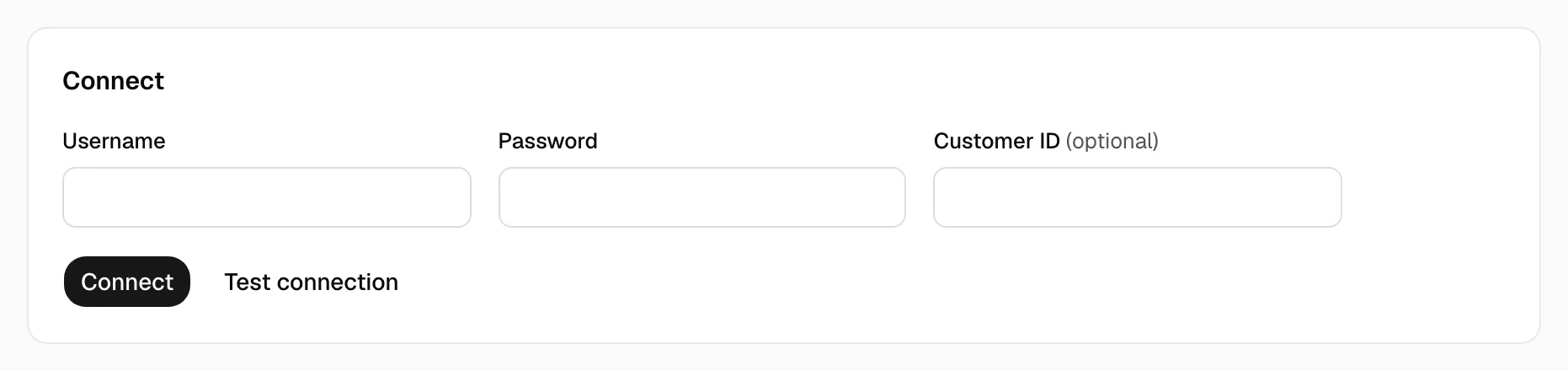
- Enter the API Username and Password Multi Service sent, not your portal login.
- Enter your Customer ID, your account number in MSFleet (
fleet.msfuelcard.com), or leave it empty. - Click Test connection. If it lists several Customer IDs, pick yours under Customer ID.
- When Yolda says Multi Service accepted them, click Connect.
Step 4: Check that it works
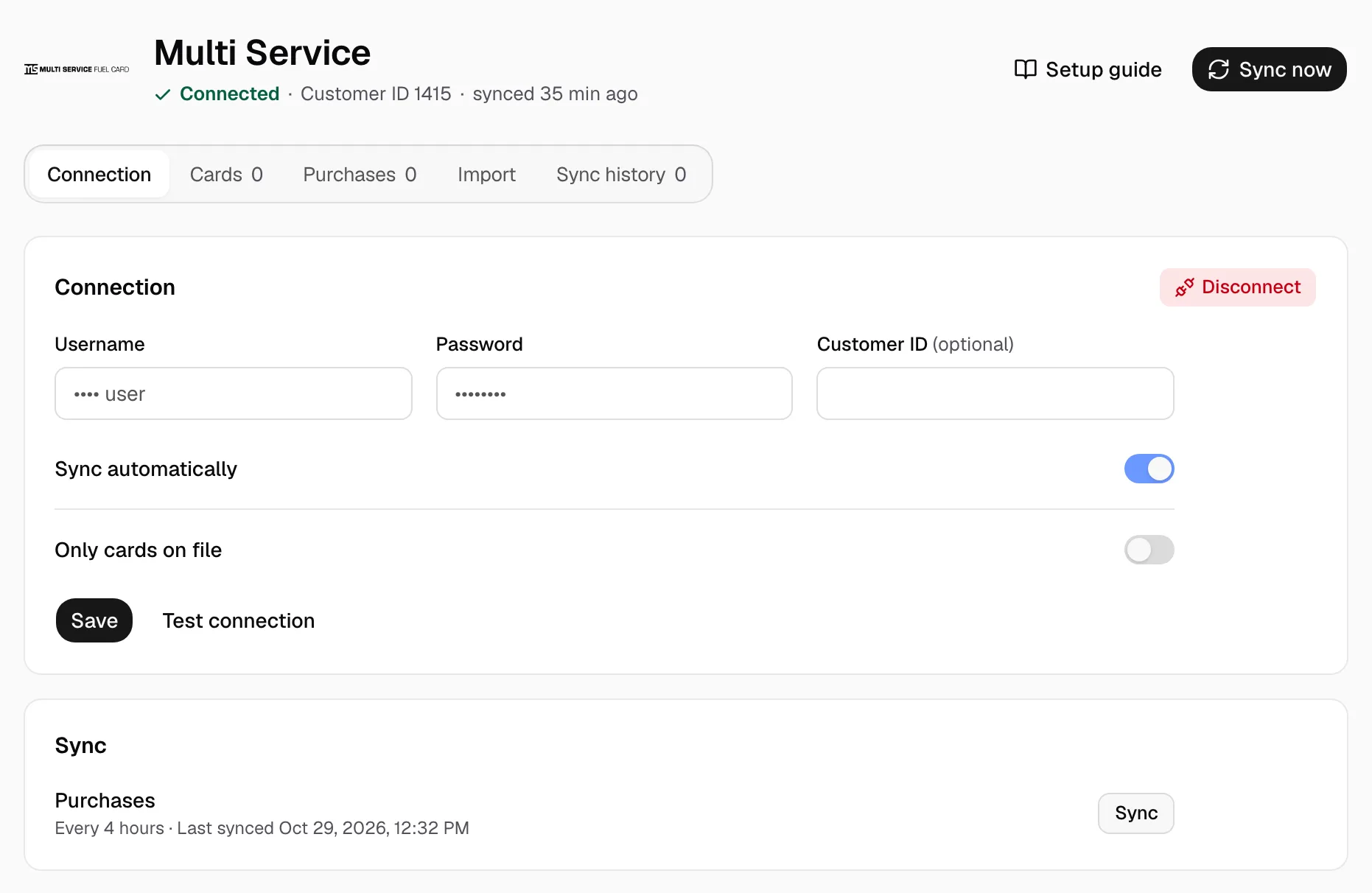
- The page shows Connected and your Customer ID. With Sync automatically on, Yolda reads purchases every 4 hours from midnight, company time; Sync now reads them at once.
- Turn on Only cards on file and Save to keep out cards not under Cards.
- Purchases show under Purchases. Give each card its driver and truck under Cards.
- A purchase in Canadian dollars or liters, or whose total does not add up, reads Needs review and waits as Held under Provider changes on Purchases. Click Review, then Release.
- Multi Service keeps 90 days. Mixed Fleet cards have no feed: import their report under Import.