Motive fuel setup guide1 min read
Connect Motive fuel to Yolda
Motive fuel brings your Motive Card purchases into Yolda.
Step 1: Get your API key from Motive
- In the Motive Fleet Dashboard, as a fleet admin, click the admin icon at the bottom of the menu, then Developers.
- On API access, click Create API key, name it Yolda, and give it read access to:
Values for the provider form
- Motive Card transactions
- motive_card_transactions.read
- Motive Cards
- motive_card_cards.read
- Company Details
- companies.read
- Drivers and Fleet Managers
- users.read
- Vehicles
- vehicles.read
- Leave expiration and Groups empty. Click Create and copy the key: Motive shows it only once.
- See Request API Key instead? Click it, or send Motive API Support this email.
Email to send
- To
- apisupport@gomotive.com
- Subject
- API key for our Motive account
Hello,

We use Yolda as our TMS. Please create an API key for our Motive account with read access to Motive Card transactions, Motive Cards, company details, drivers and vehicles, so Yolda can read our Motive Card purchases.

Our MC number is [Your MC number] and our USDOT number is [Your DOT number].

Thank you,
[Your name]
[Your company name]
[Your email]
Replace the marked blanks before you send or paste.
Step 2: Open Motive fuel in Yolda
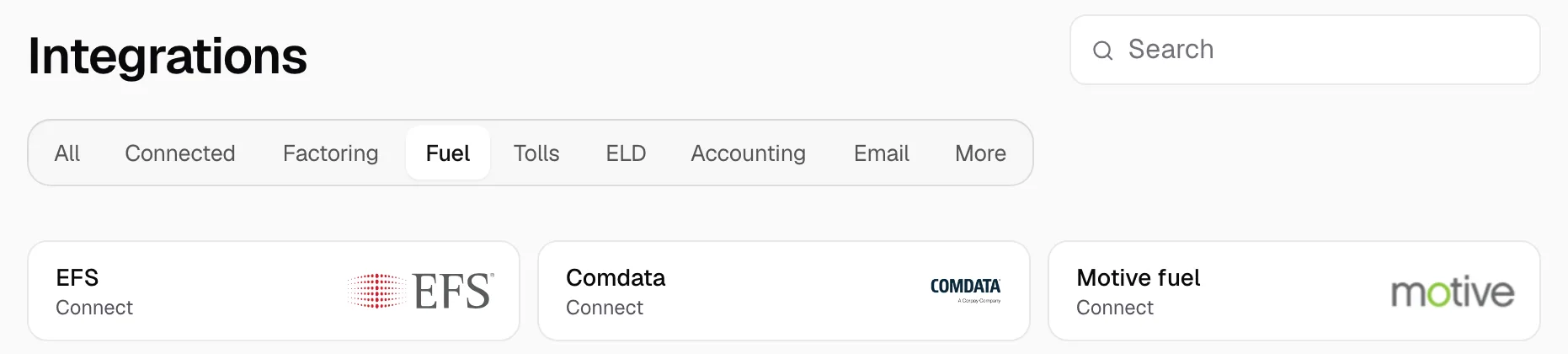
- Open Integrations, then the Fuel tab.
- Click Motive fuel.
Step 3: Enter your API key
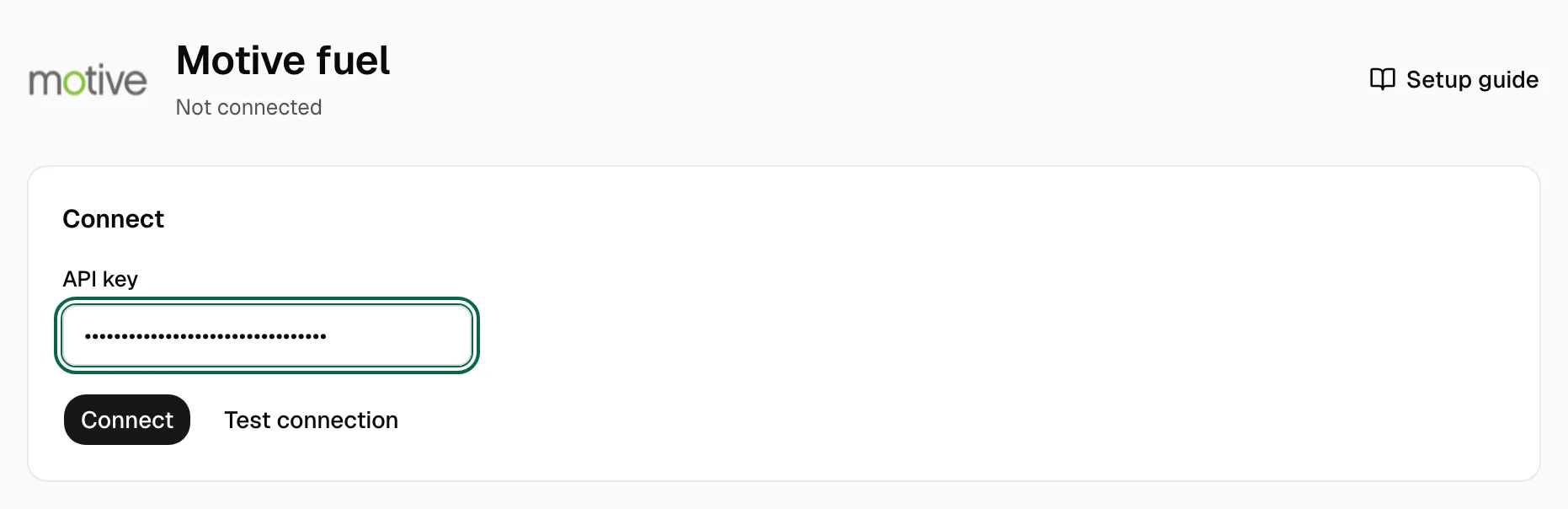
- Paste the key in API key.
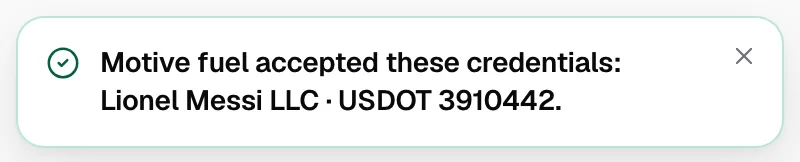
- Click Test connection. It names the Motive account and USDOT the key reads, or what it cannot read. Check both are yours.
- Click Connect.
Step 4: Check that it works
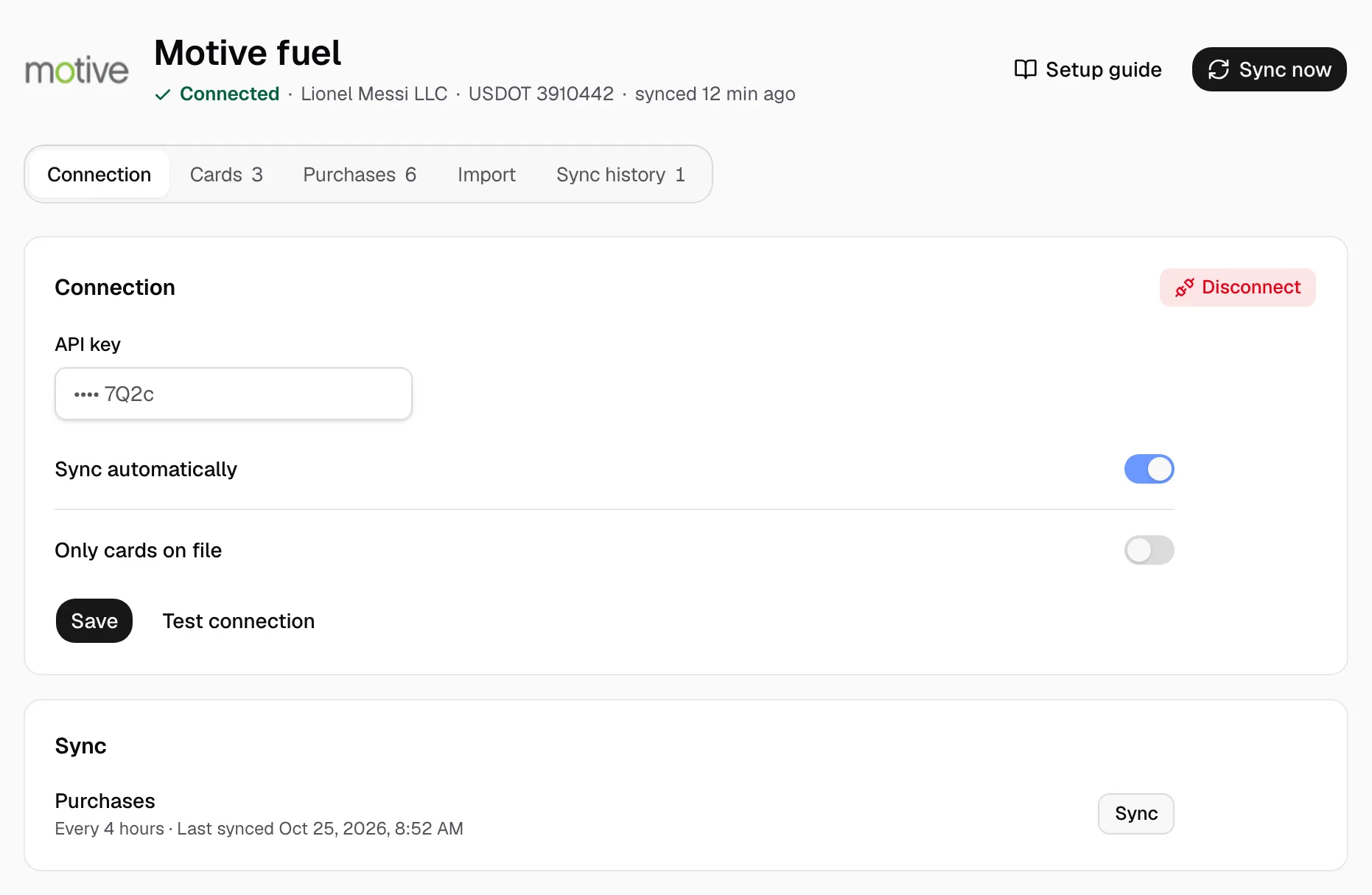
- The page reads Connected with your Motive account. Keep Sync automatically on and Only cards on file off. Yolda reads new purchases every 4 hours, from midnight in your time zone. Sync now reads them at once.
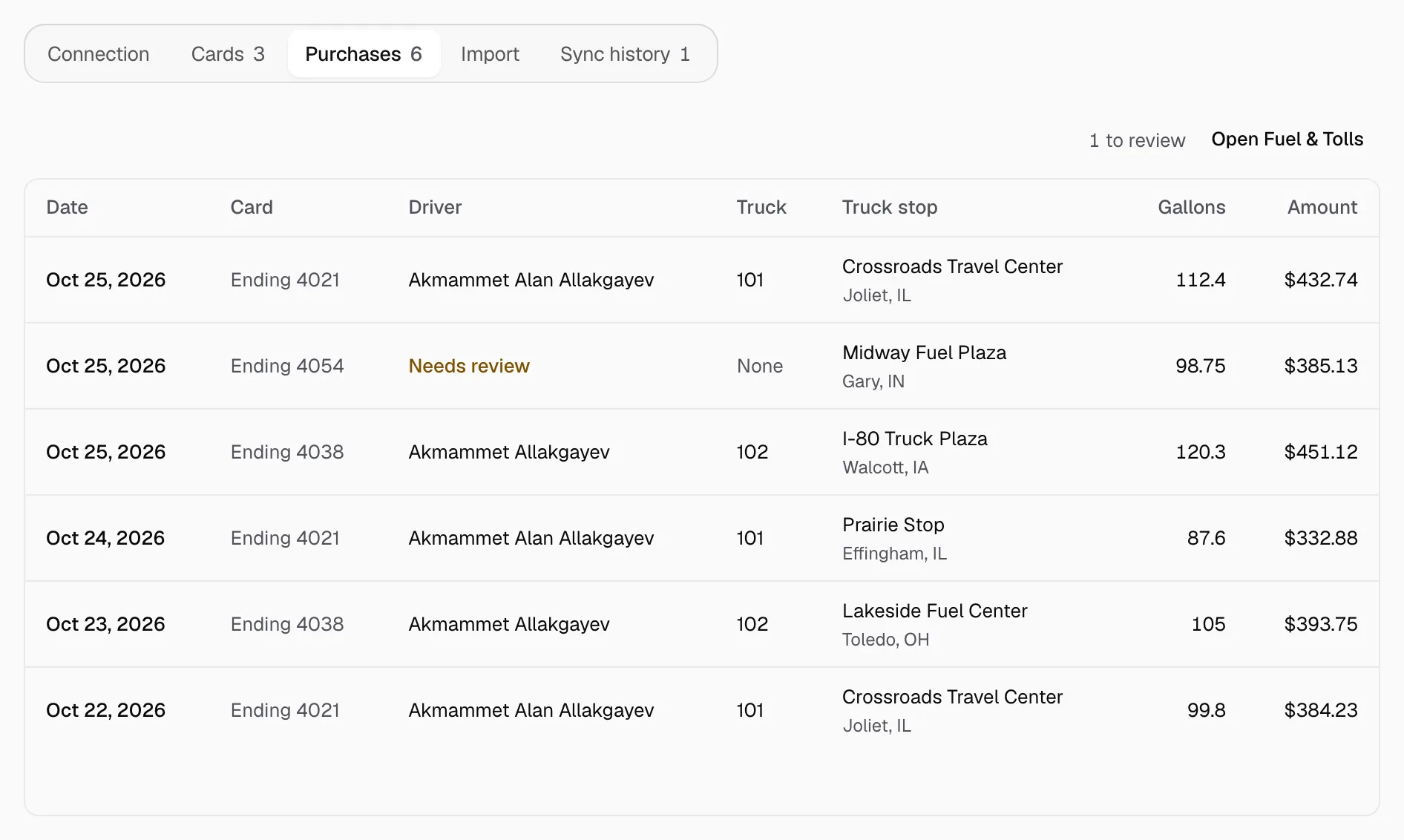
- Purchases arrive under Purchases. One Yolda cannot place, or not in U.S. dollars or gallons, shows Needs review.
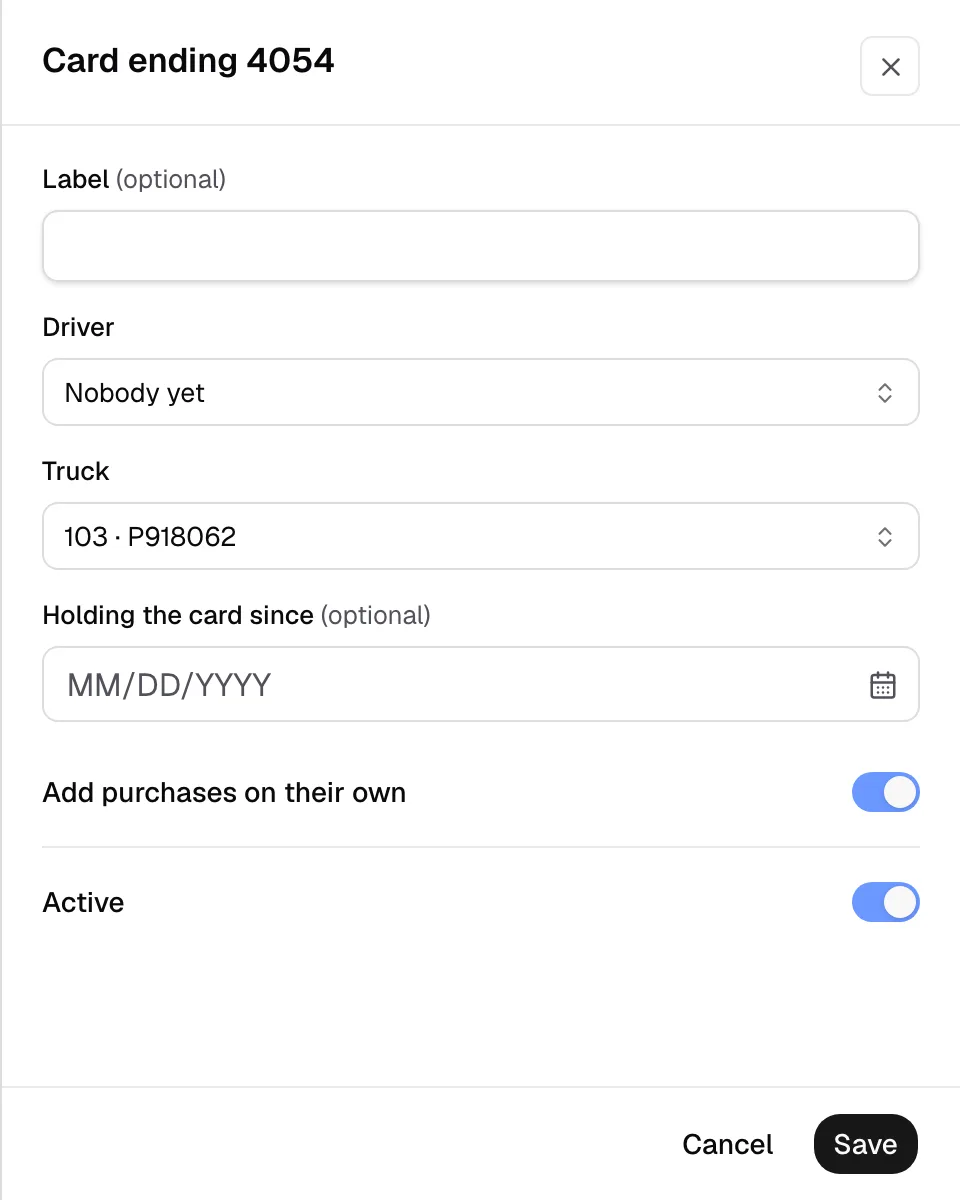
- The Cards tab shows the driver or truck Motive gave each card.
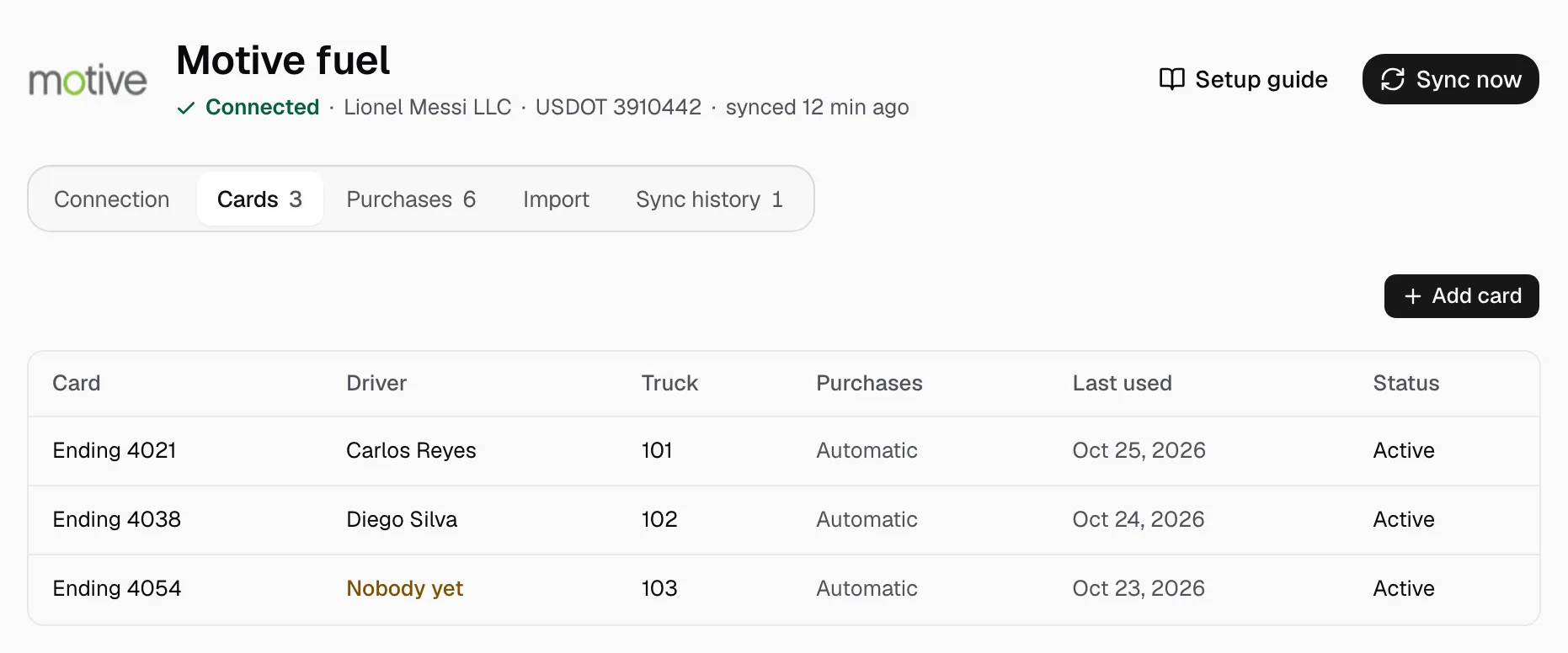
- To change one, click it, pick the Driver, then click Save.