 Love's setup guide1 min read
Connect Love's fuel to Yolda
Yolda reads your Love's fuel transaction file twice a day, at midnight and noon your time.
Step 1: Ask Love's for SFTP access
- Send your Love's representative this email. Love's replies with a host, port, username, password and folder.
Email to send
- To
- [Your Love's representative's email]
- Cc
- ClientManagement@loves.com
- Subject
- SFTP access to our fuel transactions for Yolda
Hello,

We use Yolda as our TMS. Please give us SFTP access to our Love's fuel transaction file so Yolda can read it, and send us the host, port, username, password and folder.

If your server only accepts known addresses, please allow Yolda's server, 52.73.111.217.

Our MC number is [Your MC number].

Thank you,
[Your name]
[Your company name]
[Your email]
Replace the marked blanks before you send or paste.
Step 2: Open Love's in Yolda
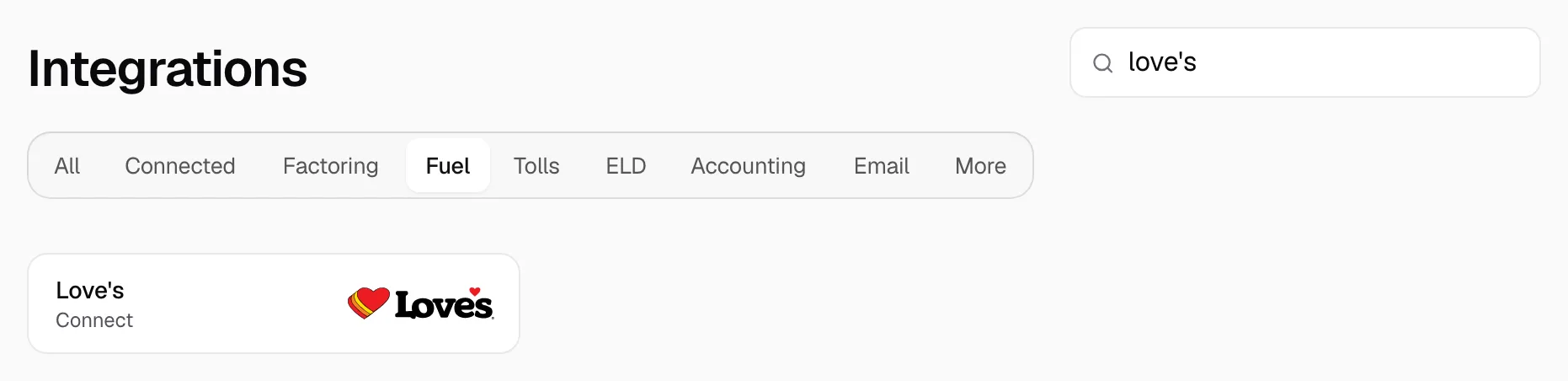
- Open Integrations, click Fuel, type Love's in Search and click Love's.
Step 3: Enter the SFTP details
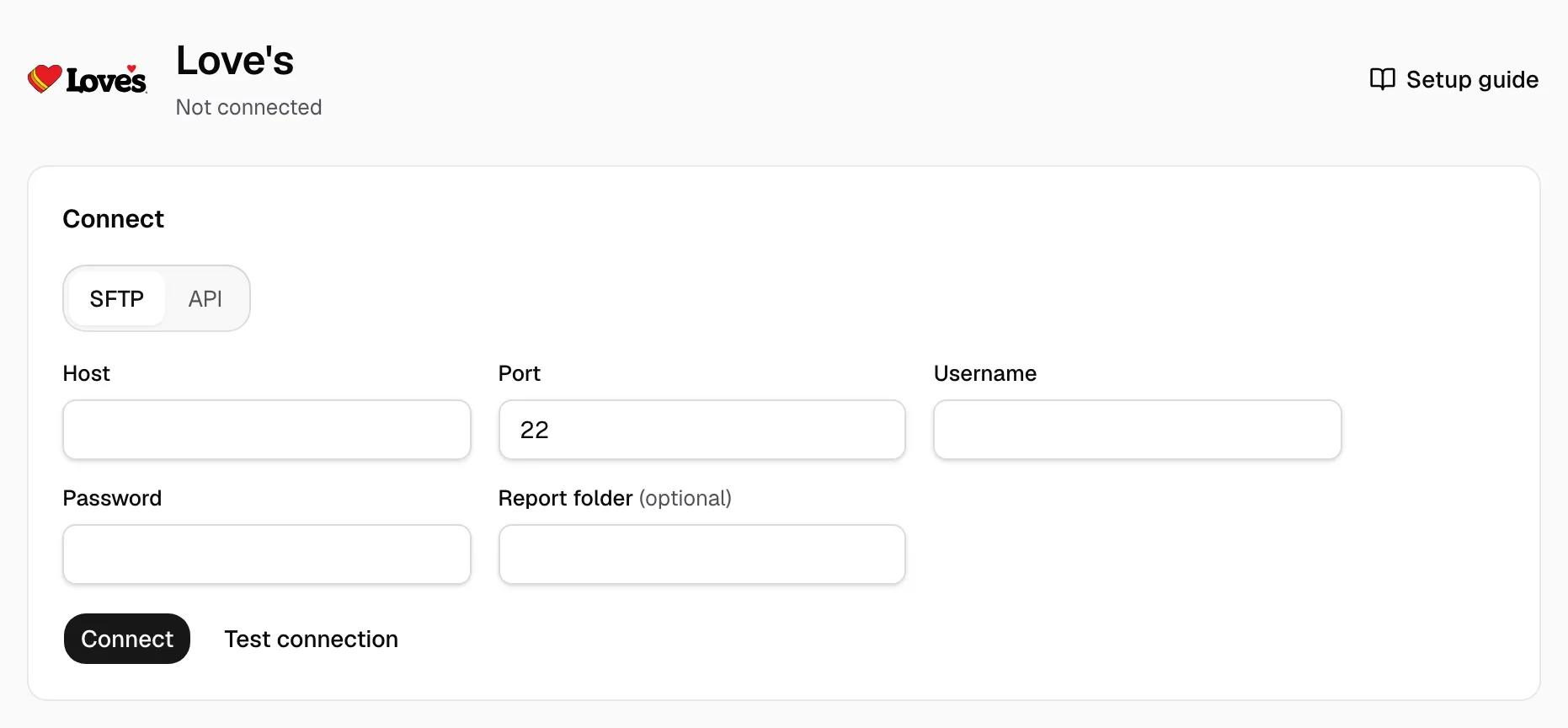
- SFTP is already selected. Enter the Host, Port, Username and Password Love's sent, and Report folder if Love's named one.
- Click Test connection, then Connect.
Step 4: Map the first file
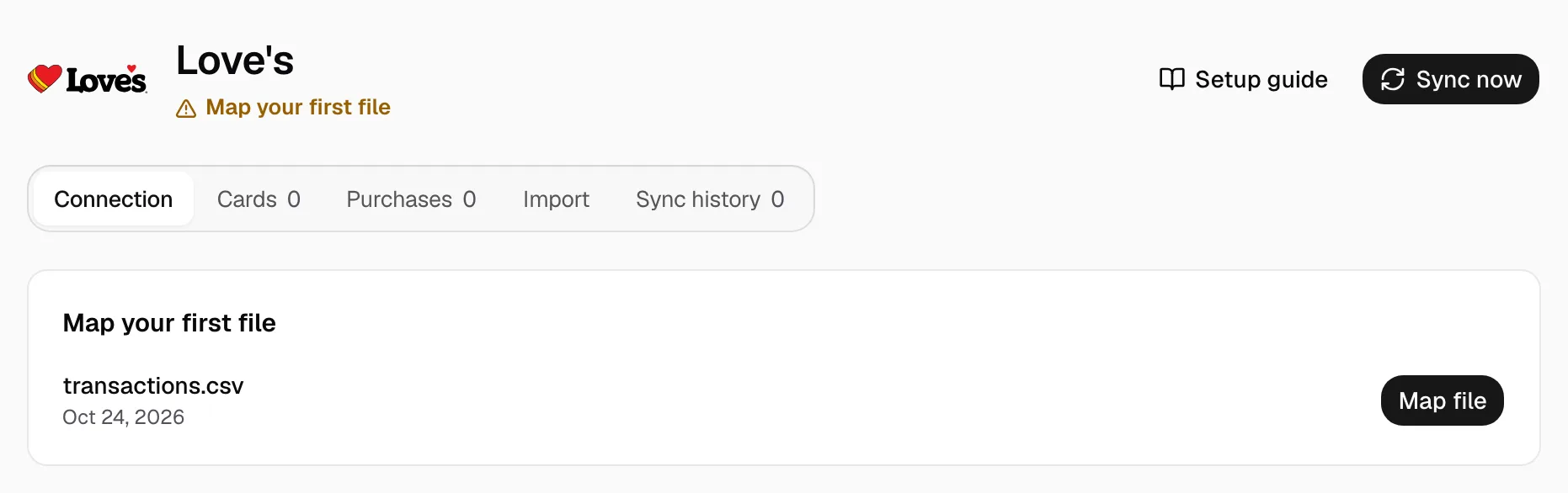
- When the first file arrives, the page reads Map your first file. Click Map file, match the columns and click Save mapping.
- New files then import by themselves; Sync now reads at once.
- Purchases show under Purchases. Give each card its driver and truck under Cards; the pay agreement decides who pays.
- A purchase not in dollars and gallons waits under Provider changes on Purchases: click Review, then Release.
QuikQ portal user with API permission (ask customer@quikq.com)? Click API and enter its Username, Password and Start Code (your Love's carrier ID). It connects once QuikQ's API returns your purchases. The page warns two weeks before the QuikQ password expires; then enter the new Password and click Save.
Or drop the QuikQ portal's Transaction Report under Import.