Compass setup guide1 min read
Import Compass purchases
Bring your Compass purchases in from the file the Compass portal exports. No column matching is needed.
Step 1: Export your purchases from Compass
- Sign in at
cps.compasspaymentservices.comand open Dashboard. - Click Alvys CSV. In Export CSV, pick Created On From and Created On To, at most 30 days apart.
- Click Export. Your browser saves a file named TransactionCSV.
Step 2: Open Compass in Yolda
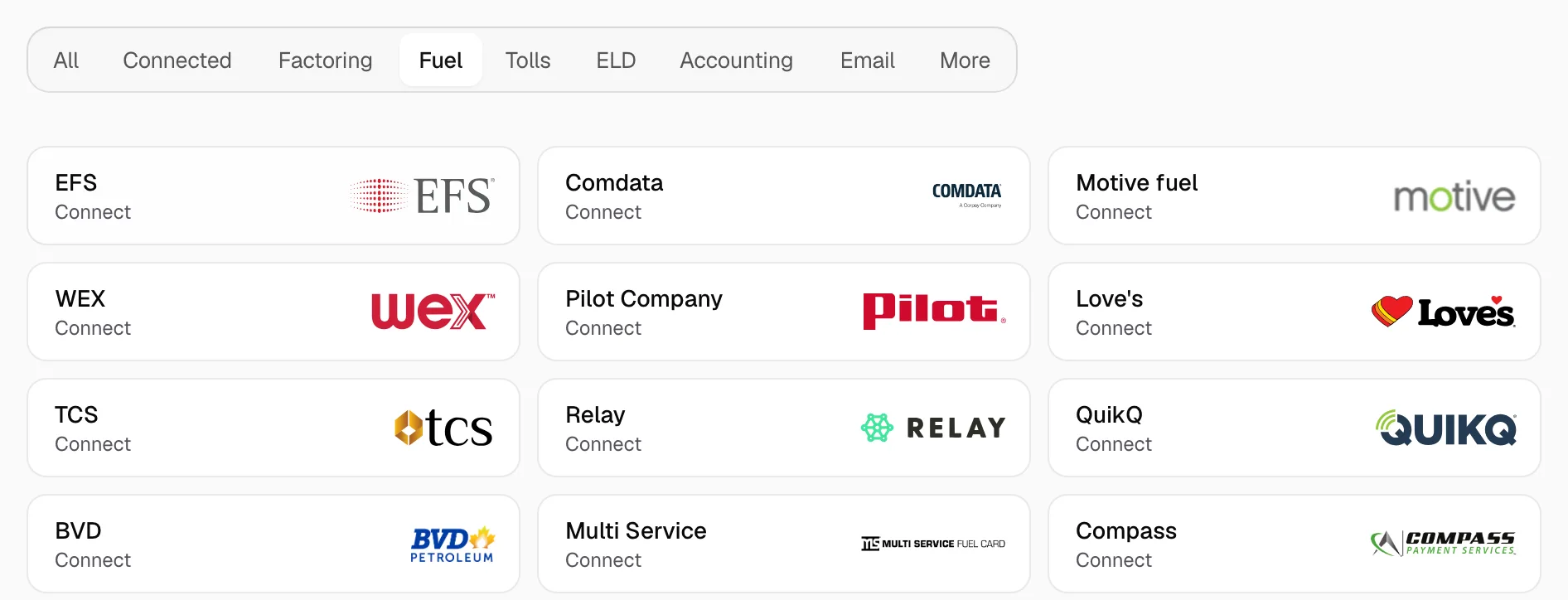
- Open Integrations, click Fuel, then click Compass.
Step 3: Import the file
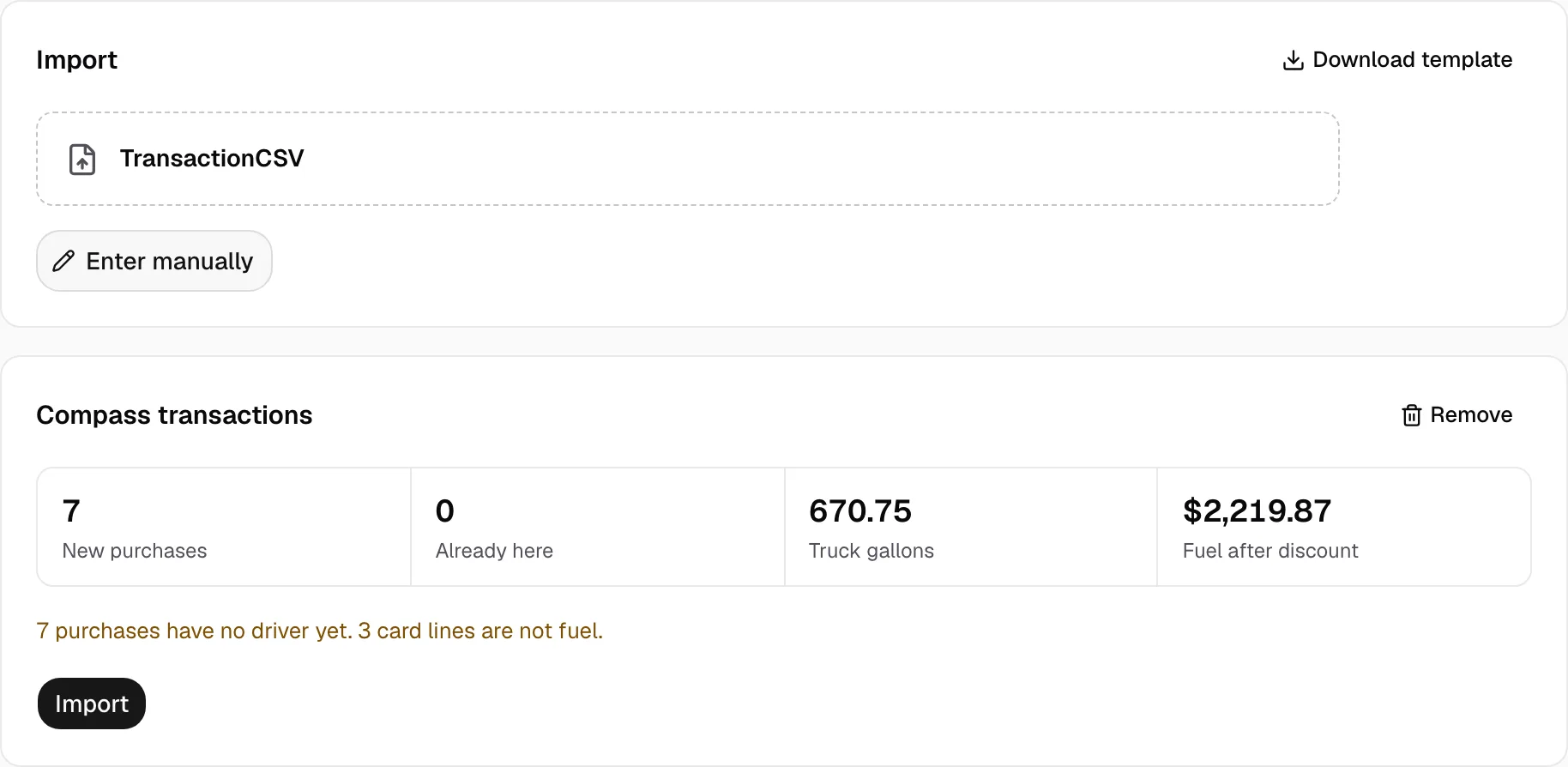
- Under Import, drop TransactionCSV where it says Drop a CSV or .xlsx file here.
- Yolda checks it at once and shows New purchases, Already here, Truck gallons and Fuel after discount.
- Click Import.
Step 4: Check the purchases
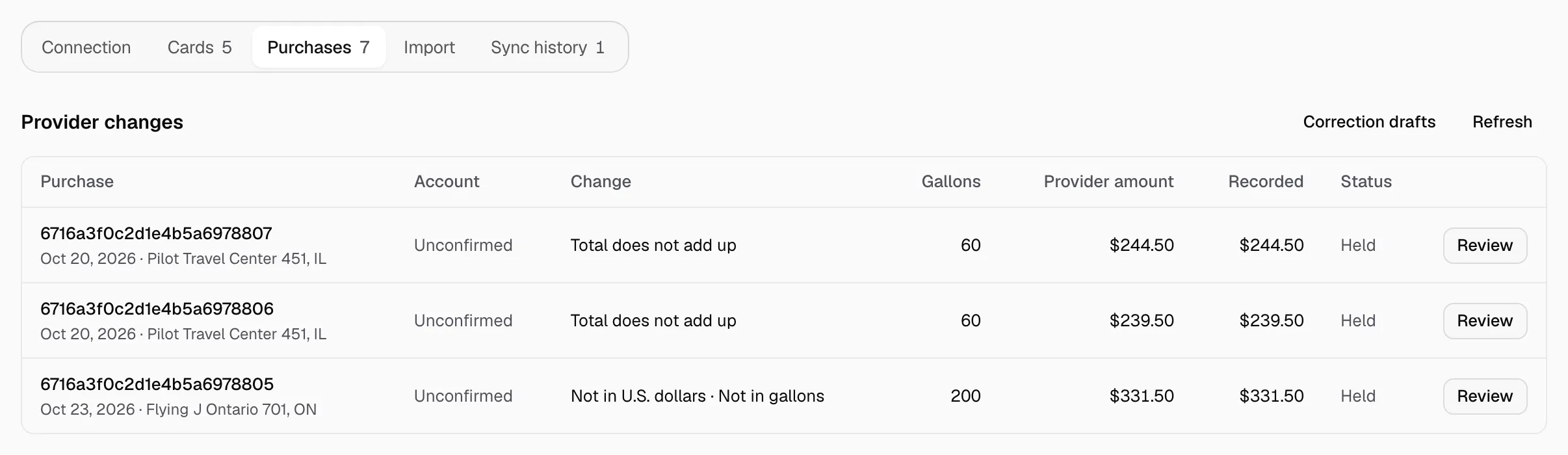
- Purchases appear on the Purchases tab. On Cards, give each card its Driver and Truck; the driver's pay agreement decides who pays.
- Importing the same file again, or dates that overlap, adds nothing.
- A Canadian purchase, or one whose total does not add up, waits under Provider changes on Purchases. Click Review, then Release once it is right.