 OTR Solutions setup guide1 min read
Connect a factor's SFTP folder to Yolda
With a folder saved, Send to factor on an invoice also uploads its files to your factor's SFTP folder.
Step 1: Ask your factor for an SFTP sign-in
- Send your account representative this email.
Email to send
- To
- [Your account representative's email]
- Subject
- SFTP access for Yolda
Hello,

We use Yolda as our TMS. Please send us our SFTP sign-in for invoice packets (SFTP, not FTP):
- host and port
- folder
- username
- password or private key, in a separate secure message
- your server key fingerprint

Our MC number is [Your MC number].

Thank you,
[Your name]
[Your company name]
[Your email]
Replace the marked blanks before you send or paste.
Step 2: Enter the sign-in in Yolda
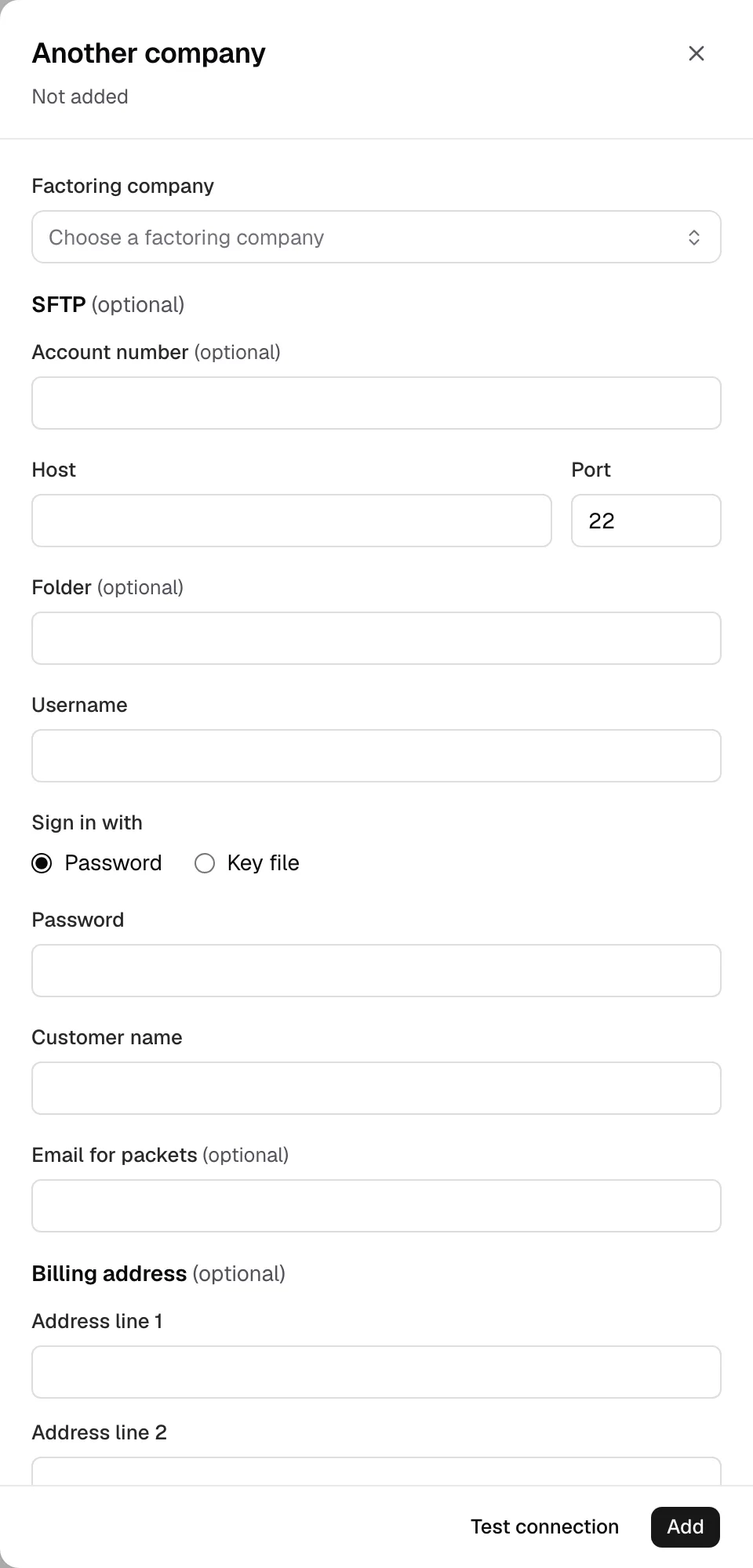
- Open Integrations, then the Factoring tab, then your factor, or Another company.
- SFTP (optional) sits under Factoring company.
- Enter Host, Port, Folder and Username. Account number is optional.
- Under Sign in with, pick Password or Key file, then add it.
Step 3: Test and save
- Click Test connection. A factor you have not added yet is added first.
- Check that the Server key matches the fingerprint your factor sent.
- Click Email me a code, enter the code, then click Save.
To change the folder later, open your factor and type over it. Disconnect removes it.