Send and check a factoring packet
Yolda sends the invoice, rate confirmation, BOL and POD to your factor by email, and to its SFTP folder when you set one up.
Before you start
- Add your factor on the Factoring tab of Integrations.
- Add your MC number in company settings.
- Each load needs a rate confirmation and a signed POD or BOL.
Step 1: Pick the factor on the invoice
- In Finances, open the invoice, or click Invoice on a delivered trip.
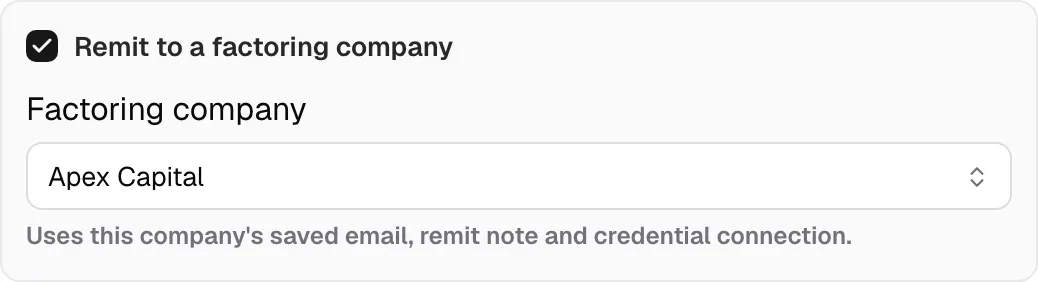
- Tick Remit to a factoring company, pick the Factoring company, then click Create invoice or Save changes.
Step 2: Send the packet
- Under Factoring packet, check Files and Sends to. Fix a gap with Open load or Add email.
- Click Send to factor, check the email and files, then click Send.
Step 3: Check the result
- Sent means the email went out. Transferred means the files reached the SFTP folder. Neither means your factor approved or paid the invoice.
- If one failed, click Try email again or Try SFTP again.
- If Yolda could not confirm a send, ask your factor before you click Send again.
Email to send
- To
- [Your factoring company's email]
- Subject
- Did you receive our invoice?
Hello,

We sent you an invoice from Yolda and could not confirm it arrived. Please tell us if you have it before we send it again.

Invoice number: [Add invoice number]
Our MC number is [Your MC number].

Thank you,
[Your name]
[Your company name]
[Your email]
Replace the marked blanks before you send or paste.