Send an invoice batch to your factoring company
A batch sends several invoices to one factoring company in one step.
Before you start
- Connect your factoring company in Integrations, Factoring. Without a connection, a batch can go to its Email for packets instead.
- Each invoice is remitted to that factoring company, with its loads' paperwork.
Step 1: Create the batch
- Open Finances, then Open invoices.
- Tick the invoices for one factoring company.
- Click Create batch. The batch opens on Batch history.

Step 2: Send the batch
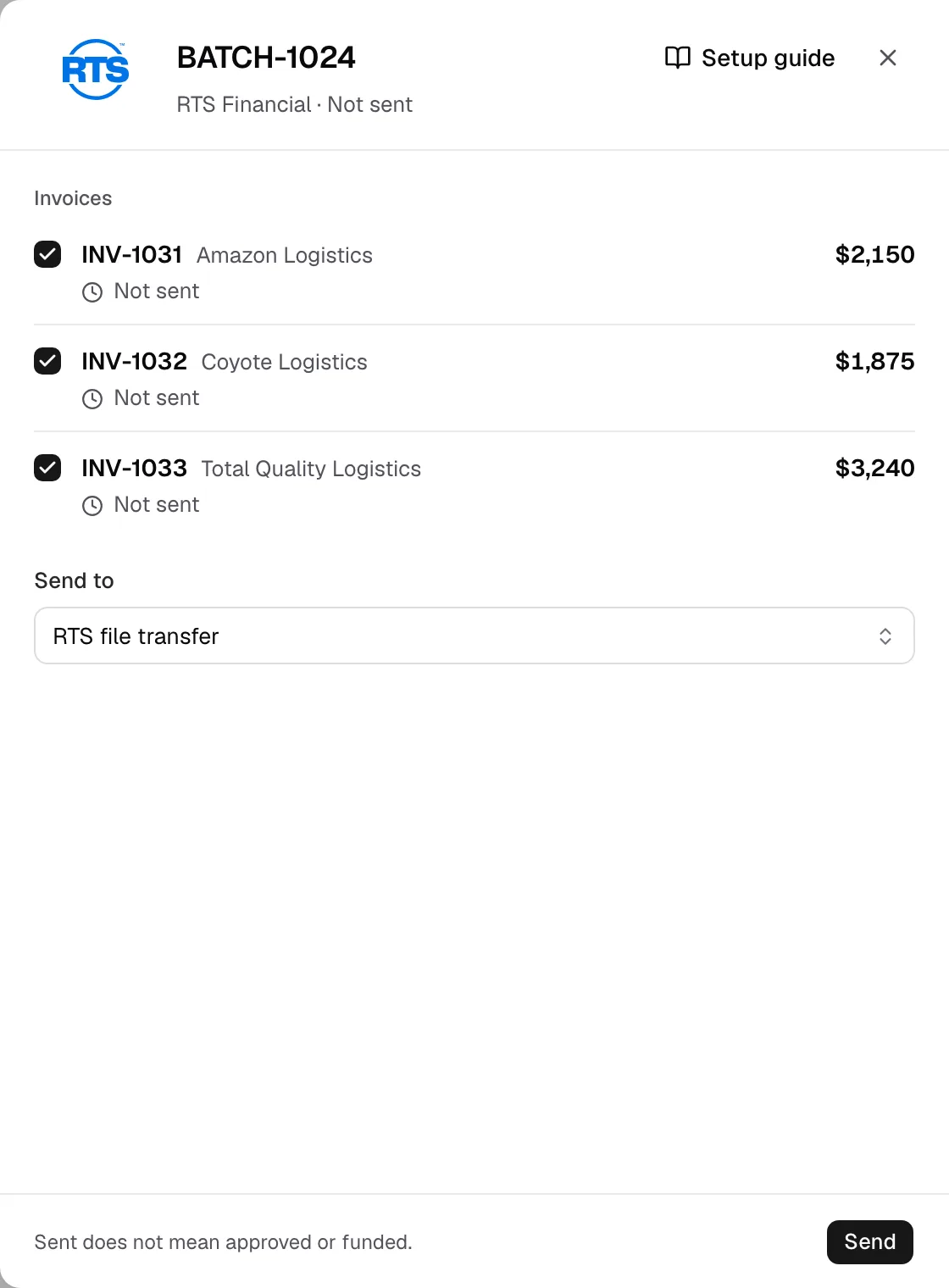
- On Batch history, click Send on the batch.
- Tick the invoices to send. An invoice missing paperwork says what is missing and shows Open load.
- Check Send to: your factoring company's connection, or its email.
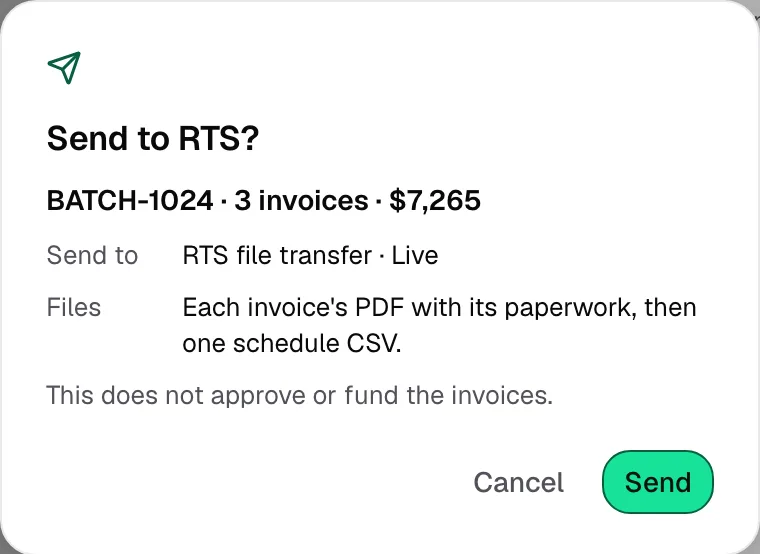
- Click Send, check Send to and Files, then click Send.
Step 3: Check the result
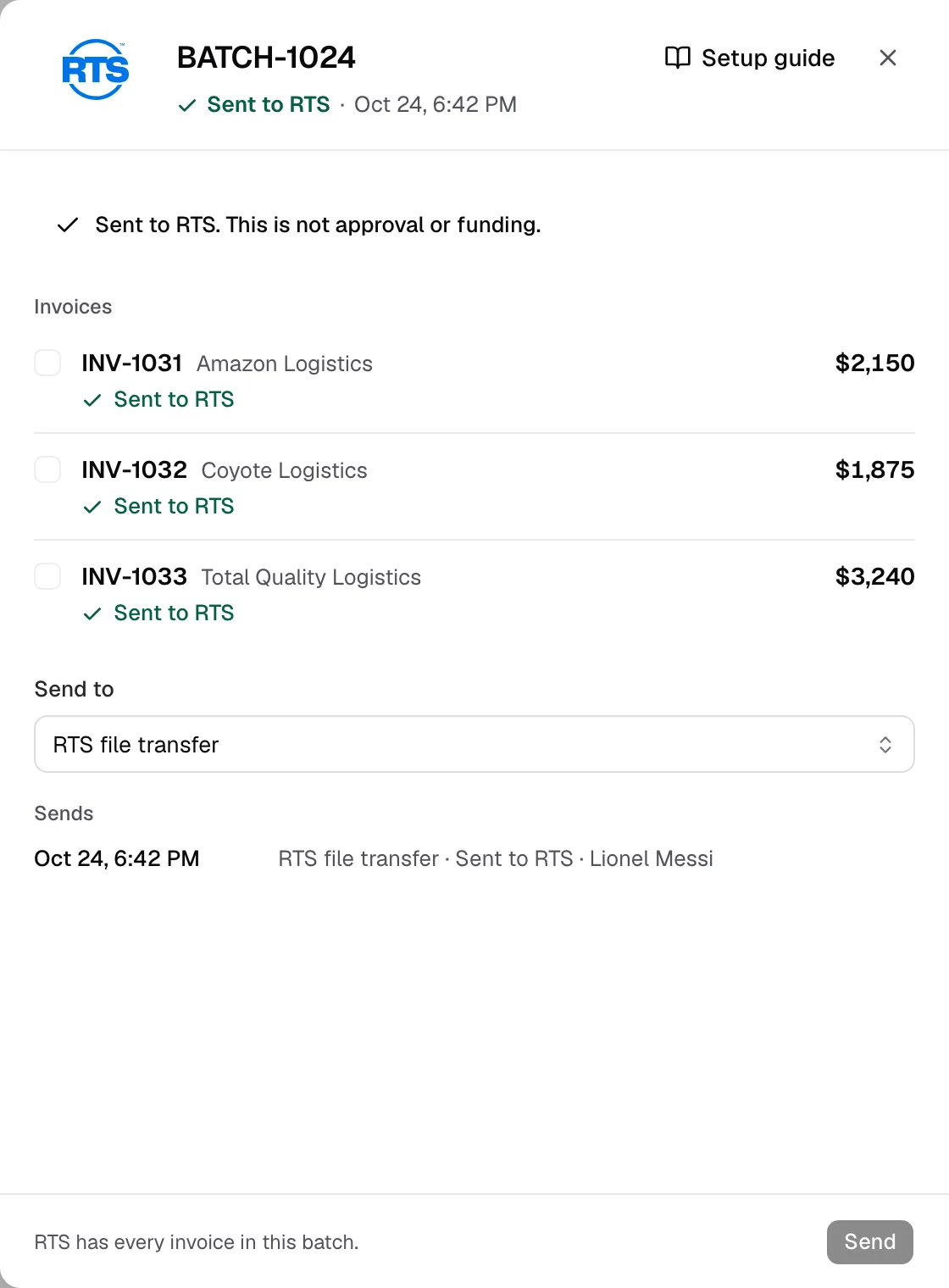
- Each invoice reads Sent to your factoring company, or the reason it was not sent.
- Check with means Yolda could not confirm the send. Ask your factoring company before sending again.
- A batch that stopped part way reads Send again. Click it to send the rest.
Step 4: Record the payment
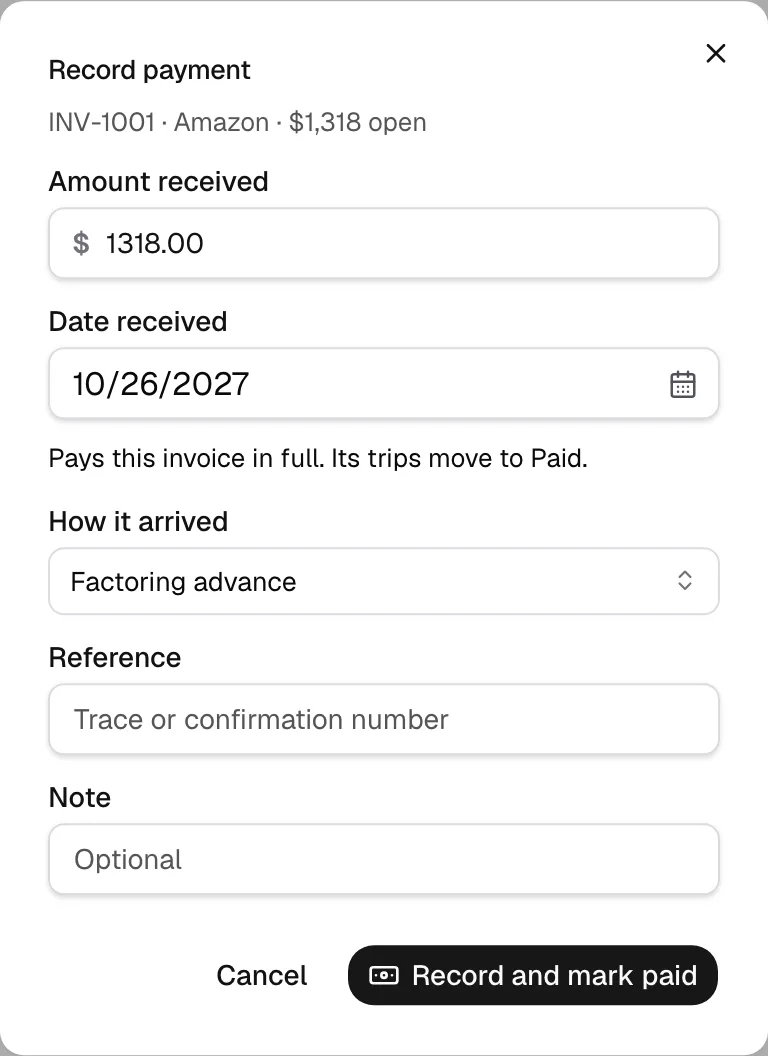
- When your factoring company pays, click Mark paid on the invoice in Open invoices.
- Check that How it arrived reads Factoring advance, then click Record and mark paid.
Sent means delivered. It does not mean approved or funded.