See your ELD positions in Yolda
Once your ELD is connected, its positions show in two places.
1. Fleet map
- Open Fleet map under Dispatch.
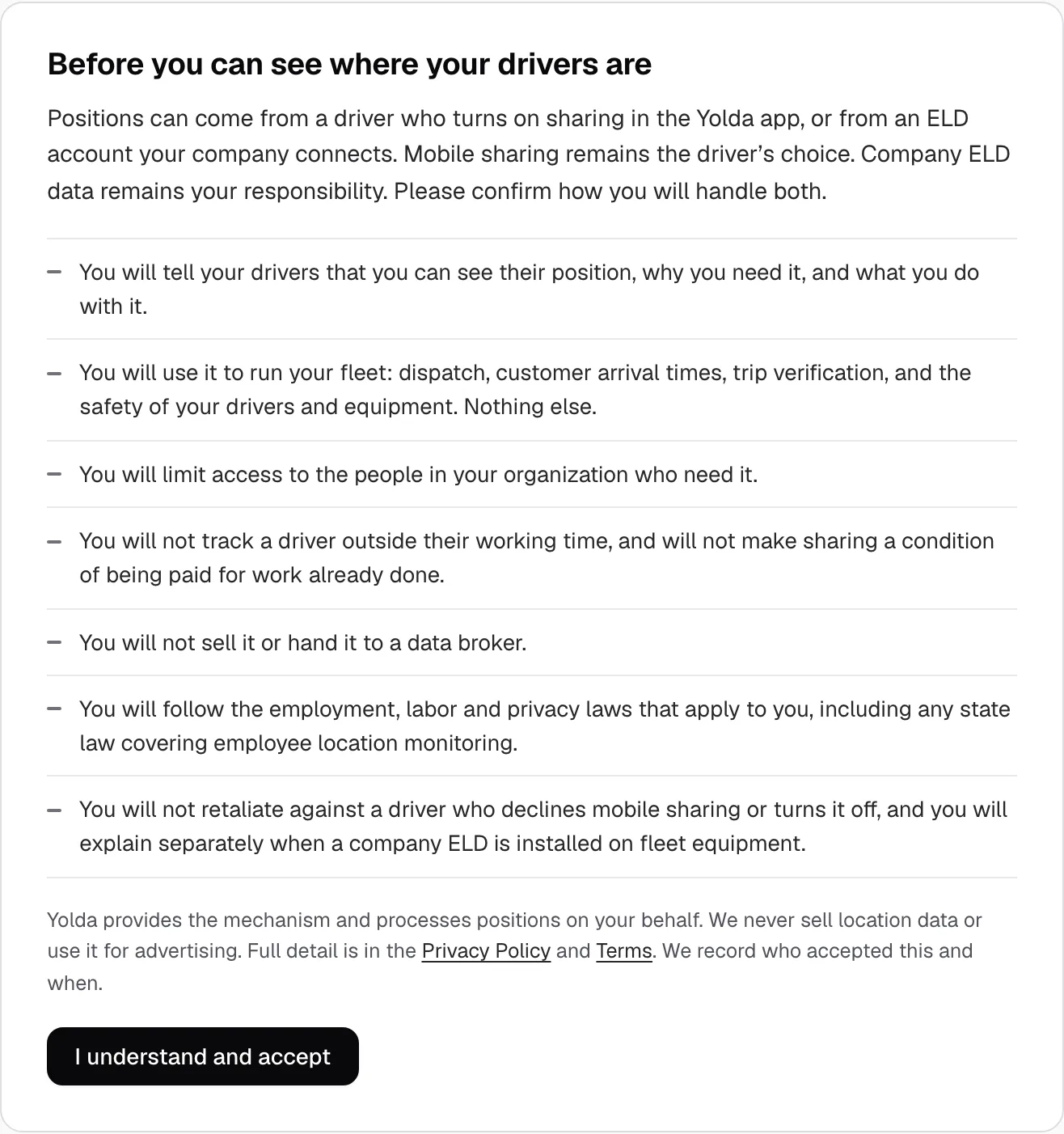
- The first time, read the notice and click I understand and accept.
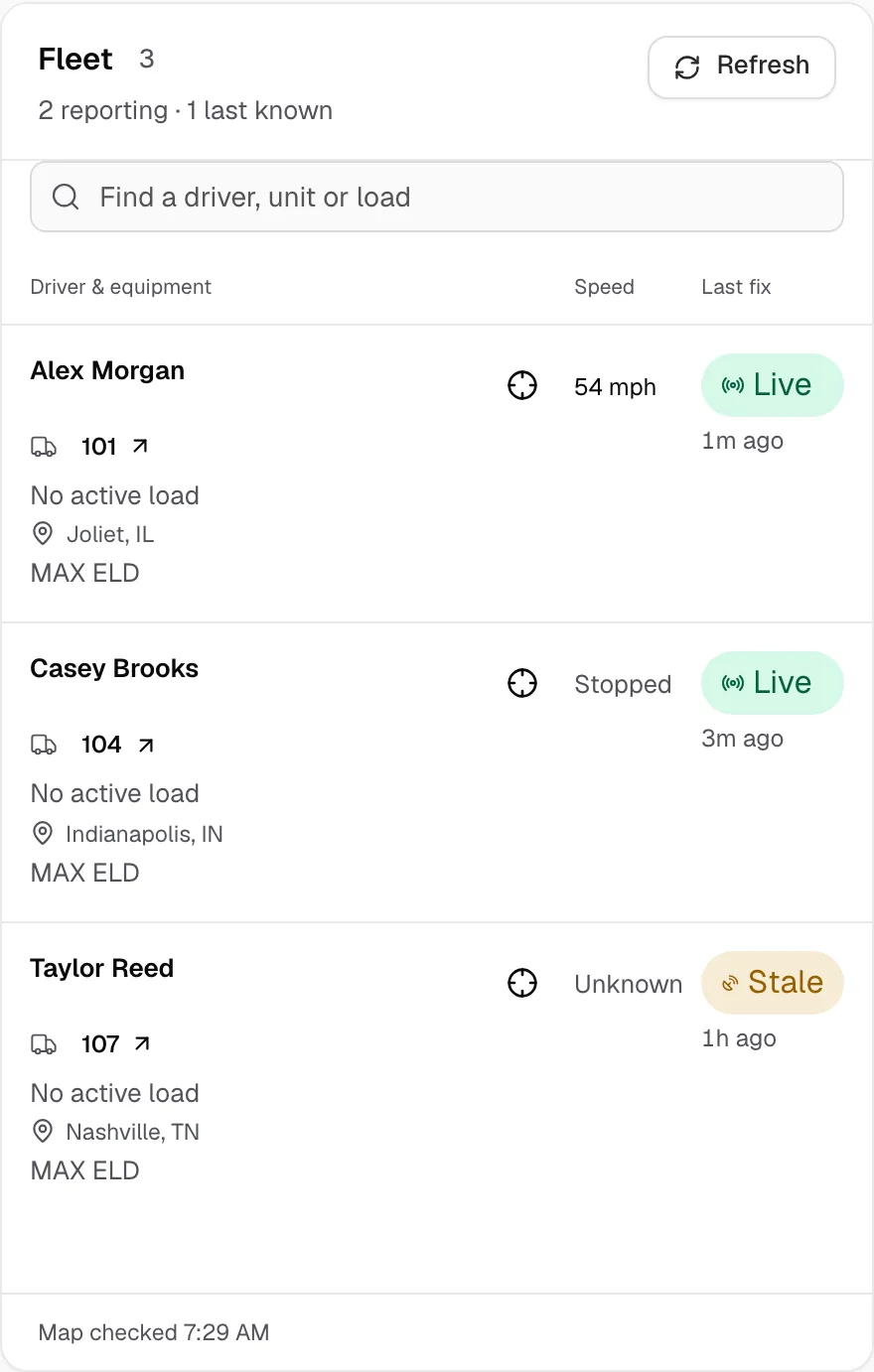
- Each driver with a position is a row: the truck, speed, Live or Stale, and the ELD it came from.
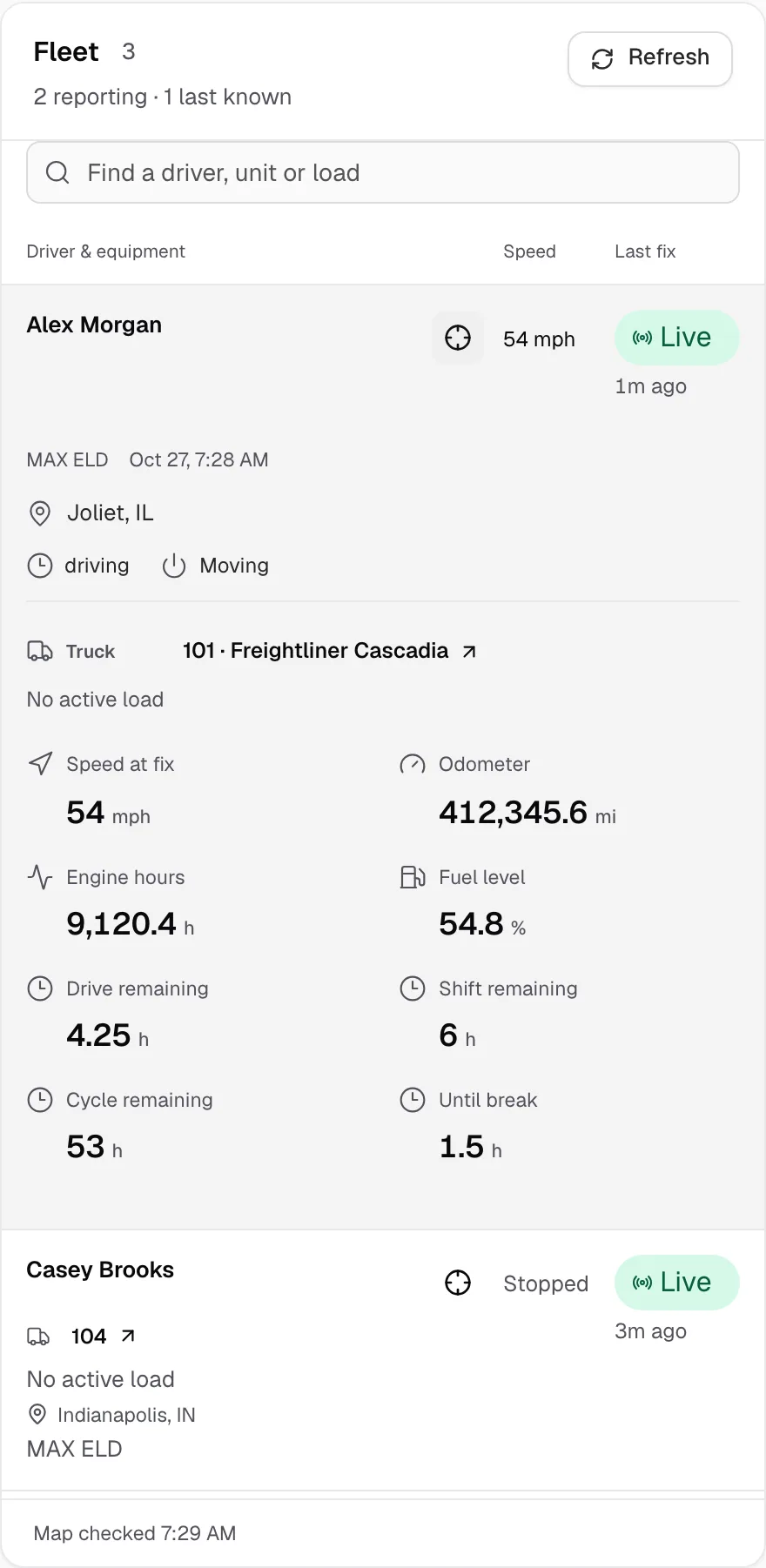
- Click a row's target icon for the readings the ELD sent, such as odometer and HOS clocks.
No row for a driver? Match the driver on the ELD's Drivers tab and the truck on its Vehicles tab.
2. Add load
- Open Loads, click Add load, then Enter manually.
- Pick the Driver under Assignment. The first card in Stops, 0. Start, opens at their live position, with the ELD named under it.
- This needs the Fleet map notice accepted. If the driver's last delivery is newer, 0. Start opens there.
