 GPS Tab setup guide1 min read
Connect GPS Tab to Yolda
GPS Tab puts trucks on the Fleet map and imports HOS logs and safety events.
Before you start
Give every truck its VIN and every driver an email or phone. Your USDOT number (Settings, Company) must match GPS Tab.
Step 1: Get your API token from GPS Tab
- Sign in at
app.gpstab.comas an administrator. - Open Account, then API Tokens.
- Click Generate token, name it
Yolda, turn on View-only, then Save. - Click the eye (Show token), then copy the Token, not a link.
No API Tokens? Ask your administrator.
Step 2: Connect GPS Tab in Yolda
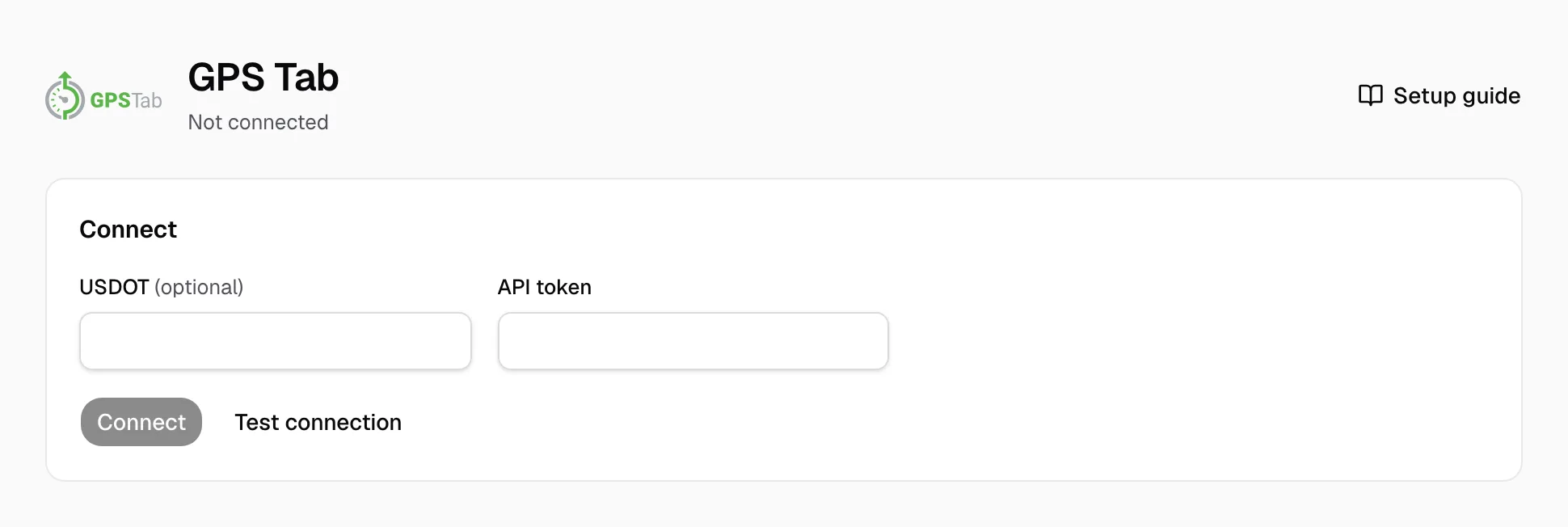
- Open Integrations, then GPS Tab.
- Type [Your DOT number] in USDOT (optional), then paste the token in API token.
- Click Test connection. When it passes, click Connect.
Step 3: Match drivers and vehicles
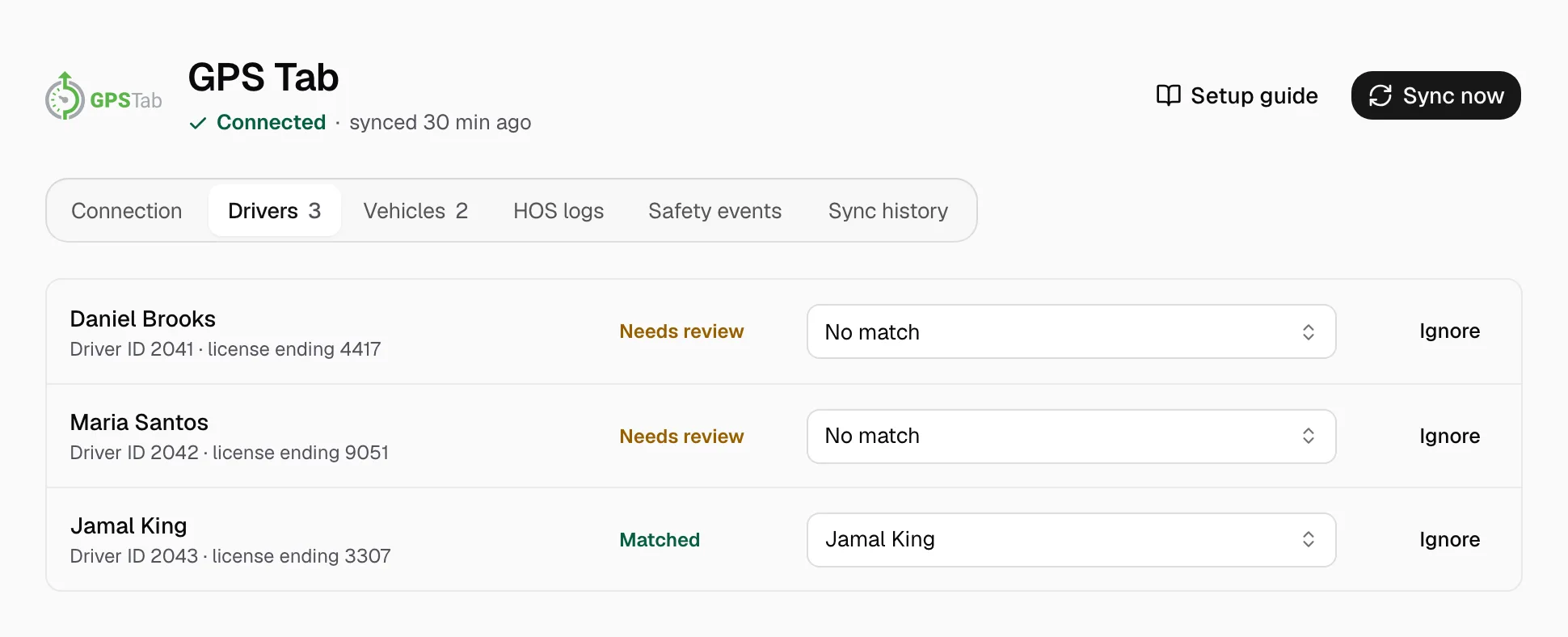
- On Drivers and Vehicles, pick the Yolda record on each Needs review row, or click Ignore.
Add missing drivers and trucks first.
Step 4: Keep it in sync
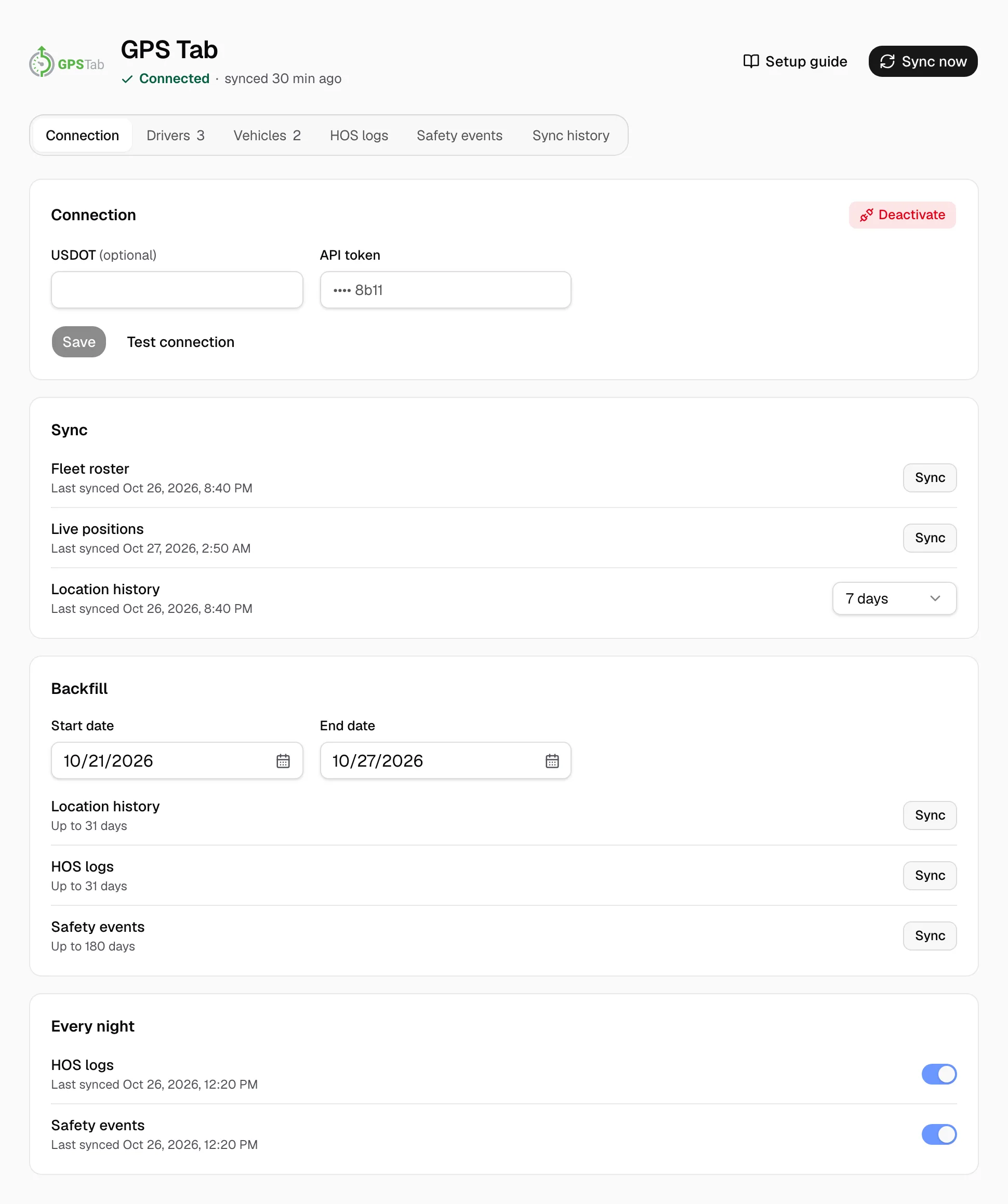
Once Connected, positions refresh every minute, location history every two hours, drivers and trucks at 00:00 company time, HOS and safety after midnight. Sync now refreshes at once.
On Connection:
- Location history sets the days read.
- Backfill: set Start date and End date, then a row's Sync: up to 31 days (180 for safety).
- Every night turns HOS logs or Safety events off.
- Deactivate disconnects.