 WEX Capital setup guide1 min read
Connect WEX Capital to Yolda
Yolda uploads your invoices to WEX Capital over SFTP.
Step 1: Get your sign-in from WEX
- Email your WEX Capital representative, or call
1-877-275-8801.
Email to send
- To
- [Your WEX Capital representative's email]
- Subject
- SFTP access for Yolda
Hello,

We are setting up Yolda as our TMS. Please give us SFTP access so Yolda can send our invoice batches to WEX Capital.

Please send:
- Host
- Username
- Password
- The Notice of Assignment to print on our invoices

If our login is limited by IP address, please allow Yolda's server address 52.73.111.217.

Our MC number is [Your MC number].

Thank you,
[Your name]
[Your company name]
[Your email]
Replace the marked blanks before you send or paste.
- Yolda uses SFTP on port 22 only.
Step 2: Add WEX Capital
- Open Integrations, Factoring, then WEX Capital. Its sign-in sits under Factoring company.
- MC number comes from Settings. Enter Host, Username and Password.
- Customer name is filled in; Email for packets is optional.
- In Billing address, enter your Notice of Assignment's remit-to address. Paste its wording into Remit notice.
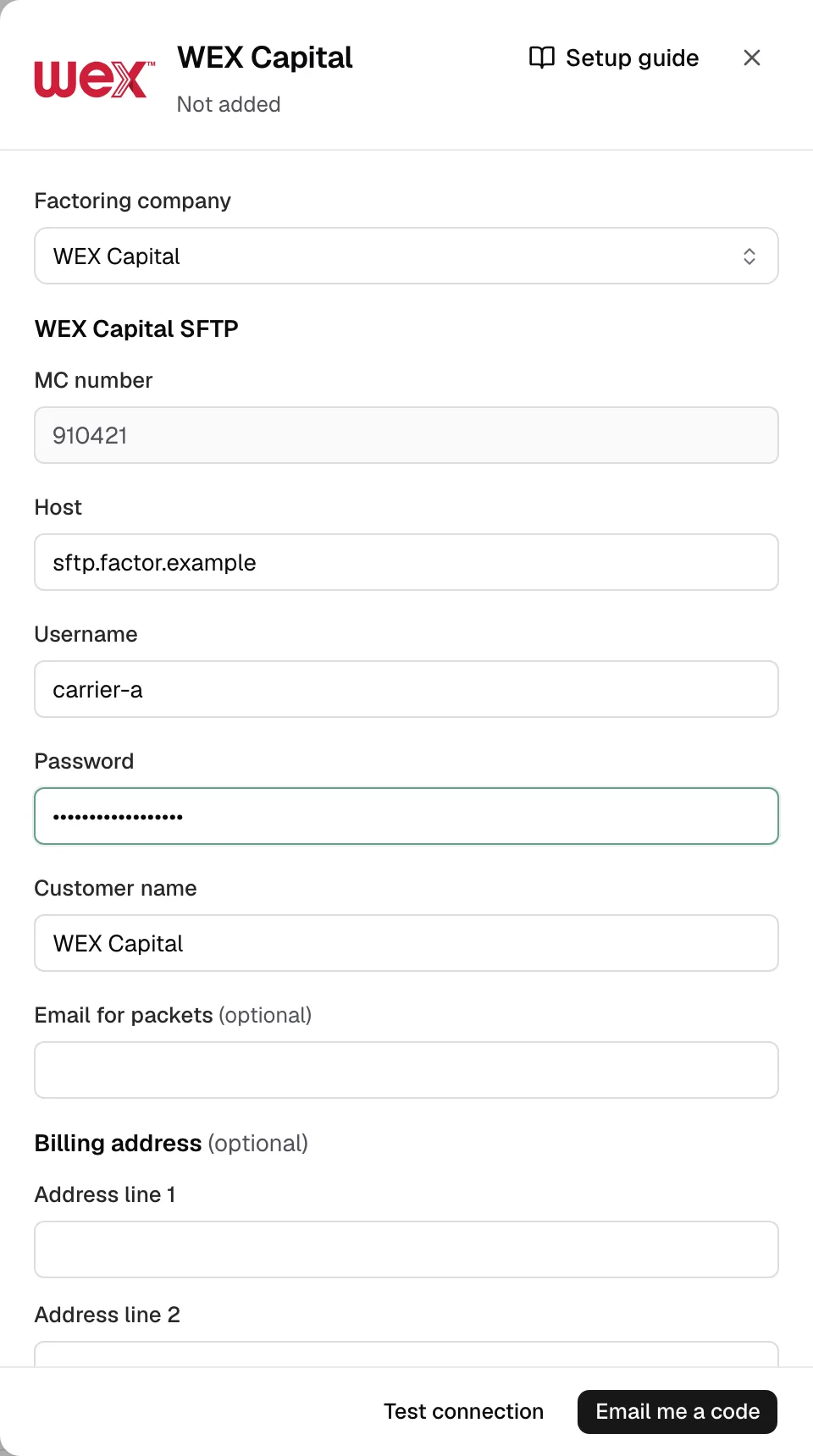
Step 3: Test and save
- Click Test connection. Yolda adds WEX Capital, signs in, shows its Server key.
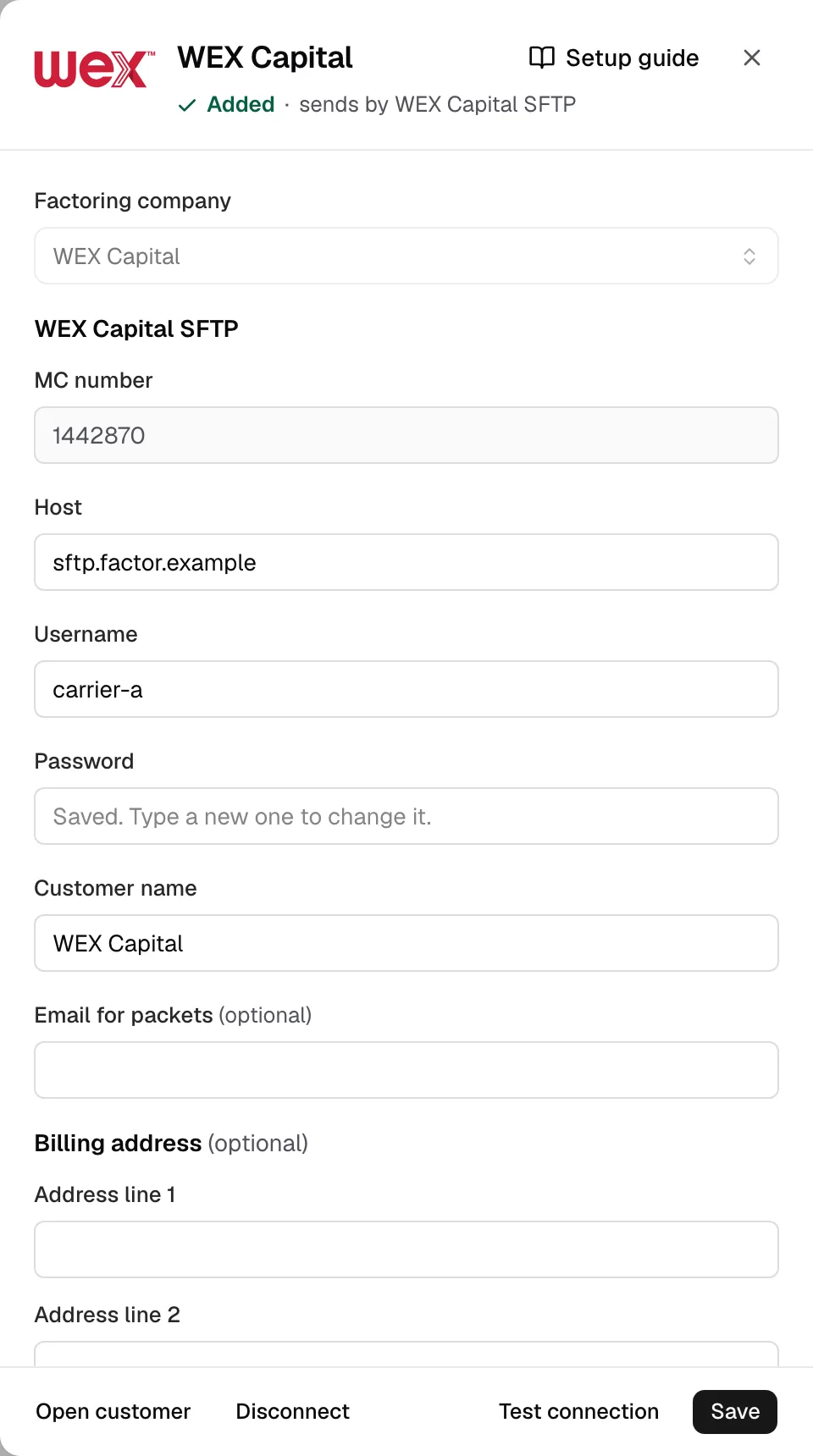
- Click Email me a code, enter it, Save.
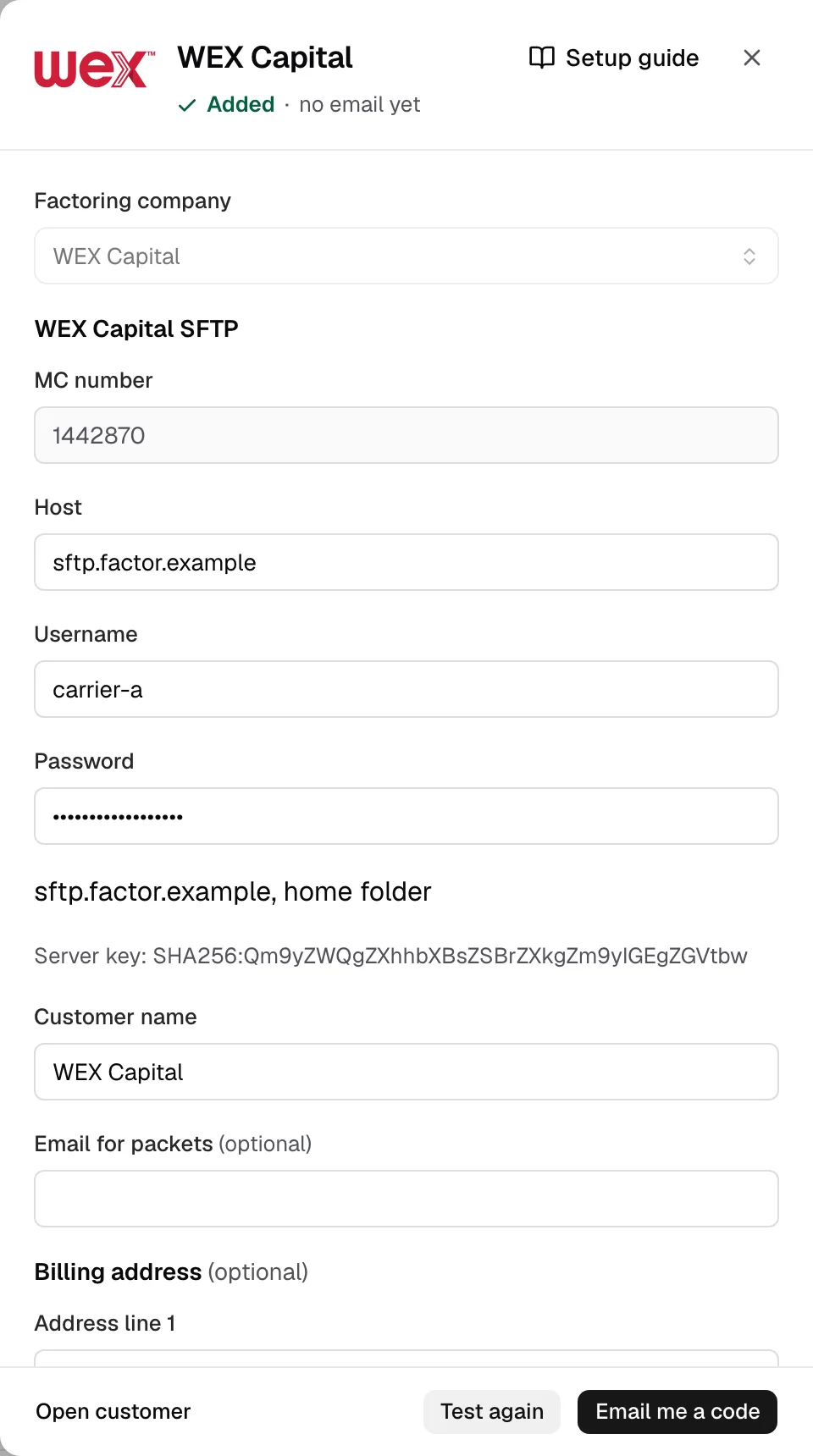
Step 4: Send invoices
- The drawer then reads sends by WEX Capital SFTP.
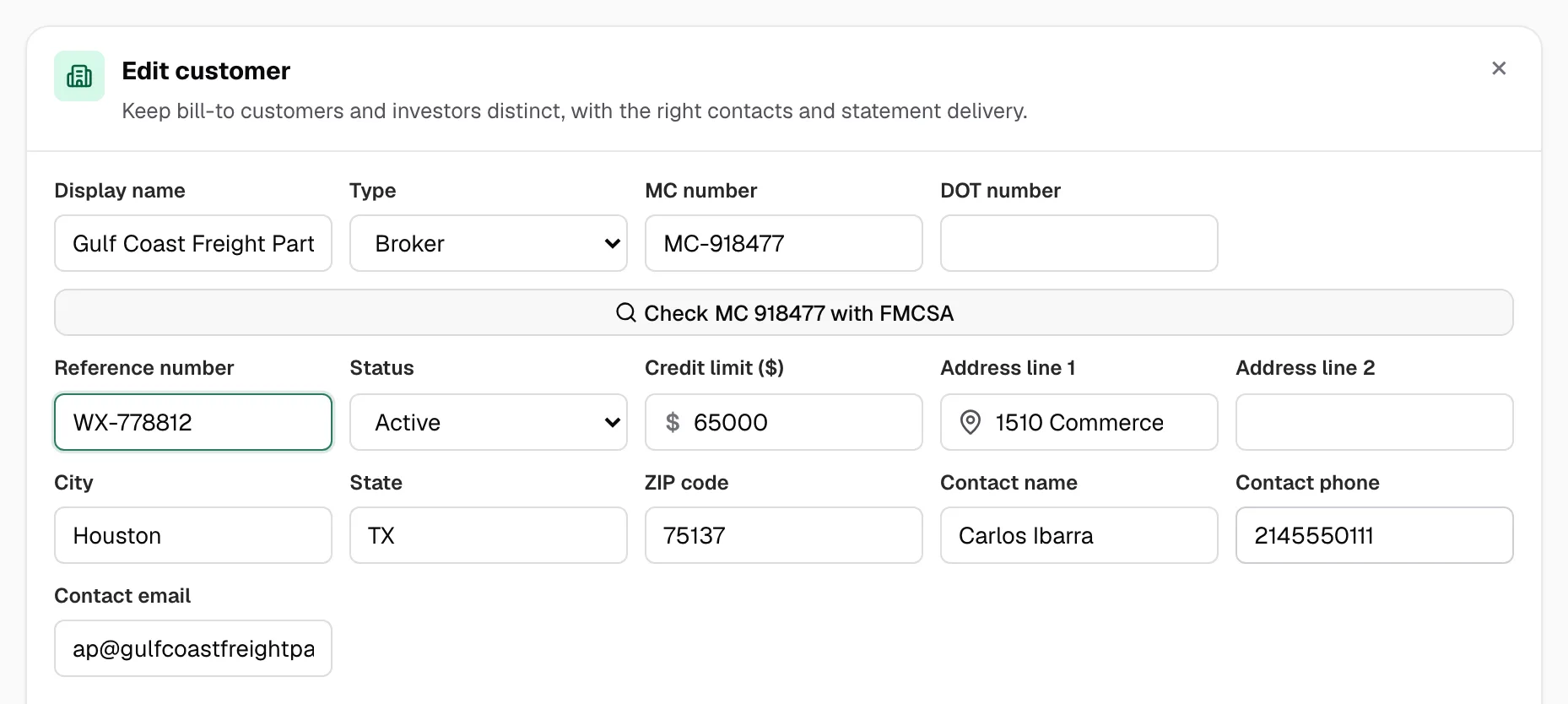
- Got a customer's reference number from WEX? Open Customers, Edit, Reference number, then Save changes.
- One invoice: open it in Finances, tick Remit to a factoring company, pick WEX Capital, click Create invoice or Save changes, open it again, then click Send to WEX Capital.
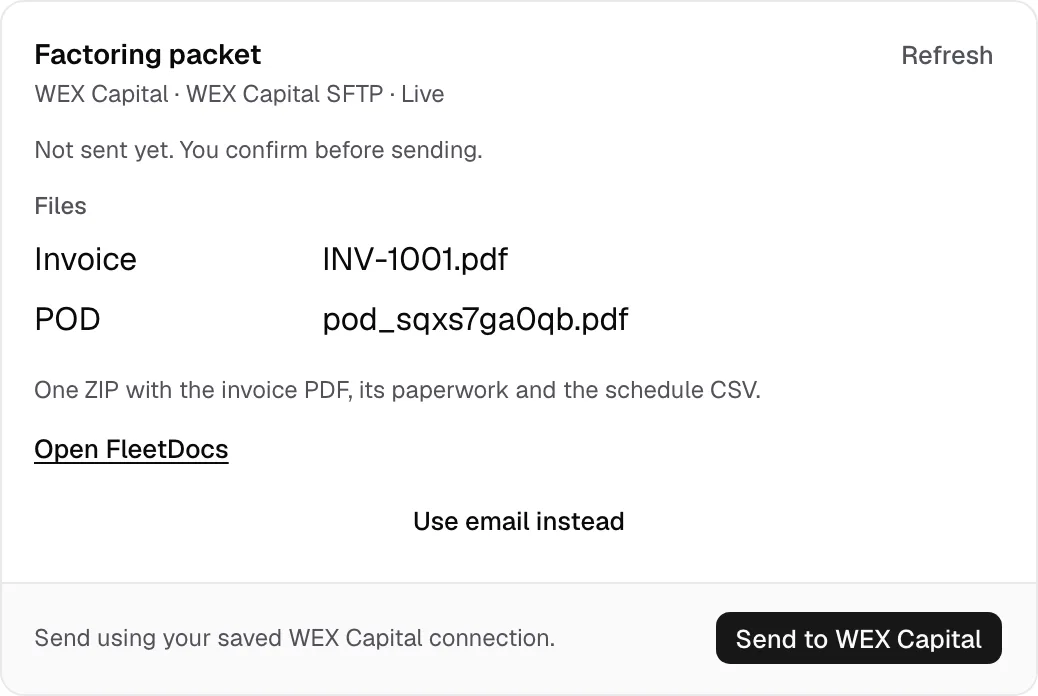
- Several: tick them in Open invoices, then Create batch (batch guide).
- It reads Uploaded to WEX Capital. WEX checks files by hand, so they may show in its portal later. Open FleetDocs is WEX's sign-in.
- When WEX pays, click Mark paid (after a single send, Record factoring in the row menu first).