 JD Factors setup guide1 min read
Connect JD Factors to Yolda
Invoices go to JD Factors, one PDF each.
Step 1: Ask JD Factors for a sign-in
- Email JD Factors support or your Business Development Officer.
Email to send
- To
- support@jdfactors.com
- Subject
- Secure FTP access for Yolda
Hello,

We are setting up Yolda as our TMS. Please give us secure FTP access (SFTP or FTPS, not plain FTP) so Yolda can send our invoices to JD Factors.

Please send:
- Host
- Port, and whether it is SFTP or FTPS
- Username
- Password, in a separate secure message
- The Notice of Assignment to print on our invoices

Yolda signs in with the username and password and puts one PDF per invoice in our home folder, named by its invoice number: the invoice, rate confirmation, BOL and POD. Please tell us if JD Factors also needs an access key, a folder or another file layout.

If our login is limited by IP address, please allow Yolda's server address 52.73.111.217.

Our MC number is [Your MC number].

Thank you,
[Your name]
[Your company name]
[Your email]
Replace the marked blanks before you send or paste.
- Got an access key, or a port other than 22 (SFTP) or 21 (FTPS)? Yolda uses neither yet: tell Yolda support in Help.
Step 2: Add JD Factors
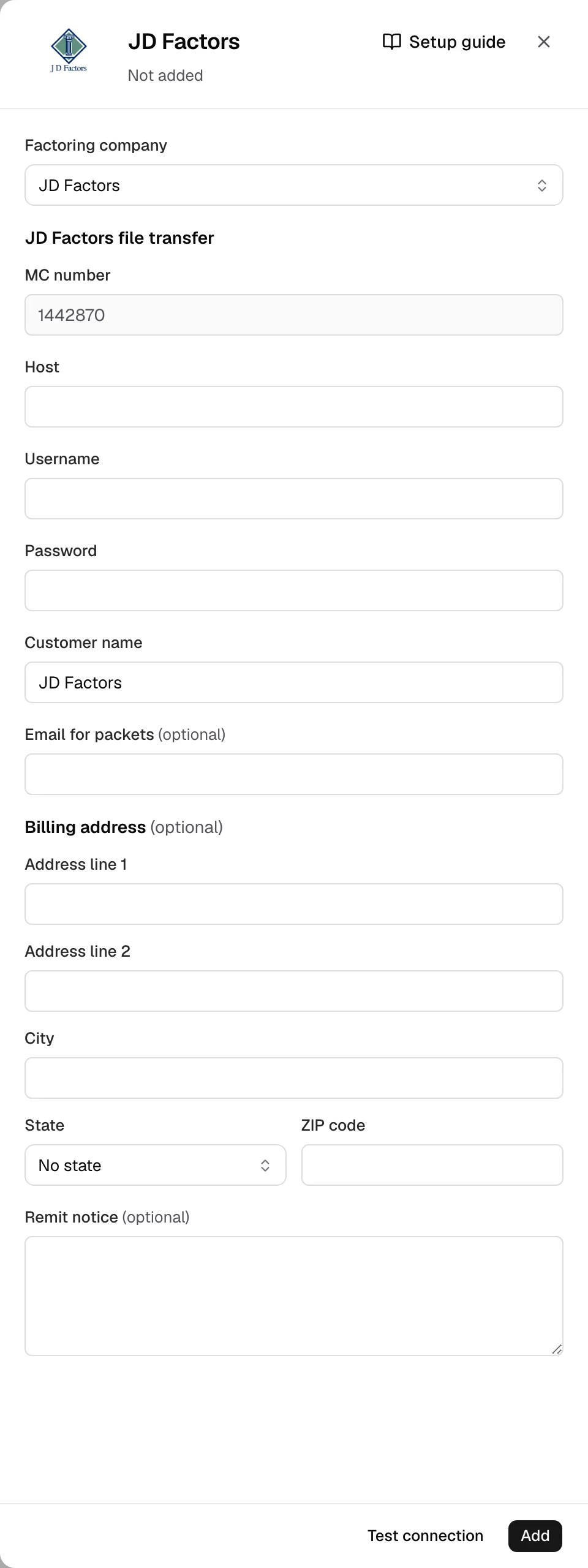
- Open Integrations, Factoring, JD Factors. Its sign-in sits under Factoring company.
- MC number comes from Settings. Enter Host, Username and Password.
- Customer name is prefilled. Email for packets is only a fallback.
- Copy your Notice of Assignment into Billing address and Remit notice.
Step 3: Test and save
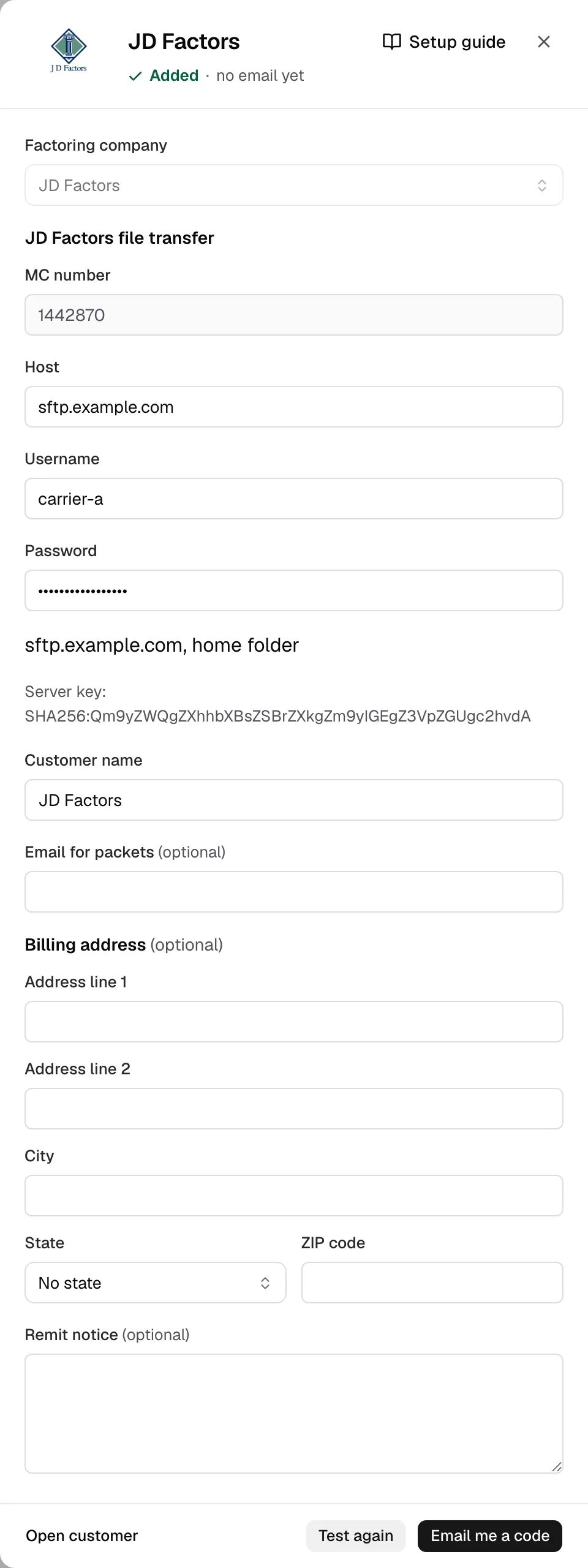
- Click Test connection. Yolda adds JD Factors, signs in and writes nothing. Over SFTP it shows the Server key.
- Click Email me a code, enter it, then Save.
Step 4: Send invoices
- The drawer reads sends by JD Factors file transfer.
- One invoice: open it in Finances (Edit invoice, or Invoice on a delivered trip), tick Remit to a factoring company, pick JD Factors, click Save changes or Create invoice, open it again, then Send to JD Factors.
- Several: tick them in Open invoices, click Create batch (batch guide).
- The invoice shows Uploaded to JD Factors and Open ClientNet; a batch shows Sent to JD Factors.
- When JD pays, click Mark paid (after a single send, Record factoring first).