
Quick answer: Double-entry happens when your dispatch system and QuickBooks don't share a data source — someone keys a load's billing info once for dispatch and again for invoicing, and both numbers drift apart over time. A clean sync should push finalized loads into QuickBooks as invoices automatically, with no re-keyed totals, no duplicate customer records, and a clear audit trail back to the original load. QuickBooks Online is the version most trucking software can actually connect to today; confirm that before you assume your setup will sync.
Key takeaways
- Double-entry usually starts because dispatch and accounting were bought from different vendors at different times, each solving its own problem in isolation.
- A real sync pushes a delivered, approved load to QuickBooks as an invoice — not a rough draft that still needs editing on the accounting side.
- Mismatched customer names, duplicate invoice numbers, and miles that don't match pay are the three most common signs your sync is broken or missing.
- QuickBooks Online integrates with modern trucking platforms far more often than QuickBooks Desktop does — check which version your software actually supports before you commit to a workflow.
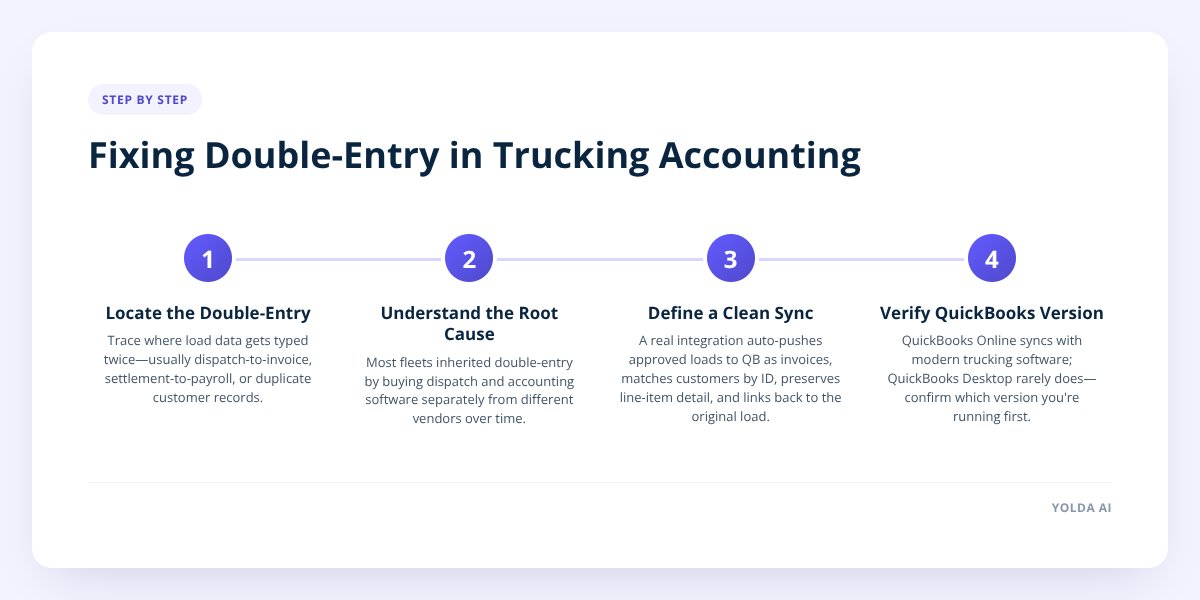
Step 1: Figure Out Where the Double-Entry Is Actually Happening
Before fixing anything, trace exactly where a single load's data gets typed twice. For most fleets it's one of three spots:
- Load to invoice. Dispatch closes out a load with a rate and mileage, then someone retypes that same rate into QuickBooks to bill the customer.
- Settlement to payroll. A driver's pay is calculated in the dispatch or settlement tool, then re-entered into QuickBooks (or a separate payroll system) to actually cut the check.
- Customer and vendor records. The same customer gets created once in the dispatch system and again in QuickBooks, with slightly different names, addresses, or terms — which is how you end up with "ABC Logistics" and "ABC Logistics LLC" as two separate accounts.
Pull up your last month's invoices in QuickBooks next to your dispatch records for the same loads. If more than a handful of numbers don't match exactly — rate, fuel surcharge, accessorials — you've found your leak.
Step 2: Understand Why Fleets End Up Here in the First Place
Most fleets didn't choose double-entry — they inherited it by buying dispatch and accounting software at different times from different vendors. A small carrier often starts with QuickBooks because every bookkeeper already knows it, then adds a dispatch tool later once the spreadsheet stops working. The two were never designed to talk to each other, so someone becomes the human bridge.
This gets worse as a fleet grows. More loads means more invoices to re-key, more settlements to reconcile, and more chances for a typo to turn a $2,400 load into a $2,040 invoice that nobody catches until the customer pays the wrong amount. The fix isn't typing faster — it's removing the second typing step entirely.
Don't skip this: if your dispatch software and QuickBooks aren't integrated, every manually re-entered invoice is a chance for the billed amount to not match the rate confirmation on file — and that gap is exactly what shows up in an audit or a customer dispute.
Step 3: Know What a Clean Sync Should Actually Do
A real integration between your trucking software and QuickBooks does four specific things, not just "connect the two."
| What it should do | Why it matters |
|---|---|
| Push the invoice automatically once a load is marked delivered and approved | Removes the re-keying step entirely — no copy-pasting a rate from one screen to another |
| Match customer records by a stable ID, not just by name | Prevents duplicate customer accounts from slightly different spellings |
| Carry line-item detail (linehaul, fuel surcharge, accessorials) into QuickBooks separately | Lets your books show the same breakdown your dispatcher sees, so disputes are easy to trace |
| Keep a link back to the original load | So if a customer questions an invoice, you can pull the rate confirmation, BOL, and POD without digging through two systems |
Notice what's missing from that list: the sync shouldn't require someone to approve every single field transfer by hand. If your current setup still has a person checking each invoice line against the load before it posts, you don't have a sync — you have a faster way to double-enter.
With Yolda, once a load is delivered and the proof of delivery is approved, one click turns it into an invoice with nothing re-keyed, because the dispatch software, accounting, and driver settlements all live on the same platform instead of three separate logins. That's a structurally different fix than connecting two systems after the fact — there's no second database for the numbers to drift from.
Step 4: Check Which QuickBooks Version You're Actually Running
This step trips up more fleets than any other, because "QuickBooks" isn't one product. QuickBooks Online is the cloud-based, subscription version most modern trucking software connects to. QuickBooks Desktop is the older, locally-installed version, and far fewer trucking platforms can sync with it directly.
If your bookkeeper has used QuickBooks Desktop for ten years and nobody's questioned it, that's worth a conversation before you shop for dispatch software. A vendor demo that looks seamless on QuickBooks Online can turn into a manual export-import routine on QuickBooks Desktop — which is just double-entry wearing a different disguise. Confirm the exact QuickBooks product your trucking software supports before you assume any sync will work out of the box.
We covered the broader differences between dispatch-only tools and full management platforms in TMS Software vs Dispatch Software: Differences — worth a read if you're still deciding how much of your back office you want on one system versus stitched together.
Step 5: Migrate Without Losing Your History
Switching systems is the moment most fleets dread, because it feels like you'll either lose historical data or spend weeks re-entering it. That's a migration problem, not a software problem, and it's solvable with the right plan:
- Export your current customer list from QuickBooks, including billing terms and contact details, before you touch anything else.
- Pull your last 12 months of invoices as a backup reference, so you can spot-check numbers after the move.
- List every open invoice and unpaid balance — these need to land correctly in the new system or you'll chase payments blind.
- Document your chart of accounts so revenue and expense categories map cleanly instead of getting dumped into "Uncategorized."
- Confirm your driver pay structure (per-mile, percentage, flat rate, deductions) is written down somewhere outside anyone's head.
A fleet of three trucks can usually do this in an afternoon. A fifty-truck operation needs more lead time, and that's exactly the kind of move where a vendor's migration support matters — ask directly whether they'll move your drivers, trucks, customers, and historical data for you, or whether that work falls on your team.
Step 6: Reconcile Weekly, Not Quarterly
Once your sync is live, the habit that keeps it honest is a short weekly check — not a scramble at tax time. Pick one day, pull up QuickBooks next to your settlement reports, and confirm three things line up: total invoiced amount, total driver pay, and total miles run.
Catching a mismatch after one week means fixing one load. Catching it after one quarter means untangling thirteen weeks of settlements, and that's when fleets start missing IFTA deadlines because nobody trusts the mileage numbers anymore. If you haven't automated your quarterly fuel tax math yet, our IFTA calculator is a free way to sanity-check totals before you file.
What to Do Next
Start by tracing one week's worth of loads from dispatch through to the QuickBooks invoice, by hand, and write down every place a number got retyped. That list is your actual problem — not a vague sense that "accounting takes too long." From there, decide whether a point-to-point integration solves it, or whether the real fix is consolidating dispatch, settlements, and invoicing onto one platform so there's nothing left to sync in the first place.
Yolda is trucking software that integrates with QuickBooks Online and turns delivered, approved loads into invoices without re-keying a single number, alongside dispatch, driver settlements, and IFTA reporting on the same login. You can see exactly how the invoicing side works on the accounting page, or book a demo to walk through your own fleet's numbers.
Checklist: Getting QuickBooks and Your Trucking Software to Match
- Trace one week of loads from dispatch through to the QuickBooks invoice and flag every manual re-entry.
- Confirm whether your accounting system is QuickBooks Online or QuickBooks Desktop.
- Check your trucking software's integration page for which QuickBooks version it actually supports.
- Export your current customer list, open invoices, and chart of accounts before any migration.
- Document your driver pay structure and deduction rules outside of any one person's memory.
- Set a weekly reconciliation habit comparing invoiced totals, driver pay, and miles run.
- Ask any new vendor directly whether they migrate historical data for you or leave it to your team.


