Connect Verizon Connect to Yolda
Brings your Verizon Connect trucks, drivers and live positions into Yolda. Read only.
Step 1: Create an integration user in Verizon Connect
- Sign in at
https://reveal.fleetmatics.com, click your user icon, then Marketplace, API Integrations, GET STARTED. - Fill in the form, tick the consent box, click NEXT, then CONFIRM REQUEST.
Values for the provider form
- Third-party company name
- Yolda
- Integration name
- Yolda
- Developer name
- [Your name]
- Developer email
- [Your email]
- Phone number (if asked)
- [Your company phone]
Replace the marked blanks before you send or paste.
- Verizon emails the integration username and password to that address. Your Reveal sign-in does not work in Yolda.
- No Marketplace? A Reveal admin sets your Edit Partner Integrations to Full.
- In Reveal Admin, give each truck a Vehicle Number and each driver a Driver Number.
Step 2: Connect Verizon Connect in Yolda
- Open Integrations, then Verizon Connect.
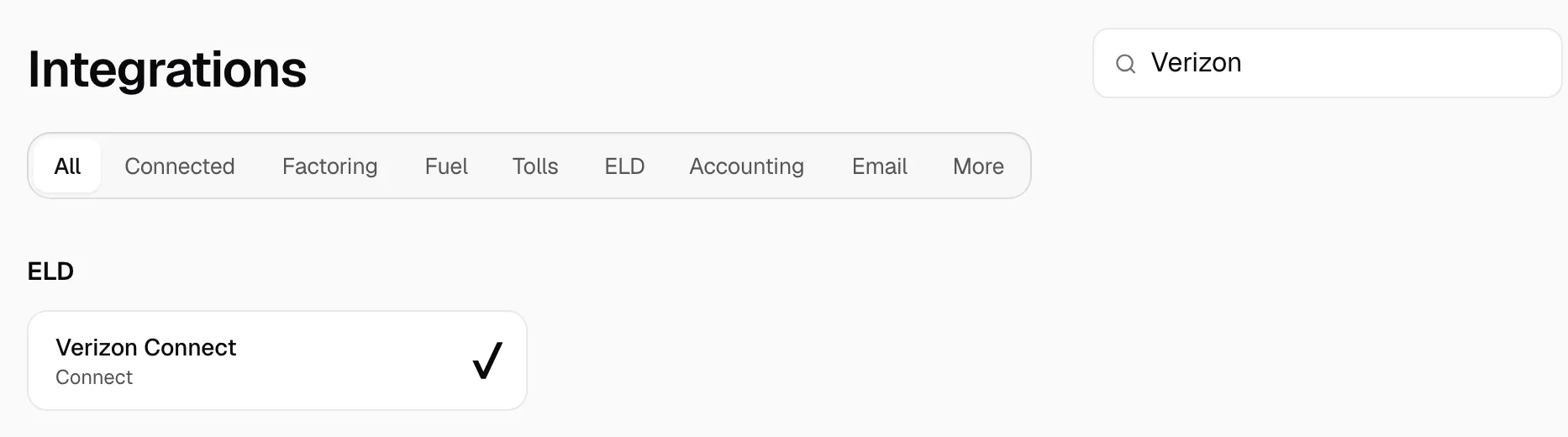
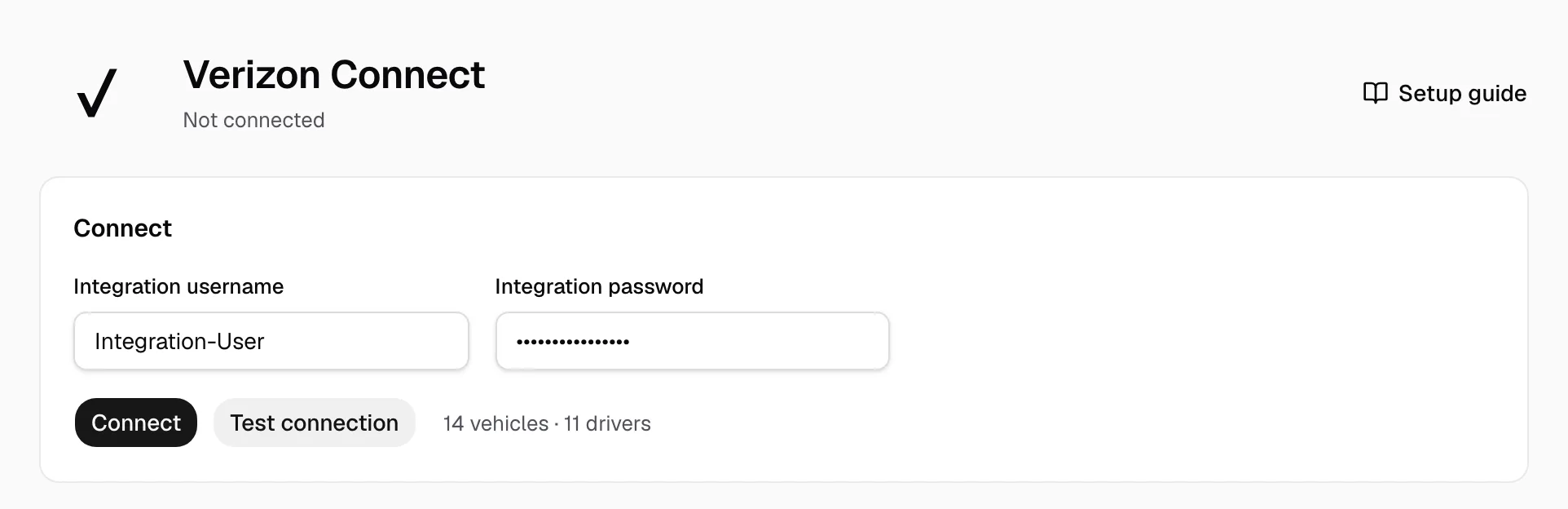
- Enter them in Integration username and Integration password.
- Click Test connection, then Connect.
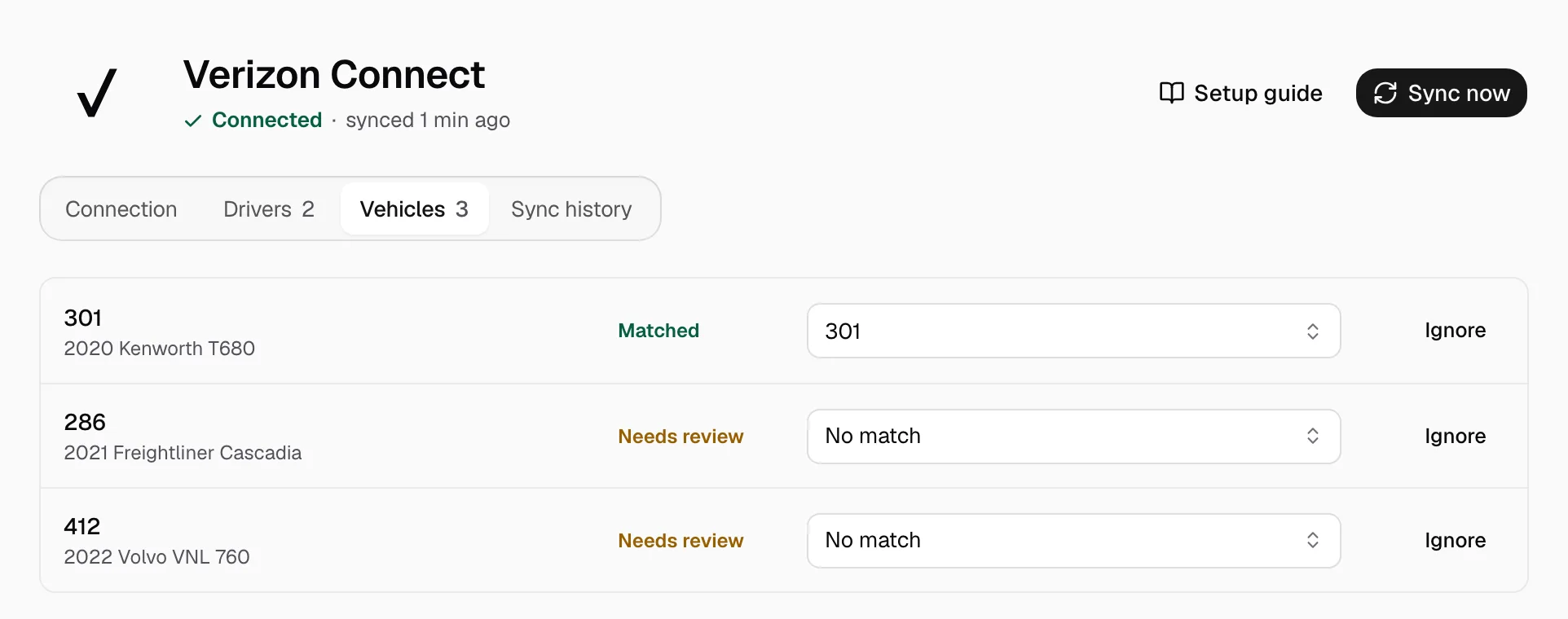
Step 3: Match your trucks and drivers
On Vehicles and Drivers, pick the Yolda record on each Needs review row, or click Ignore. Add a missing one on Trucks or Drivers first.
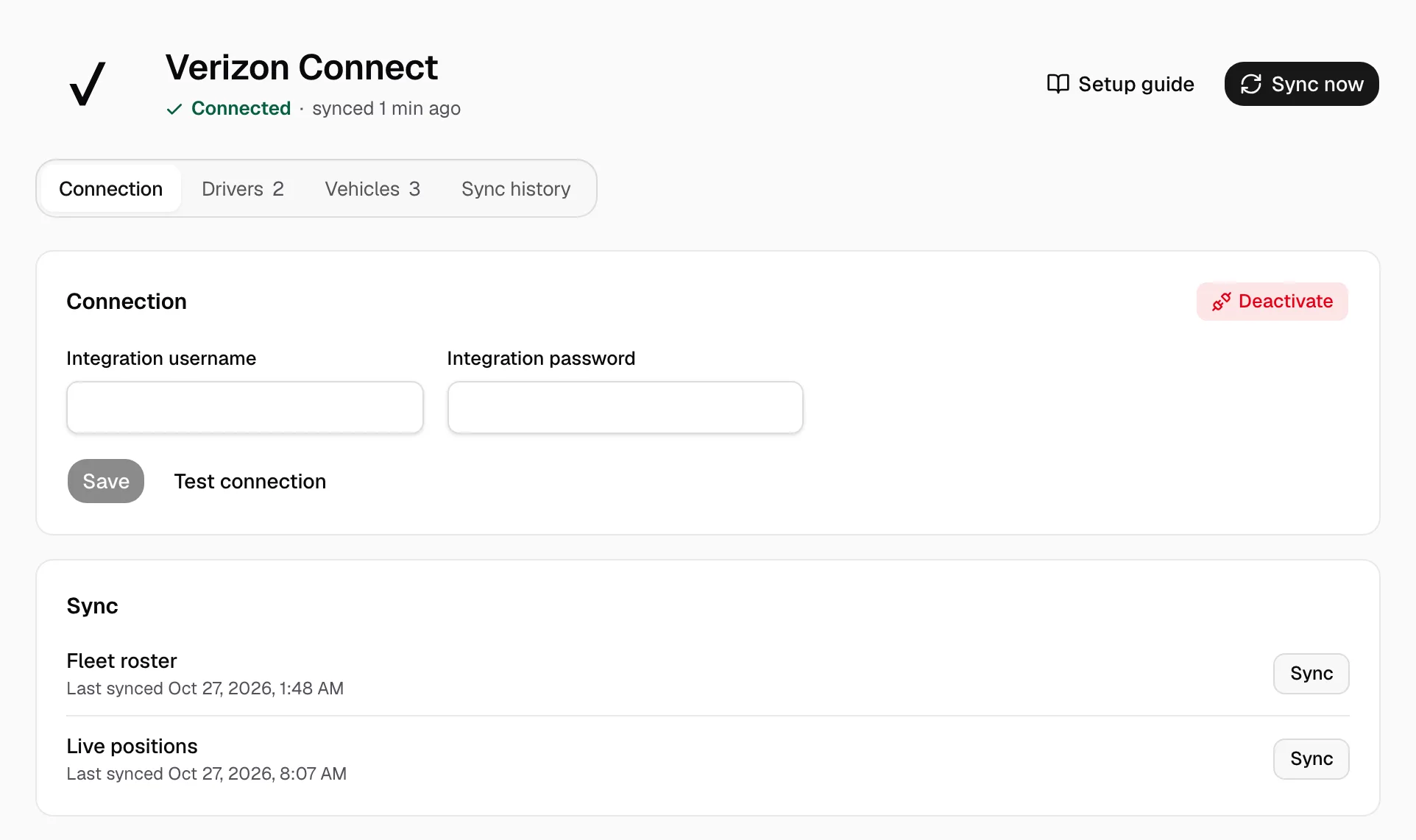
Step 4: Keep it current
On Connection, trucks and drivers refresh at 00:00 on your company clock and positions every minute once Verizon approves Yolda for whole-fleet reads. Until then, each minute reads 10 trucks in turn (a fleet of 30 every 3 minutes), and a truck with no position in two hours is not updated. Sync now reads again. New login? Enter it and click Save.