 Azuga setup guide1 min read
Connect Azuga to Yolda
One Azuga user brings your trucks, drivers, positions and history into Yolda. Yolda only reads.
Step 1: Create a Yolda user in Azuga
- Sign in at
fleet.azuga.comas an administrator. - Open Admin, then Users, then click Add User.
- Enter a name, email address, time zone and password. Set Role to Default Role and Associated Groups to Default Group, so it sees all your trucks.
- Click Add User (or Save). Sign in once as this user and finish Azuga's password reset.
No administrator access? Send this to Azuga:
Email to send
- To
- customercare@azuga.com
- Subject
- Integration user for [Your company name]
Hello,

We use Yolda as our TMS. Please create an Azuga user for Yolda, with Role set to Default Role and Associated Groups set to Default Group, or tell us who in our account can. Yolda only reads our vehicles, drivers and latest locations, about every five minutes, and the Breadcrumb report.

Our MC number is [Your MC number].

Thank you,
[Your name]
[Your company name]
[Your company phone]
Replace the marked blanks before you send or paste.
Step 2: Connect Azuga in Yolda
- Open Integrations, then Azuga.
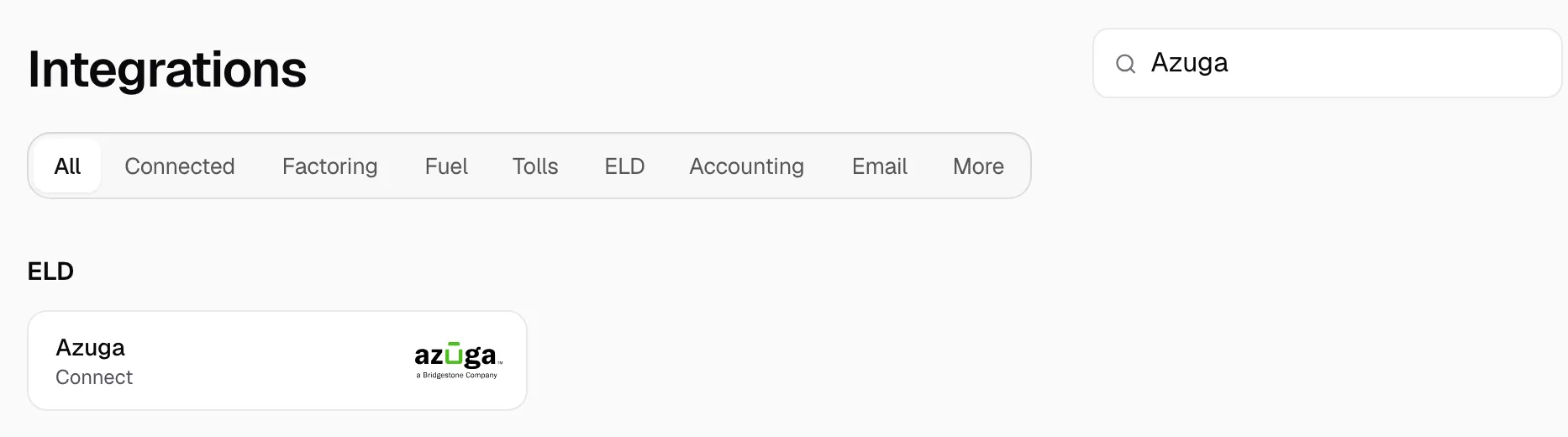
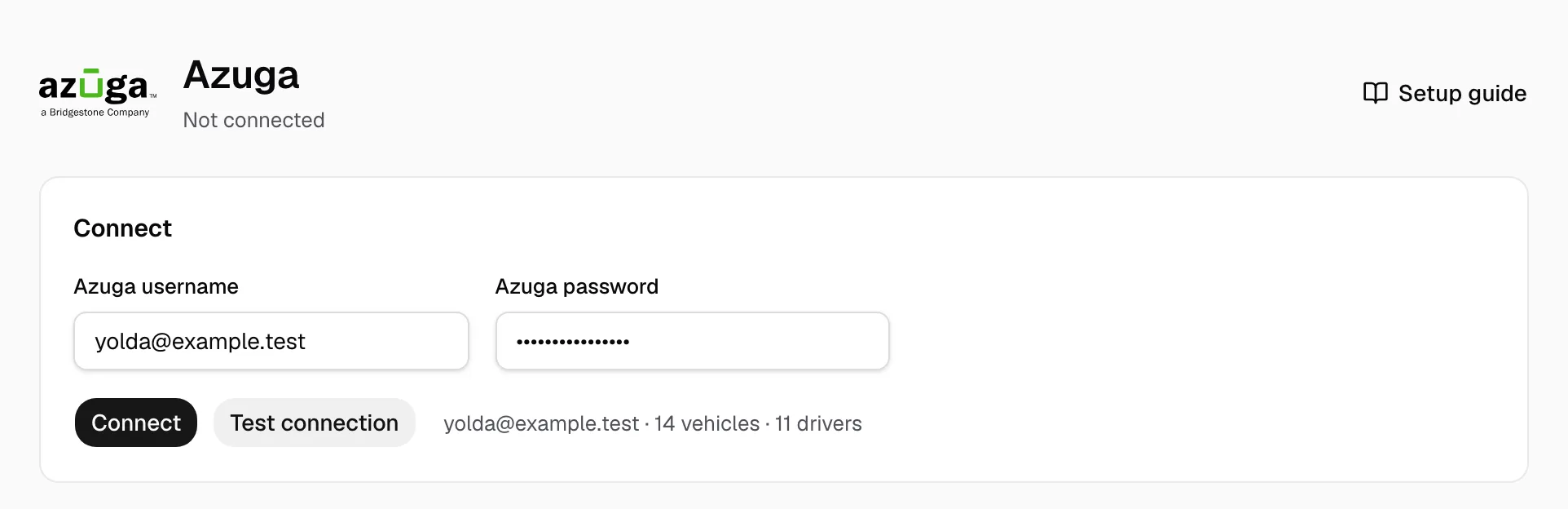
- Type the new user's username in Azuga username and its password in Azuga password.
- Click Test connection.
- Click Connect.
Step 3: Match your trucks and drivers
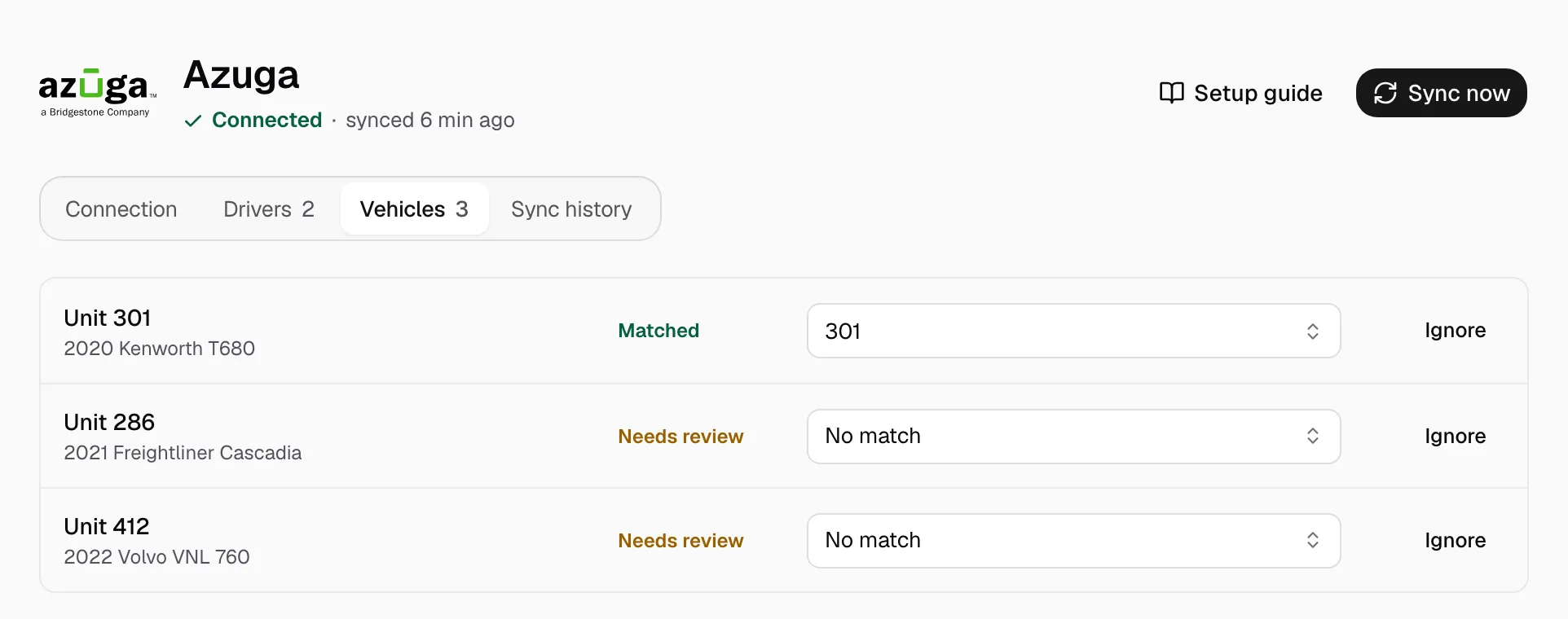
Trucks match by VIN or unit number, drivers by email or phone. On Vehicles and Drivers, pick the Yolda record on each Needs review row, or click Ignore. Add missing ones on Trucks or Drivers.
Step 4: Keep it current
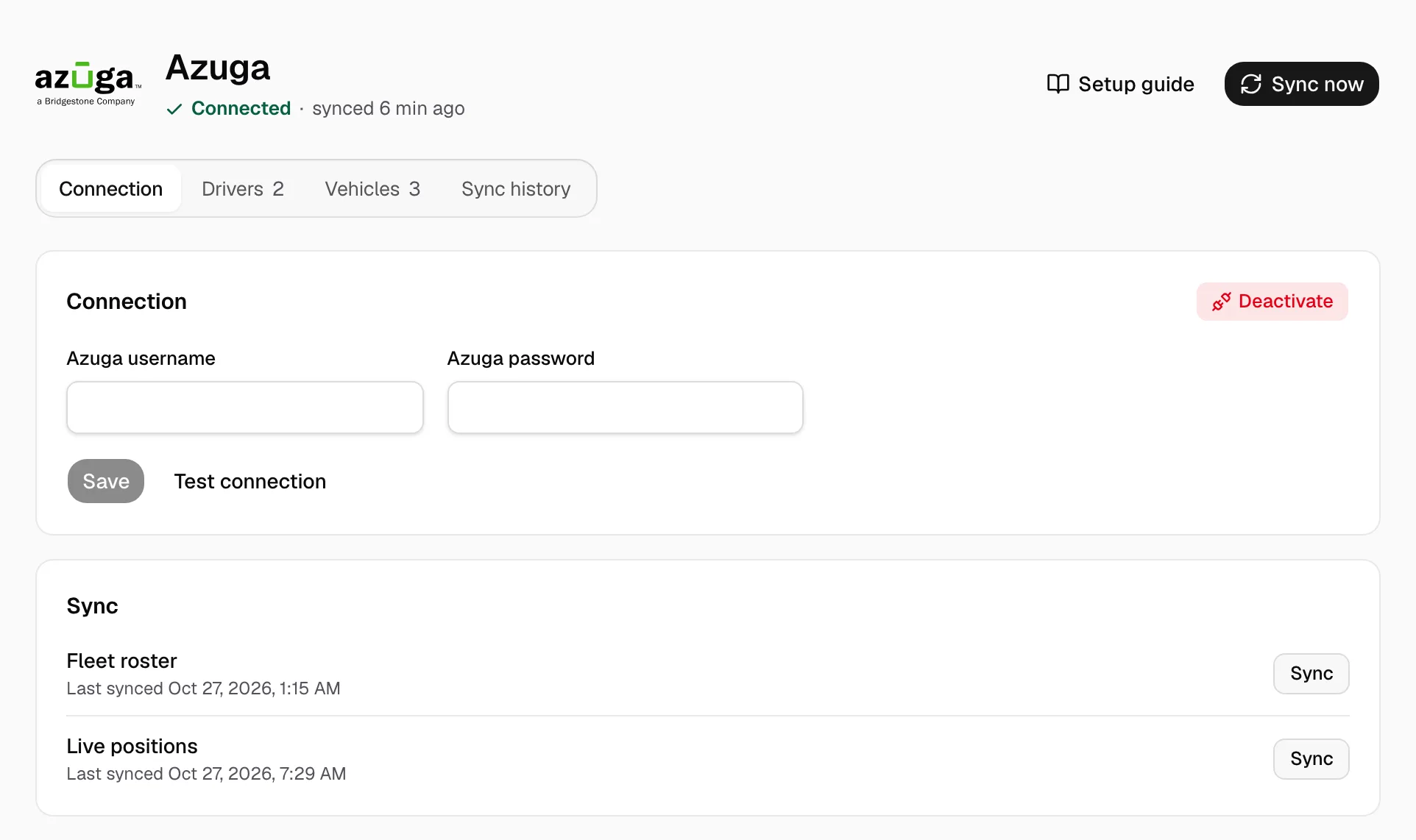
Once the page says Connected, trucks and drivers refresh at 00:00 on your company clock and positions every five minutes. Sync now reads again. Positions show on Fleet map and each matched truck's page. Location history is read every two hours, two trucks at a time. New Azuga password? Fill both boxes on Connection and click Save.