 Thunder Funding setup guide1 min read
Add Thunder Funding
Thunder Funding runs on FactorGenie, which has not opened its invoice API to Yolda yet. For now, Yolda emails your invoices and their paperwork to Thunder.
Step 1: Get your Thunder details
- Send Thunder this email. The Thunder Funding app makes API keys under My Profile, TMS Integration, only for the TMSs on its list, and Yolda is not on it yet.
Email to send
- To
- clientservices@thunderfunding.com
- Subject
- Notice of Assignment and API key for Yolda
Hello,

We use Yolda as our TMS. Please send us our current Notice of Assignment, with the payment address.

We would also like Yolda to send our invoices into our Thunder account with a Username and API key, as other TMSs do through FactorGenie. Please ask FactorGenie to add Yolda as a TMS and to write to partner@sfdify.com.

Our MC number is [Your MC number].

Thank you,
[Your name]
[Your company name]
[Your email]
Replace the marked blanks before you send or paste.
Step 2: Open Thunder Funding in Yolda
- Open Integrations, then the Factoring tab, then Thunder Funding.
Step 3: Fill in the form
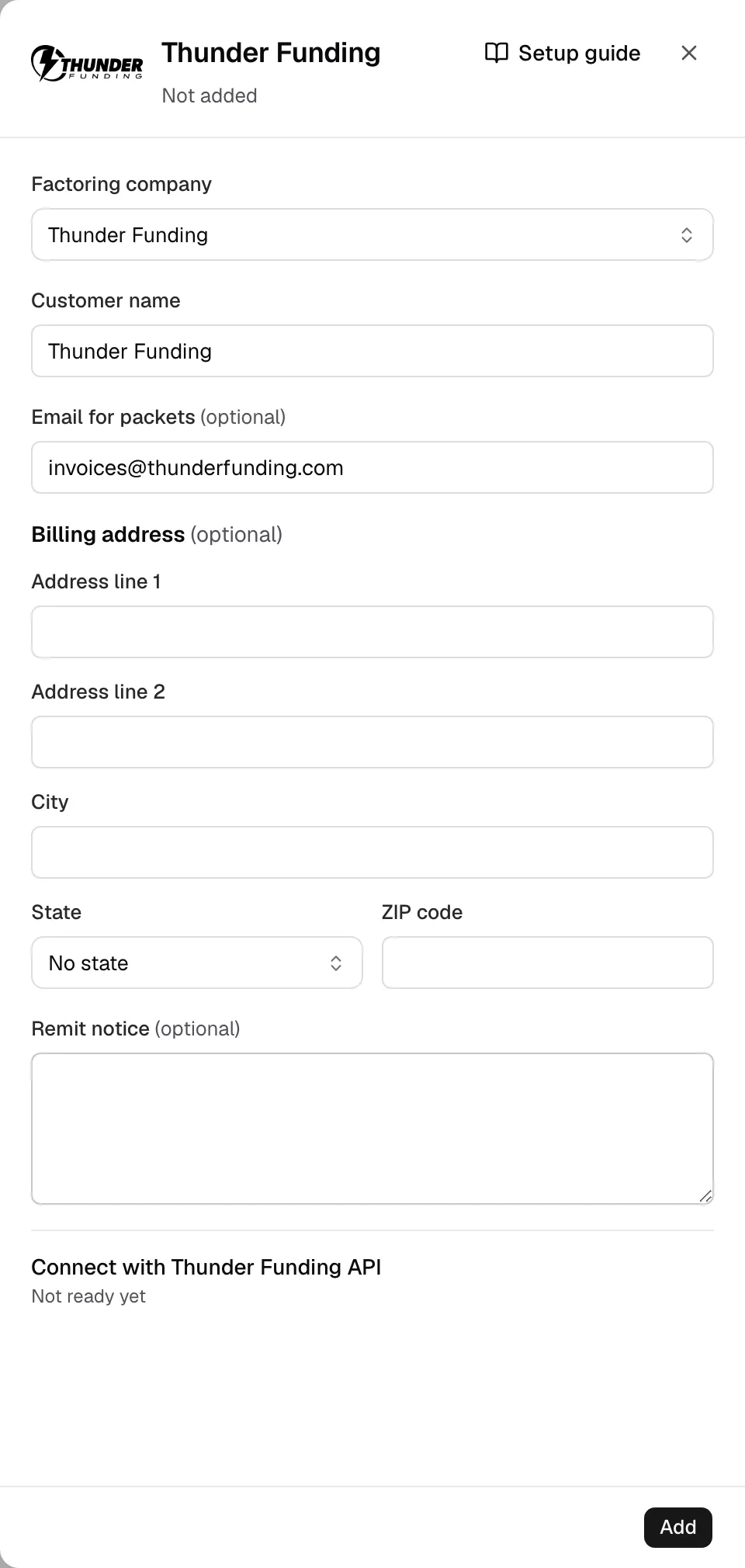
- Check Factoring company and Customer name.
- Email for packets comes filled with Thunder's invoice inbox,
invoices@thunderfunding.com. - Copy the payment lines of your Notice of Assignment into Billing address and Remit notice.
- Connect with Thunder Funding API reads Not ready yet. Click Add.
Step 4: Check it and send invoices
- The card now reads Added and sends by email.

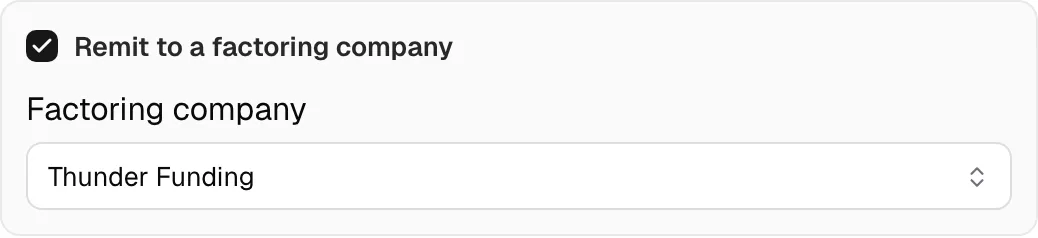
- To remit an invoice, open it in Finances, tick Remit to a factoring company, pick Thunder Funding in Factoring company, then click Save changes.
- Under Factoring packet, click Send to factor, check Email and Files, then click Send. For several invoices, use Create batch (Send an invoice batch).
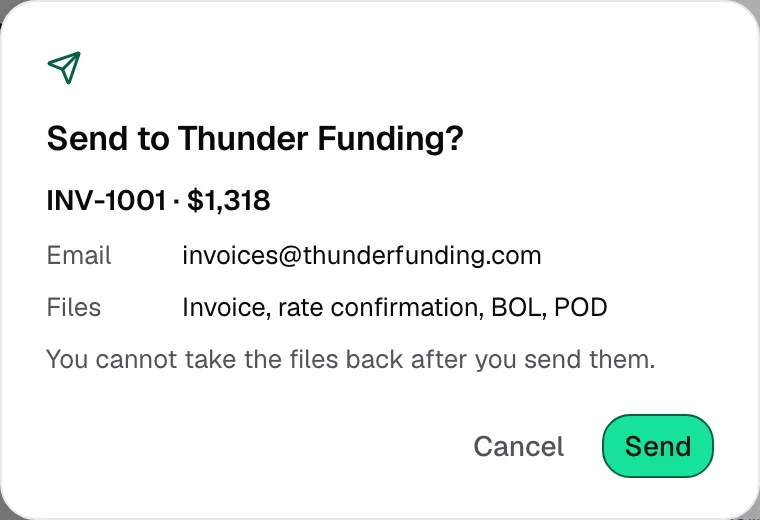
- Sent means the email went out, not that Thunder approved or funded the invoice.