 RTS setup guide1 min read
Connect RTS to Yolda
Yolda uploads your invoices and their paperwork to RTS's file transfer server.
Step 1: Get your sign-in from RTS
- Email your RTS representative. RTS may first ask you to sign its Transfer Protocol Server Access Agreement.
- RTS sends one Username and Password per MC number.
Email to send
- To
- [Your RTS representative's email]
- Subject
- File transfer access for Yolda
Hello,

We are setting up Yolda as our TMS. Please give us SFTP access on ftps.rtsfinancial.com, signed in with a username and password, so Yolda can send our invoice batches to RTS.

Please send:
- Username
- Password
- The Notice of Assignment to print on our invoices

Our MC number is [Your MC number].

Thank you,
[Your name]
[Your company name]
[Your email]
Replace the marked blanks before you send or paste.
Step 2: Add RTS in Yolda
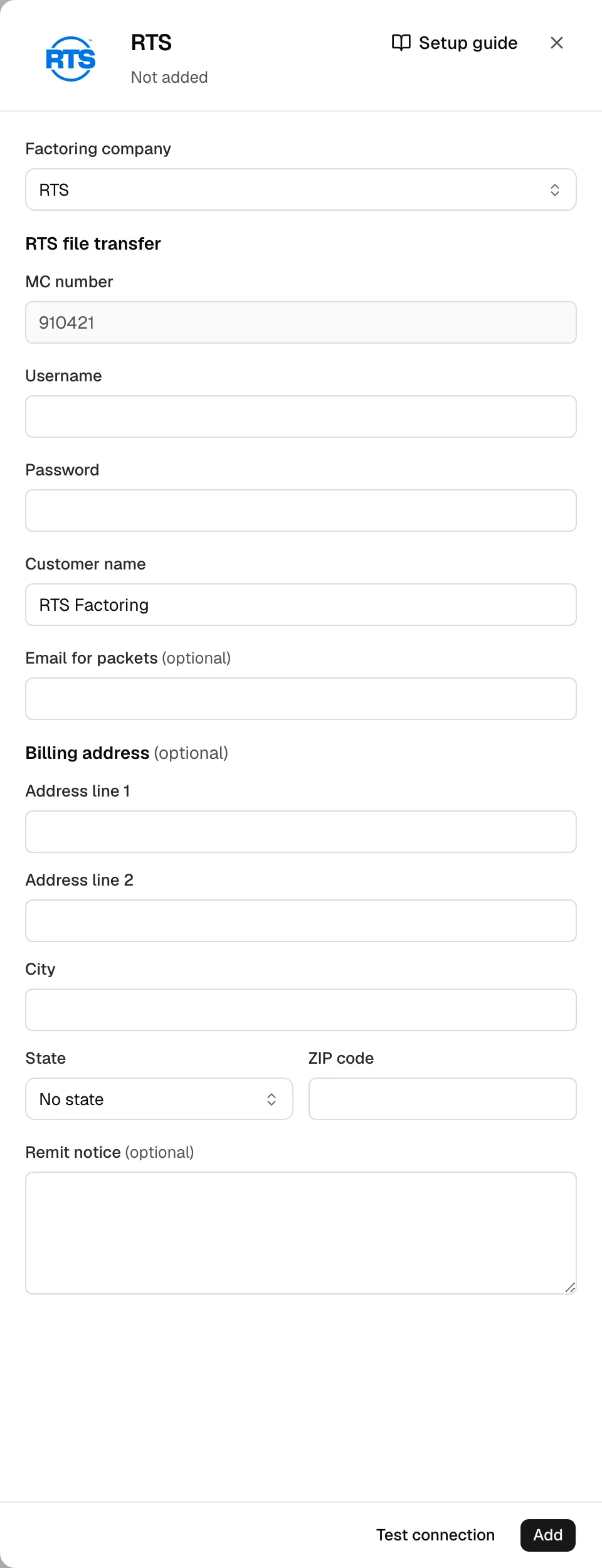
- Open Integrations, Factoring, then RTS. Its sign-in sits under Factoring company.
- MC number comes from Settings. Enter Username and Password from RTS.
- Set Customer name to the payee on RTS's Notice of Assignment.
- Email for packets can stay blank: email is a fallback.
- Enter the notice's mailing address in Billing address. Paste RTS's Notice of Assignment in Remit notice.
Step 3: Test and save
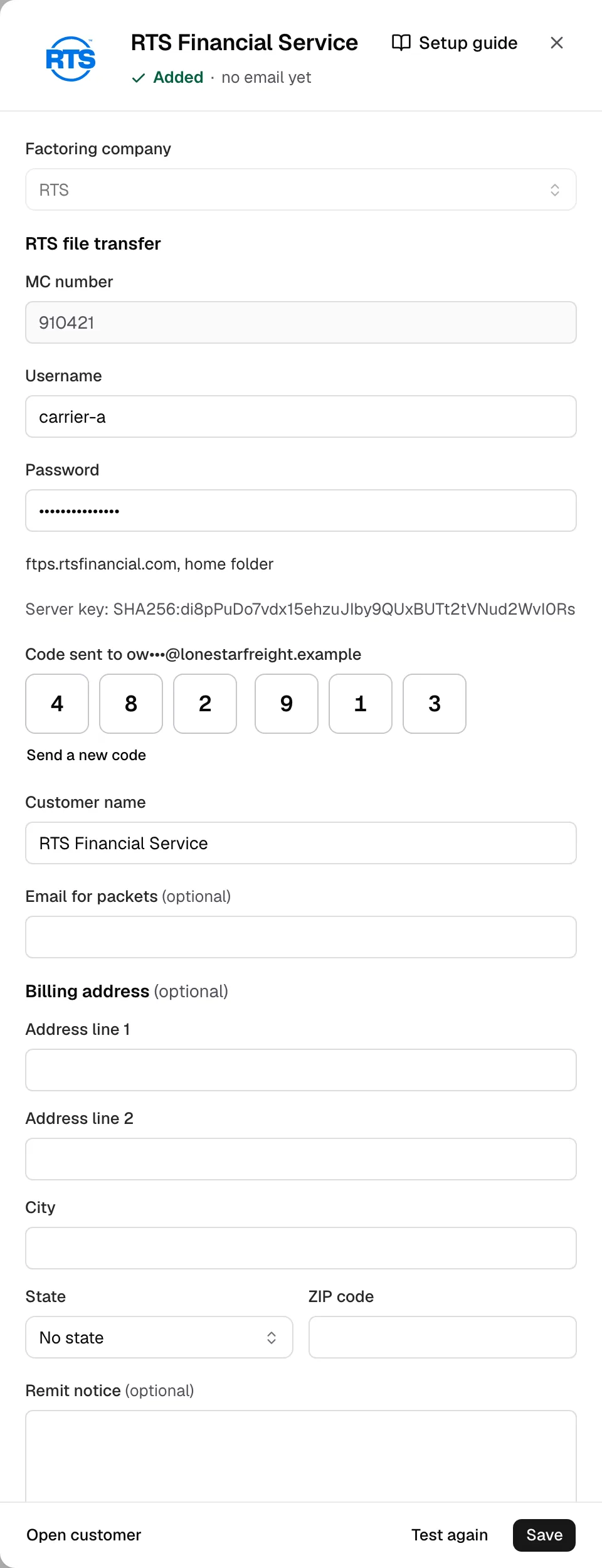
- Click Test connection. Yolda adds RTS, signs in, writes nothing, and shows the server and folder it reached.
- Over SFTP it also shows RTS's Server key.
- Click Email me a code, enter it, then click Save.
Step 4: Send invoices
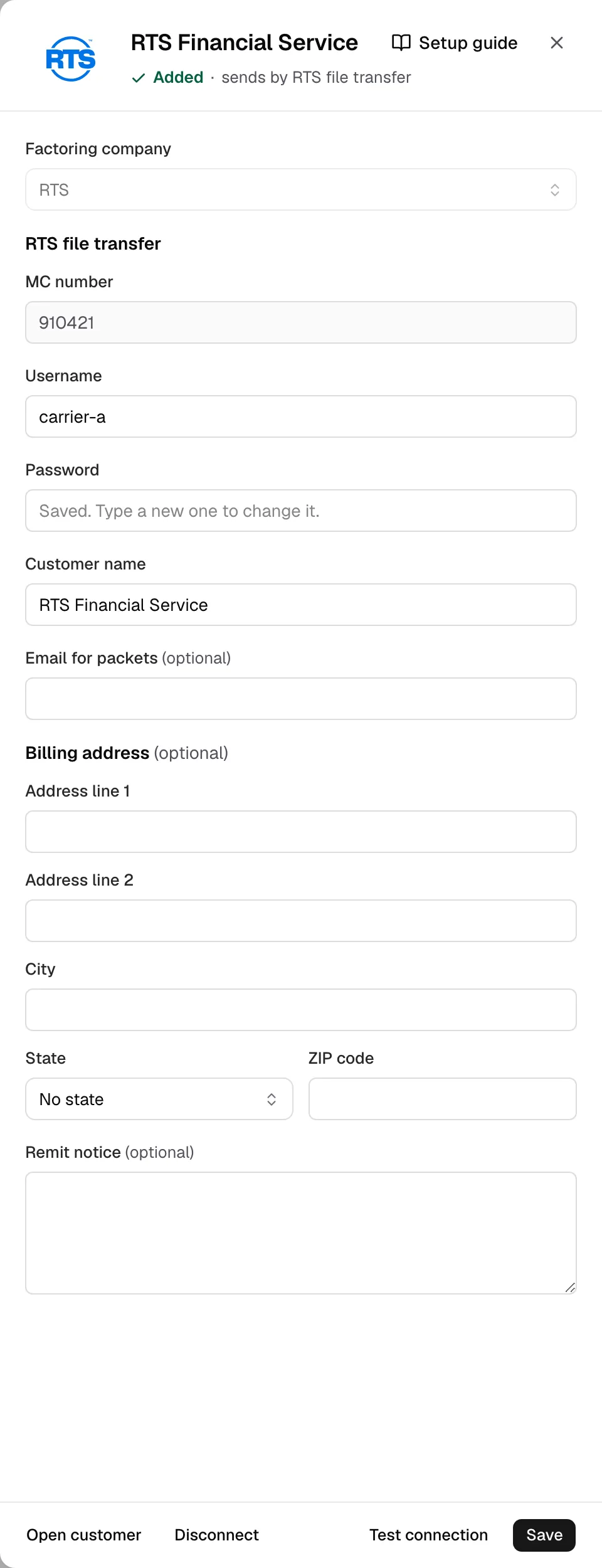
- RTS's drawer reads sends by RTS file transfer.
- One invoice: in Finances, tick Remit to a factoring company, pick RTS, click Save changes, then Send to RTS.
- Several: tick them in Open invoices and click Create batch (batch guide). RTS takes one upload every 5 minutes.
- The invoice reads Uploaded to RTS; RTS reviews it in RTS Pro. When RTS pays, click Mark paid.