 Zigzag ELD setup guide1 min read
Connect Zigzag ELD to Yolda
Connecting brings in your trucks and their positions. Your USDOT number under Settings, Company must match your Zigzag ELD account.
Step 1: Get your sign-in from Zigzag ELD
- Sign in at
zigzageld.com. Open Manage, then Company, and copy the Company ID. - Use the Company ID, not a key from Manage, then Integrations. The Company ID lets Yolda see all your trucks.
- Zigzag ELD gives the user name and password to the company owner on request. The owner asks:
Email to send
- To
- info@zigzageld.com
- Subject
- Integration user for Yolda
Hello,

Please give us an integration user name and password for our company, with the role it needs, so Yolda, our TMS, can read our vehicles, their positions and trip history through External API v2. Yolda only reads.

Company: [Your company name]
USDOT number: [Your DOT number]
Company ID: [Your Company ID]
Expected use: a sign-in about once a day, all vehicle positions every five minutes, trip history for five trucks every two hours, the vehicle list at 00:00 our time.

Thank you,
[Your name]
[Your company name]
[Your email]
Replace the marked blanks before you send or paste.
Step 2: Connect Zigzag ELD in Yolda
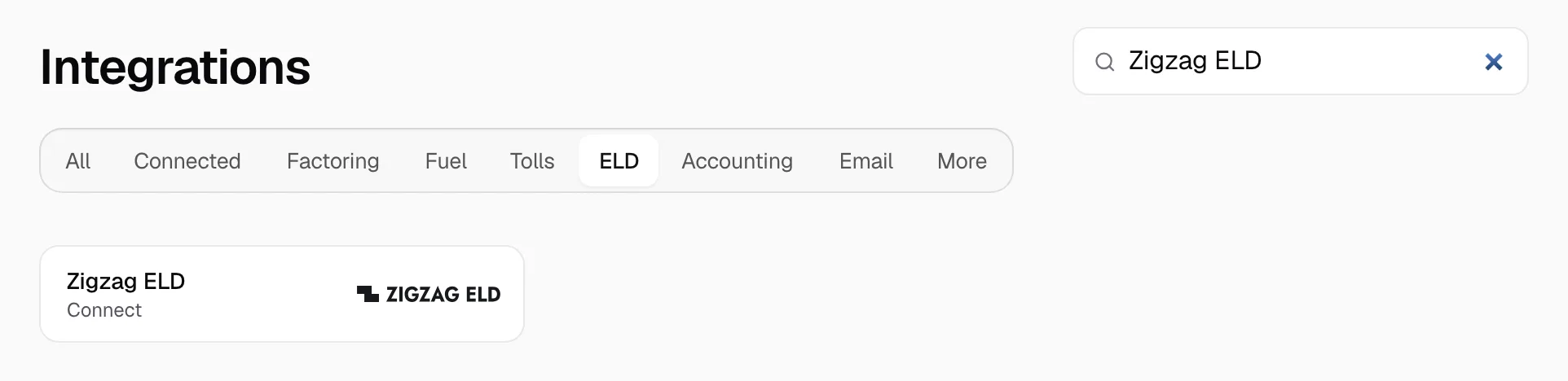
- Open Integrations, then Zigzag ELD.
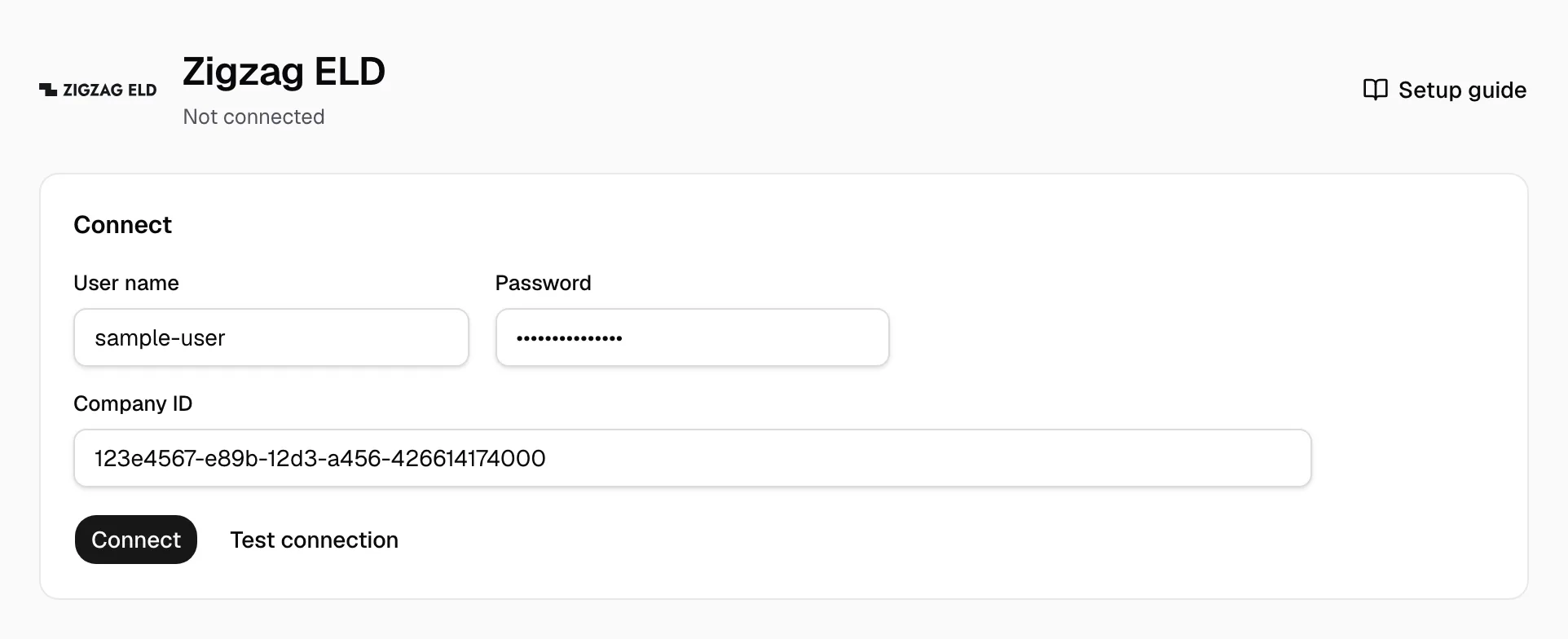
- Enter the User name and Password, then the Company ID.
- Click Test connection, then Connect.
Step 3: Match vehicles
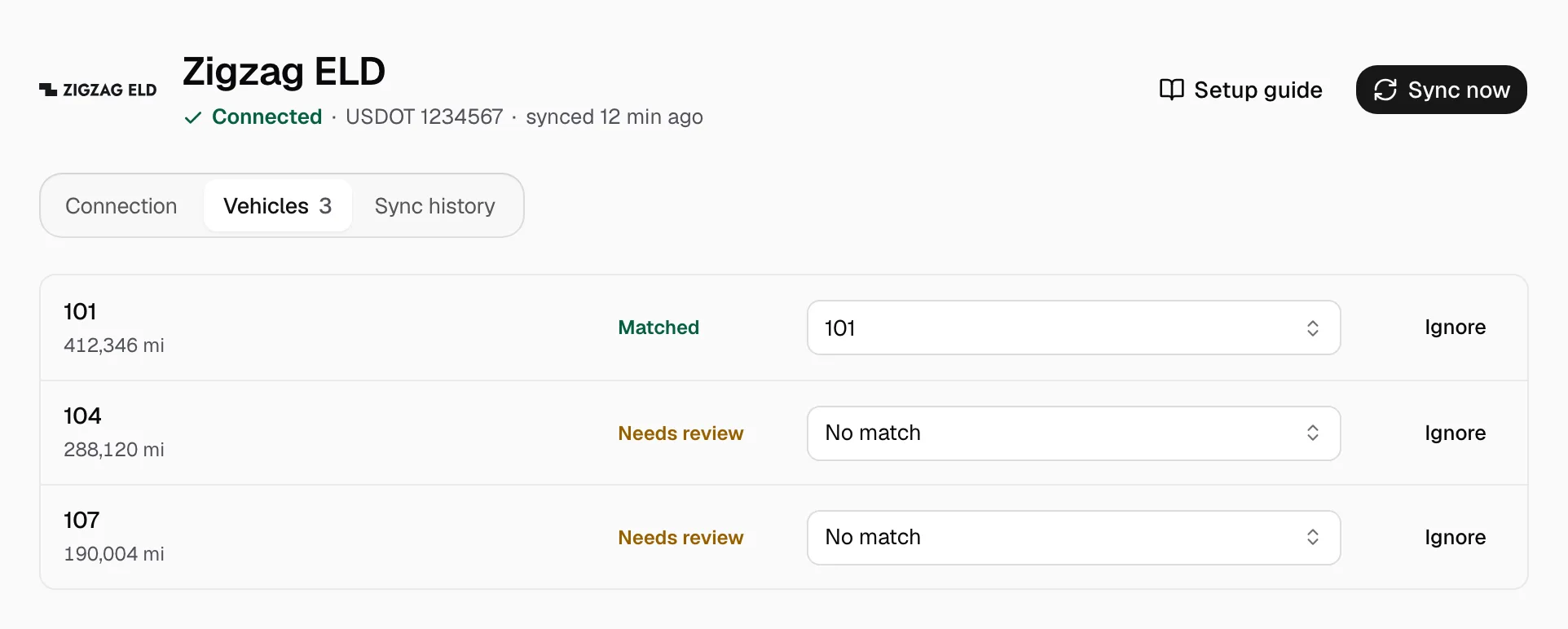
- On the Vehicles tab, pick the Yolda truck on each Needs review row.
- Click Ignore on rows you don't need.
Step 4: Keep it current
Vehicles refresh at 00:00 on your company clock. Positions refresh every five minutes. Location history refreshes every two hours, five trucks at a time. Click Sync now to read again.
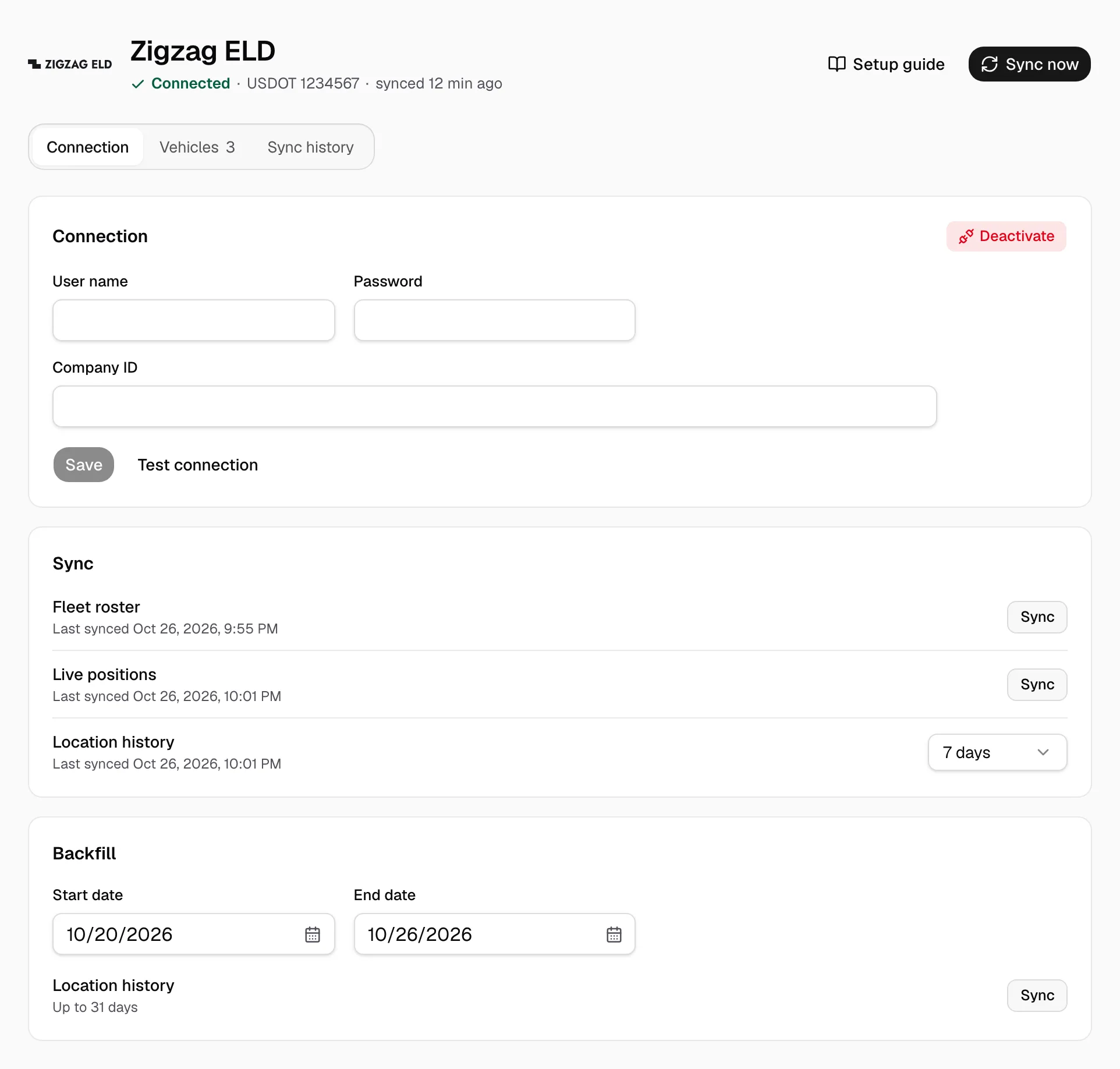
For older days, set Start date and End date under Backfill, then click Sync on Location history.
Zigzag ELD sends no driver list and no HOS logs, so there is no Drivers tab. Positions name no driver, so Sync history can read Needs review.