 TrackEnsure setup guide1 min read
Connect TrackEnsure to Yolda
TrackEnsure shows your trucks and trailers on the Fleet map and brings your drivers and HOS clocks into Yolda.
Before you start
Check that every truck in Yolda has its VIN. Yolda matches TrackEnsure trucks by it, then by unit number.
Step 1: Get your API token from TrackEnsure
- API access is a paid add-on at TrackEnsure. Ask TrackEnsure to turn it on:
Email to send
- To
- support@trackensure.com
- Subject
- API access for our Yolda integration
Hello,

Please turn on API access (the extapi) for our account and send us a read-only API token. We are connecting TrackEnsure to Yolda, our TMS, to read our trucks, trailers, drivers, positions and HOS clocks.

Company: [Your company name]
USDOT number: [Your DOT number]
Expected use: every five minutes, our truck and trailer lists, truck positions, HOS status (50 trucks per call) and one position read per trailer. The same lists, positions and HOS status once a night. Never the same data twice within 5 minutes.

Thank you,
[Your name]
[Your company name]
[Your company phone]
Replace the marked blanks before you send or paste.
- Sign in to your TrackEnsure account. If it has a Tokens page, click Generate Token and copy the token. Otherwise TrackEnsure sends you one.
Step 2: Connect TrackEnsure in Yolda
- Open Integrations, then TrackEnsure.
- Paste the token in API token, then click Connect. Test connection checks the token without saving it.
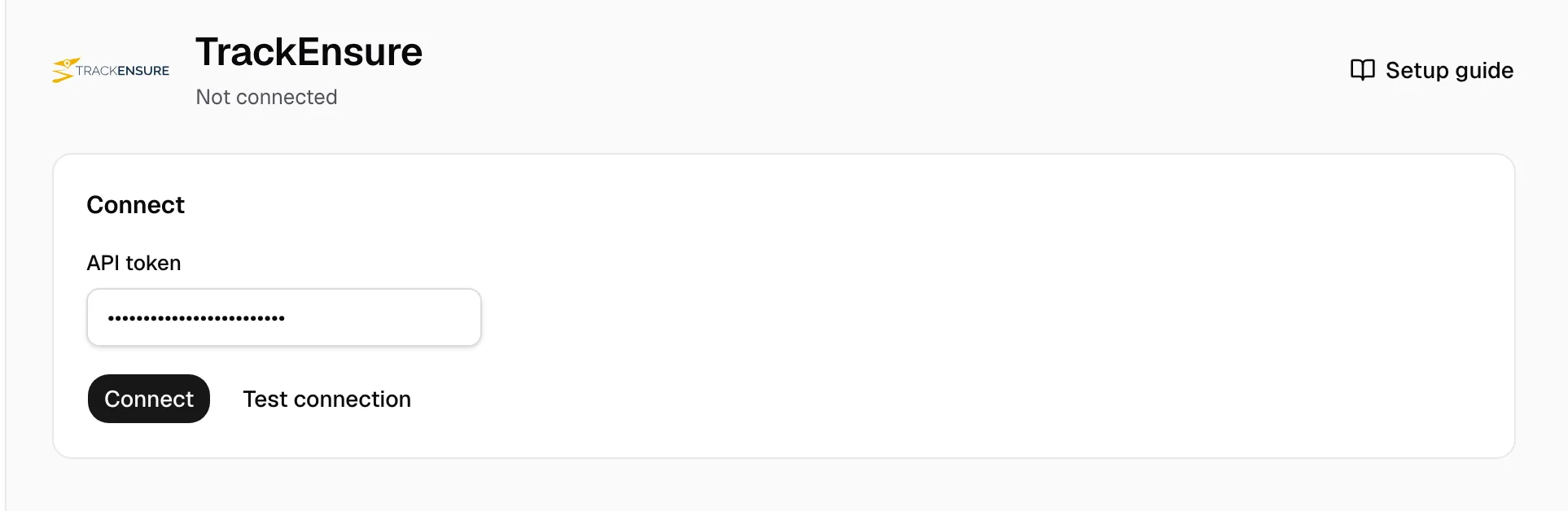
Step 3: Match drivers and trucks
- On the Drivers and Vehicles tabs, pick the Yolda record on each Needs review row.
- Click Ignore on a row you do not need.
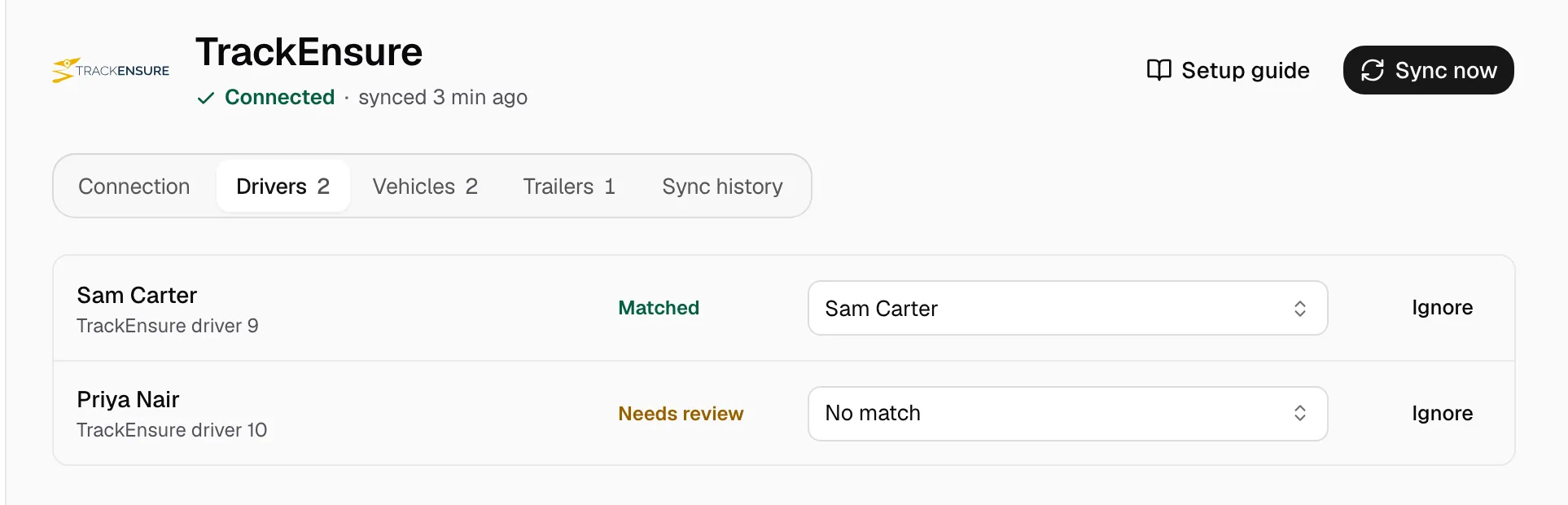
Missing one? Add it on the Drivers or Trucks page, then match it. Trailers appear on the Trailers tab.
Step 4: Keep it in sync
A working connection shows Connected under the name. Trucks and drivers refresh at 00:00 on your company clock, and positions every five minutes. Click Sync now to read again. TrackEnsure allows one read of the same data every 5 minutes.