Sparkle ELD setup guide1 min read
Connect Sparkle ELD to Yolda
Sparkle ELD brings your fleet and IFTA miles into Yolda.
Before you start
Add your USDOT number under Settings, Company. It must match your Sparkle ELD account. Trucks match by VIN or unit number, drivers by email or phone.
Step 1: Get your API key from Sparkle ELD
- Sign in at
web.sparkleeld.usas a fleet admin. - Open Admin, then API, then click Add API Key.
- Pick your Company Name if asked, tick All under Groups, enter an API Name, tick Read-Only, then click Confirm.
- Click Copy API Key on the new row.
- No Admin menu? Ask Sparkle ELD:
Email to send
- To
- api@sparkleeld.us
- Subject
- API key request for [Your company name]
Hello,

We use Yolda as our TMS. Please send us a Read-Only API key for all groups of our Sparkle ELD account, so Yolda can read our drivers, trucks, trailers, locations and IFTA miles.

Our USDOT number is [Your DOT number] and our MC number is [Your MC number].

Thank you,
[Your name]
[Your company name]
[Your company phone]
Replace the marked blanks before you send or paste.
Step 2: Connect in Yolda
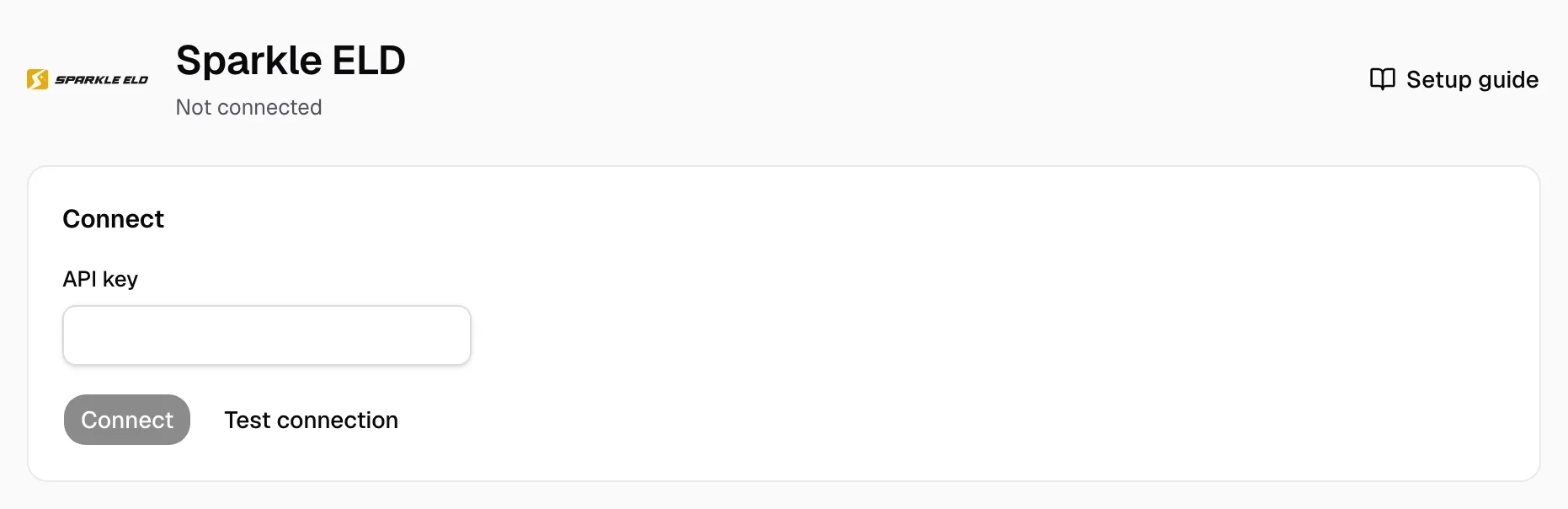
- Open Integrations, then Sparkle ELD.
- Paste the key in API key.
- Click Test connection, then Connect.
Step 3: Match your fleet
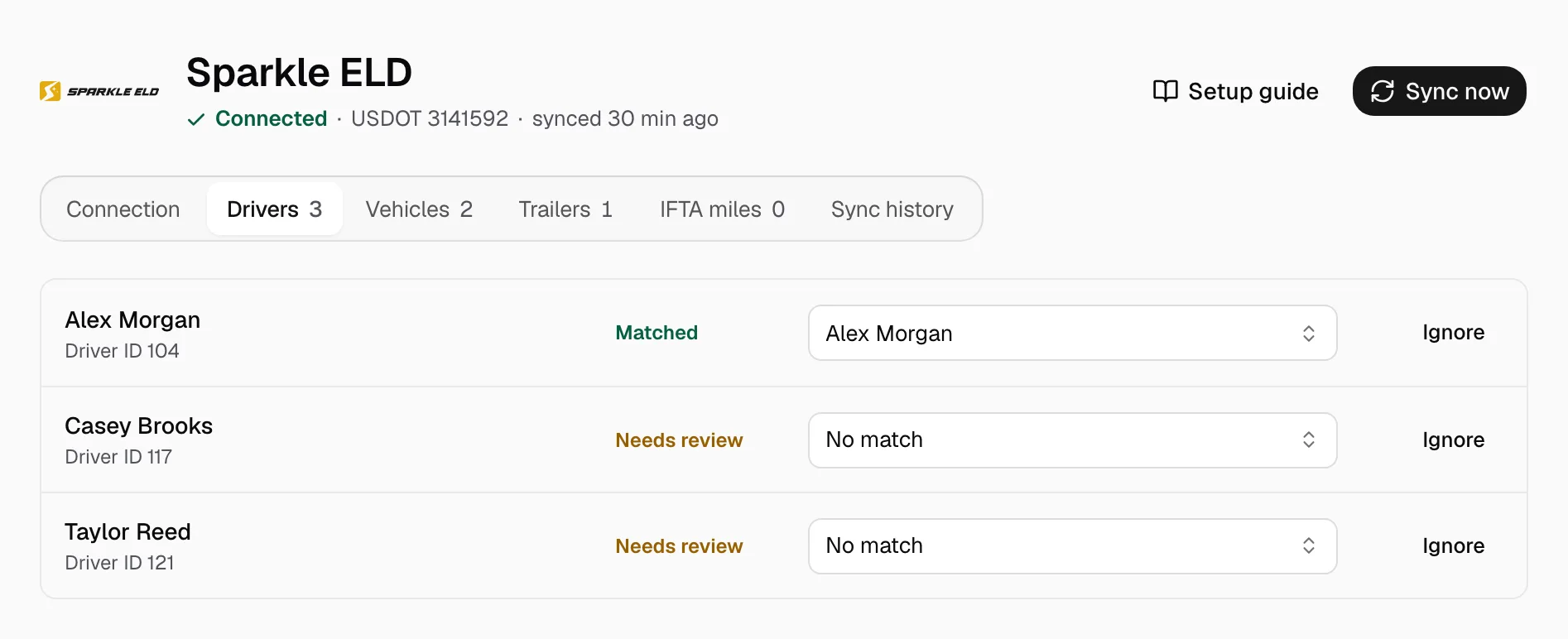
- On the Drivers, Vehicles and Trailers tabs, pick the Yolda record on each Needs review row, or click Ignore.
Add a missing one on Drivers or Trucks first.
Step 4: Keep it in sync
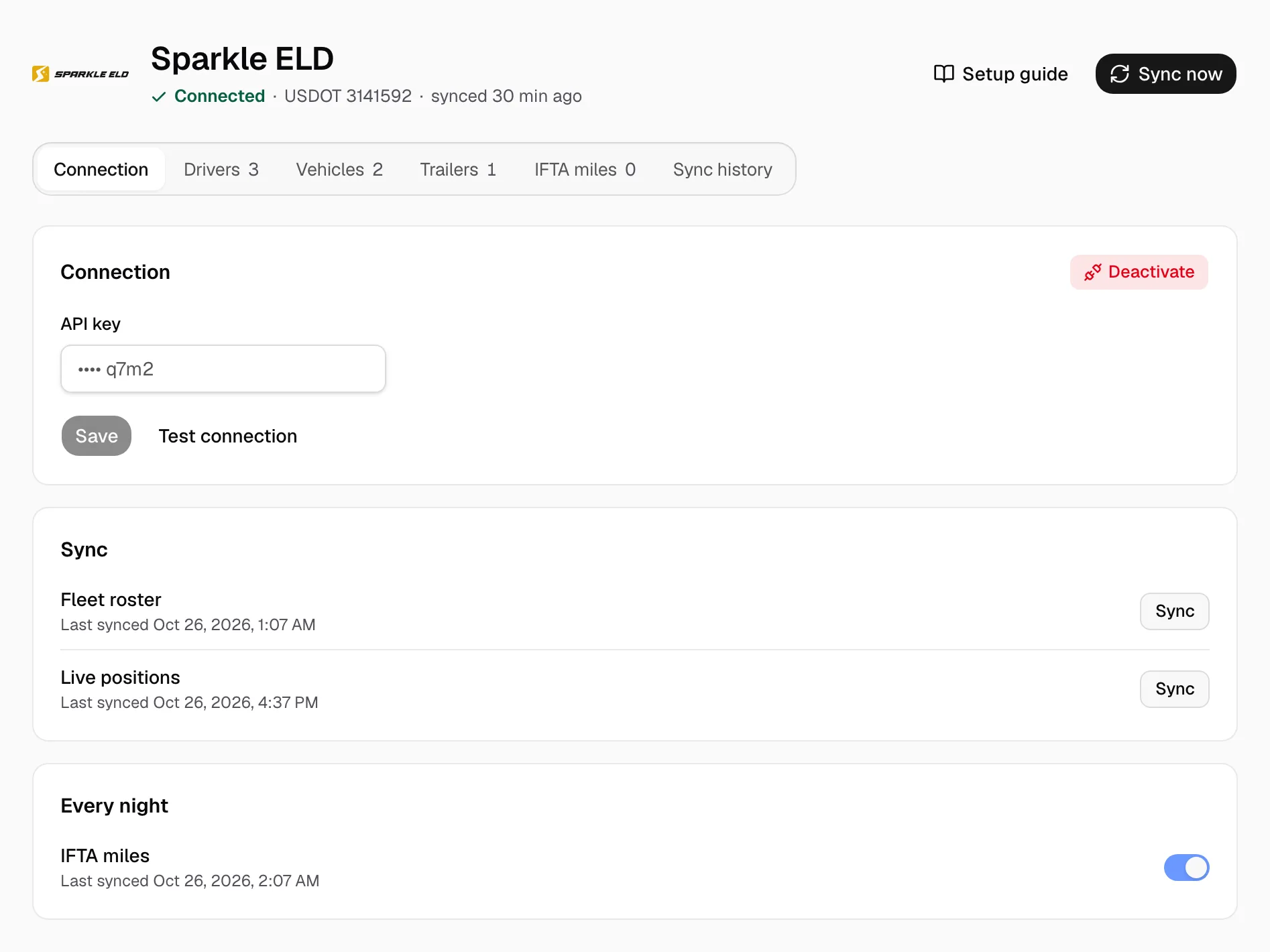
Once Connected, positions reach the fleet map every five minutes, the roster at 00:00 on your company clock. Sync now refreshes both, or click Sync on Fleet roster or Live positions.
- With IFTA miles on under Every night, the quarter imports after midnight. After a quarter ends, pick it on the IFTA miles tab, click Sync, then Open IFTA.
- Deactivate disconnects.