Safe Lane ELD setup guide1 min read
Connect Safe Lane ELD to Yolda
Safe Lane ELD sends trucks, drivers and live positions to Yolda, not hours of service.
Before you start
Yolda matches trucks by VIN or unit number. Keep both the same in Safe Lane ELD and Yolda.
Step 1: Get your API key from Safe Lane ELD
- Sign in at
cloud.safelaneeld.comas an admin or manager. - Open Manage, then Company.
- Under INTEGRATION TOKENS, find the New World row, click Show token and copy the key.
No New World row? Email Safe Lane ELD:
Email to send
- To
- management@safelaneeld.com
- Subject
- Fleet Location API key for [Your company name]
Hello,

We use Yolda as our TMS. Please send us our Fleet Location API key so Yolda can read our trucks, drivers and positions.

Our MC number is [Your MC number].

Thank you,
[Your name]
[Your company name]
[Your company phone]
[Your email]
Replace the marked blanks before you send or paste.
Step 2: Open Safe Lane ELD in Yolda
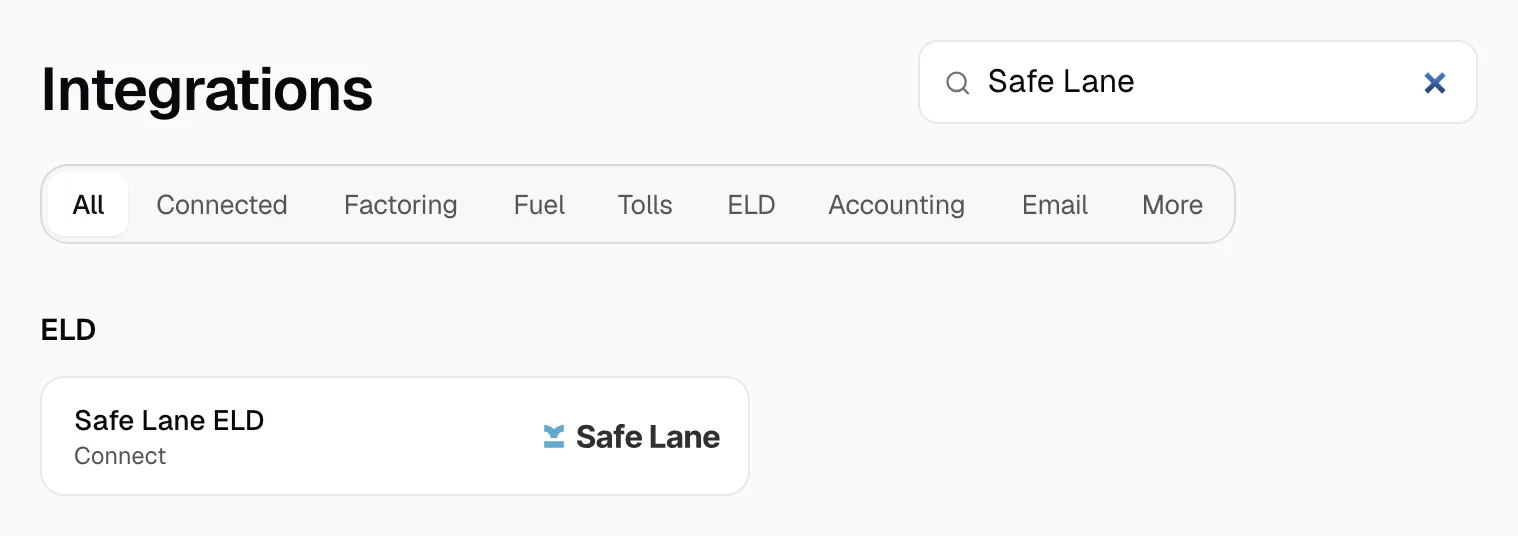
- Open Integrations, then Safe Lane ELD.
Step 3: Connect
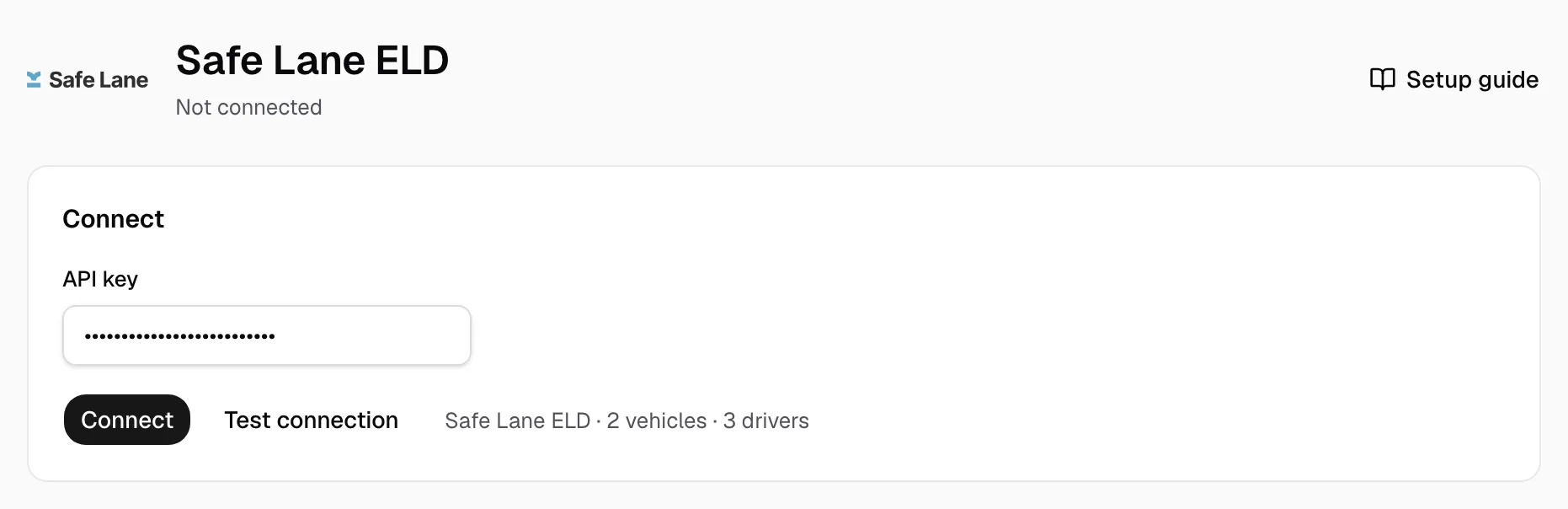
- Paste the key in API key.
- Click Test connection and check the vehicle and driver count beside it.
- Click Connect.
Step 4: Match drivers and vehicles
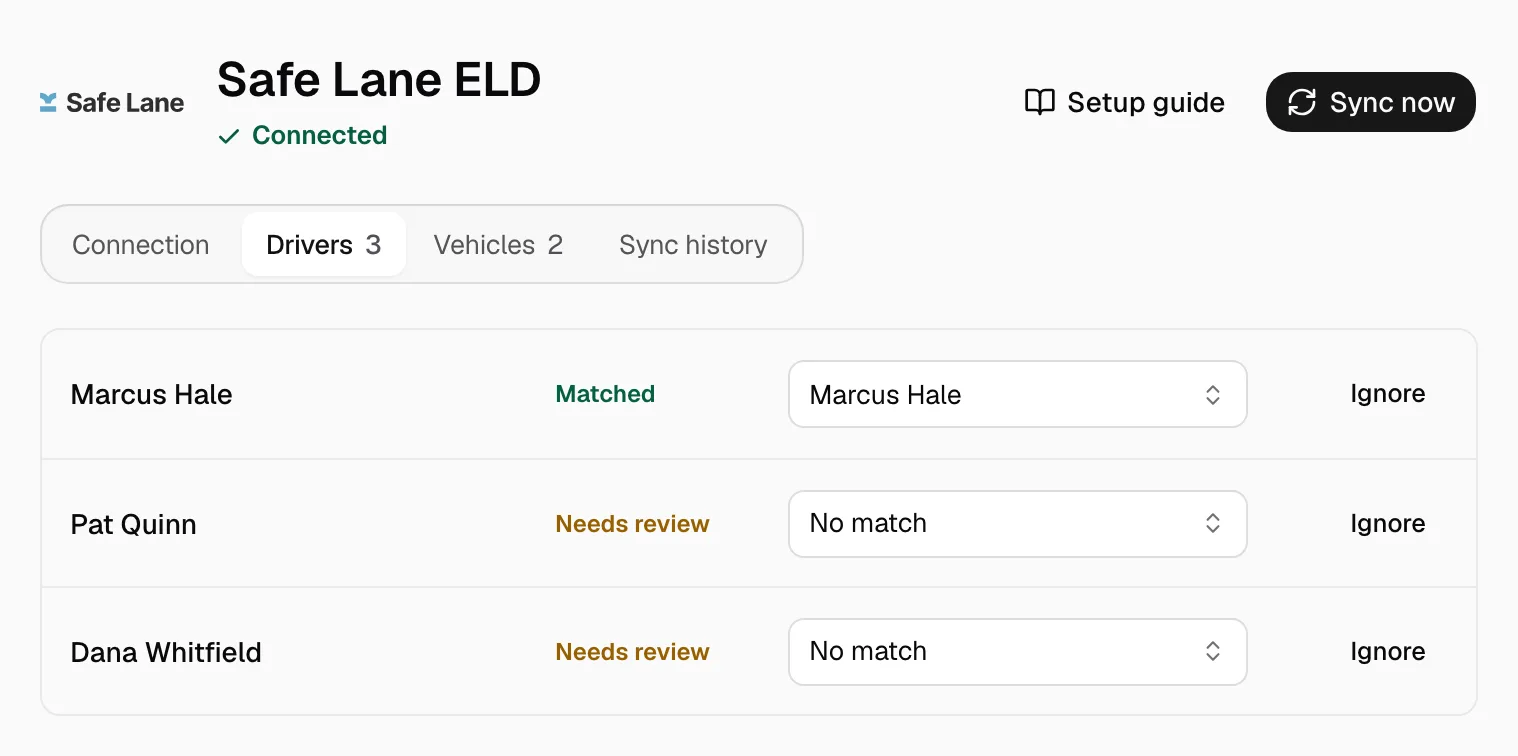
- On the Drivers tab, pick the Yolda driver on each Needs review row.
- Do the same on the Vehicles tab.
- Click Ignore on a row you do not need.
Add missing drivers or trucks in Yolda first.
Step 5: Keep it current
Drivers and trucks refresh at 00:00 on your company clock, positions every five minutes. Click Sync now for a fresh read. A matched truck shows on the Fleet map under its assigned driver.
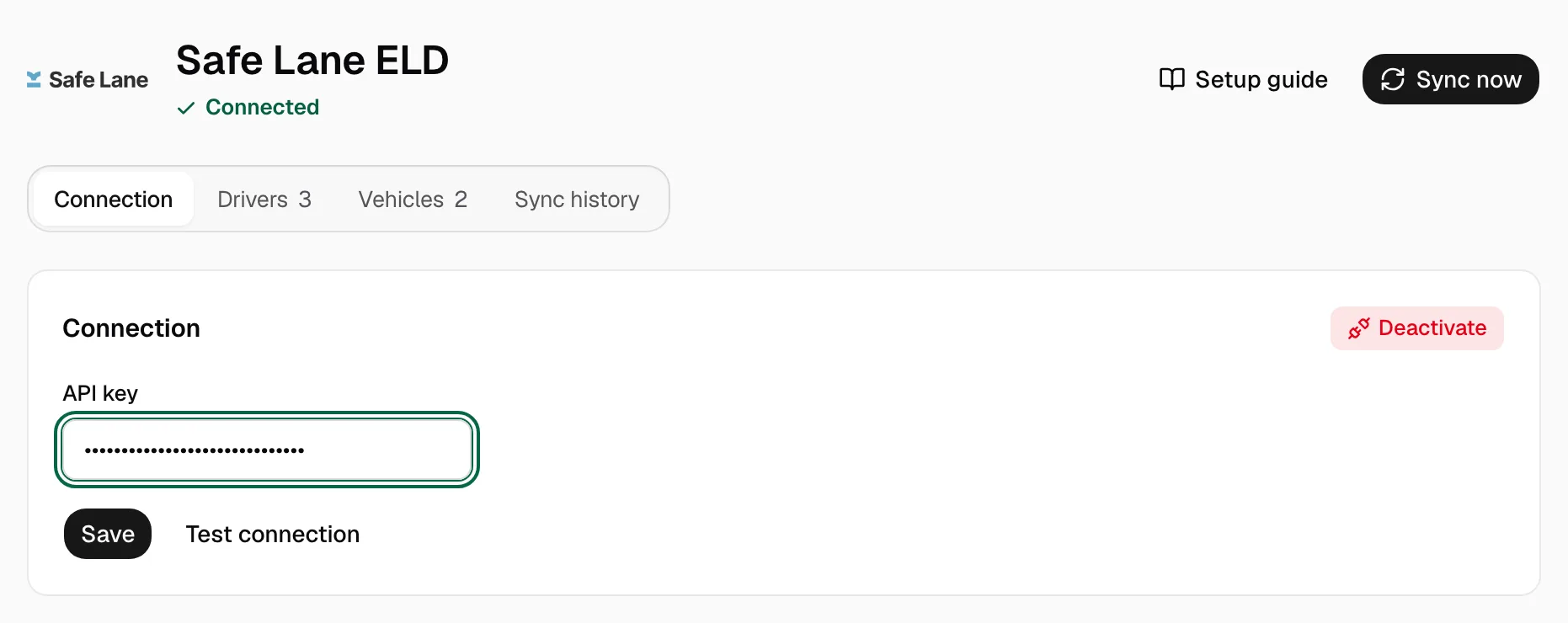
New key for the same trucks? Paste it in API key on the Connection tab and click Save.