 ProLogs ELD setup guide1 min read
Connect ProLogs ELD to Yolda
ProLogs ELD brings your fleet, positions, HOS logs, safety events and IFTA miles into Yolda.
Before you start
Your USDOT number in Settings, Company must match ProLogs.
Step 1: Get your credentials from ProLogs
- Sign in to
admin.prologs.usas an administrator. In Administration, API clients, click Create to open Register an API client. - Fill Name and pick your Company.
Values for the provider form
- Name
- Yolda
- Under Keys, click Add and fill Description. The Key is your Client secret.
Values for the provider form
- Description
- Yolda
- Copy the Client ID and Key before saving: the key shows once.
- No API clients menu? Ask ProLogs:
Email to send
- To
- support@prologs.us
- Subject
- API client for Yolda
Hello,

Please create an API client for our company so Yolda, our TMS, can read our fleet. Please send us its Client ID and Client secret.

Our USDOT number is [Your DOT number] and our MC number is [Your MC number].

Thank you,
[Your name]
[Your company name]
[Your email]
Replace the marked blanks before you send or paste.
Step 2: Connect ProLogs ELD in Yolda
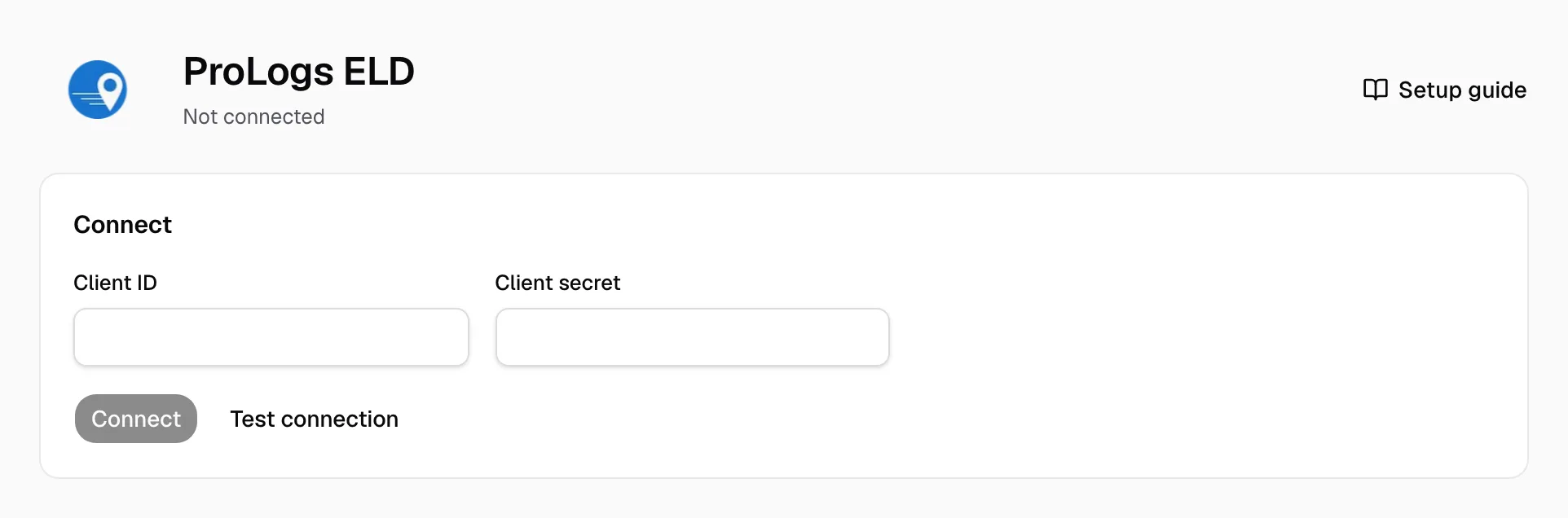
- Open Integrations, then ProLogs ELD.
- Enter the Client ID, then the Client secret.
- Click Test connection, then Connect.
Step 3: Match drivers and vehicles
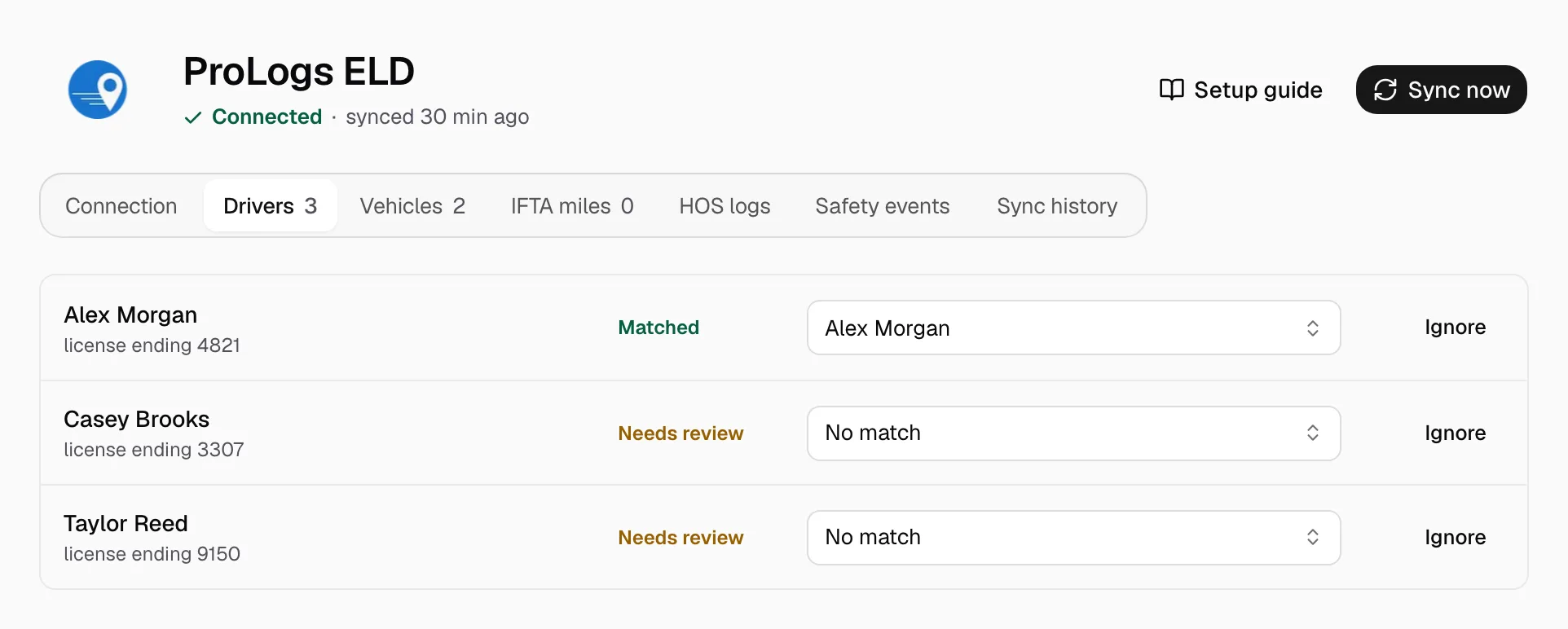
- On Drivers and Vehicles, pick the Yolda record on each Needs review row, or click Ignore.
Add a missing one on Drivers or Trucks first.
Step 4: Keep it in sync
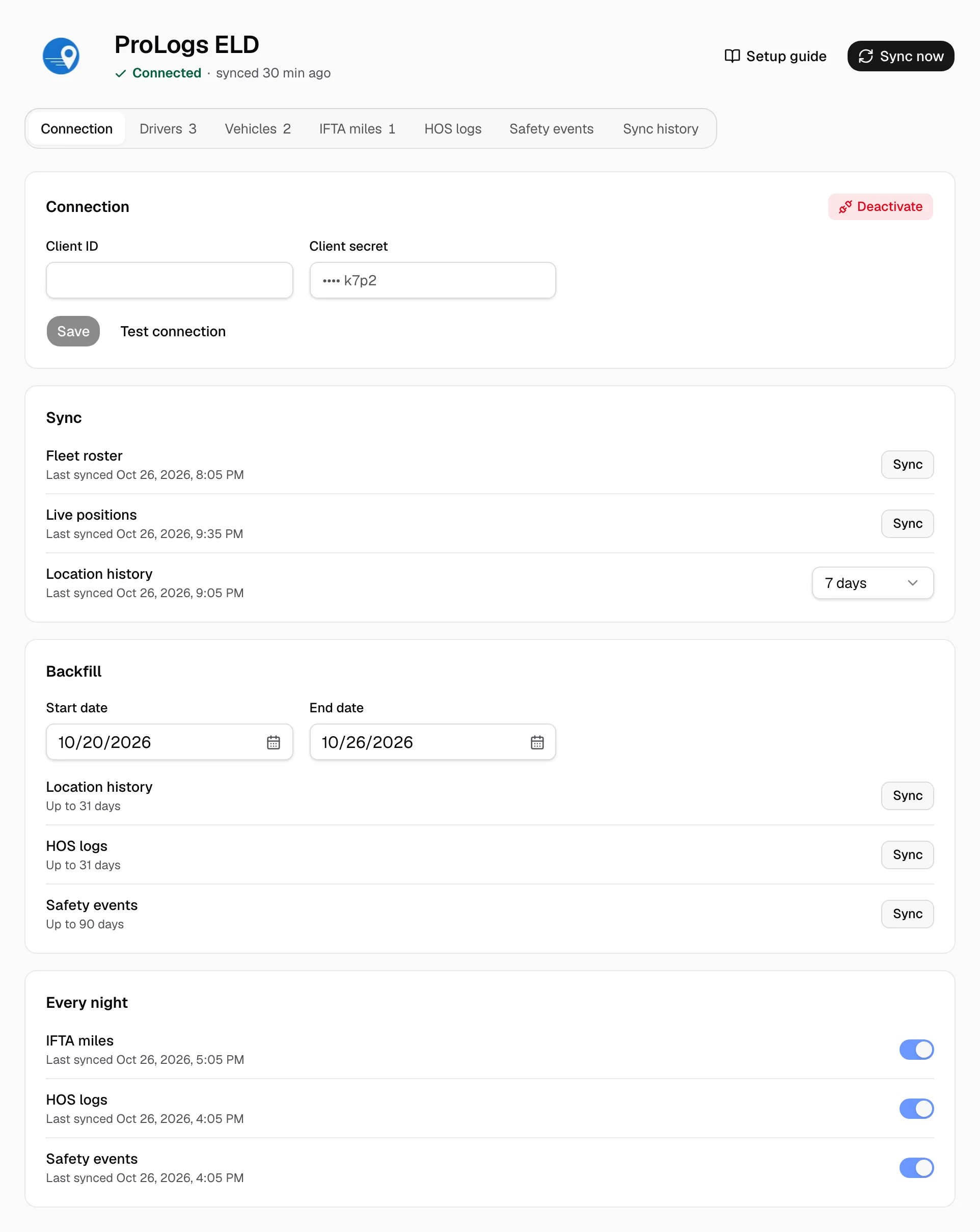
The header reads Connected. Positions refresh every five minutes, the rest every night. Sync now refreshes.
- Backfill reads past days. Every night switches nightly IFTA, HOS and safety reads.
- A matched truck's page shows its position. Sync history lists runs. Deactivate disconnects.
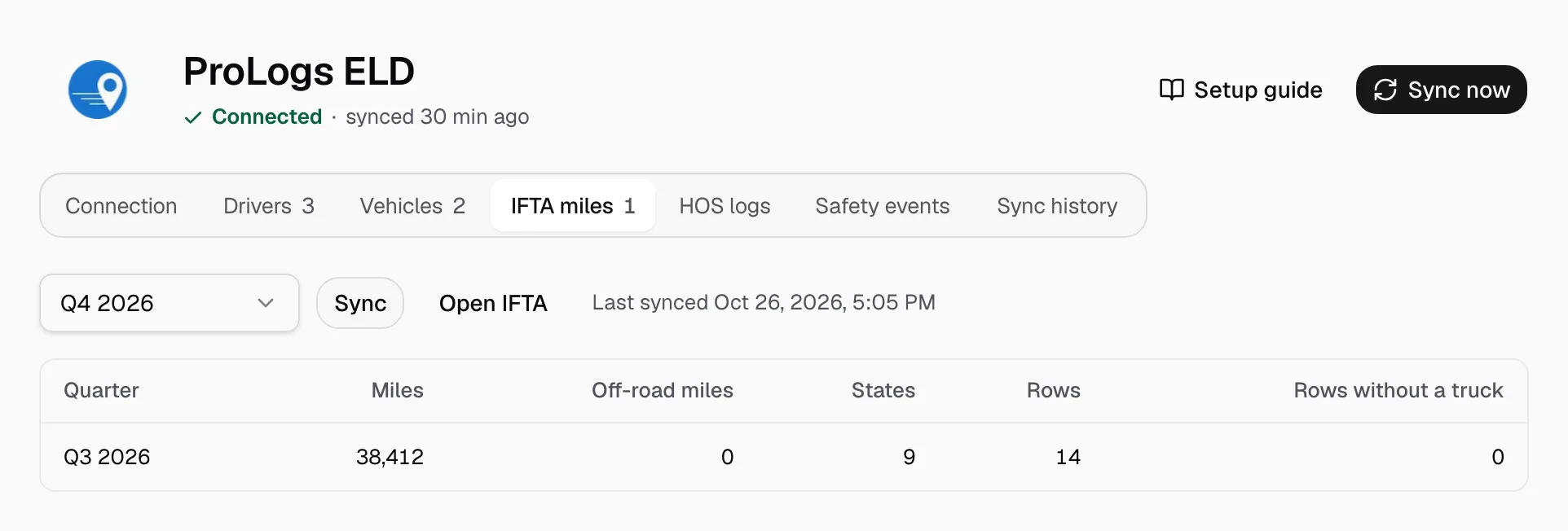
- IFTA: on IFTA miles, pick the quarter, click Sync, then Open IFTA.