 New ELD World setup guide1 min read
Connect New ELD World to Yolda
New ELD World sends trucks, drivers, positions and location history to Yolda, not hours of service.
Before you start
Your USDOT number in Settings, Company must match New ELD World's. Keep VINs and unit numbers identical.
Step 1: Get your API key
- Sign in at
https://staging.neweldworld.com/login. - Click API in the menu, then Create API Key.
- Type
Yoldain Client, click Generate, then Create. - Copy the new key.
No Create API Key button? Sign in as an owner, admin or dispatcher, or ask for API access:
- To
- sales@neweldworld.com
- Subject
- API access for our Yolda integration
Hello,

We are connecting New ELD World to Yolda, our TMS, to read our trucks, drivers, positions and location history. Please turn on API access for our account so we can create an API key.

Company: [Your company name]
USDOT number: [Your DOT number]
Contact email: [Your email]

Thank you,
[Your name]
[Your company name]
[Your company phone]
Replace the marked blanks before you send or paste.
Step 2: Open New ELD World
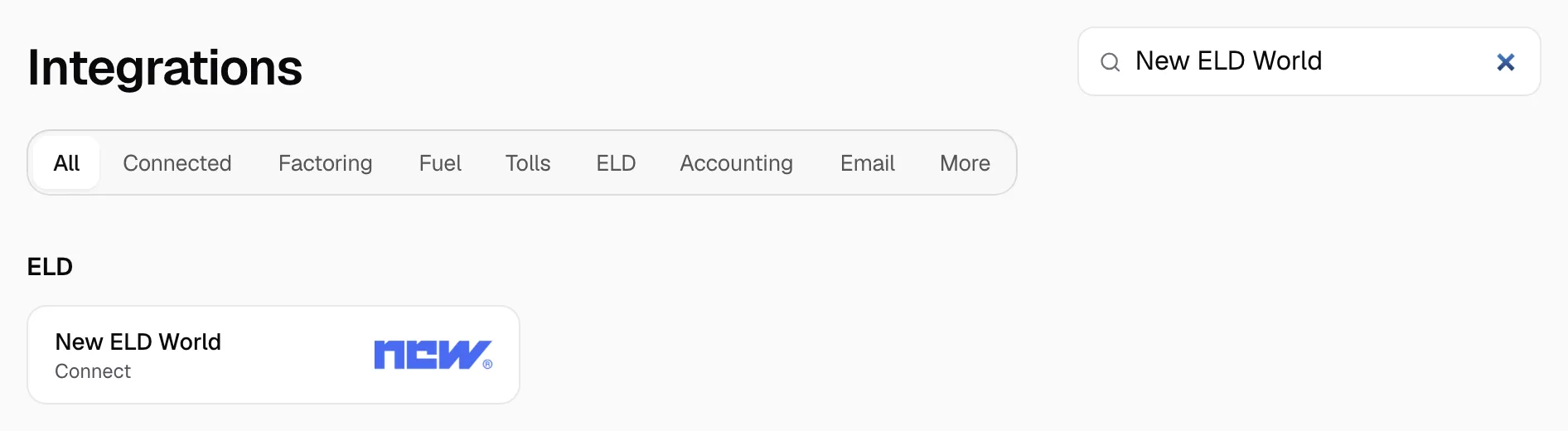
- Open Integrations, then New ELD World.
Step 3: Connect
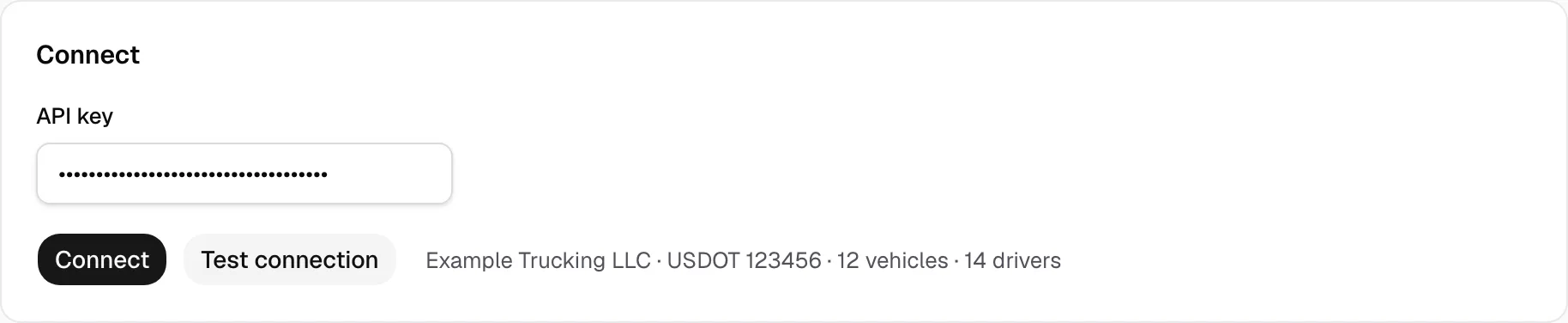
- Paste the key in API key.
- Click Test connection and check the company name.
- Click Connect.
Step 4: Match drivers and trucks
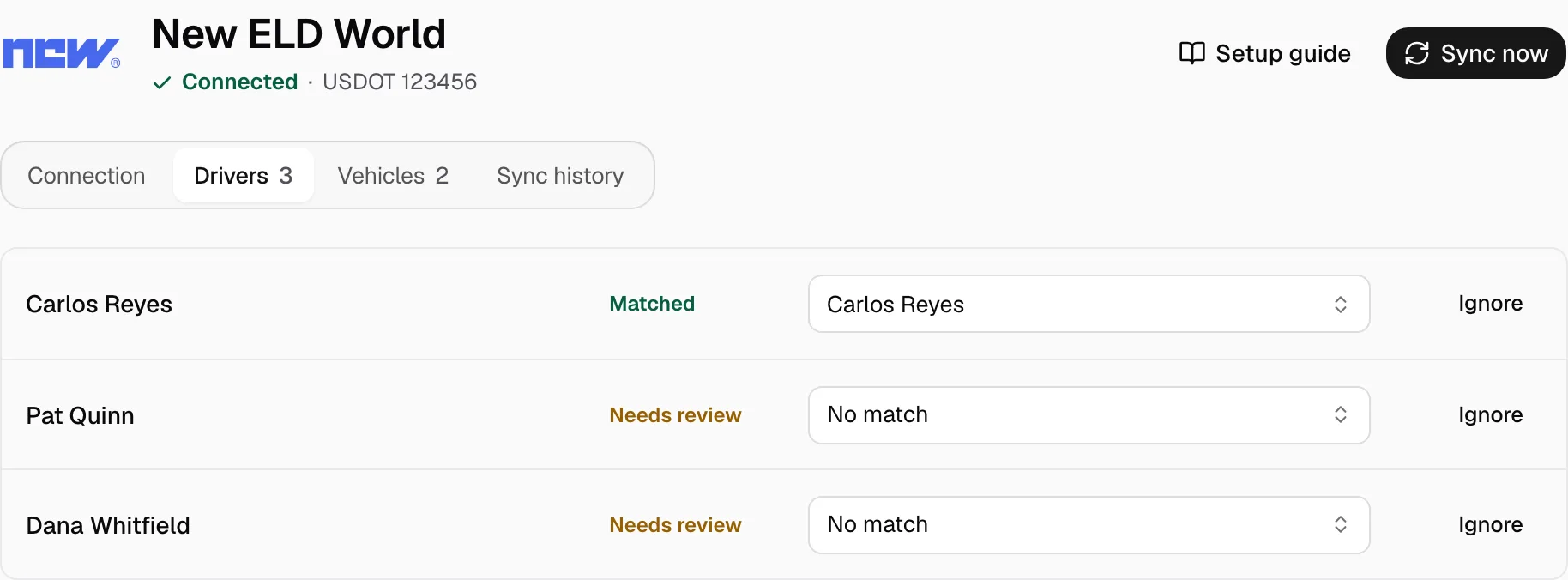
- On Drivers and Vehicles, pick the Yolda record on each Needs review row.
- Ignore a row you do not need.
Add missing ones in Yolda first.
Step 5: Keep it current
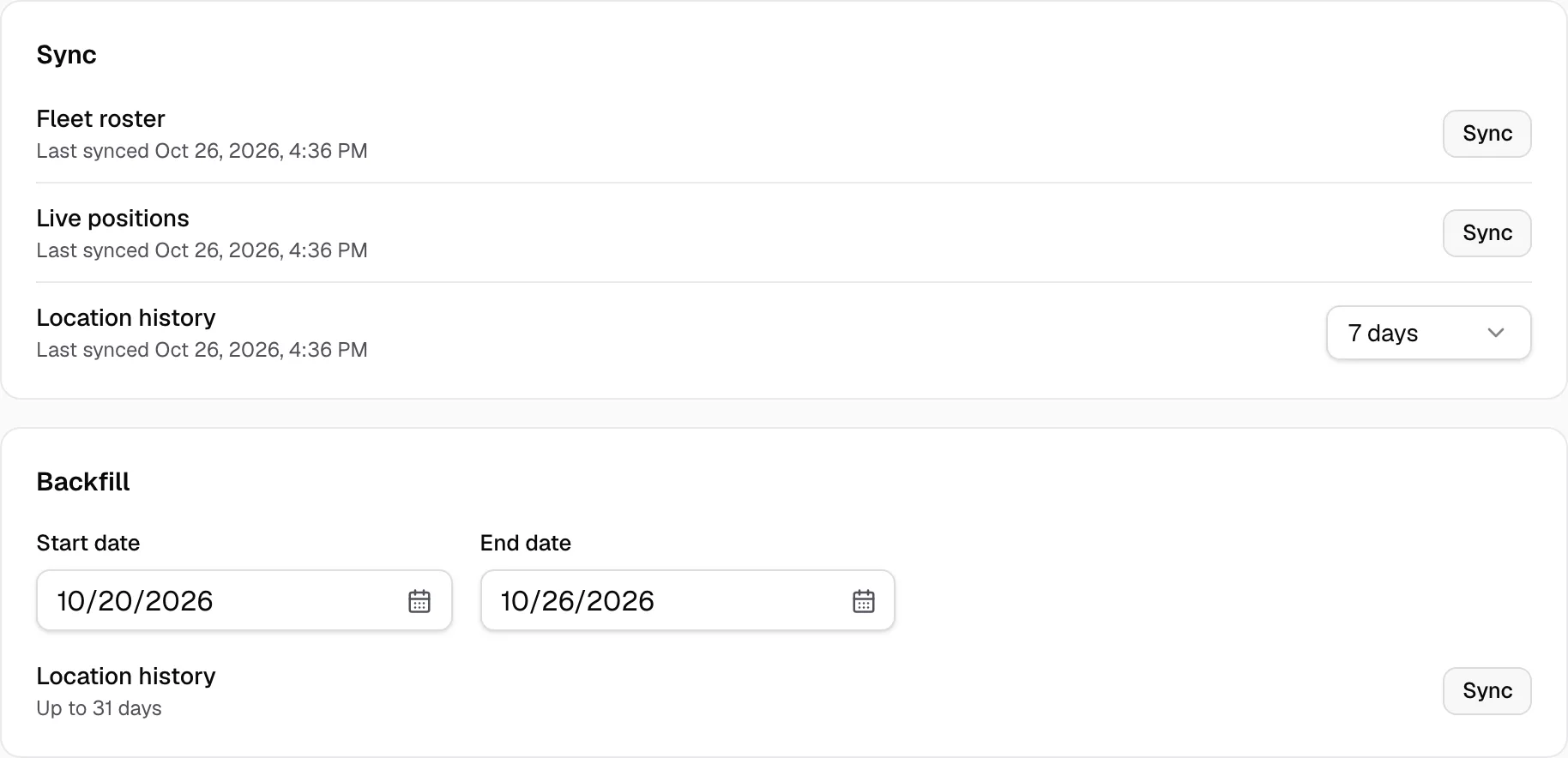
Drivers and trucks refresh at 00:00 company time, positions every five minutes, history every two hours. Sync now reads at once. Matched trucks show on the Fleet map.
On the Connection tab, pick the days of Location history. For older days, set Start date and End date under Backfill and click Sync (up to 31 days).
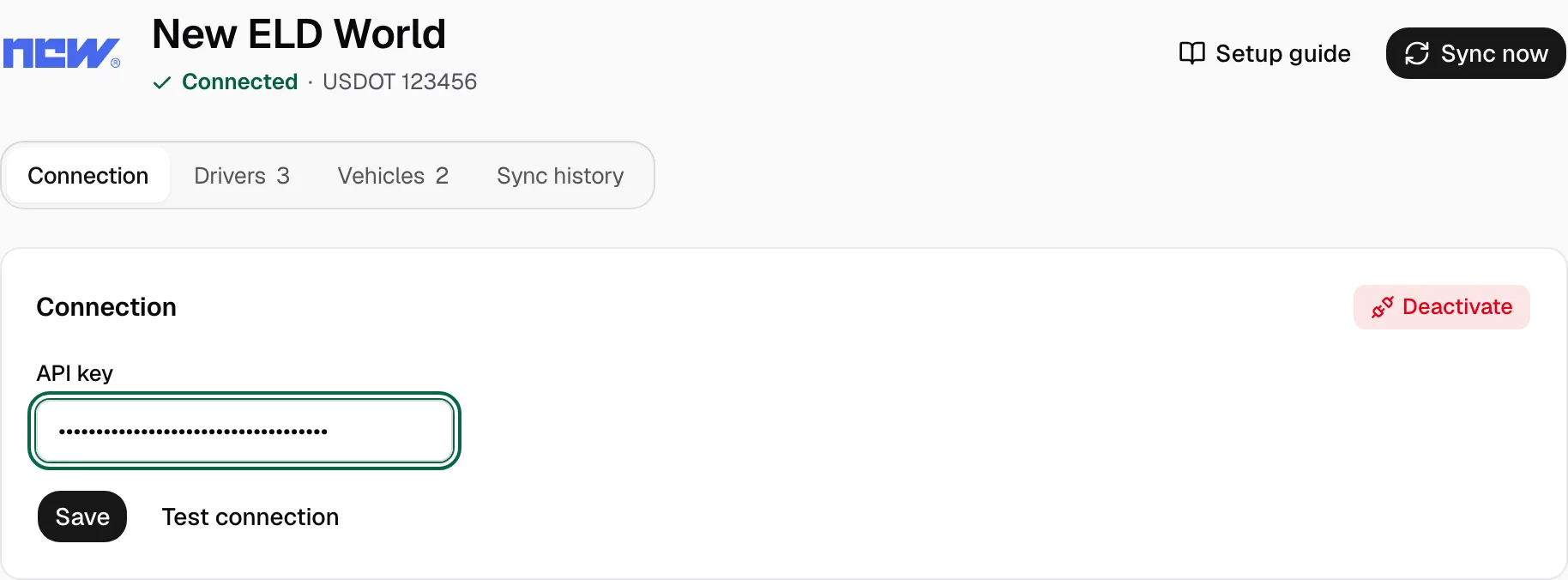
New key? Paste it in API key there and click Save.