Connect Evo ELD to Yolda
Evo ELD puts your trucks on the Fleet map and brings HOS logs into Yolda.
Before you start
- Give every Yolda truck its VIN: Evo ELD trucks match by it.
- Settings, Company must hold your Evo ELD USDOT.
- Ask Yolda support whether its Evo ELD access is on; a key shows in full for 24 hours.
Step 1: Get your API key from Evo ELD
- Sign in at
dash.evoeld.comas the main account. - Open More, then API Keys, then Add Key.
- Fill in Title and Type.
Values for the provider form
- Title
- Yolda
- Type
- Other
- Click Generate and copy the key.
Step 2: Connect Evo ELD in Yolda
- Open Integrations, then Evo ELD.
- Enter [Your DOT number] in USDOT and paste the key in API key.
- Click Test connection, then Connect.
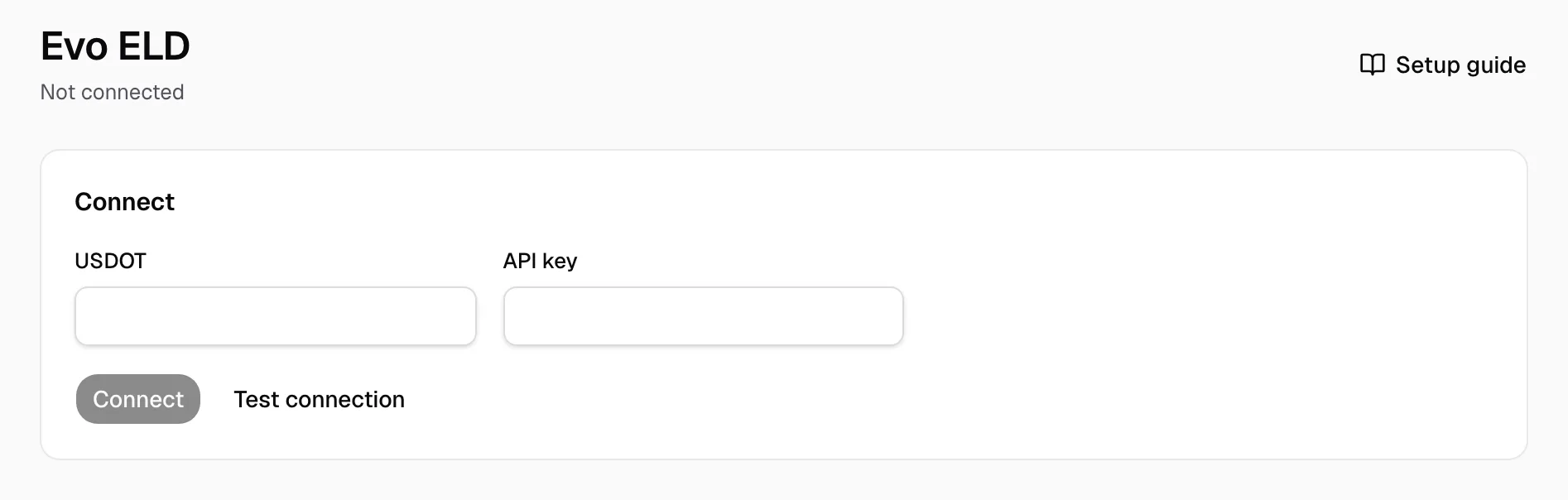
If Yolda's access is awaiting a provider token, nothing was saved.
Step 3: Match drivers and vehicles
- On Drivers and Vehicles, pick a Yolda record for each Needs review row.
- Ignore a row you do not need.
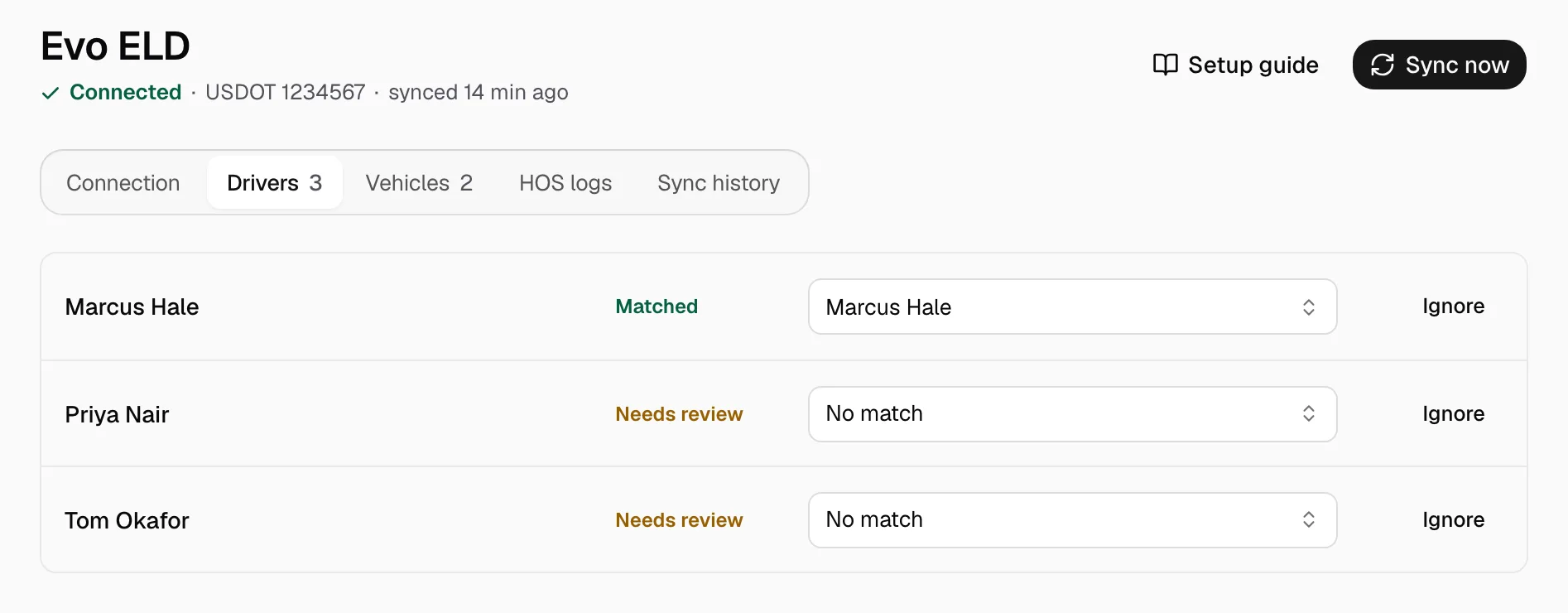
Add missing drivers and trucks first.
Step 4: Keep it in sync
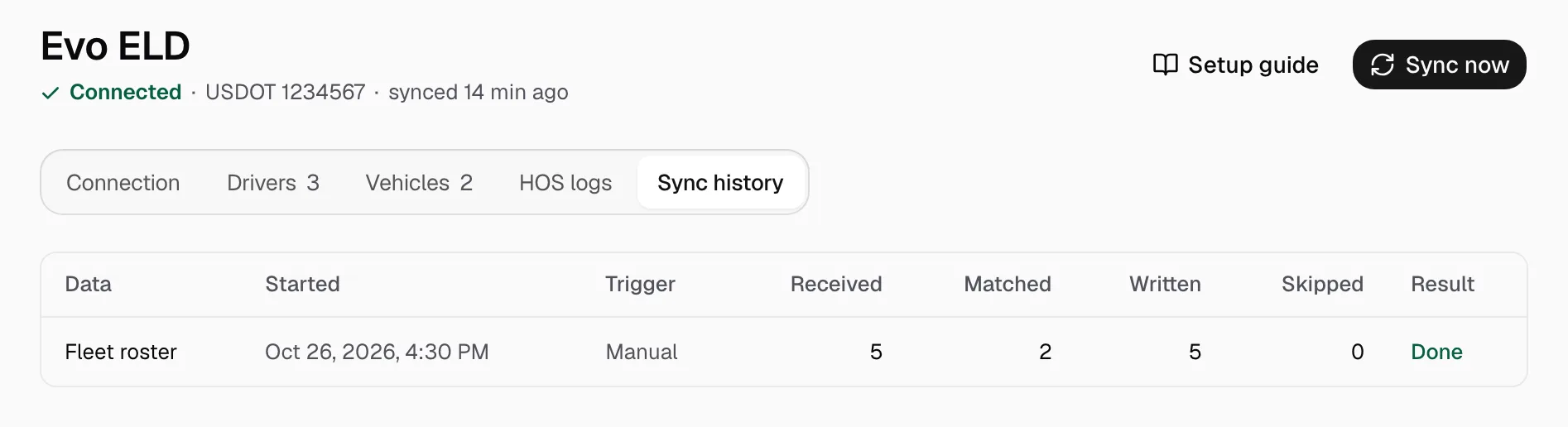
Positions refresh every five minutes and history every two hours; drivers and trucks at 00:00 on your company clock, HOS after midnight. Sync now refreshes at once; Sync history lists each run. The Connection tab sets Location history and HOS logs, and reads older days in Backfill.