 SkyBitz setup guide1 min read
Connect SkyBitz to Yolda
Yolda reads your SkyBitz trailers, trucks and latest positions.
Step 1: Get a SkyBitz user with XML access
- Ask SkyBitz for a user name and password with XML access.
Email SkyBitz:
Email to send
- To
- customercare.skybitz@ametek.com
- Subject
- XML access user for [Your company name]
Hello,

We use Yolda as our TMS. Please give us a SkyBitz user name and password with XML access (the XML interface at xml.skybitz.com), or turn on XML access for one of our users. Yolda only reads our asset list and latest positions, about every five minutes.

Our MC number is [Your MC number].

Thank you,
[Your name]
[Your company name]
[Your company phone]
Replace the marked blanks before you send or paste.
Step 2: Open SkyBitz in Yolda
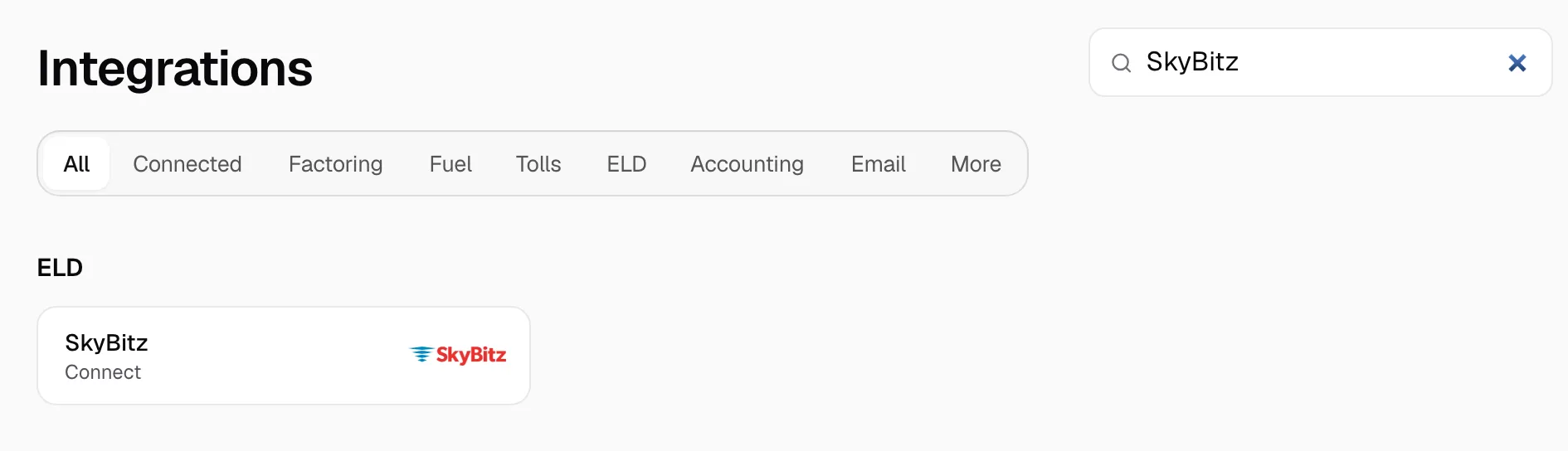
- Open Integrations, then SkyBitz.
Step 3: Enter the user and connect
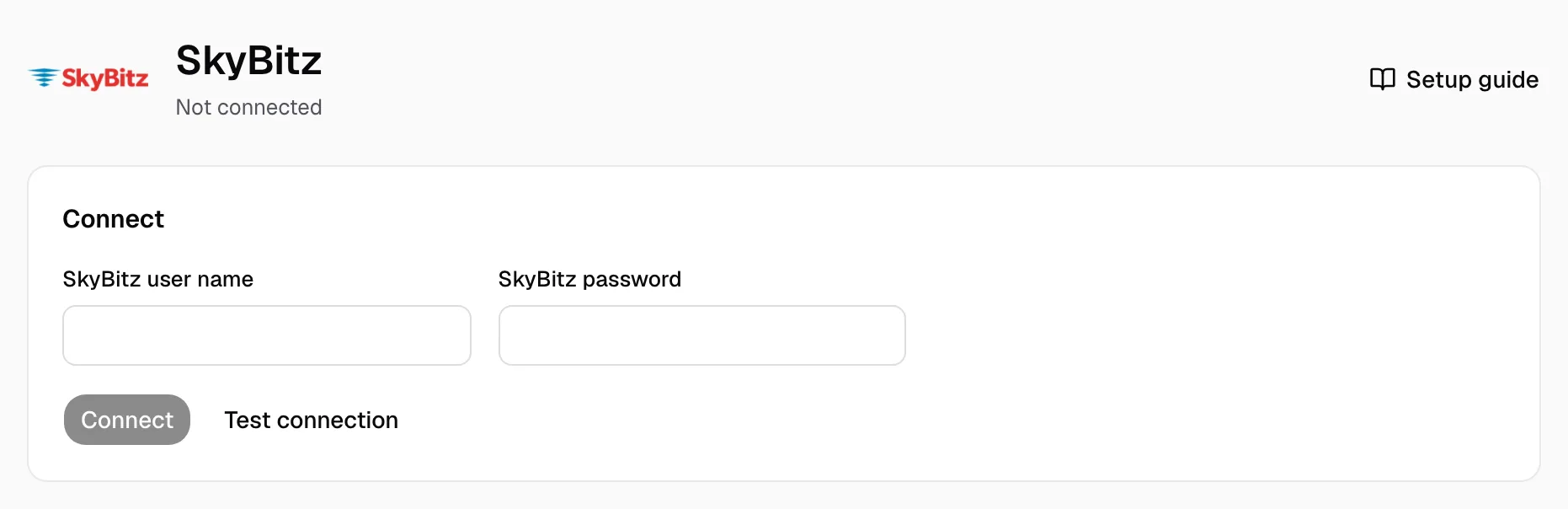
- Enter the user in SkyBitz user name and its password in SkyBitz password.
- Click Test connection: it counts your vehicles and trailers.
- Click Connect.
It worked when the page reads Connected and lists each unit on Trailers or Vehicles.
Step 4: Match your units and keep it current
A trailer matches when its SkyBitz Asset ID is the unit number of one Yolda trailer. On Trailers, pick the Yolda trailer on each Needs review row, or click Ignore. A truck is always picked by hand on Vehicles. Add a missing unit first in the sidebar, under Trailers or Trucks.
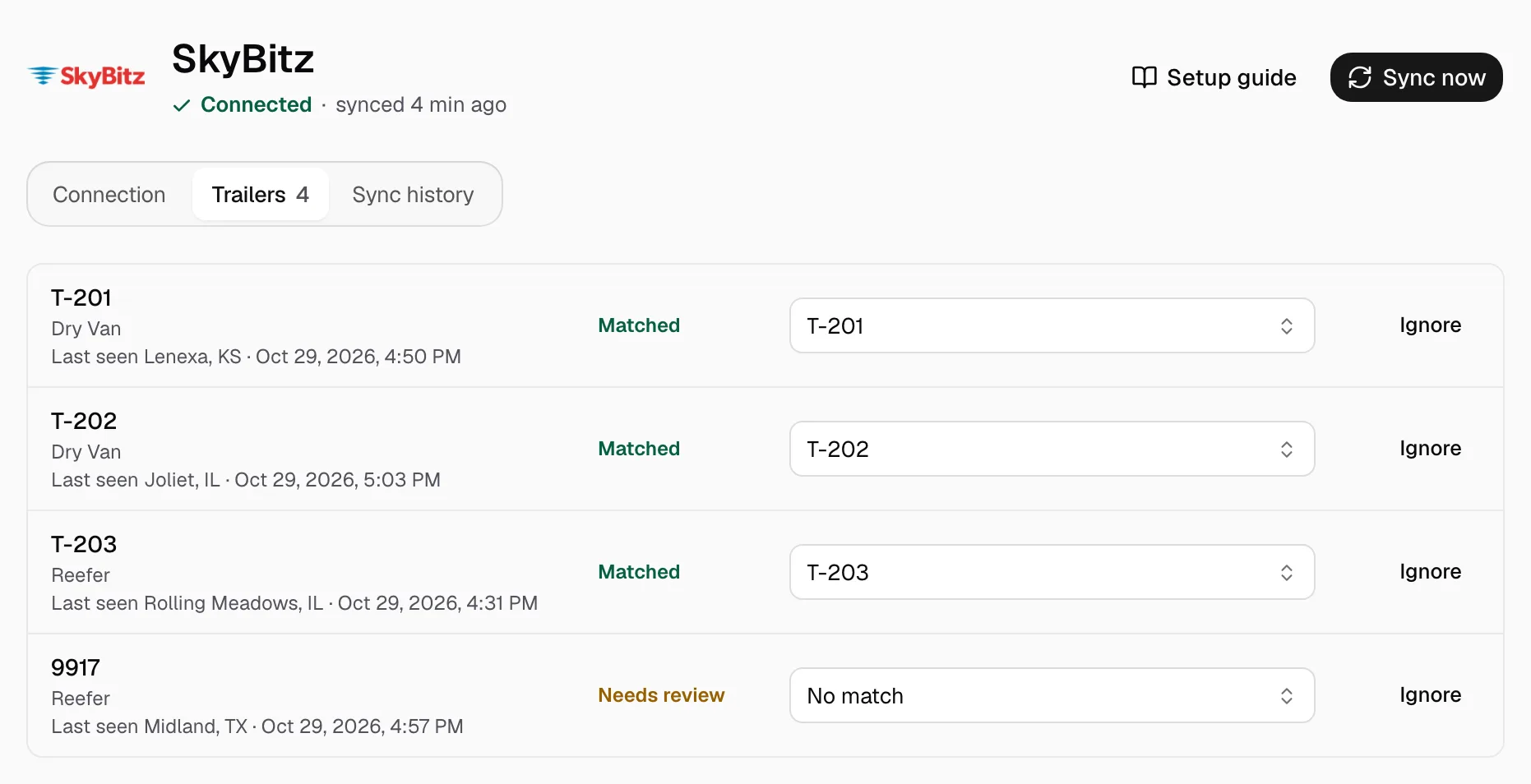
- Each trailer row shows where it was last seen.
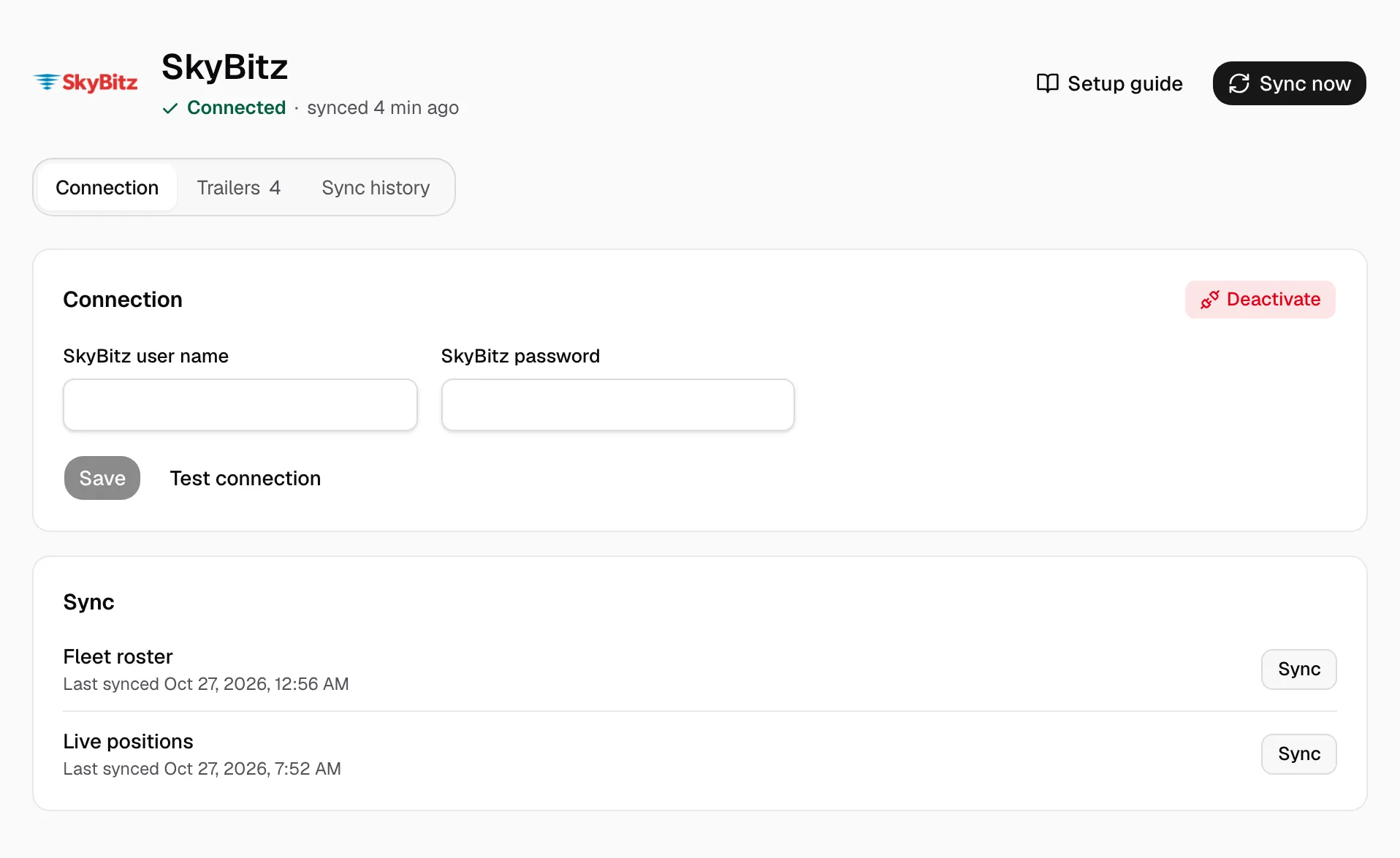
- A matched truck's Last position is under Tracking from SkyBitz: open Trucks, the truck, then Details.
- SkyBitz sends no drivers, so its units are not on the Fleet map.

On Connection, the roster refreshes at 00:00 on your company clock and positions every five minutes. Sync now reads again; Sync history shows what came in. New password? Enter both boxes again, then Save.