 CAT Scale setup guide1 min read
Connect CAT Scale to Yolda
CAT Scale brings your fleet's Weigh My Truck scale tickets into Yolda as scale expenses.
Step 1: Get your Client ID and Client Secret from CAT Scale
- Send this email, or ask your CAT Scale representative or the Weigh My Truck Help Desk (
1-877-228-7225, ext. 5), for API access on your fleet account.
Email to send
- To
- eric.rudd@iowa80group.com
- Subject
- Weigh My Truck API access for Yolda
Hello,

We use Yolda as our TMS. Please turn on the settlement daily download through the Weigh My Truck API (FleetSettlementApi) for our fleet account, and send us the Client ID and Client Secret.

If the API accepts only approved servers, please allow Yolda's server: 52.73.111.217

Our company is [Your company name], MC [Your MC number].

Thank you,
[Your name]
[Your email]
Replace the marked blanks before you send or paste.
- CAT Scale sends a Client ID and a Client Secret.
Step 2: Open CAT Scale in Yolda
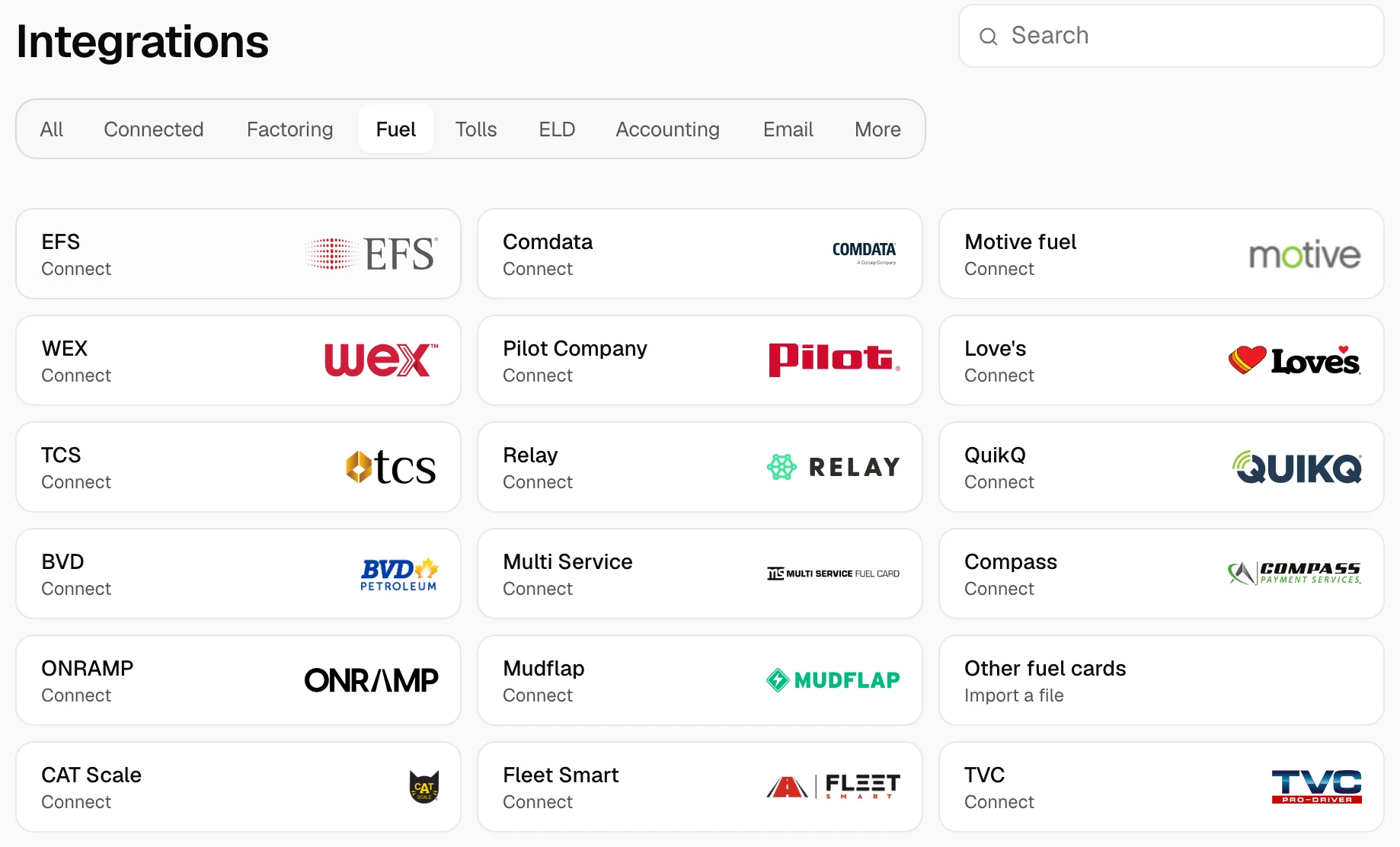
- Open Integrations, then the Fuel tab.
- Click CAT Scale.
Step 3: Enter your Client ID and Client Secret
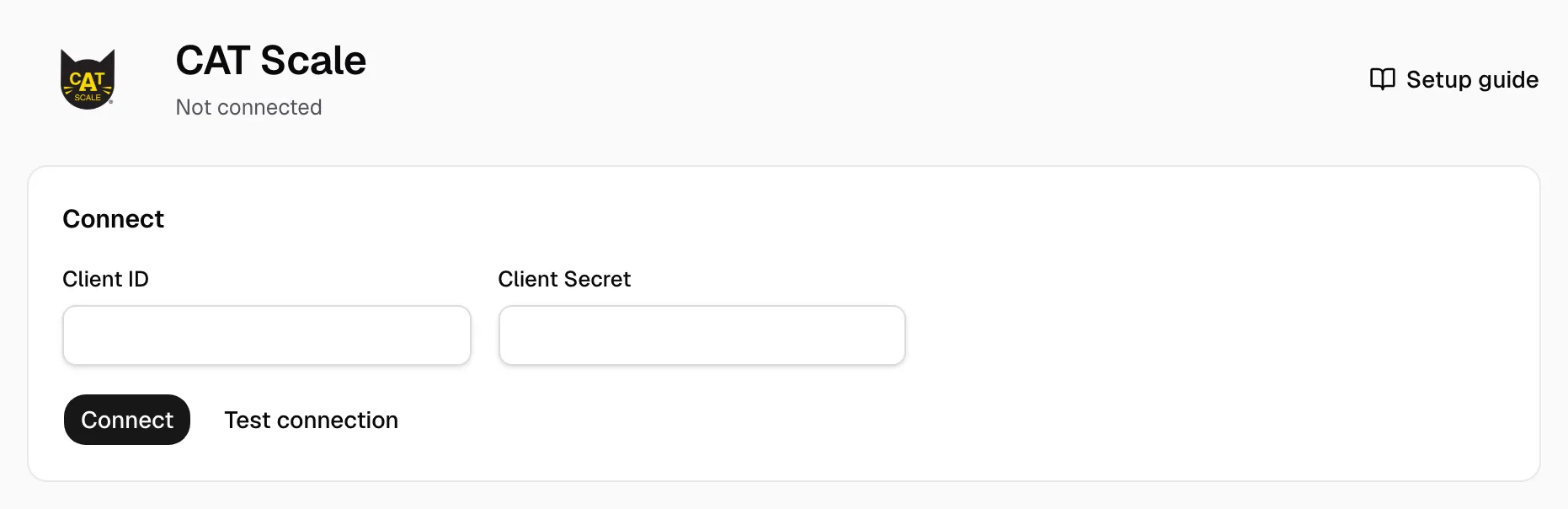
- Paste them in Client ID and Client Secret.
- Click Test connection, then Connect.
Step 4: Check that it works
- The page reads Connected. Keep Sync automatically on: Yolda reads the last 30 days, then every 4 hours. Sync now reads at once. Disconnect stops syncing; tickets stay.
- Backfill reads chosen days again: pick From and To, then click Sync. Runs show on Sync history.
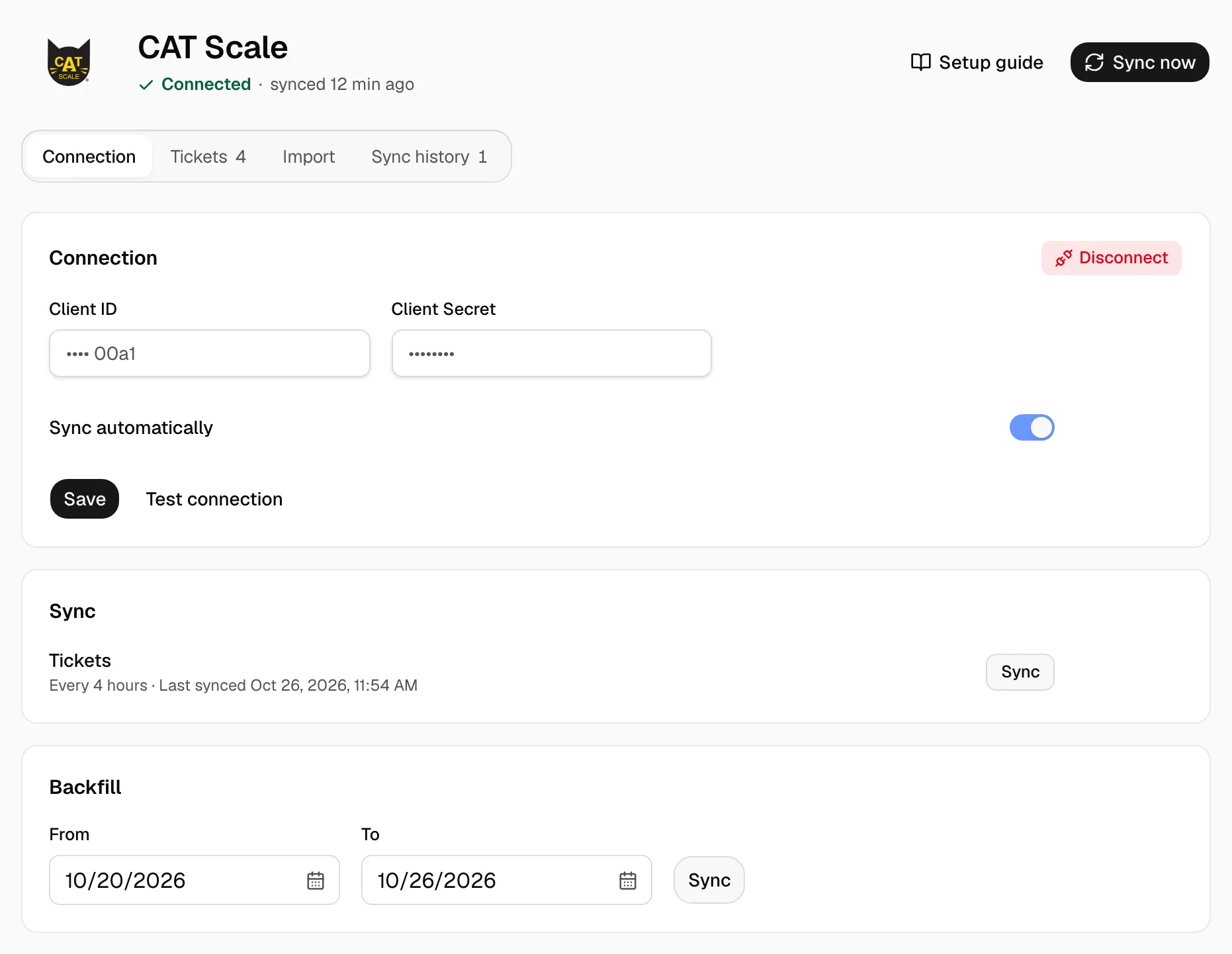
- Tickets arrive on the Tickets tab; the pay agreement decides who pays.
- For a ticket under Needs review, click Review, choose the Driver and Truck, then Release. A Canadian ticket also needs the Fee in U.S. dollars. Later tickets with that driver code place themselves.
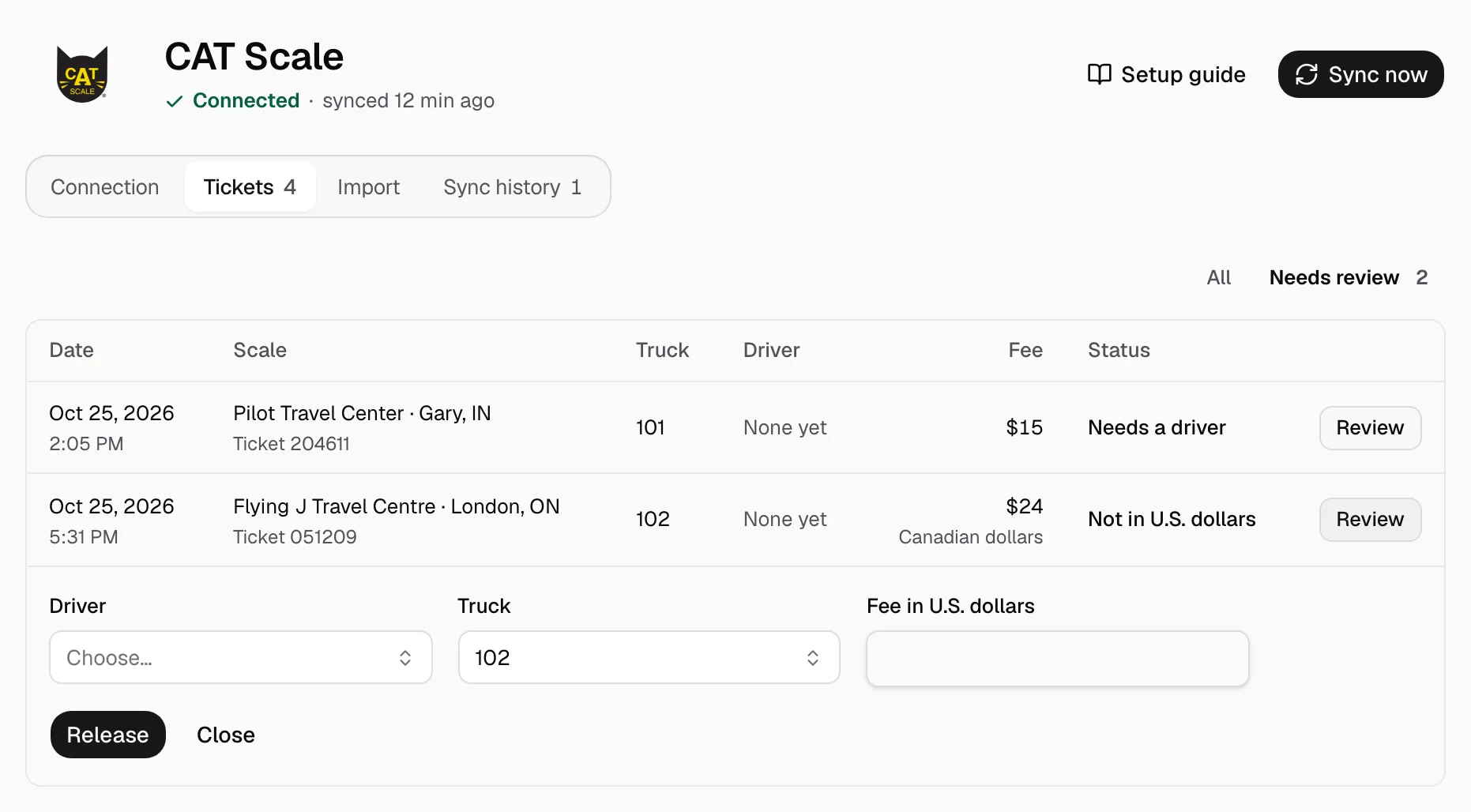
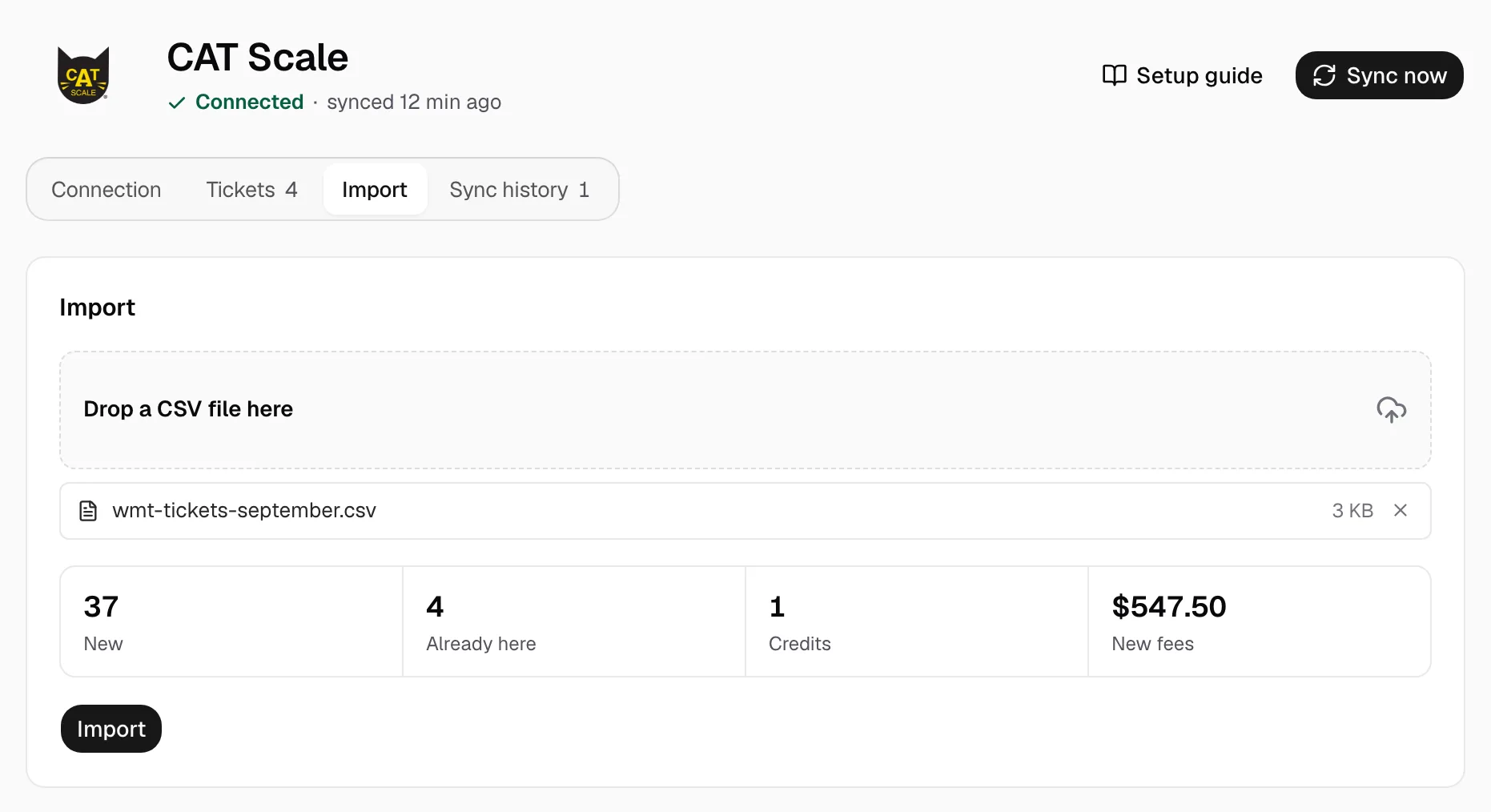
- For older tickets, export the ticket CSV from your Weigh My Truck fleet account, drop it on the Import tab, then click Import.