 Triumph setup guide1 min read
Connect Triumph to Yolda
Yolda uploads your invoices to Triumph's SFTP.
Step 1: Add Triumph and create your key
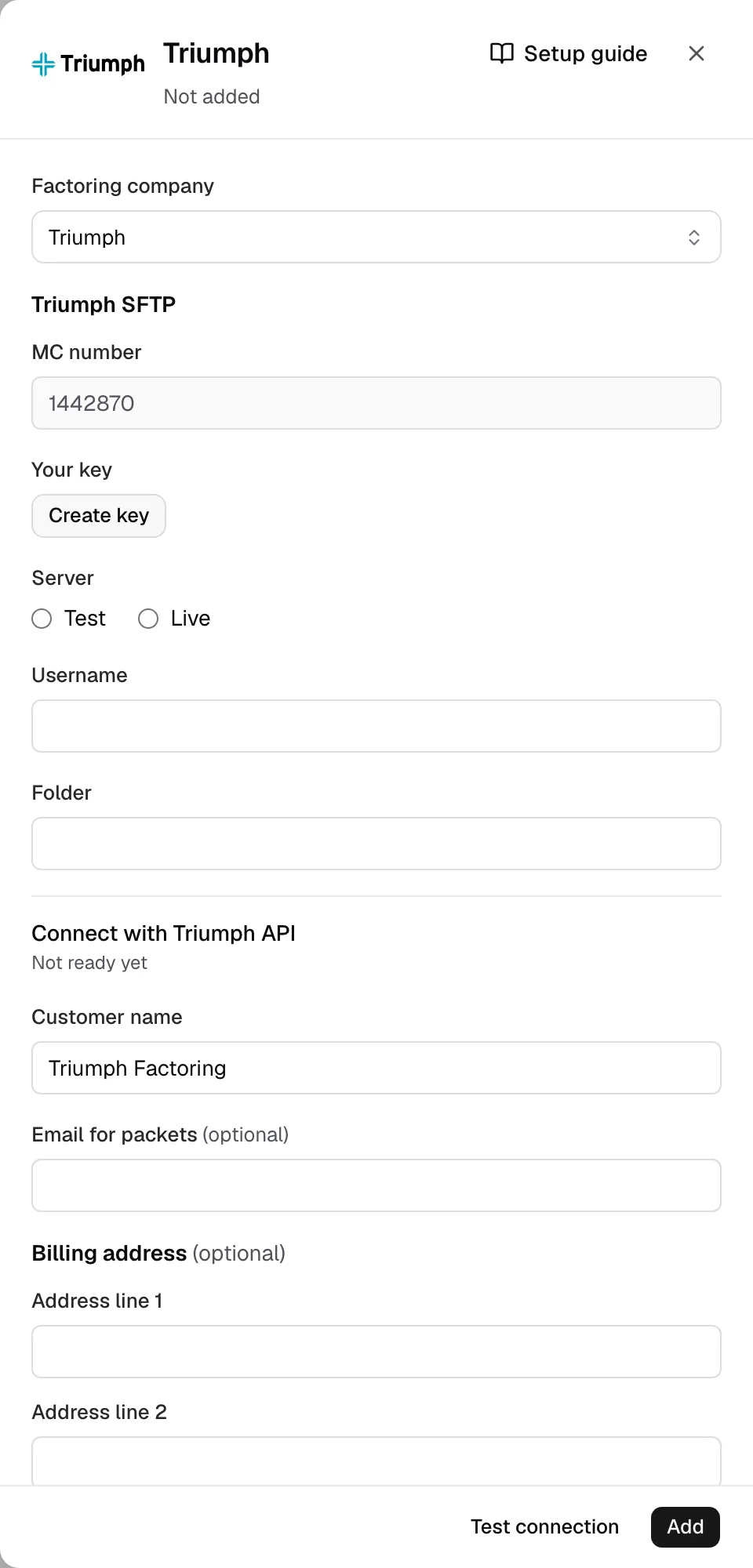
- Open Integrations, Factoring, Triumph. Triumph SFTP sits under Factoring company.
- MC number is yours, from Settings. Click Create key. Yolda adds Triumph and makes your key.
- Leave Customer name as it is. SFTP needs no Email for packets.
- Copy your Notice of Assignment's address into Address line 1, Address line 2, City, State, ZIP code, its payment lines into Remit notice. Click Save.
Step 2: Email Triumph
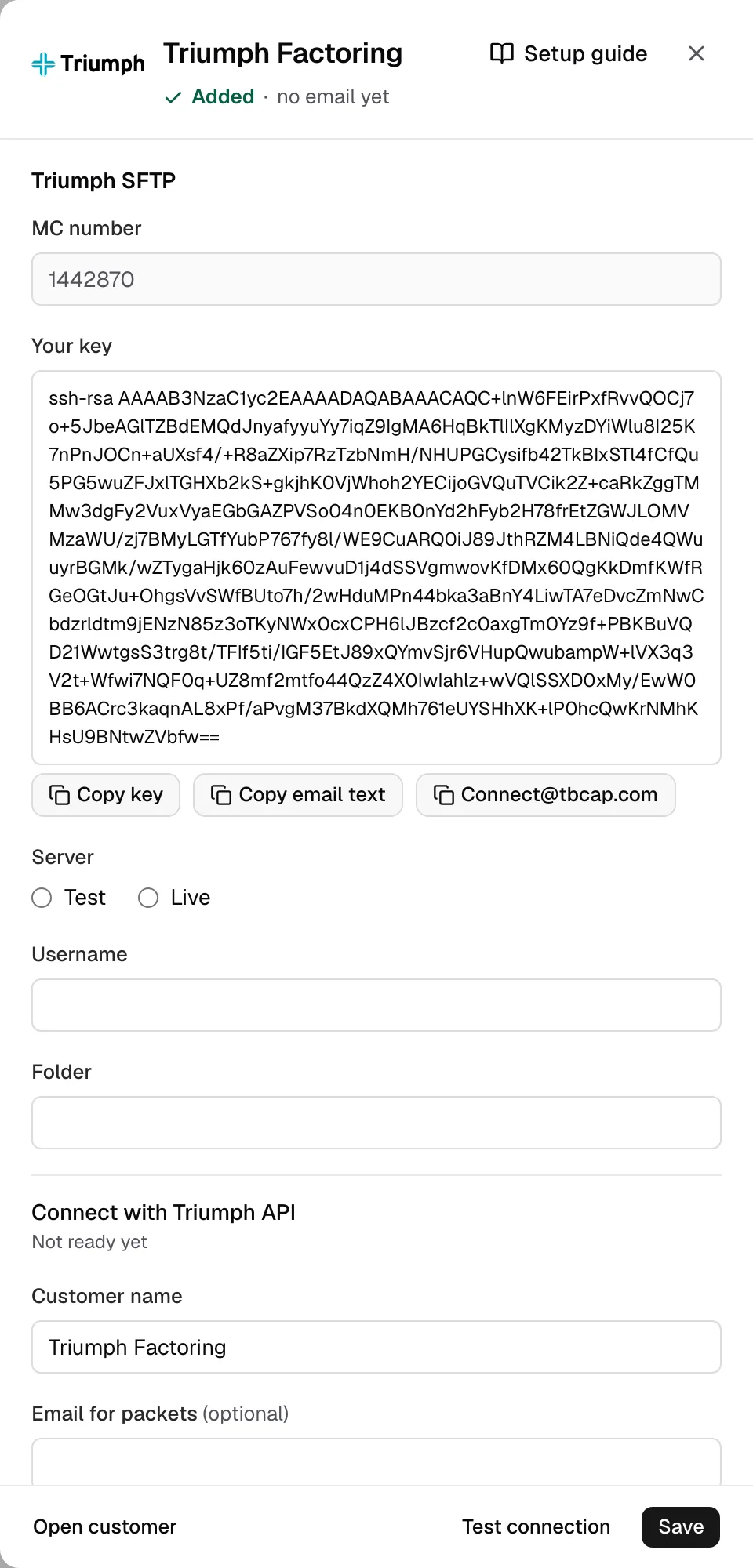
- Send this email with your key from Copy key, or use Copy email text:
Email to send
- To
- Connect@tbcap.com
- Cc
- partner@sfdify.com
- Subject
- [Your company name] & Yolda integration
Hello,

We are [Your company name], MC [Your MC number].
We use Yolda as our TMS. We want to connect Yolda to Triumph over SFTP to send our invoices.

Our public key (RSA 4096):
[Your public key from Yolda]

Please send us our SFTP username, our folder and which server to use.
Please also send us that server's SSH key fingerprint.

Thank you,
[Your name]
[Your company name]
[Your email]
Replace the marked blanks before you send or paste.
- Triumph replies and may ask for a test send.
Step 3: Enter Triumph's reply
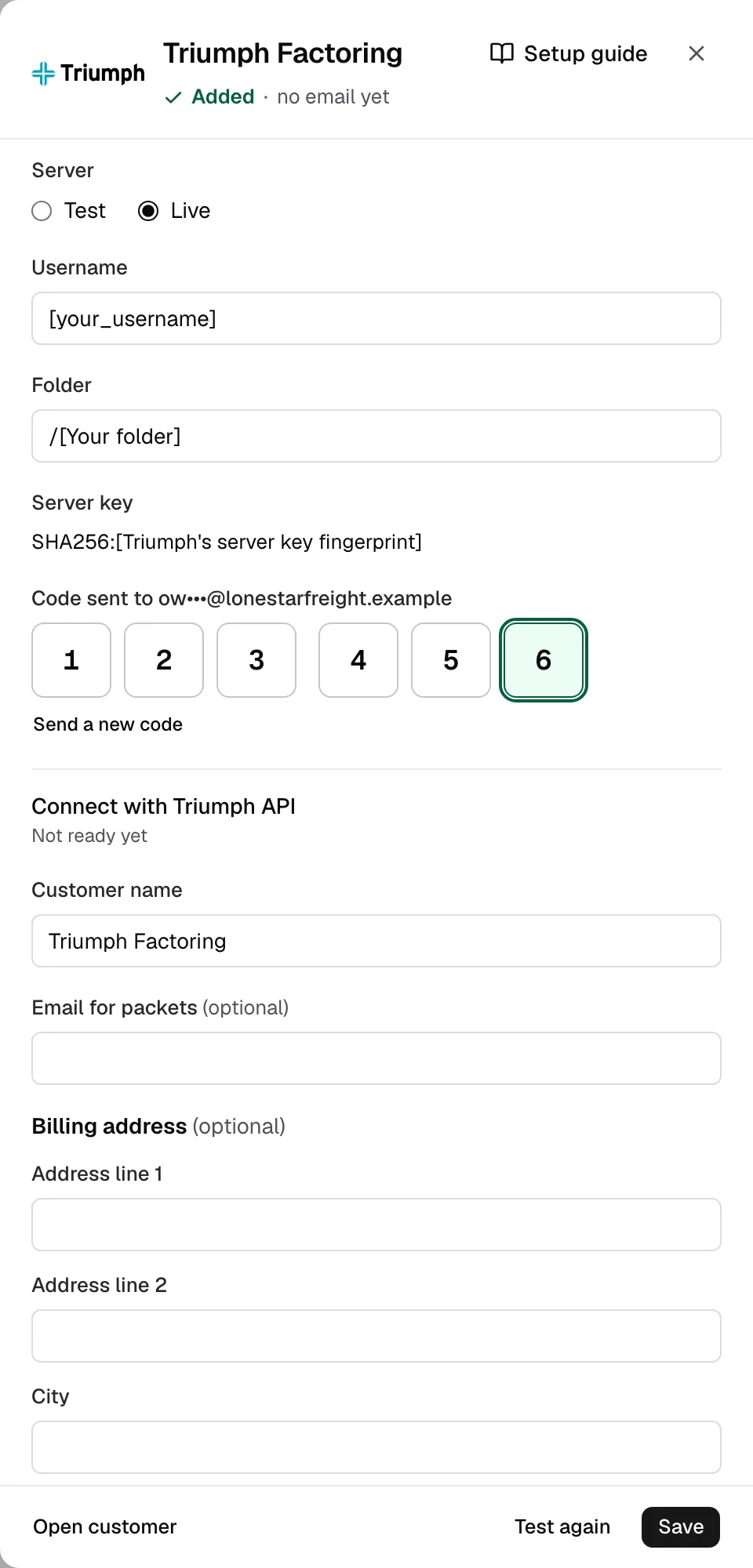
- Open Triumph again. Under Server, pick Test or Live, as Triumph said.
- Enter Username and Folder.
- Click Test connection and check Server key against Triumph's.
- Click Email me a code, enter it, then Save.
Step 4: Send invoices
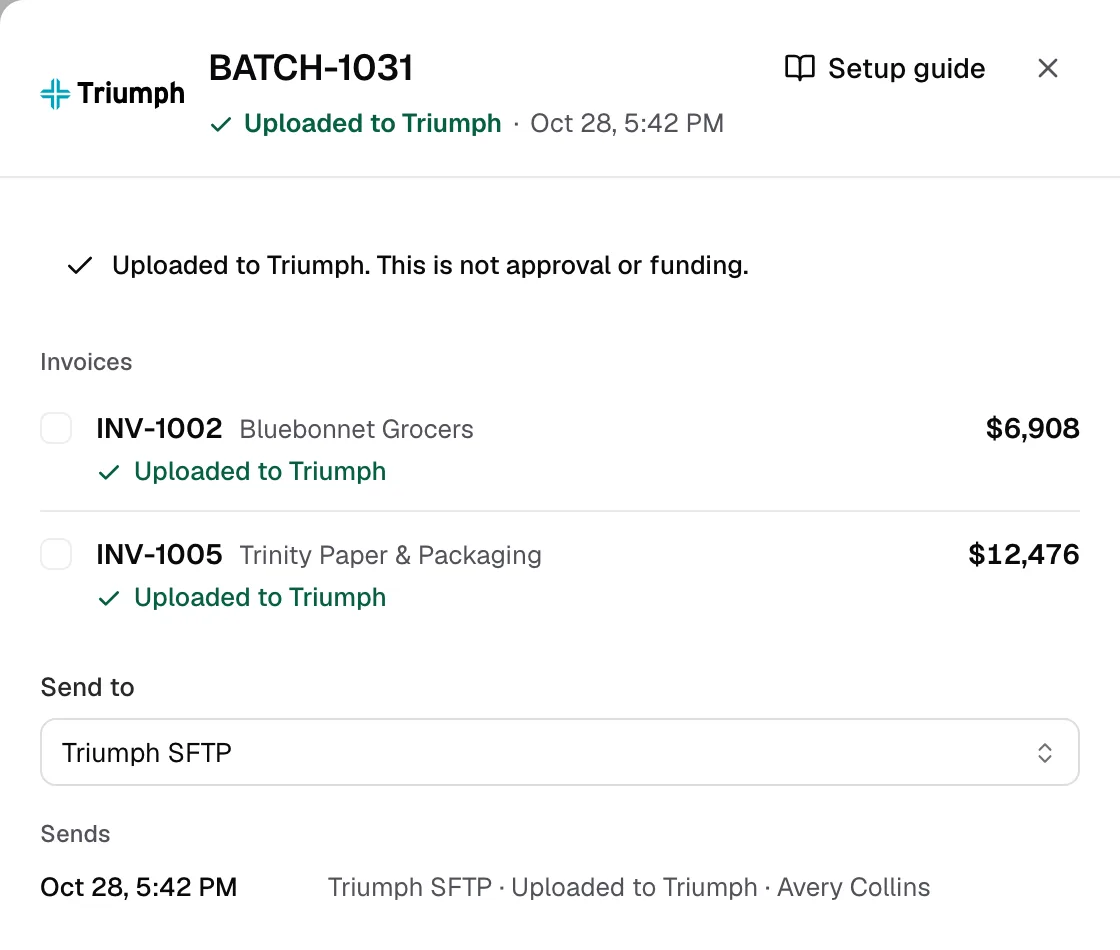
- Triumph's drawer now reads sends by SFTP under its name.
- Triumph's PDF leaves out the load's Other files: upload lumper or scale receipts under Proof of delivery.
- In Finances, Batch history, click Send; Send to reads Triumph SFTP. One invoice: Factoring packet, Send to factor.
- Each invoice reads Uploaded to Triumph, not funded. Record Triumph's payment with Mark paid.
- Check with Triumph: the upload is not confirmed. Ask Triumph before sending again.